Built into every Azure Subscription and offered as a free service is Azure Advisor. Helpful without being too intrusive, it can be beneficial to many who use Azure.
So, what is it? It’s a personalised recommendation service. It gives you quick and simple insights into your deployments and where they could be optimised. There are four main areas of analysis completed:
High Availability
Performance
Security
Cost
Azure Advisor gives you a central point to analyse all of your deployments for best-practise optimisation. It pulls in recommendations from other services like Security Center to offer a comprehensive view.
You can tweak some of the recommendations that are presented. You can also tighten the scope of recommendations too, for more granular data. Docs has a handy guide explaining how to do that in detail. I will walktrough an example below.
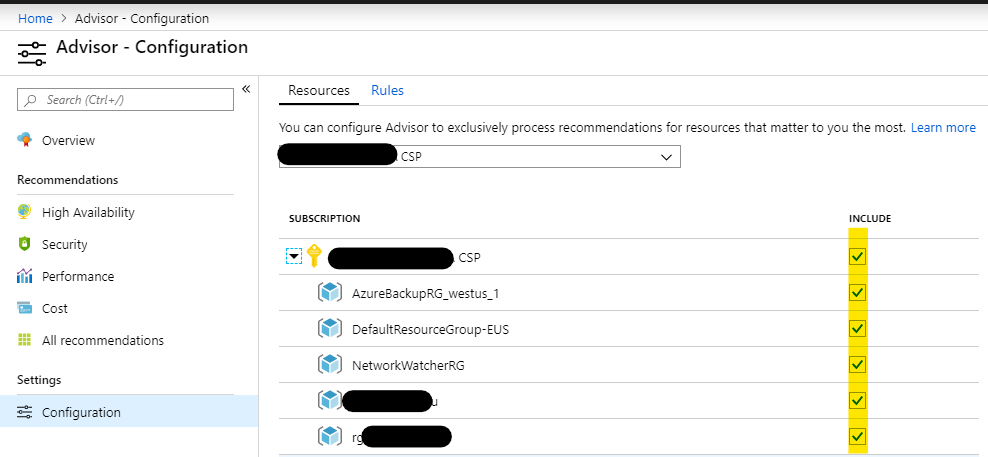
To scope Azure Advisor to only display recommendations for specific resources, it’s a simple change to the configuration settings.
Open Azure Advisor
Click Configuration under the Settings section
You can now choose your scope relative to Azure Subscriptions and which Resource Groups you want to include.
To remove resources from the scope, simply untick the relative box and click Apply
While the service itself is free, always be aware that some recommended optimisations could require a higher spend, such as a performance increase.
As always, if you have any questions, please get in touch!
NOTE: This exam is now retired. I now have guides for AZ-300 and AZ-301.
The first thing to note about this exam is that it is intended only for those who have previously sat and passed the 70-535: Architecting Microsoft Azure Solutions exam. So if you’ve passed that exam, read on!
Next thing to note, this exam isn’t here to stay. It’s a transition exam to earn the more up to date certification. As such, Microsoft are retiring it on June 30, 2019.
Here is what Microsoft have to say about this exam:
The transition exam is intended for people who have already demonstrated skills in the content domain by passing the existing exam(s) that the new role-based certification exams will be replacing. They cover the delta between the current certification and what we expect people who earn the new certification to be able to do. We don’t want to retest people on the same content where they have already demonstrated competence by passing the existing exam.
Transition exams cover net new content, content that wasn’t covered in enough depth, and content on aspects of the technology that have likely changed since someone took the exam. As a result, the transition exam is not shorter than a typical exam but more focused on the key tasks and skills that were not assessed in the existing exam or certification that is being replaced.
Candidates for this exam are Azure Solution Architects who advise stakeholders and translates business requirements into secure, scalable, and reliable solutions.
Candidates should have advanced experience and knowledge across various aspects of IT operations, including networking, virtualization, identity, security, business continuity, disaster recovery, data management, budgeting, and governance. This role requires managing how decisions in each area affects an overall solution.
Candidates must be proficient in Azure administration, Azure development, and DevOps, and have expert-level skills in at least one of those domains.
Below I’ve put together a collection of links relevant to the sections highlighted as being part of the skills measured for this exam. As always, these are only guide links, sometimes you need to explore a topic much more deeply if you are not familiar with it.
One final important note, as this is a solution architecture exam, there is a presumption that you are aware of service SLAs, performance tiers, dependencies etc. This sort of knowledge will only come with experience and practise. Again, you would have needed to know these to pass 70-535 so nothing new there!
If you spot something, or have a better link for a topic, get in touch! I will update this post regularly as I work my way towards taking this exam and appreciate any feedback.
Determine workload requirements
Determine feasibility and refine requirements
There are no real links that help with this section as it is so broad. This requires that prior over-arching knowledge of the platform I mentioned earlier.
Last week, Microsoft released Windows Virtual Desktop (WVD) to the public in preview. The service was first announced back at Ignite 2018. Microsoft describe the service as follows:
Windows Virtual Desktop is a desktop and app virtualization service that runs on the cloud.
Here’s what you can do when you run Windows Virtual Desktop on Azure:
Set up a multi-session Windows 10 deployment that delivers a full Windows 10 with scalability
Virtualize Office 365 ProPlus and optimize it to run in multi-user virtual scenarios
Provide Windows 7 virtual desktops with free Extended Security Updates
Bring your existing Remote Desktop Services (RDS) and Windows Server desktops and apps to any computer
Virtualize both desktops and apps
Manage Windows 10, Windows Server, and Windows 7 desktops and apps with a unified management experience
One point not mentioned that is important, Azure is the only public cloud you can run Windows 10 workloads.
There are a couple of pre-requisites to deploying WVD. First up is licensing, below are the requirements for running WVD
OS
Required license
Windows 10 Enterprise multi-session or Windows 10 single-session
Microsoft E3, E5, A3, A5, Business Windows E3, E5, A3, A5
Windows 7
Microsoft E3, E5, A3, A5, Business Windows E3, E5, A3, A5
Windows Server 2012 R2, 2016, 2019
RDS Client Access License (CAL) with Software Assurance
Next, you’ll need the following infrastructure components:
Azure AD tenant to register the service against
AD Domain Services reachable by VMs in WVD pool, so either a domain controller in the vnet or enable AAD DS.
An Azure subscription to host and pay for the above 🙂
Once the above is all ready to go, you’ll want to start your deployment. First, you need to register your AAD tenant with the WVD service. This requires Global Admin rights and your tenant ID, full details here. I found the process quick, simple and well documented.
Second, you need to create a host pool. This links the IaaS resources to your domain and your WVD service. I opted for an isolated vnet with AADDS activated to domain join the VMs, using a server pool for applications. Full details for this step here.
After a little time, my host pool was deployed and I could access the service via the web client.
A Windows 10 desktop session running via the HTML5 client right in the browser
The experience was good but I wouldn’t call it seamless. Simple things jumped out straight away from the authentication side of things with the HTML5 client. After logging into the Azure AD app, I then have to login again to the desktop, I would have expected SSO here. The same lack of SSO is present in the RDS client on Windows 10.
However, once connected, performance and latency were good. Exactly as expected in fact. Even via the HTML5 client.
Next, I wanted to test some individual apps. Namely, the powerhouse of app virtualisation, Notepad. I created a new RemoteApp Group, following the instructions here, again they were easy to follow. Although, Notepad didn’t show up in the list of available apps, I just entered the location where I know it is installed and it worked.
Again performance was as expected however the issue I ran into here was the fact that I couldn’t assign the same user to multiple groups, it was one group or the other as I had a “desktop” group and an “app” group. Hopefully this is something that is fixed, or a workaround in place for GA.
Next on my list will be to test the FSlogix option for profiles, load balancing options and creating a pool with a customised image. But so far I am impressed with the simplicity of deployment. I will follow this post up with impressions relative to that next level of customisation required for a production environment.
One final note is that all of the customisation of the Windows Virtual Desktop service is done via Powershell. If you’re not familiar or comfortable with this, you may struggle to get a working POC in place. My advice is to follow the published guides exactly or ask on Twitter for help!
I’m sure most of you have seen recent announcements relative to Blueprints as well as multiple Microsoft posts about the service and what it can do to improve your environments. However, what if you’re not sure about what they are and if they are usable for your environment? Hopefully, that’s where this post comes in. I’m going to explain exactly what they are and why you might use an Azure Blueprint. This should allow you to make a decision on whether you need them or not.
Following on from that, I think that’s the first basic point about Azure Blueprints. Similar to several other new services in Azure, the functionality is great and could help progress a lot of environments, but that doesn’t mean they help, or are even useful in a lot of other environments. Never feel guilt-ed into using a new service because there is a “buzz” about it at launch. Assess the service, understand it, assess it’s usability versus your requirements then TEST TEST TEST! Don’t forget, Blueprints are still in preview so no production workloads yet.
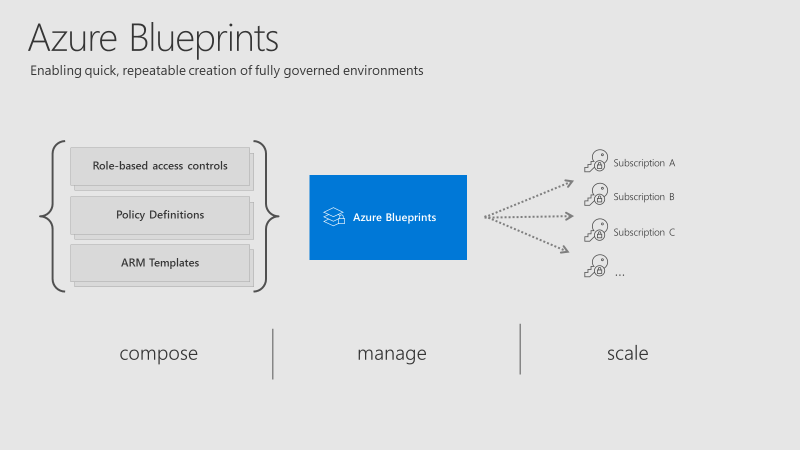
So, what is an Azure Blueprint? To try explain it plainly, it is a collection of governance and resource services, defined in such a way to allow you to repeat deployments to a set standard.
Azure Blueprints overview
The collection of governance and resource services within a Blueprint are referred to as Artifacts. Within each Blueprint, you can make use of any combination of the following:
Resource
Hierarchy options
Description
Resource Groups
Subscription
Create a new resource group for use by other artifacts within the blueprint. This enables you to organize resources and provides a scope for other artifacts.
Azure Resource Manager template
Subscription, Resource Group
Templates are used to create resources. This could range from individual deployments to entire environments.
Policy Assignment
Subscription, Resource Group
Allows assignment of a policy or initiative to the subscription and/or resource group the blueprint is assigned to. Any parameters are assigned at creation of the blueprint or during blueprint assignment.
Role Assignment
Subscription, Resource Group
Role assignments can be defined for the entire subscription or nested to a specific resource group included in the blueprint.
As you can see above, artifacts can be deployed/assigned at different levels. However, the Blueprint itself must be located in either a subscription you have at least Contributor access to or a Management Group. If located within a Management Group the Blueprint is available to any of the child subscriptions of that group.
When defining your Blueprint, several artifact options allow you to choose parameters that are passed from Blueprint to artifact. For example, when defining a Resource Group, you can choose to specify the name and location. You don’t have to specify these parameters within the Blueprint, you can also allow these to be passed when the Blueprint is assigned.
Once you have your Blueprint defined, your next step is to publish it. When publishing, you must indicate a version. I found it odd that this isn’t restricted in some way, you can literally name one version “1.0” and the next “B” so I’d recommend adding notes with each version and try to stick to a pattern. However, it makes sense if you’re going to use different versions for different assignments (I’ll explain that next), so choose relative to your requirements.
When your Blueprint is published, you can then assign it. A nice feature is the ability to assign different versions of a Blueprint to different subscriptions. For example you could have two versions of a Blueprint, that have different artifact definitions (think test version and production version) assigned to different subscriptions. They can be independently updated too.
At assignment, there are some options to chose as well as subscription. They are Resource Locking and Managed Identity.
The Resource Locking feature really allows you to maintain control of your governed deployment. If you’re not familiar with Resource Locks, check out this post. The familiar status applies to resources deployed by a Blueprint assignment:
Not locked
Read Only
Cannot delete
However, once a status is applied, not even a user/object with the Owner role can modify it. This is due to how these statuses are applied. An RBAC deny assignments deny action is applied to artifact resources during assignment of a blueprint if the assignment selected the Read Only or Do Not Delete option. The deny action is added by the managed identity of the blueprint assignment and can only be removed from the artifact resources by the same managed identity.
So, how do you edit or delete your resources? Update your Blueprint to “Not locked” and push the update to the relevant assignment. This method prevents unwanted and unexpected changes occurring outside of the scope of the Blueprint.
There is quite a learning curve for Blueprints I think as they combine several other services you must be familiar with, so for me, you have to start there. Understand each of the artifacts fully so you can see how they may work well if defined in your environment.
Recently, sample Blueprints have been released to allow you to deploy governed pre-designed environments with a couple of clicks, one sample is the ISO27001 Shared Services which I think is good to help understand the service, even if it might be slightly complex for your first test.
Again, Blueprints are still in Preview. So be as cautious as always with your production environments. I look forward to seeing what changes come with GA, which shouldn’t be much longer considering Blueprints were announced back at Ignite. I will update this post relevant to GA when it happens.
As always, if you have questions, leave a comment, mail me, or ping me on Twitter!
Azure Backup is a service offered within the platform that allows you to backup and restore your IaaS data both from within Azure and on-premises. The integration out-of-the-box within Azure, and the attractive cost point make it a great option for many deployments. Simplicity is also key, for example, you can enable backup right from within the VM blade, or, for several VMs within your environment from the recovery services vault itself.
Another benefit is the speed and efficiency with which you can test and confirm your required restore processes. This has been recently improved on again by the introduction of Instant Restore. This introduces the ability to use snapshots taken as part of a backup job, which are then available for recovery without waiting for any data transfer to the vault. This greatly reduces the wait time to trigger a restore.
While Instant Restore is the quickest option, it does incur additional cost for the storage required to hold the snapshots. Also, it currently is only available in four regions, West Central US, India South, Australia East, and North Europe.
There are other alternatives included in the cost prices of Azure Backup. They are as follows:
Create a new VM
This quickly creates a basic VM from a chosen restore point. Configuration options are limited.
Restore disk
This creates new disks from a restore point. These disks can then be attached manually or via script. You pay for the disks while they are active but this option offers great flexibility.
Replace existing
This is more automated. Azure Backup takes a snapshot of the currently active VM, powers it off, then detaches current disks. While this is happening, it creates new disks from a restore point. Once restore is complete, it attaches them to the VM and powers it back on. There are some limitations here due to the automation used, it’s not supported for unmanaged disks, generalized VMs, or for VMs created using custom images.
There is also a fourth option that combines some automation for file level recovery. This is well detailed here – Azure Backup File Recovery.
Based on the previous options available, I think the new Instant Restore capability is a welcome addition. It brings Azure Backup more in line with traditional snapshot-as-a-quick-backup solutions people regularly leverage on-premises. If you are running significant IaaS workloads in Azure that require regular changes, I would strongly consider upgrading your Recovery Services Vault to support Instant Restore.




 wedoAzure