What is Azure Bastion?

Microsoft released an introduction video to Azure Bastion a couple of days ago and today a new post has gone live giving us all the details of Azure Bastion in its preview state.

First up, what is a Bastion? Often referred to as a jumpbox, jumphost or bastion host, it’s a server which provides access to a private network from an external network, most commonly the Internet. As it’s exposed to potential attack, bastion hosts must be designed to minimize risk of penetration. As this connectivity function is so widely used, bastions are quite common in the majority of environments. The alternative is to increase your perimeter exposure by allowing public access to your private resources directly. Little tip from me, please don’t do this!

However, management and administration of these hosts can be a complex and time consuming task. Thankfully, Microsoft have introduced a new PaaS based service – Azure Bastion. Which allows managed, seamless access to VMs in your private network via RDP and SSH over SSL.

Azure Bastion

Azure Bastion is provisioned directly into a virtual network, which allows bastion host and integrated connectivity to all virtual machines within that vnet using RDP/SSH directly from and through your browser via the Azure Portal.

Microsoft list the following as key features available right now as part of the preview:

  • RDP and SSH from the Azure portal: Initiate RDP and SSH sessions directly in the Azure portal with a single-click seamless experience.
  • Remote session over SSL and firewall traversal for RDP/SSH: HTML5 based web clients are automatically streamed to your local device providing the RDP/SSH session over SSL on port 443. This allows easy and securely traversal of corporate firewalls.
  • No public IP required on Azure Virtual Machines: Azure Bastion opens the RDP/SSH connection to your Azure virtual machine using a private IP, limiting exposure of your infrastructure to the public Internet.
  • Simplified secure rules management: Simple one-time configuration of Network Security Groups (NSGs) to allow RDP/SSH from only Azure Bastion.
  • Increased protection against port scanning: The limited exposure of virtual machines to the public Internet will help protect against threats, such as external port scanning.
  • Hardening in one place to protect against zero-day exploits: Azure Bastion is a managed service maintained by Microsoft. It’s continuously hardened by automatically patching and keeping up to date against known vulnerabilities.

And they list the following as on the roadmap for future release:

The future brings Azure Active Directory integration, adding seamless single-sign-on capabilities using Azure Active Directory identities and Azure Multi-Factor Authentication, and effectively extending two-factor authentication to your RDP/SSH connections. We are also looking to add support for native RDP/SSH clients so that you can use your favorite client applications to securely connect to your Azure Virtual Machines using Azure Bastion, while at the same time enhance the auditing experience for RDP sessions with full session video recording.

There are a couple of things to note as the service is in preview. As always, be wary deploying for production, there is no SLA yet.

The preview is limited to the following Azure public regions:

  • West US
  • East US
  • West Europe
  • South Central US
  • Australia East
  • Japan East

You have to register the resource provider manually to make use of the preview, instructions on how to do that here.

To use the Azure Bastion service, you need the following roles:

  • Reader role on the virtual machine
  • Reader role on the NIC with private IP of the virtual machine
  • Reader role on the Azure Bastion resource

Once you’re OK with all of the above, you can simply click connect on any of your VM resources and a new Bastion tab is available. From here you can launch your session to the VM right in the browser, which is pretty slick as it provides copy and paste and full screen functionality already.
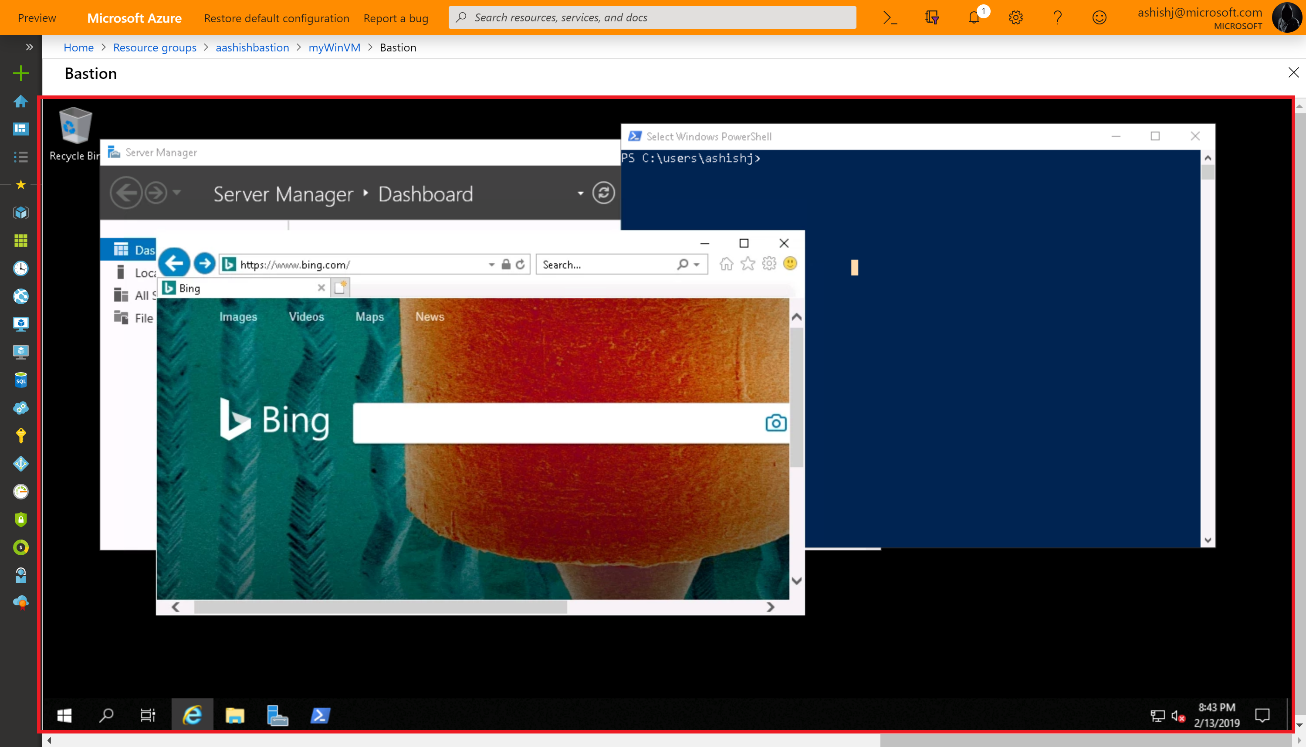
RDP via Azure Bastion within the browser

One item I noticed from the FAQ is that you may need to use the preview link to access the resource deployment blade from the portal – https://aka.ms/BastionHost

Also of note, pricing! On the FAQ it states you will be billed partially. Not 100% sure what that means, so watch those usage rates. The pricing page is live however so check it out in advance here.
What can be used for free in Azure?

When trying to decide which public cloud to use, often a key decision point is cost. Understanding these costs and how to better leverage the services available to you is a post for another day. Today we’re simply going to run through those services that are always free and highlight some great offers out there at the moment if you’re thinking of trying Azure.

First up, there are approximately 25 services that are always free in Azure. Before you get too excited, some of these are services that compliment others or the platform use itself rather than a standalone feature. However, anything free is better than nothing!

I added the listed free services below with some thoughts:

Service NameDetails
5 GB of bandwidth for outbound data transfer with free unlimited inbound transfer Fairly self-explanatory. But if your usage lines up, you could have free inbound and outbound data to Azure forever.
10 web, mobile, or API apps with Azure App Service with 1 GB storage This is a good one, the free tier can be quite slow, but free web apps!
1 million requests and 400,000 GBs of resource consumption with Azure Functions Most likely need additional resources etc to make full use of this, but a great free quota
100,000 operations for event publishing and delivery with Event Grid Same as above!
Free Azure Container service to cluster virtual machines Container service is basically deprecated now so…
50,000 stored objects with Azure Active Directory with single sign-on (SSO) for 10 apps per user Identity is important, so very handy to have that many objects but free, but check feature set in AAD Free works for you.
50,000 monthly stored users and 50,000 authentications per month with Azure Active Directory B2C Depending on your B2C requirements, 50k could be more than enough or just part of your daily active. Either way, free quota is good.
Free Azure Service Fabric to build microservice apps Helpful, but you have to pay for everything you build…
Unlimited nodes (server or platform-as-a-service instance) with Application Insights and 1 GB of telemetry data included per month As it says, can be difficult to estimate your telemetry data though, so one to keep an eye on.
First 5 users free with Azure DevOps Straight forward and good.
Unlimited use of Azure DevTest Labs Very ambiguous. You can configure it and create templates, but you pay for everything you deploy as normal.
Machine Learning with 100 modules and 1 hour per experiment with 10 GB included storage A great starter quota
Free policy assessment and recommendations with Azure Security Center Another great free addition to an overall service
Unlimited recommendations and best practices with Azure Advisor Helpful, not sure if anyone would pay for it if it wasn’t free though…
Free Azure IoT Hub edition includes 8,000 messages per day with 0.5 KB message meter size Excellent starter quota
5 free low frequency activities with Azure Data Factory Still have to pay for that DF.
50 MB storage for 10,000 hosted documents with Azure Search including 3 indexes per service Excellent starter quota
Free namespace and 1 million push notifications with Azure Notification Hubs Good service, most likely need additional paid services to get full benefit
Unlimited Azure Batch usage for job scheduling and cluster management Similar to devtest labs offer, pay for what is deployed
Free 500 minutes of job run time with Azure Automation Excellent starter quota
Unlimited users and 5,000 catalog objects with Azure Data Catalog Excellent starter quota
30,000 transactions per month processing at 20 transactions per minute with Face API Excellent starter quota
Free 2 million characters included for Translator Text API Excellent starter quota
Free 5 GB per month analysis plus 31-day retention period with Log Analytics Excellent starter quota, again watch the ingestion of data
50 virtual networks free with Azure Virtual Network Not sure what use they are without other paid services, but still free
Unlimited inbound Inter-VNet data transfer Great that it’s free, but you pay for outbound so be careful

At the moment, there is also plenty of great offers for first time sign-up that gives you free resource usage for 12 months and some monthly credit. More on those here. Some nice resources are part of that offer, including B-series VM (explainer on those) and CosmosDB.

Of course, with anything free, please be careful and double check your usage so you’re not surprised with a crazy bill. Better to know after an hour or two than a whole month!

AZ-103: Microsoft Azure Administrator – Study Guide

Microsoft recently made a change to the certification path to earn your Microsoft Certified: Azure Administrator Associate. Gone is the requirement to pass two exams, instead the content has been collated and a single new exam is now required. Here is what Microsoft have to say:

This new exam combines the skills covered in AZ-100 and AZ-101 (which retired on May 1, 2019), with the majority of the new exam coming from AZ-100. Candidates for this exam are Azure Administrators who manage cloud services that span storage, security, networking, and compute cloud capabilities. Candidates have a deep understanding of each service across the full IT lifecycle, and take requests for infrastructure services, applications, and environments. They make recommendations on services to use for optimal performance and scale, as well as provision, size, monitor, and adjust resources as appropriate. Candidates for this exam should have proficiency in using PowerShell, the Command Line Interface, Azure Portal, ARM templates, operating systems, virtualization, cloud infrastructure, storage structures, and networking.

Below I’ve put together a collection of links relevant to the sections highlighted as being part of the skills measured for this exam. As always, these are only guide links, sometimes you need to explore a topic much more deeply if you are not familiar with it. Hopefully these study materials will help guide you to successfully passing AZ-103!

If you spot something, or have a better link for a topic, get in touch! I will update this post regularly as I work my way towards taking this exam and appreciate any feedback.

A good place to start is Microsoft Learn. there are several interactive learning paths that are free that you can work through at your own pace. I find this a great way to study and gain greater understanding of the services by actually using them.

Manage Azure Subscriptions and Resources

Manage Azure subscriptions

Analyze resource utilization and consumption

Manage resource groups

Managed role based access control (RBAC)

Implement and Manage Storage

Create and configure storage accounts

Import and export data to Azure

Configure Azure files

Implement Azure backup

Deploy and Manage Virtual Machines (VMs)

Create and configure a VM for Windows and Linux

Manage Azure VM

Automate deployment of VMs

Manage VM backups

Configure and Manage Virtual Networks

Create connectivity between virtual networks

Implement and manage virtual networking

Configure name resolution

Create and configure a Network Security Group (NSG)

Implement Azure load balancer

Monitor and troubleshoot virtual networking

Integrate on premises network with Azure virtual network

Manage Identities

Manage Azure Active Directory (AD)

Implement and manage hybrid identities

Manage Azure AD objects (users, groups, and devices)

Implement multi-factor authentication (MFA)

What is Azure Network Security Group?

If you’re considering Azure for IaaS workloads, the first aspect of cloud you will have to understand, design and deploy is networking. As with any other cloud, software defined networking is the foundation of IaaS for Azure.

You cannot deploy a workload without first deploying a Virtual Network. However, once you have a network, you then need to consider its security and specifically how you control its perimeter and access. The perimeter is something that requires its own post but for platform-native, have a look at Azure Firewall and for other topics, start by checking out the Security Center docs for an overview.

When it comes to access control on your Virtual Network, Azure offers built-in solutions for both network layer control and route control. Network Security Groups (NSG) function as the network layer control service. So, what are they and how do you use them?

NSGs filter traffic to and from resources in an Azure Virtual Network. Combining rules that allow or deny traffic for both inbound and outbound traffic, allows granular control at the network layer.

They can be viewed as a basic, stateful, packet filtering firewall, but what does that mean? First, lets note what they don’t do; there is no traffic inspection or authentication access control.

So how do they help secure your network? By combining 5 variables into a scenario which you then allow or deny, you can quickly and easily manipulate the access that is possible to your resource. For example, consider the following two rules:

PriorityPortProtocolSourceDestinationAccess
1003389TCP10.10.10.10*Allow
200****Block

Our first rule, allows RDP traffic to the resources protected by the NSG, but only from the scoped source IP. The second rule, blocks all traffic. The rules are processed in order or priority.

Source and Destination can use IPs, IP ranges, ANY or Service Tags. Service Tags really help you define simple but powerful access rules quickly. For example, consider the following change to our above rules:

PriorityPortProtocolSourceDestinationAccess
1003389TCP10.10.10.10*Allow
101443TCPVirtualNetwork*Allow
200****Block

We still allow RDP and we still block all traffic, however, we now also allow HTTPS traffic from any source tagged as VirtualNetwork. This includes everything in your Virtual Network, any peered Virtual Networks and any traffic originating across a VPN or ExpressRoute. A single Service Tag replaces multiple source ranges and simplifies management.

If you’re still struggling with the filtering aspect, check out this handy tutorial from Docs.

A couple of other items to note about NSGs; they can be applied to a Network Interface or a Subnet and they have some default rules. Which layer you apply an NSG to is important. Remember traffic is processed inbound and outbound in reversed layers. So traffic from a VM out hits Network Interface then Subnet. So how you scope and combine NSGs is critical to ensuring your access control is as you want it. There is a great example of this on Docs.

The default rules that exist within an NSG allow Virtual Network traffic IN and Internet traffic OUT. You can check out the full list for exact details.

As always, if you have any questions or require a steer on a specific scenario, please get in touch!

Windows Virtual Desktop – First Thoughts – Part 2

A few weeks ago, I published the first part of this post, get to it here.

In the first part, I wrote about the initial setup and config experience for creating and accessing Windows Virtual Desktop (WVD). Overall, I found the experience to be good, but at times, slightly basic. This is to be expected with a brand new service that is in preview, but for the second part of this post, I wanted to explore the more advanced options of configuration that are currently available.

So in this post, I am going to discuss the following:

  • fslogix profiles
  • Load balancing
  • Depolying using a custom image
  • Availabiltiy/configuration of SSO

Starting with fslogix, I think it’s kinda cool that you are given a free license as part of WVD to use the service. The actual install was quick and easy, download the client, run it, set up two reg keys, done. However, I wasn’t overly familiar with fslogix and as such thought it wasn’t working and I have a solid background in desktop virtualisation, so I understand profile redirection explicitly. I found the Microsoft docs for this are light currently, but clicking through to the fslogix docs I spotted the issue, the local profile cannot exist first or fslogix will ignore it. A quick tidy up and my profiles were redirecting, loading quickly and generally behaving as expected. So far so good, I’d like to see how it scales with a tonne of users, but the expectation is similar performance to Citrix UPM. One thing that is perhaps a bit annoying out of the box is, when you choose signout from the web client, it simply disconnects the user from an app group, this can be fixed with some Group Policy, but I would expect sign out to mean sign out.

A little tip, check out the reg key “FlipFlopProfileDirectoryName” for a quick way to make finding your user profiles within your file share a bit easier. There are also more advanced options like “SIDDirNamePattern”, more here.

Next up is load balancing the session hosts. This obviously only applies to non-persistent session hosts, as the persitent relationship is 1:1. You also need to understand two concepts:

  • Breadth-first
    • This distributes sessions evenly across all session hosts, a max session limit is optional.
  • Depth-first
    • This fills up a session host first before distributing sessions, a max session limit is required.

Both options are simple to setup via powershell and behave exactly as outlined. Instructions here.

Third, I created a new host pool. To do this I first needed a custom image. So I deployed a VM to Azure to convert later. I skipped a bit here by using the new W10 image with 365 proplus preinstalled for you, very handy. However, I then realised this wasn’t the multi-user version and even though all is good with image creation, it fails when trying to register with WVD (30 mins later…) So to save you some time, just use the W10 multi-user image instead! I installed my apps, then I made the following changes:

  • fslogix installed and enabled
  • configured session timeout policies
  • Additional language pack and region settings

Once I had this done, to get your custom image, follow the usual docs here.

Then, you can simply specify it as part of the same steps you followed previously to deploy as a host pool

Once your new host pool is deployed, you need to assign users, don’t forget you currently can’t assign a user to more than one App Group at any one time. So I removed one of my test users from it’s previous group and added it to the new one.

Once logged in, everything is as expected. Profiles, custom settings and my newly added apps. For my own terrible fun I added a special app, yes, I’, sorry, that is Windows 95 running in the HTML5 client on WVD!

Windows95 running via HTML5 client on Windows Virtual Desktop

One tip that could save you some time is relevant to SSO. You may notice that when signing in and launching and app/desktop you are prompted for credentials twice. This is the current expected experience. In the comments on docs, I spotted the following response from the program group:

So we’ll just have to wait and see how good/bad SSO functionality will be once released!

If you have any questions or would like to see a third part to this series, let me know!