What is Azure Dedicated Host?

This month, Microsoft announced the introduction of a new method of running your Windows and Linux VMs within Azure. Dedicated Host is a new service that provides you with a single-tenant-host to run your workloads on. Or to phrase that more simply, your very own physical server in an Azure datacentre.

Azure Dedicated Host Groups (DHG) can be created within a region, availability zone, and fault domain. Your Dedicated Host is then created as part of a DHG and you can have multiple Dedicated Hosts per DHG. A Dedicated Host is a representation of a physical server in an Azure Datacenter. As your VMs are directly provisioned into your hosts, you can choose whatever configuration is required and available from the parent resources.

View of the new resources for dedicated hosts.

Two benefits from making use of Dedicated Host are:

Increased Control

As your Dedicated Host is allocated directly to your tenant, you have more granular control of placement configuration for all of your provisioned VMs. Also, you now control the timing of all platform-initiated maintenance operations, such as OS patching, or hardware or software reboots. This means you get the option to skip the regular platform update schedule, and then apply it when it suits within a 35-day rolling window.

Compliance Requirements

Azure Dedicated Host offers hardware isolation at the physical level which means your Azure VMs run on an isolated and dedicated physical server. No other VMs can run on your Dedicated Host. This can drastically help meet corporate compliance guidelines and standards. While also gaining visibility into the underlying cores to meet server-based software licensing requirements.

Configuration Options

Dedicated Hosts come in several configuration options. Each options allow for different VM series deployment combinations you are already familiar with. A table outlines an example for the Dsv3 Series:

Physical CoresAvailable vCPUsAvailable RAMVM Size# of VMs
4064256GBD2s v3
D4s v3
D8s v3
D16s v3
D32s v3
D48s v3
D64s v3
32
16
8
4
2
1
1

So at a quick glance, you can see there are several combinations of VMs that can be run on any single Dedicated Host. For example, 2 D16s v3 VMs + 1 D32s v3 VMs. However, bear in mind you will pay for the full Dedicated Host, regardless of VMs being run on it. You can read the full details for more information on pricing.

One nice note on pricing; the usual Azure Hybrid Benefit options are available for VMs running on Dedicated Host.

DHGs use Availability Zones and Fault Domains to give the greatest High Availability possible. So both need to be taken into consideration when designing your Dedicated Host deployment. The Dedicated Host docs, give good guidance on this already.

If Dedicated Host sounds like something you could make use of, why not give it a try. But remember, it’s still in preview so be careful and be aware of the limitations below:

  • Virtual machine scale sets are not currently supported on dedicated hosts.
  • The preview initial release supports the following VM series: DSv3 and ESv3.
  • During the preview, you won’t be able to resize a virtual machine deployed to a dedicated host.
  • Control over maintenance capabilities is in a limited preview. Start by taking this nomination survey to try them out.
  • During the preview we won’t be offering the option for reserved capacity.
How to – Troubleshoot your Azure Virtual Network Gateway

One of the most popular methods of connecting to Azure privately is via VPN. This can be a relatively simple process and is well documented by both Microsoft and 3rd party blogs. However, if you encounter problems, it can be difficult to get the data you need to troubleshoot efficiently. Especially if you don’t have access to both Azure and the local connection appliance.

In this post, I’m going to show you how to troubleshoot a Virtual Network Gateway and its VPN connection. As part of this, there are some required specifics:

If the above lines up with your environment, then let’s get started! (If not, get in touch and I might be able to help)

Troubleshoot a Virtual Network Gateway

Login to the Azure Portal, then click the search bar at the top, type “Network Watcher” and click on it to open your resource.

In the Network Watcher blade, under ‘Network Diagnostic Tools” select ‘VPN Diagnostics’.

You’ll have to choose a Storage Account and a Container within to run the tests. If you don’t have one, you can create one from Network Watcher. The Storage Account doesn’t have to be in the same location as your VNG.

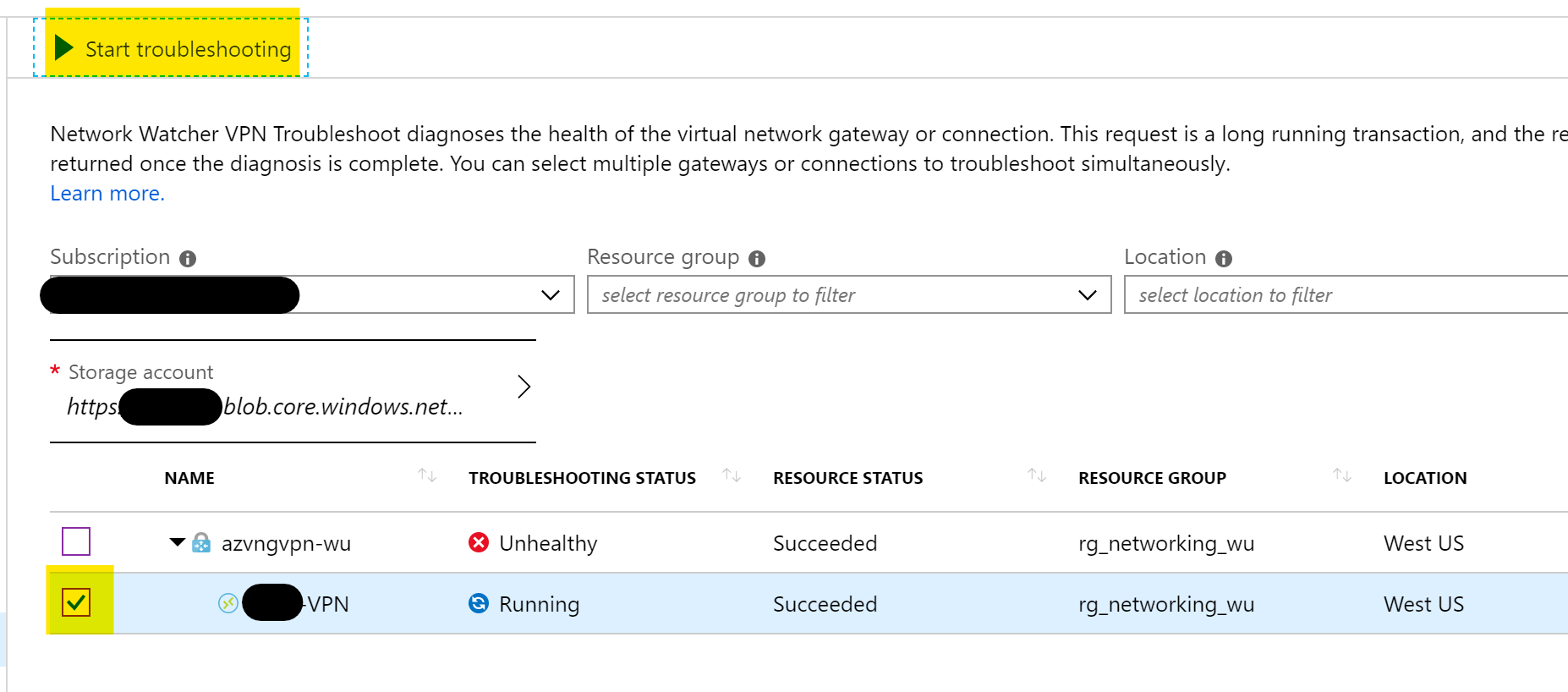
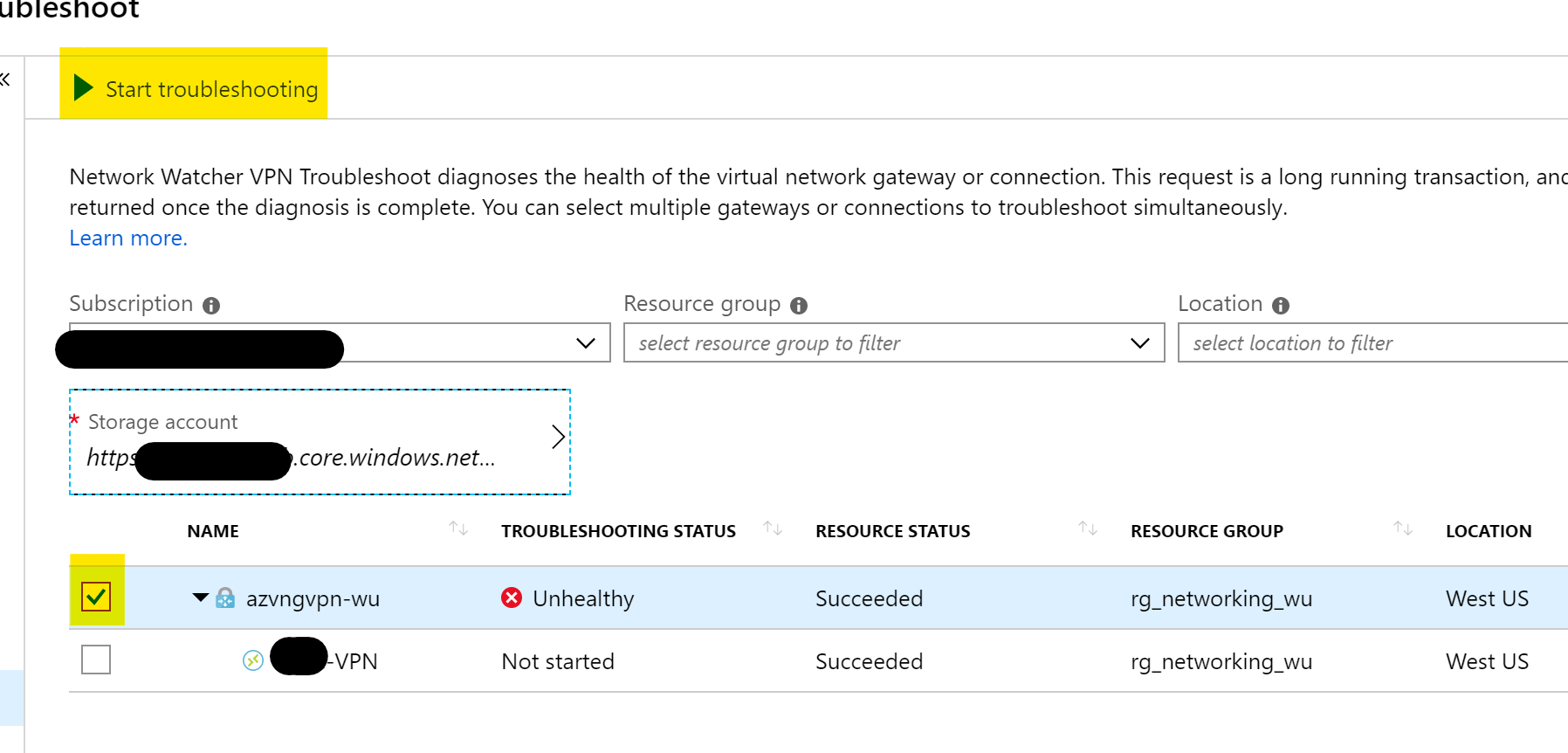
Click the checkbox for the VNG you want to troubleshoot, then click ‘Start Troubleshooting’

Once complete, you will see your ‘Troubleshooting Status’, you can see that for mine above it is shown as ‘Unhealthy’. To get more details, there is a Details pane just below with a ‘Status’ blade giving you more information about the problem and an ‘Action’ blade which gives suggestions on how to resolve the issue.

In this instance, the VNG as a resource is healthy, but the Connection it’s facilitating is not, so we need to dig further.

Troubleshooting a Virtual Network Gateway Connection (VPN)

In the same location we ran troubleshooting for the VNG, we will repeat the steps and select the Connection instead of the VNG this time. Select your Storage Account etc. as before and then click the Connection to troubleshoot. Then click ‘Start Troubleshooting’

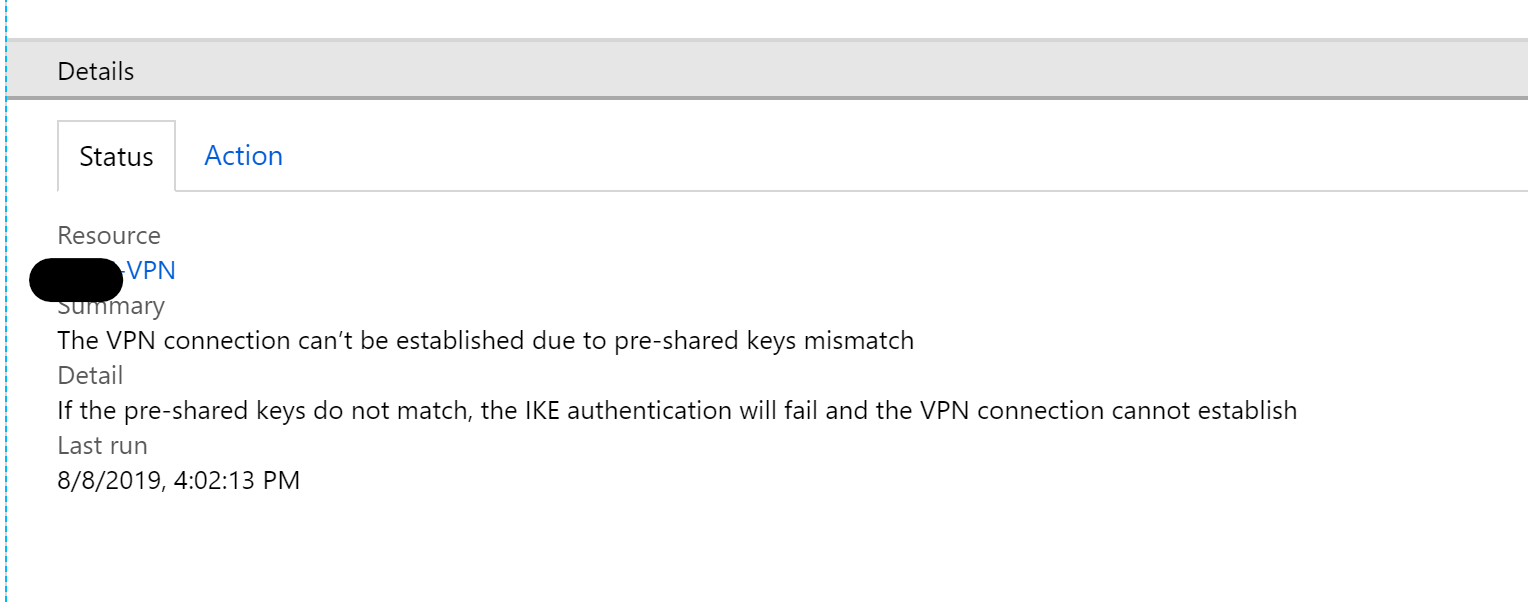
Once complete, you will again see a ‘Troubleshooting Status’ and can get more information from the ‘Details’ pane.


As you can see from the above, I have a very simple fix to make, as my pre-shared keys do not match.

Hopefully this helps you out when trying to figure out why those VPN tunnels aren’t working.

As always, if you have any questions, get in touch!

How to – Reduce your Azure IaaS Costs

A regular starting point for most people when first using Azure, or any public cloud, is a virtual machine. Depending on your environment, VMs can be one of the most expensive resources. It’s no surprise that this can be a strong negative when considering a move to cloud.

Before anything is deployed, it’s important that you are aware of the tools that Microsoft make available to help you estimate your costs in advance. This can help both understand and avoid unwanted surprises with your bill.

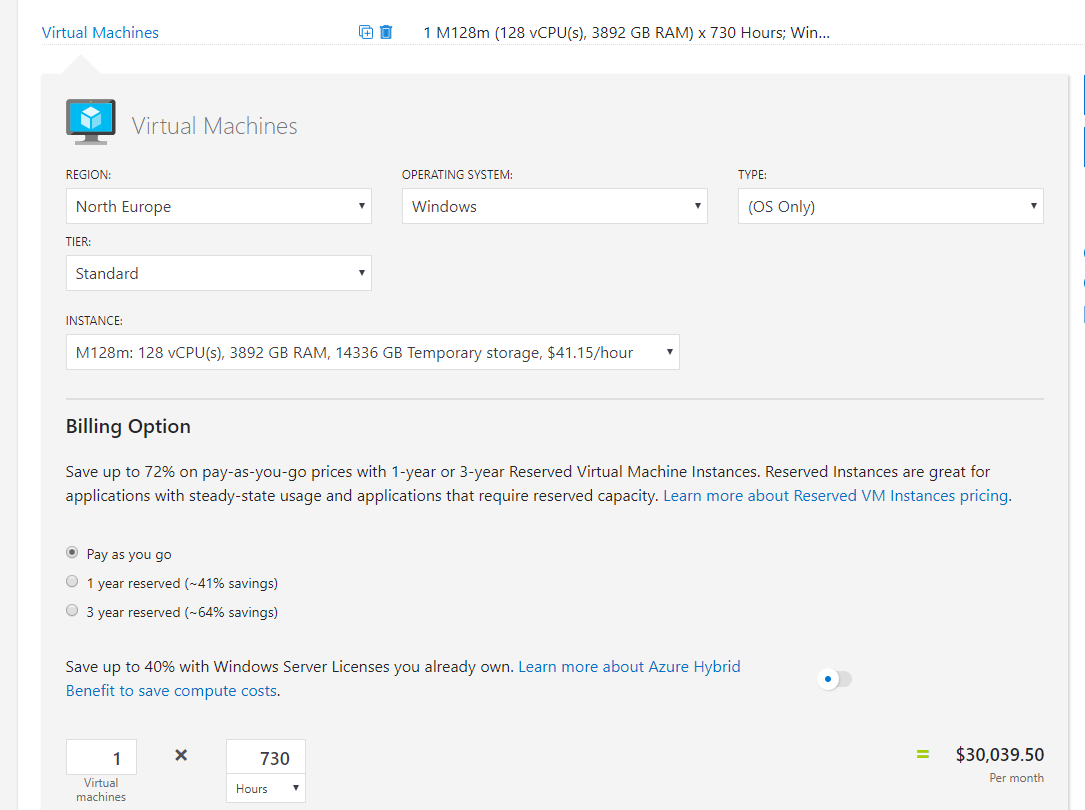
First up is the Azure Pricing Calculator, with a bit of work, you can achieve an acceptably accurate cost estimate for an environment. I normally choose the default settings when it comes to pricing options (such as PAYG) as it gives me the most expensive and therefore safest estimate for a quick quote. If you have access to other consumption offers, ensure you are signed in so you can access their rates.

For this post I’m going to use a single VM estimate to display cost and changes. As it’s a single VM I have chosen a beast – M128m

Once you have your worst case estimate, it’s time to start making some adjustments to get that price down as low as possible. To do this, I recommend the following three options.

  1. Reserved Instances
  2. Automation
  3. Hybrid Benefit

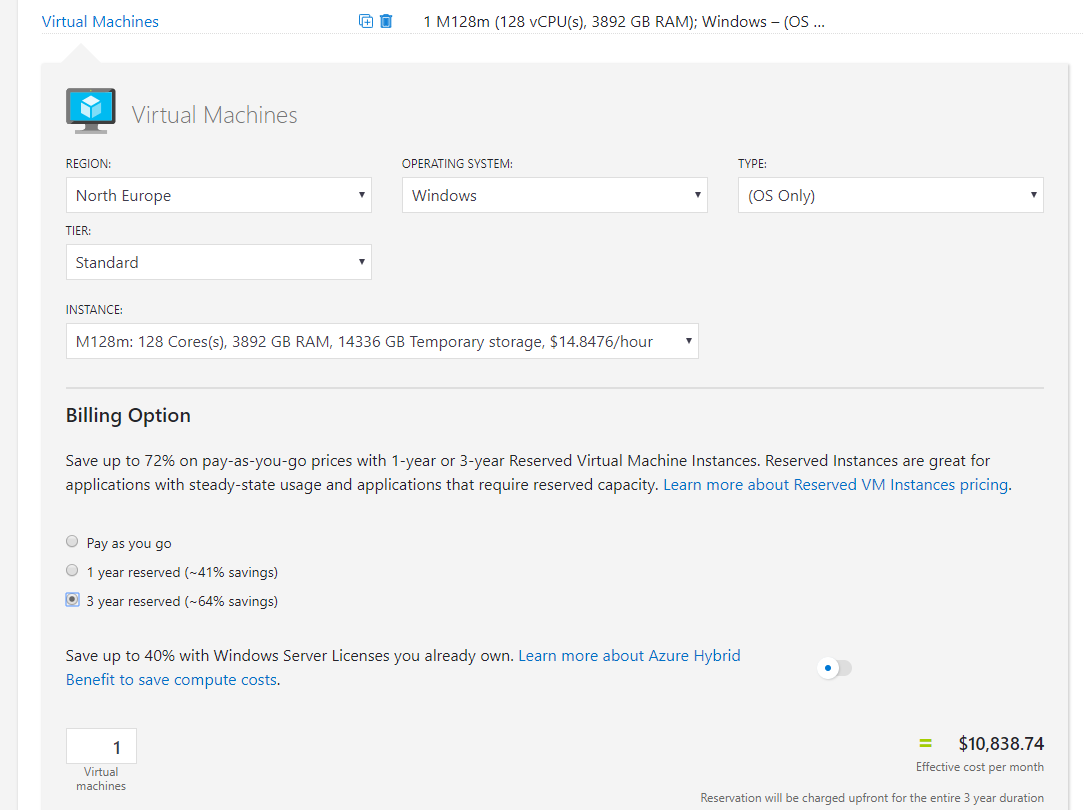
First up, and most straight forward – Reserved Instances. They are a billing object that allows you to save money over a fixed period of time by paying for the usage up-front. From the screen grab you can see the savings can be approx. 64% for a three-year reserved instance. I have an old post that is still valid on RIs over here.

Again, you will pay the entire price up front, but look at the difference it makes to the monthly rate for our beast:

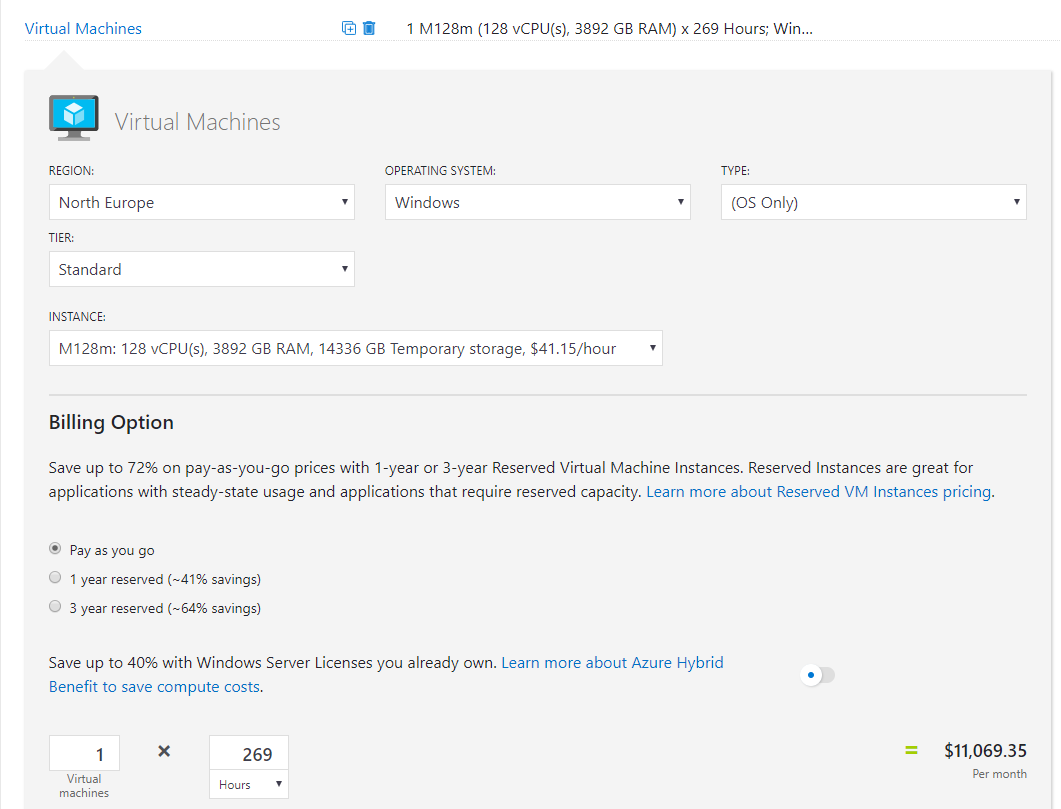
Next, modifying your usage hours using Automation. Now, this doesn’t have to be using Azure Automation and its Start/Stop solution as there are alternative like over on Azure MVP, Gregor Suttie’s blog. Whatever method you choose, update your usage hours in the cost calculator to see your savings, for this post I’m going to first remove weekends (average 8 days a month = 192 hours) and cut the remaining workdays in half (538/2). So instead of 730 hours, we get 269 hours and the appropriate reduction in price to our beast:

One thing to note at this point, if you’re using Reserved Instances, there is no point in using Automation to save on costs. RIs cover the full usage for the period.

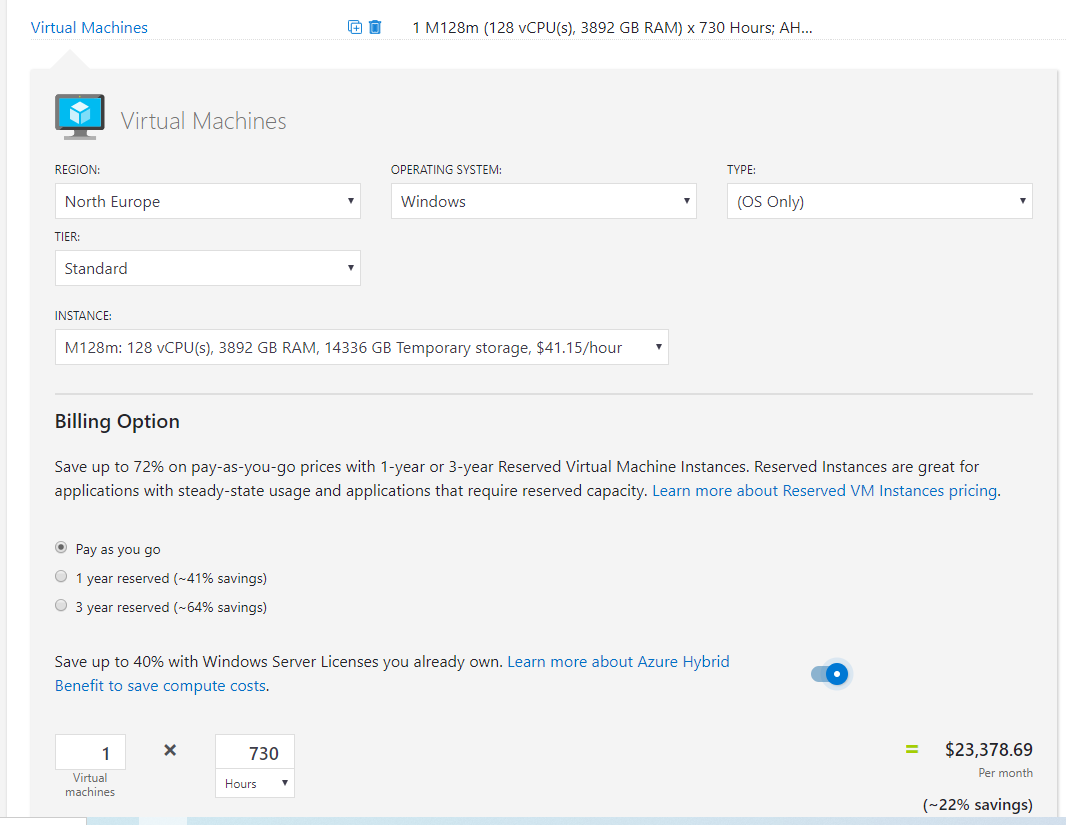
Finally, the simplest to implement but arguably most complex option, Azure Hybrid Benefit. This is a licensing option that allows you to reuse your on-prem licenses in Azure. This is an option that can only be used in Azure and therefore a unique cost saving method. Applying it is simply a tickbox within your VM blade. Microsoft have a calculator to help you work out the licensing side of things, I’d recommend leaning on your LSP for this part as it can be a bit complicated and you need to make sure you’re compliant. You can see the savings below for our beast:

You’re probably already thinking it, can I layer these together and save even more? Absolutely.

Check out the reduction to the price of the beast if we apply AHB and a three year RI:

So what are you waiting for, head over to your Azure tenant and start saving some money on those VMs ASAP. As always, if there are any questions, get in touch!

Azure Sentinel – Where to start?

First announced back in late February, Azure Sentinel is the first cloud native SIEM service from a major provider. SIEM (security information and event management) is a primary component in any security service. Sentinel aims to leverage cloud specific benefits like elastic scale and AI to allow customers detect and respond to security incidents as quickly and efficiently as possible.

The workflow of Azure Sentinel can be broken into four steps:

Azure Sentinel core capabilities

1. Collect

Sentinel allows you to collect data at scale from multiple users, devices, applications and infrastructure, hosted in Azure, on-premises, and even in multiple clouds. This means you can aggregate all security data using industry standard log formatting. With built-in integration, you can enable collection for features such as Office 365 or Azure AD within seconds.

2. Detect

Having all of your data collected to Sentinel allows for more simple analysis and detection at scale than was previously possible. This more efficient triage, and the capability to leverage Microsoft Machine Learning allows you to be more productive, minimise false positives and react to those high accuracy alerts as early as possible.

3. Investigate

Sentinel allows you to visualise and resolve alerts using the same dashboards. Proactively hunting for incidents can be automatic or scripted into a set of queries. Microsoft have provided some to get you started too based on their analysis and response teams.

4. Respond

Continuing the efficiency seen in previous steps, Sentinel allows you to orchestrate and automate responses to incidents. Allowing you to automatically handle repeat and/or known incidents.

So now that you know what it is, the next step is to put it in action and see if it can be of use to you and your client/business. Currently still in preview, Sentinel is free to use, which is always good and allows you to assess the service without any significant financial impact. Bear in mind, you will pay for the Log Analytics workspace which stores the data!

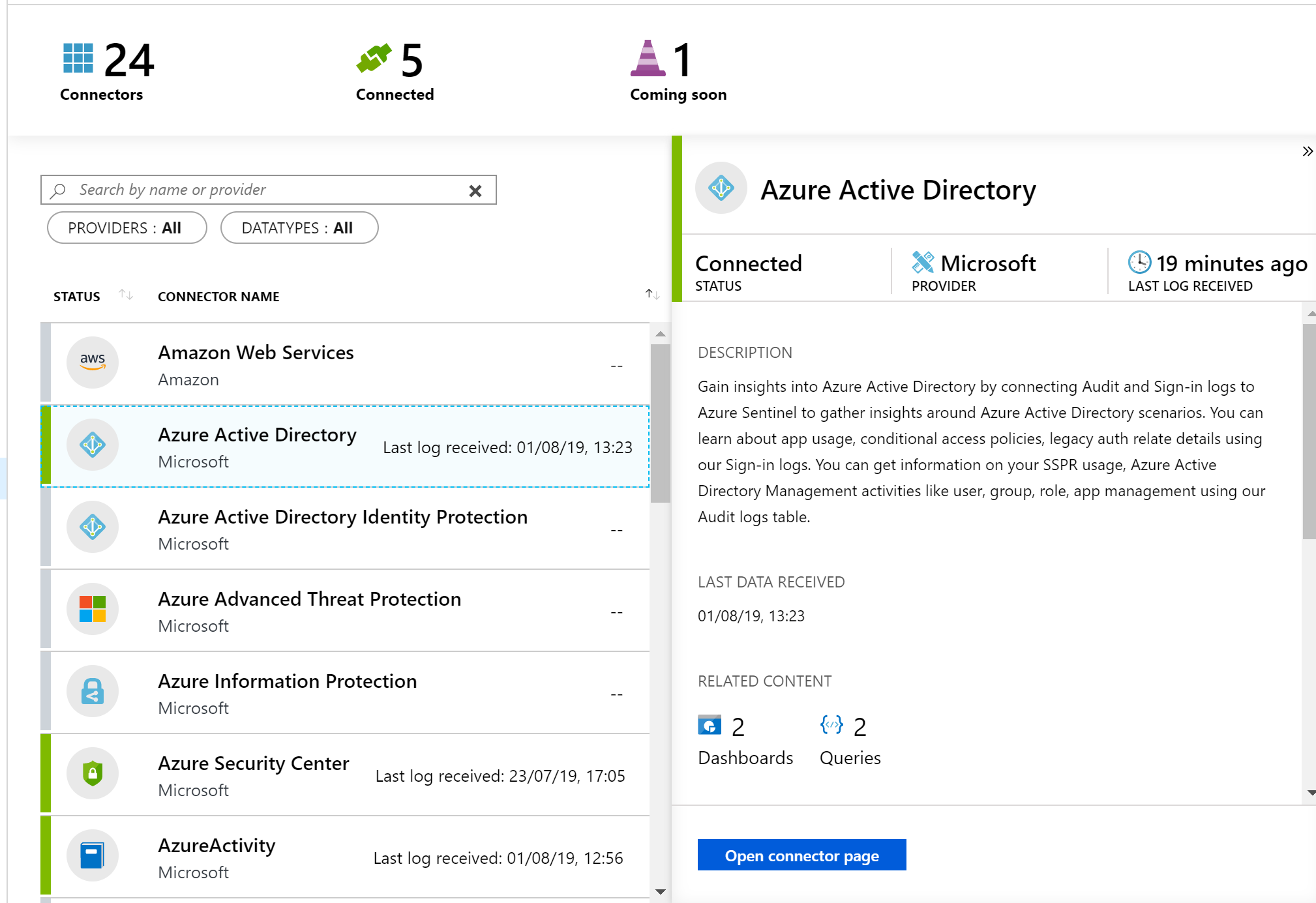
First, you’ll need to enable Sentinel and a workspace, this can be done via the portal and a walkthrough is here. Then, you need to connect some services to start streaming data to Sentinel. As you can see below, there are multiple options and you can choose which logs/data is sent to Sentinel too.

Once your data connector is active, you can make use of the built in dashboards to visualise it. Below is a subsection of the Azure AD sign-in log dashboard, which is available immediately via Sentinel. You can also create your own custom dashboards, there is a guide with samples here.

Now that is being collected and you have visuals, your next step is analysis. The first thing you will need to do is to create Detection Rules. These are essentially Log Analytics queries with alerting parameters wrapped around them. Microsoft offer sample queries on Github which are updated regularly. Alternatively, you can simply write your own to meet your needs.

The results of your Detection Rules are then fed into the Cases section of Sentinel. Here you can triage, investigate and remediate incidents. The cases are created dynamically from the parameters you set for Detection Rules such as severity and entity mapping. As such, be prepared to have to tweak those thresholds and alert patterns a bit. I have Sentinel running within several customer tenants, and am still not 100% happy with my detection rules yet. Always remember to update the status of your case too, in progress, resolved etc.

Finally, you should set up some Playbooks to respond to your alerts. A Playbook is simply a set of procedures that you can run from Azure Sentinel. They help automate and orchestrate your responses to alerts, and you can run them manually or ideally set them up to run automatically in response to certain alerts. They are based on Logic Apps, which means all of the same actions are available via Sentinel. One quick note, there is a charge for Logic Apps and therefore Playbooks, so ensure you understand your costs first.

When creating a Playbook, regardless of it is going to be run automatically by Sentinel or manually by you, you should first define your scenario. My preferred approach here is to come up with “If-This-Then-That” loops and apply them as needed. This is another section that will take some tweaking over time. In my experience, I only run Playbooks manually initially, then start to add automated triggering once I’m happy with the alert and response. Docs have a nice sample alert-response playbook with messaging and actions which is a great place to start.

Another function which I haven’t covered here is Hunting. I haven’t spent enough time with this feature yet to give a detailed opinion but you can read more on it over on Docs.

So, if you haven’t given Sentinel a try yet, I’d recommend you review the quickstarts and deploy in your tenant for one or two of the data sources like Azure AD. While it’s in Preview, it is a great chance to assess it relevant to your tenant and hopefully gain some greater insight and response capability too.

As always, if there any questions or if you have any problems with your Sentinel, get in touch!