How to – Troubleshoot your Azure Virtual Network Gateway

One of the most popular methods of connecting to Azure privately is via VPN. This can be a relatively simple process and is well documented by both Microsoft and 3rd party blogs. However, if you encounter problems, it can be difficult to get the data you need to troubleshoot efficiently. Especially if you don’t have access to both Azure and the local connection appliance.

In this post, I’m going to show you how to troubleshoot a Virtual Network Gateway and its VPN connection. As part of this, there are some required specifics:

If the above lines up with your environment, then let’s get started! (If not, get in touch and I might be able to help)

Troubleshoot a Virtual Network Gateway

Login to the Azure Portal, then click the search bar at the top, type “Network Watcher” and click on it to open your resource.

In the Network Watcher blade, under ‘Network Diagnostic Tools” select ‘VPN Diagnostics’.

You’ll have to choose a Storage Account and a Container within to run the tests. If you don’t have one, you can create one from Network Watcher. The Storage Account doesn’t have to be in the same location as your VNG.

Click the checkbox for the VNG you want to troubleshoot, then click ‘Start Troubleshooting’
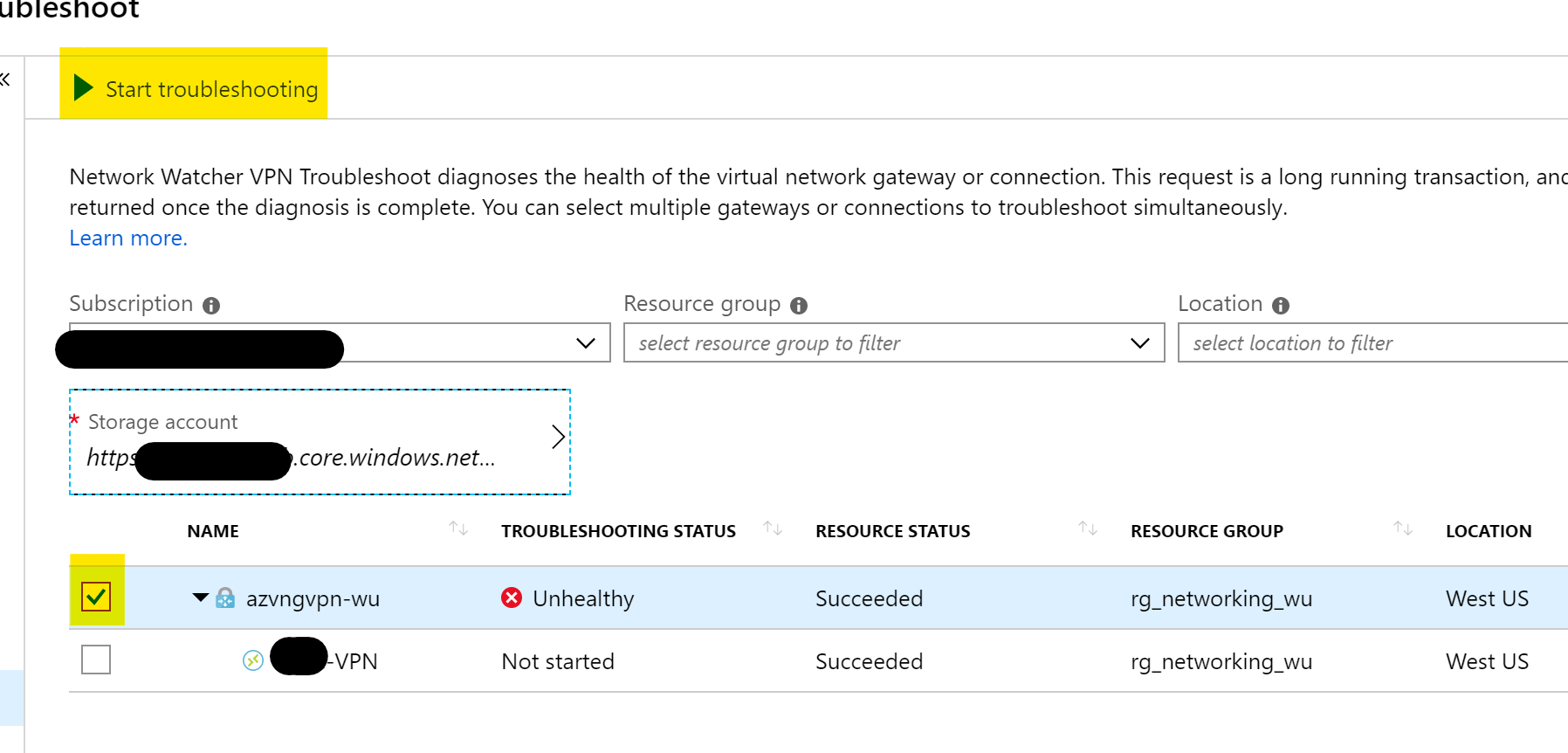
Once complete, you will see your ‘Troubleshooting Status’, you can see that for mine above it is shown as ‘Unhealthy’. To get more details, there is a Details pane just below with a ‘Status’ blade giving you more information about the problem and an ‘Action’ blade which gives suggestions on how to resolve the issue.

In this instance, the VNG as a resource is healthy, but the Connection it’s facilitating is not, so we need to dig further.

Troubleshooting a Virtual Network Gateway Connection (VPN)

In the same location we ran troubleshooting for the VNG, we will repeat the steps and select the Connection instead of the VNG this time. Select your Storage Account etc. as before and then click the Connection to troubleshoot. Then click ‘Start Troubleshooting’
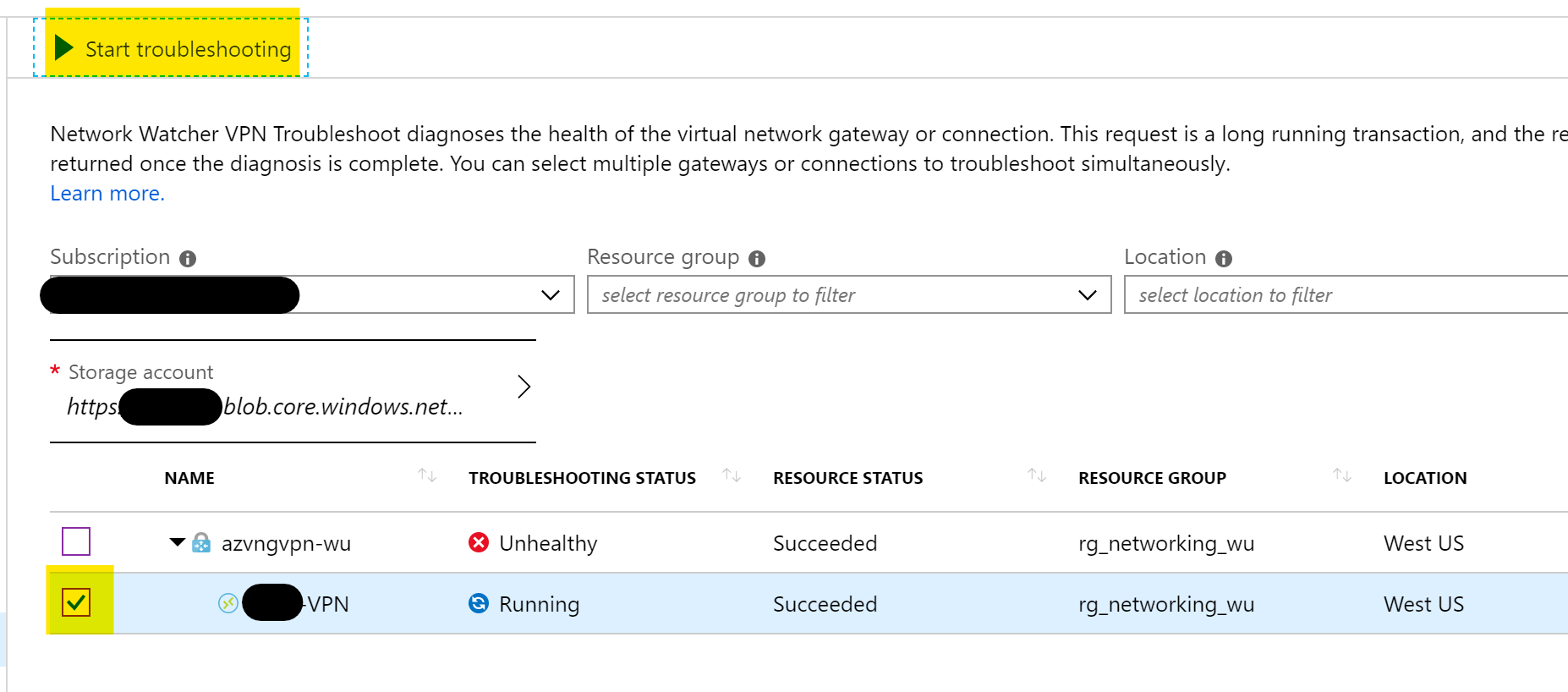
Once complete, you will again see a ‘Troubleshooting Status’ and can get more information from the ‘Details’ pane.
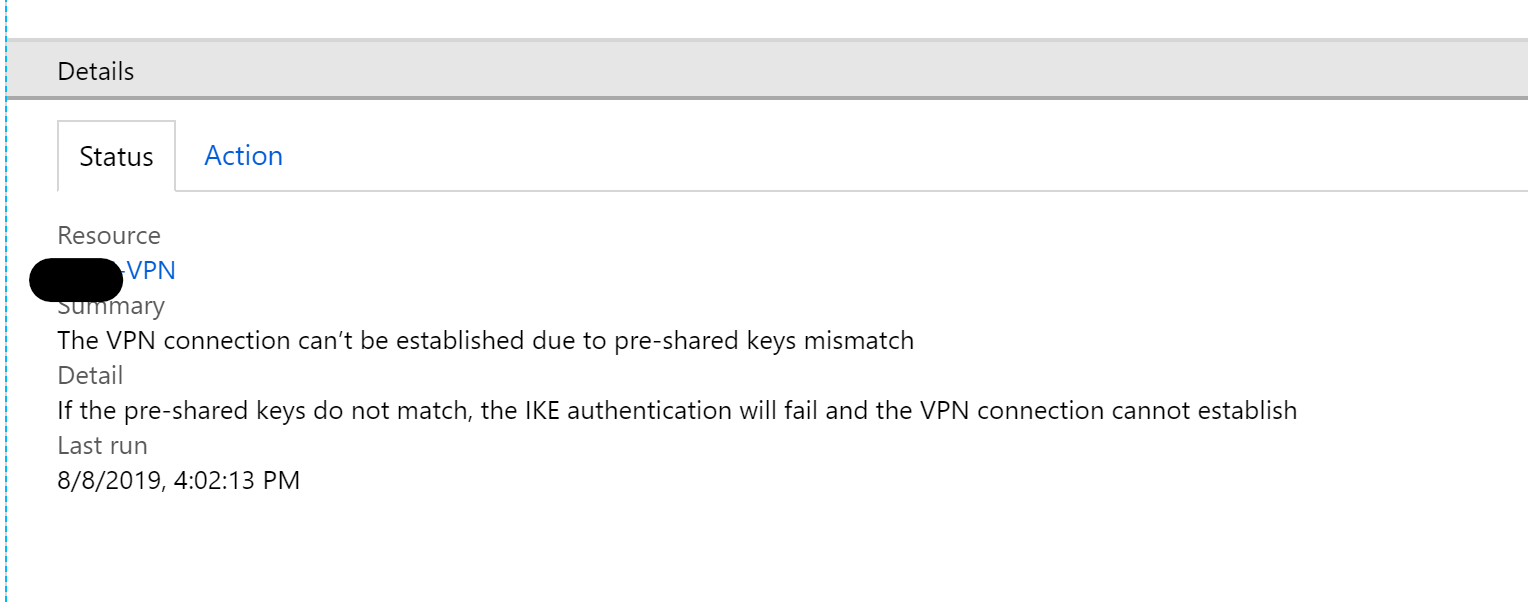

As you can see from the above, I have a very simple fix to make, as my pre-shared keys do not match.

Hopefully this helps you out when trying to figure out why those VPN tunnels aren’t working.

As always, if you have any questions, get in touch!

What is Azure Network Security Group?

If you’re considering Azure for IaaS workloads, the first aspect of cloud you will have to understand, design and deploy is networking. As with any other cloud, software defined networking is the foundation of IaaS for Azure.

You cannot deploy a workload without first deploying a Virtual Network. However, once you have a network, you then need to consider its security and specifically how you control its perimeter and access. The perimeter is something that requires its own post but for platform-native, have a look at Azure Firewall and for other topics, start by checking out the Security Center docs for an overview.

When it comes to access control on your Virtual Network, Azure offers built-in solutions for both network layer control and route control. Network Security Groups (NSG) function as the network layer control service. So, what are they and how do you use them?

NSGs filter traffic to and from resources in an Azure Virtual Network. Combining rules that allow or deny traffic for both inbound and outbound traffic, allows granular control at the network layer.

They can be viewed as a basic, stateful, packet filtering firewall, but what does that mean? First, lets note what they don’t do; there is no traffic inspection or authentication access control.

So how do they help secure your network? By combining 5 variables into a scenario which you then allow or deny, you can quickly and easily manipulate the access that is possible to your resource. For example, consider the following two rules:

PriorityPortProtocolSourceDestinationAccess
1003389TCP10.10.10.10*Allow
200****Block

Our first rule, allows RDP traffic to the resources protected by the NSG, but only from the scoped source IP. The second rule, blocks all traffic. The rules are processed in order or priority.

Source and Destination can use IPs, IP ranges, ANY or Service Tags. Service Tags really help you define simple but powerful access rules quickly. For example, consider the following change to our above rules:

PriorityPortProtocolSourceDestinationAccess
1003389TCP10.10.10.10*Allow
101443TCPVirtualNetwork*Allow
200****Block

We still allow RDP and we still block all traffic, however, we now also allow HTTPS traffic from any source tagged as VirtualNetwork. This includes everything in your Virtual Network, any peered Virtual Networks and any traffic originating across a VPN or ExpressRoute. A single Service Tag replaces multiple source ranges and simplifies management.

If you’re still struggling with the filtering aspect, check out this handy tutorial from Docs.

A couple of other items to note about NSGs; they can be applied to a Network Interface or a Subnet and they have some default rules. Which layer you apply an NSG to is important. Remember traffic is processed inbound and outbound in reversed layers. So traffic from a VM out hits Network Interface then Subnet. So how you scope and combine NSGs is critical to ensuring your access control is as you want it. There is a great example of this on Docs.

The default rules that exist within an NSG allow Virtual Network traffic IN and Internet traffic OUT. You can check out the full list for exact details.

As always, if you have any questions or require a steer on a specific scenario, please get in touch!

First Impressions – Azure Firewall Preview

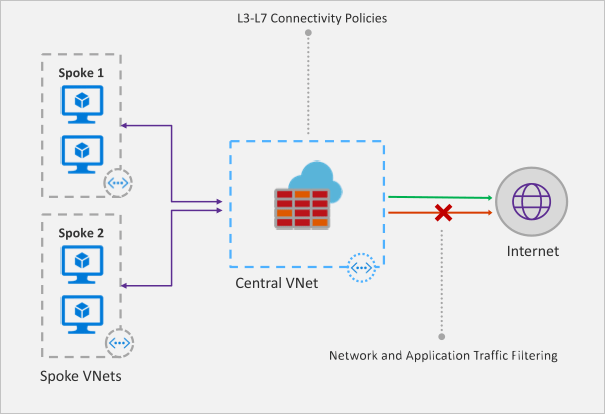
Recently Microsoft announced that a new Azure Firewall service was entering a managed public preview. Azure Firewall is a managed, network security service that protects your Azure Virtual Network resources. It is a fully stateful firewall as a service with built-in high availability and scalability.

firewall-overview.png

The services uses a static public IP meaning that your outbound traffic can be identified by third party services as/if required. Worth nothing, that only outbound rules are active within this preview. Inbound filtering will hopefully be available by GA.

The following capabilities are all available as part of the preview:

  • Stateful firewall as a Service
  • Built-in high availability with unrestricted cloud scalability
  • FQDN filtering
  • Network traffic filtering rules
  • Outbound SNAT support
  • Centrally create, enforce, and log application and network connectivity policies across Azure subscriptions and VNETs
  • Fully integrated with Azure Monitor for logging and analytics

As with all previews it should not be used for production environments, but for testing purposes this is how to register your tenant for deployment.

To enable the Azure Firewall public preview follow the guide here: Enabling the preview

Once enabled, follow this tutorial for a sample implementation: Deployment Tutorial

Now that you’re familiar with the deployment, you should apply to your specific test scenarios. Be wary of some operations that could be limited by applying a default route to your VM. There is an updated FAQ for the service here: Azure Firewall FAQ

Overall, this is a welcome addition to Azure networking. As the preview progresses and more service options are added, especially inbound options, I see this being as common as deploying an NSG in your environment. Combining it with peering and the right set of rule collections for your environment allows for an easily managed, scalable, and most importantly, secure environment within Azure with minimal cost and infrastructure footprint.

Virtual Network Service Endpoints

When designing an application deployment to be hosted in Azure, a design consideration that is commonly enticing is to transform a layer of the application from traditional infrastructure to something more modern. Microsoft offer several Platform-as-a-service (PAAS) options that allow this to be achieved, for example, transforming SQL server installed on a VM to Azure SQL.

While this transformation might be straight forward from an SQL Database point of view and most likely when considering the cost of running your deployment, a concern that often arises is security. As Azure SQL is PAAS, it offers a public endpoint for SQL authentication and connectivity. This is by design and there are limited options to prefix this with a security layer. If your application runs somewhere outside Azure, this makes sense and might be an acceptable and noted weak spot. However, if the rest of your application layers are hosted within Azure, having to route out to a public endpoint is less secure than it could be and simply bad design.

Thankfully, Microsoft have been making updates to virtual network functionality that allow you to route directly from your virtual network resources to several PAAS offerings. To do this, you must make use of virtual network Service Endpoints.

Endpoints extend your virtual network private address space and the identity of your VNet to specific Azure services, over a direct connection. Endpoints allow you to secure your critical Azure service resources, such as Azure SQL, to only your virtual networks. Traffic from your VNet to the Azure service always remains on the Microsoft Azure backbone network and never takes a public route. They are currently available for three PAAS offerings:

  1. Azure SQL
  2. Azure Storage
  3. Azure Data Warehouse (Preview)

Introducing an Endpoint for Azure SQL (to stick with the initial example) allows improved security as it fully removes public Internet access and allows traffic only from the virtual network.

It also optimises routing as Endpoints always take service traffic directly from your virtual network to the service itself on the Microsoft Azure backbone network. Doing this means that if your environment uses forced-tunnelling this traffic will no longer be viewed as outbound, but intra-Azure and will flow direct.

There are some considerations to be aware of:

  • Location – the virtual network and the PAAS offering must be located in the same region.
  • Outbound Network Flow – if you control outbound network flow via NSG, you can make use of the “Azure Service” tags to allow this traffic via Endpoint.
  • Connections – If you enable a service endpoint, all current TCP connections from your virtual network will drop. This is to allow a change from Public IP access to Private.

Personally, I think Endpoints should be used as widely as possible. From a security and design perspective they allow greater ease of adoption when PAAS offerings are being considered and perhaps best of all, they are free!

Azure AD Application Proxy

Web applications that are only accessible on your corporate LAN are common place in most companies. The lack of public access can be the result of many factors, most commonly the reason is the complexity of allowing a route through your secure perimeter. As a result, providing access to these applications has traditionally involved creating and utilising virtual private networks (VPNs) or demilitarized zones (DMZs), both requiring significant IT effort to put in place and keep secure. Adding to this, a lot of these applications can be quite difficult to lift and shift into a DMZ which would of course be best practise. Overall, both solutions have several complexities and offer different degrees of difficulty to manage.

Enter Azure AD Application Proxy (AP). This service can provide single sign-on (SSO) and secure remote access for these common web applications. It leverages your current infrastructure and ties into Azure AD for identity management so if you are already using Office 365, the authentication process for users is identical and the configuration required is minimal. Additionally, the page will be available on any web-accessible device at all times. This greatly simplifies the process as you don’t need to change your network infrastructure or allow VPN access for external users.

Again, those already using Office 365 will have their identities, or a version of them, active within Azure AD. When using AP, you can require users pre-authenticate before the internal page loads, offering an additional layer of security and auditing. If your identities are federated for example, this process ties-in seamlessly without any further configuration required. The ability to then add a method of passthrough authentication is when your end users life is made a lot easier.

To make use of AP, you need to install at least one connector in your environment. The requirements for this installation are here. The beauty of the connector is that it only requires outbound ports on your firewall and the main ports are 80 and 443, ports you would most likely already have open. Again, Microsoft are trying to make this as simple as possible! Once you have a connector installed and active, it is a good idea to install at least one more. This allows for high availability should one of the servers be inaccessible accidentally or due to maintenance.

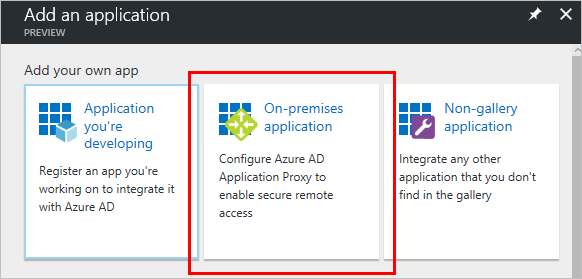
Next, you obviously want to publish your application. This can be done in several ways, from the very simple to the completely integrated. Digging through those complexities is something that requires a lot more time than this blog post is suitable for, but believe me, with some guidance from an experienced architect, this process is very much achievable in the majority of environments. Here is some additional reading on application publishing:

Publishing Applications

SSO utilising KCD

Remember, AP isn’t just for simple internal web applications like your intranet page. It can be leveraged to provide SSO and secure remote access to your on-premise Sharepoint farm and even applications published locally via RDS.

I’ve implemented this service for several clients and they all compliment the functionality it allows them to leverage. The guidance during the configuration phase allows IT admins to then layer additional points of access to applications that would previously have been simply to cumbersome to offer externally. In my opinion, AP is one of the best features of Azure AD and it is only improving as Microsoft adds additional options for security and functionality.

This post is much more of an introduction to AP than a guide to configuration, if you want to talk about config, or have any other questions you can contact me on Twitter – @wedoAzure or via email.