How to – Control Azure Regions with Azure Policy and Bicep

Updated: March 2024 – repo link now updated to new Github structure!

A common requirement for many tenants is to control or restrict the regions in which Azure can be used, this is most commonly done via Azure Policy. Wanting/needing to restrict regions can be for several reasons, below are some of the most common:

  • Alignment – Align to local presence for performance etc.
  • Governance – Align to compliance, residency and data restriction requirements.
  • Features – Not all data regions are created equally – restrict to those with features required.

For anyone who has created a Policy like this in the past, the experience is quite straight forward. Azure provides an out-of-the-box template, you simply have to pick which regions are allowed from a drop down. However, there are actually three policies you should consider for this in my opinion, all are included here.

  • Allowed Locations – when a resource deploys, it must align
  • Allowed Locations for Resource Groups – when an RG deploys, it must align
  • Audit resource location matches resource group location – just nice to have for governance!

So, with multiple policies to deploy, a controlled and accurate solution is to define these Policies via code, in my case, Bicep. How you manage this (i.e. deployment and repo management etc) is not for this blog post, but is achievable with this as your base Policy. Two elements are required for this to work correctly:

  1. Bicep file to deploy our Policy resources
  2. Parameters file for policy definitions IDs and regions required.

Item 1 is simple, I’ve included the code below, and will link off to a repo with all of this at the end too.

To explain the above:

  • We will pass an array of chosen regions/locations, and the strings of the built-in Policy definitions.
  • We use a variable to define the Policy names.
  • We deploy a resource object per policy, combining each of these into one Policy deployment.

The only real decision required here is which regions you want to allow. Some pointers from me, always include Global, otherwise some features like Traffic Manager, cannot be deployed. Only include the regions you need now, you can always update later.

How to decide on your regions? That’s probably a whole blog post by itself (adds idea to drafts) but my advice would be choose local, and choose as mature a region as possible. This should offer you the best mix of features, performance, and reliability. Once that is decided, also allow the paired region, so BCDR is possible when needed.

Once you have your list completed, that is now the detail we will use in the parameter file to pass our array of regions for deployment, note these must be in exact format required by ARM.

Now to deploy, simply pick your method! For this post, I am using PowerShell (as I am already logged in) and will complete a Subscription level deployment, as this is a Policy. I will pass both files as command parameters, Azure will do the rest! The below should work for you, and I will include a PS1 file in the repo too for reference, but adjust as per your files, tenant etc.

New-AzSubscriptionDeployment -Name 'az-region-policy-deploy' -Location northeurope -TemplateFile 'C:\folderthatexists\region-restrict-policy.bicep'
-TemplateParameterFile 'C:\folderthatexists\policy.parameters.json'

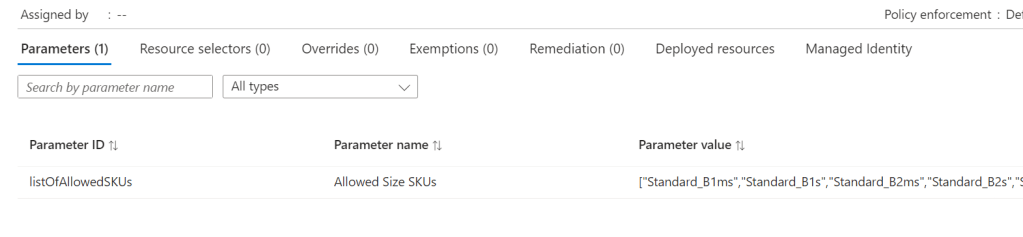
Once that runs successfully, you can verify all is correct via the Portal. Again, as this is Bicep, you can run this over and over and it will simply update the Policy if there are changes. Meaning all it requires is an update of your location parameters to add or remove regions from being allowed.

And that’s it! As promised, here is a repo with the files for reference. Please note – as always, all code is provided for reference only and should not be used on your environment without full understanding and testing. I cannot take responsibility for your environment and use of code. Please do reach out if you have questions.
How to – Control VM SKUs with Azure Policy and Bicep

Updated: March 2024 – repo link now fully working!

A common Azure Policy requirement for many tenants that deal with Virtual Machine infrastructure, is to restrict the sizes that are allowed to be used for deployment. This can be for several reasons, below are some of the most common:

  • Cost prevention – remove high cost VM SKUs
  • Alignment – align to existing SKUs for reservation flexibility
  • Governance – align to a governance policy of VM family (e.g. AMD only)

For anyone who has created a Policy like this in the past, the experience is quite straight forward. Azure provides an out-of-the-box template, you simply have to pick which VM SKUs are allowed from a drop down. However, several years ago this was straight forward. Pick X SKUs from about 100 SKUs. This list has grown exponentially, and only continues to get larger. This makes implementing the Policy, and modifying it, exceedingly cumbersome via the Portal.

So, one technical and accurate solution is to define this Policy via code. How you manage this (i.e. deployment and repo management etc) is not for this blog post, but is achievable with this as your base Policy. Two elements are required for this to work correctly

  1. Bicep file to deploy Policy resource
  2. Parameters file for VM SKUs

Item 1 is simple, I’ve included the exact code, and will link off to a repo with all of this at the end too.

To explain the above:

  • We will pass an array of chosen VM SKUs, and the string of the built-in Policy definition.
  • We use a variable to define the Policy name.
  • We deploy a single resource object, combining these into one Policy deployment.

Now, to get to the point where this can be deployed, we need to define our list of chosen VM SKUs. But to get that, we need a list of possible VM SKUs, to then filter down from. There are a couple of ways to achieve this, but to avoid the misery of formatting a hundred or so lines, here is how I did it.

First, not all VM SKUs are possible in all regions, so this is our start point. Figure out the region(s) in scope for this Policy, and work from there. For this example I will use North Europe.

Get-AzVMSize -Location 'northeurope'

The above gets us a big long list of VM SKUs possible in North Europe via PowerShell. However, it’s a nightmare to use and format, so a small change and an export will help…

Get-AzVMSize -Location 'northeurope' | select Name | export-csv C:\folderthatexists\vmksu.csv

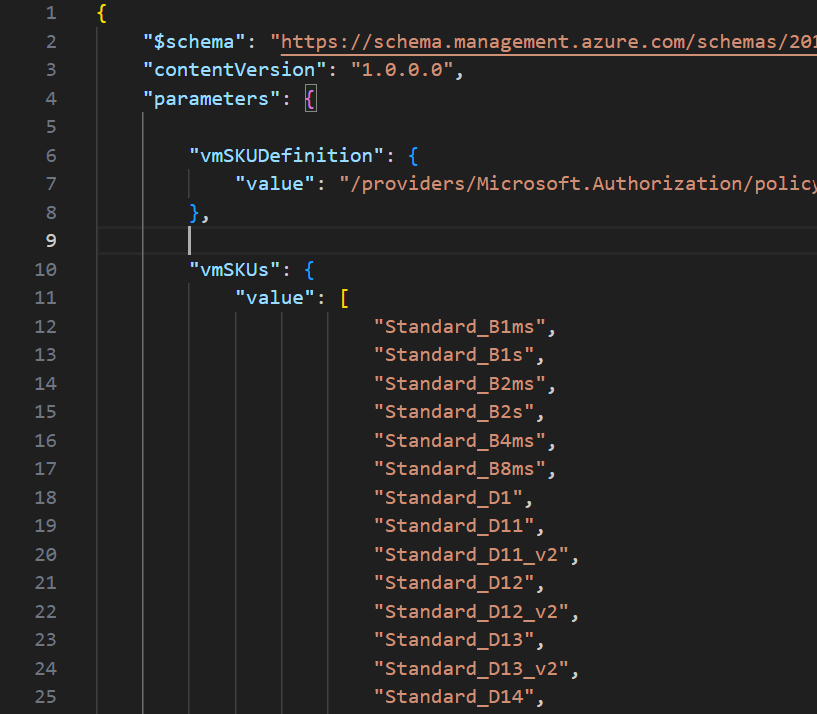
Now, that gives me a list of 500+ VMs, again not very manageable directly, but what is important, is that if you open that CSV file in VS Code, they are formatted exactly as you need for JSON parameters file! You can simply copy and paste lines needed. I found it quicker here to actually remove lines I don’t want than select those I do.

Once you have your list completed, that is now the detail we will use in the parameter file to pass our array of SKUs for deployment.

Now to deploy, simply pick your method! For this post, I am using PowerShell (as I am already logged in) and will complete a Subscription level deployment, as this is a Policy. I will pass both files as command parameters, Azure will do the rest! The below should work for you, and I will include a PS1 file in the repo too for reference, but adjust as per your files, tenant etc.

New-AzSubscriptionDeployment -Name 'az-sku-policy-deploy' -Location northeurope -TemplateFile 'C:\folderthatexists\vm-sku-policy.bicep' -TemplateParameterFile 'C:\folderthatexists\policy.parameters.json'

Once that runs successfully, you can verify all is correct via Portal too. Again, as this is Bicep, you can run this over and over and it will simply update the Policy if there are changes. Meaning all it requires is an update of your VM SKU parameters to add or remove VMs from being allowed.

And that’s it! As promised, here is a repo with the files for reference. Please note – as always, all code is provided for reference only and should not be used on your environment without full understanding and testing. I cannot take responsibility for your environment and use of code. Please do reach out if you have questions.
How to – Azure Policy via ARM Template

If you’ve worked with Azure for a while, you would know that one of the most efficient methods of deployment is ARM templates and one of the most powerful services is Azure Policy. What you might not know, is that you can combine the two for efficient, iterative and defined deployments.

A great point I saw recently on Twitter was that a lot of technical posts highlight features and how to use them but rarely go into why you should use them. Conscious of that, here are a couple of points on why I think you should make use of Policy via Template (PvT):

  • Quick deployment time – hilariously quick.
  • Repeatable defined structures – the exact policy definition, applied to the exact scope, with no possibility of user error.
  • Confident flexibility – Templates are idempotent; need to update the definition? Update the template, deploy the update, job done.

So if the “why” makes sense to you, let’s move onto the “how”. If it doesn’t, let me know! I’d love to hear your horror stories/use cases…

Templates can be deployed in several ways, for the sake of simplicity, I’m going to use two tools here. Visual Studio Code and Powershell. Currently you can only deploy subscription scope resources via Powershell or CLI.

There are some other differences to note. The schema for the template must be:

https://schema.management.azure.com/schemas/2018-05-01/subscriptionDeploymentTemplate.json#

When deploying the template, it must be deployed to a location and given a name (the name of the template will be used if none is specified), that combination is then immutable for that location. So if you need to change location, you need to use a new name etc.

Now, let’s create our template. For this post, I am going to use an existing Template Definition and scope it to my Subscription. While you can pass the Template Parameters via Powershell Variable, for this post I am going to define them as a Template Variable. This is tricky piece of logic as they must be defined as a nested, object array. I also define the policyID via Variable. For existing definitions, you can get this via the Portal, or Powershell command

Get-AzPolicyDefinition | select PolicyDefinitionId -ExpandProperty properties | where displayName -Match "allowed locations"
{
    "$schema": "https://schema.management.azure.com/schemas/2018-05-01/subscriptionDeploymentTemplate.json#",
    "contentVersion": "1.0.0.0",
    "parameters": {},
    "variables": {
      "policyName":"Allowed Locations",
      "policyDefinitionID":"/providers/Microsoft.Authorization/policyDefinitions/e56962a6-4747-49cd-b67b-bf8b01975c4c",
      "policyParameters":{
        "listOfAllowedLocations":{
          "value":["NorthEurope","WestEurope"]}}
    },
    "resources": [
        {
            "type": "Microsoft.Authorization/policyAssignments",
            "name": "[variables('policyName')]",
            "apiVersion": "2018-03-01",
            "properties": {
                "scope": "[subscription().id]",
                "policyDefinitionId": "[variables('policyDefinitionID')]",
                "parameters": "[variables('policyParameters')]"
            }
        }
    ]
}

Now are Policy deployment is defined and ready for use, we deploy using Powershell:

New-AzDeployment -Name "pvtDeployment" -Location northeurope -TemplateFile 'C:\Users\username\Documents\WDA\PvT.json'

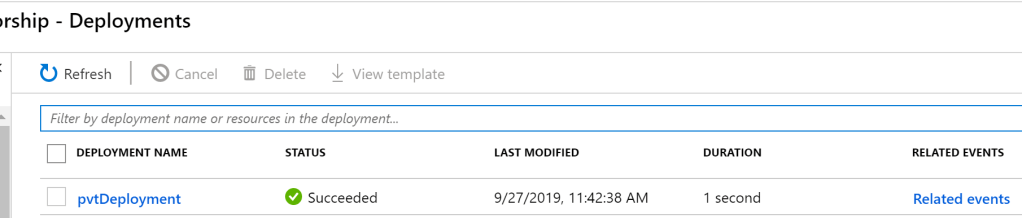
You should receive a succeeded message within your shell and you can verify via the Portal. As it was a subscription level deployment, head to your Subscription blade and check the Deployments tab. You should see the Template listed as the same name as you ran for the deployment.

You can then confirm your settings via heading to Azure Policy and the Assignments blade. You will see your Policy Definition assigned at the scope you set, using the Parameters you set.

Just to go back to an early point on why you’d use this option. Look at the duration of the deployment in the above screengrab – 1 second. You simply cannot beat that!

This can obviously be used for much more complex deployments, for example, defining your own policy inline and deploying via template. The possibilities are endless with one current exception; Subscription is highest scope you can currently use, hopefully Management Groups are on the roadmap and therefore the scaling capability is excellent.

As always, if there are any questions or suggestions, please get in touch!

Azure Policy – Where to Start?

One of the positives of Azure is that it can offer you so many possibilities when it comes to deployment options. However, if you don’t implement the correct governance, this can very quickly become a negative. Historically, Cloud has had difficulties when it comes to sprawl; Azure Policy is a service that will help prevent that.

Azure Policy isn’t only a tool for prevention either. With the right policies, you can audit and enhance your environment in terms of efficiency, security and compliance. This gives you greater insight into your Azure deployment and confidence in your requirements.

Governance in Azure is addressed in many ways; a good place to start for overall strategy is the Azure Architecture Center. It has specific sections on Governance as well as overall design guidelines.

So how does Azure Policy work? At its core, it is an assessment service. You create policies with specific rules and scopes. Once the policies are active, they audit all resources in the included scope for compliance. Policies can range in complexity; you can use the default templates or create a custom one to meet your needs.

There are two core areas when dealing with Azure Policy:

Policy Definition

Every policy must have a definition. The definition contains all the details of the conditions under which it’s enforced. It also has the defined effect that occurs if the conditions are met. Definitions are created using JSON and the full structure is defined here. You will need familiarity with this if you are going to write your own custom policies.

Allowed Locations Policy Example:

{
    "properties": {
        "mode": "all",
        "parameters": {
            "allowedLocations": {
                "type": "array",
                "metadata": {
                    "description": "The list of locations that can be specified when deploying resources",
                    "strongType": "location",
                    "displayName": "Allowed locations"
                },
                "defaultValue": [ "westus2" ]
            }
        },
        "displayName": "Allowed locations",
        "description": "This policy enables you to restrict the locations your organization can specify when deploying resources.",
        "policyRule": {
            "if": {
                "not": {
                    "field": "location",
                    "in": "[parameters('allowedLocations')]"
                }
            },
            "then": {
                "effect": "deny"
            }
        }
    }
}
Policy Assignment

A policy assignment is a policy definition that has been assigned to take place within a specific scope. Assignments range from Management Groups to a single Resource Group. The scope of the assignment refers to all the Resource Groups, Subscriptions, or Management Groups that the Definition is assigned to. Inheritance is enabled for all assignments. Therefore, a policy applied to a resource group is also applied to all resources in that resource group. However, you can include exclusions as a sub-scope of the assignment. For example, a Definition is assigned to a Subscription; all Resource Groups inherit the Definition but you need a single Resource Group excluded. Rather than redo the Assignment for each Resource Group, you can simply exclude it from the Subscription assignment.

Your First Policy

Now that you understand what Azure Policy is, let’s get started with our first policy. For this example, I’m going to prevent Public IP addresses being deployed within a Subscription. This is something I commonly add to IaaS projects that are connected to a local LAN.

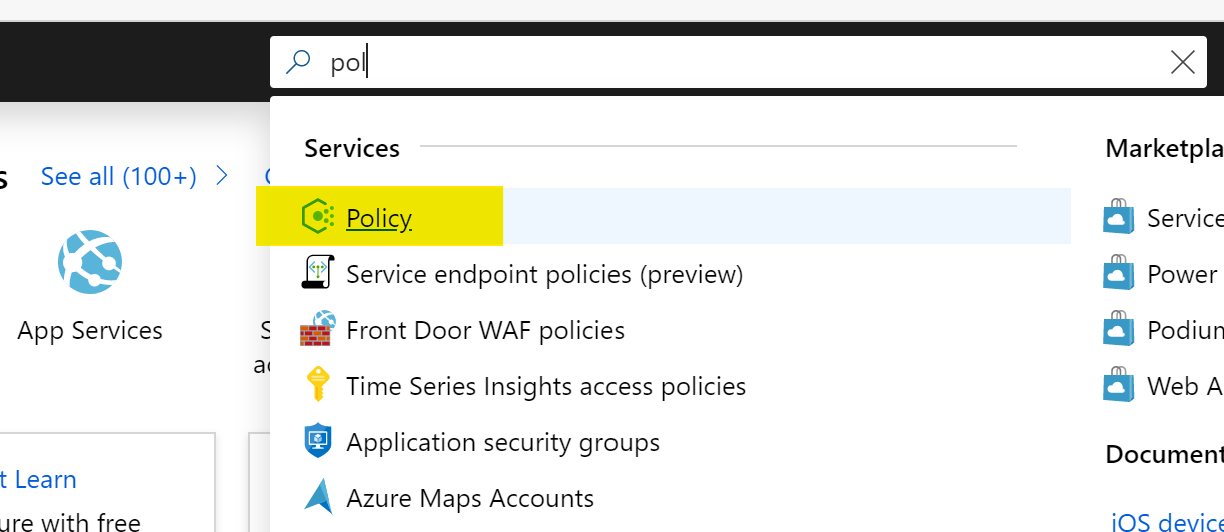
Once you’ve logged in to the Azure Portal, make your way to the Azure Policy service, I normally use the search bar as below as it’s quick!

Once you’re on the Overview blade, a handy option for your first time is to click the Getting Started option. This details the steps to take and we’re going to start by browsing default Definitions so click that View Definitions option as below:

This will bring you to the Definitions blade. You will see a lot of built-in policies. To simplify things, click the search bar and enter “not allowed”, this will bring up the Definition we will use, then go ahead and click on the Policy name “Not allowed resource types” as below:

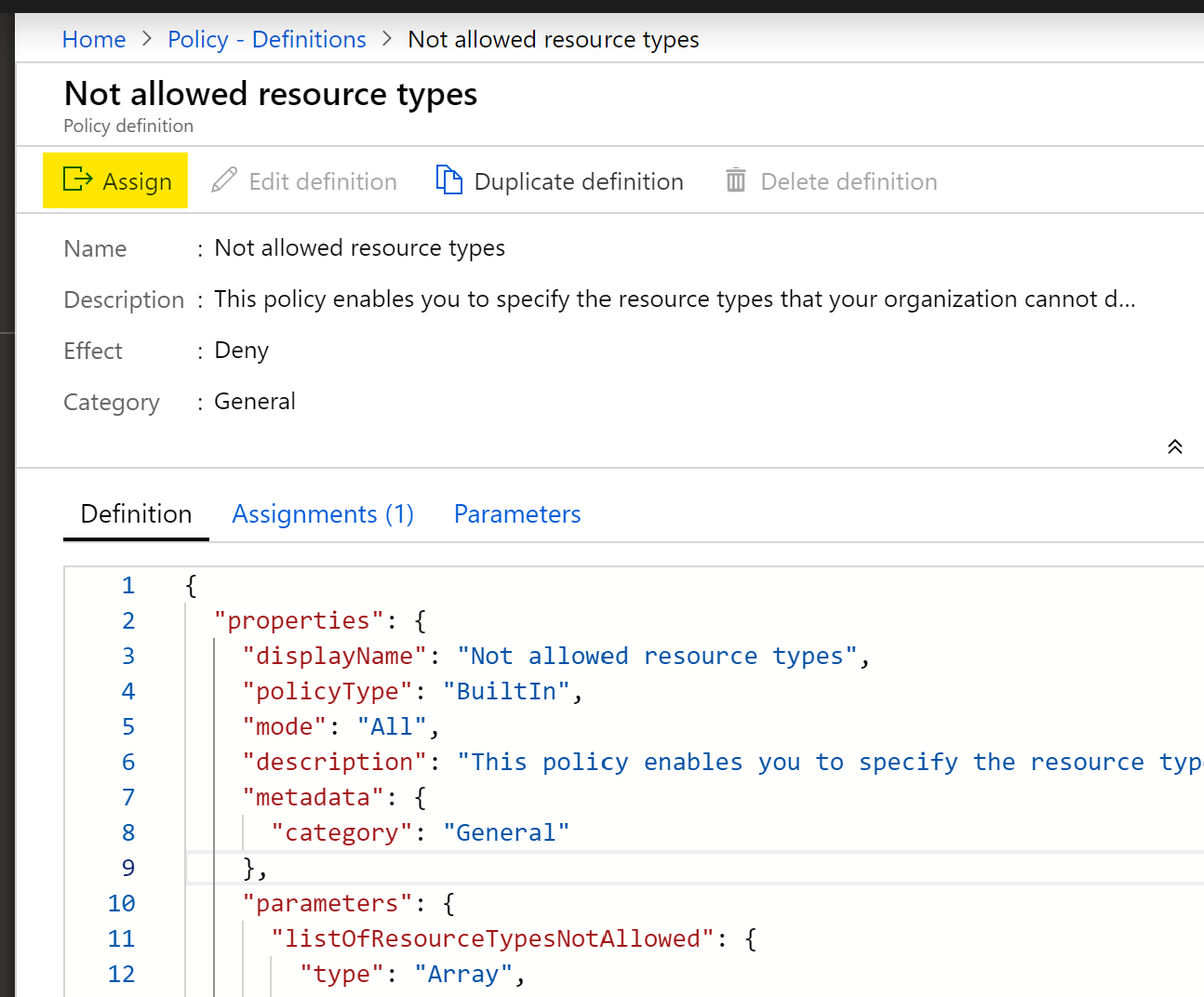
You’re now in the Definition page, where you can see the exact structure in JSON format. We’re going to jump straight to Assignment from here by clicking “Assign” as below:

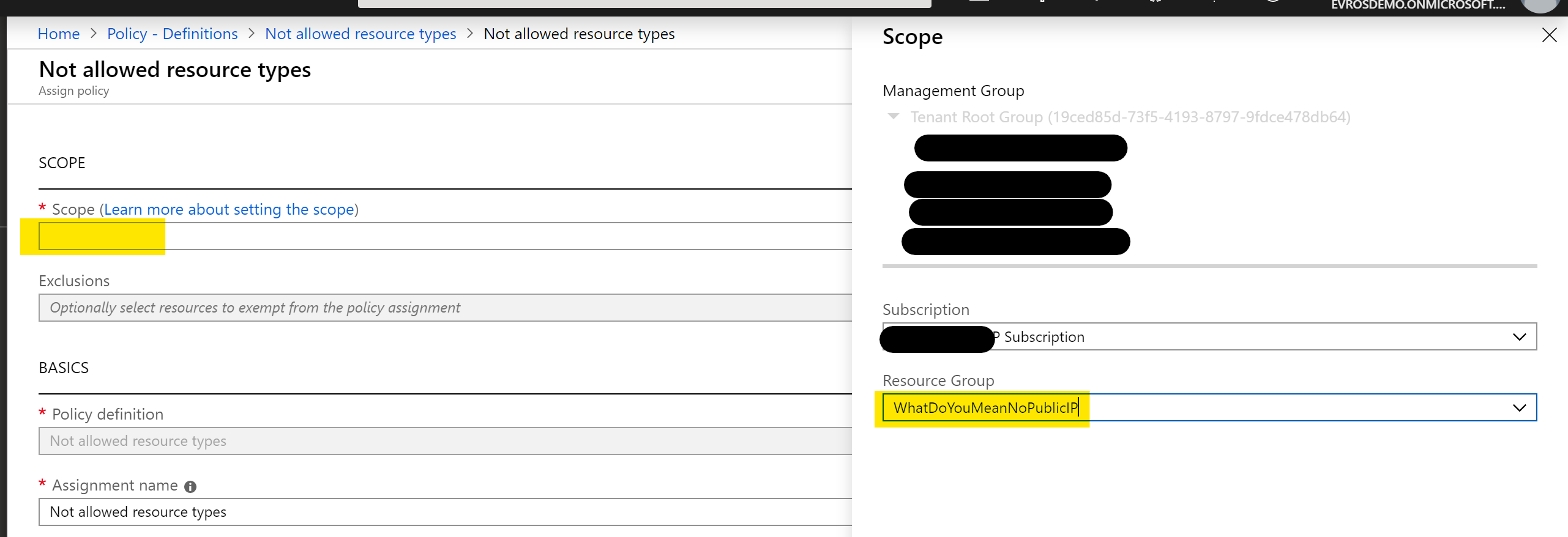
This will bring you the assignment blade. Our first step is to set a scope. I’m going to go ahead and choose my Subscription and a Resource Group, then click “Select” as below:

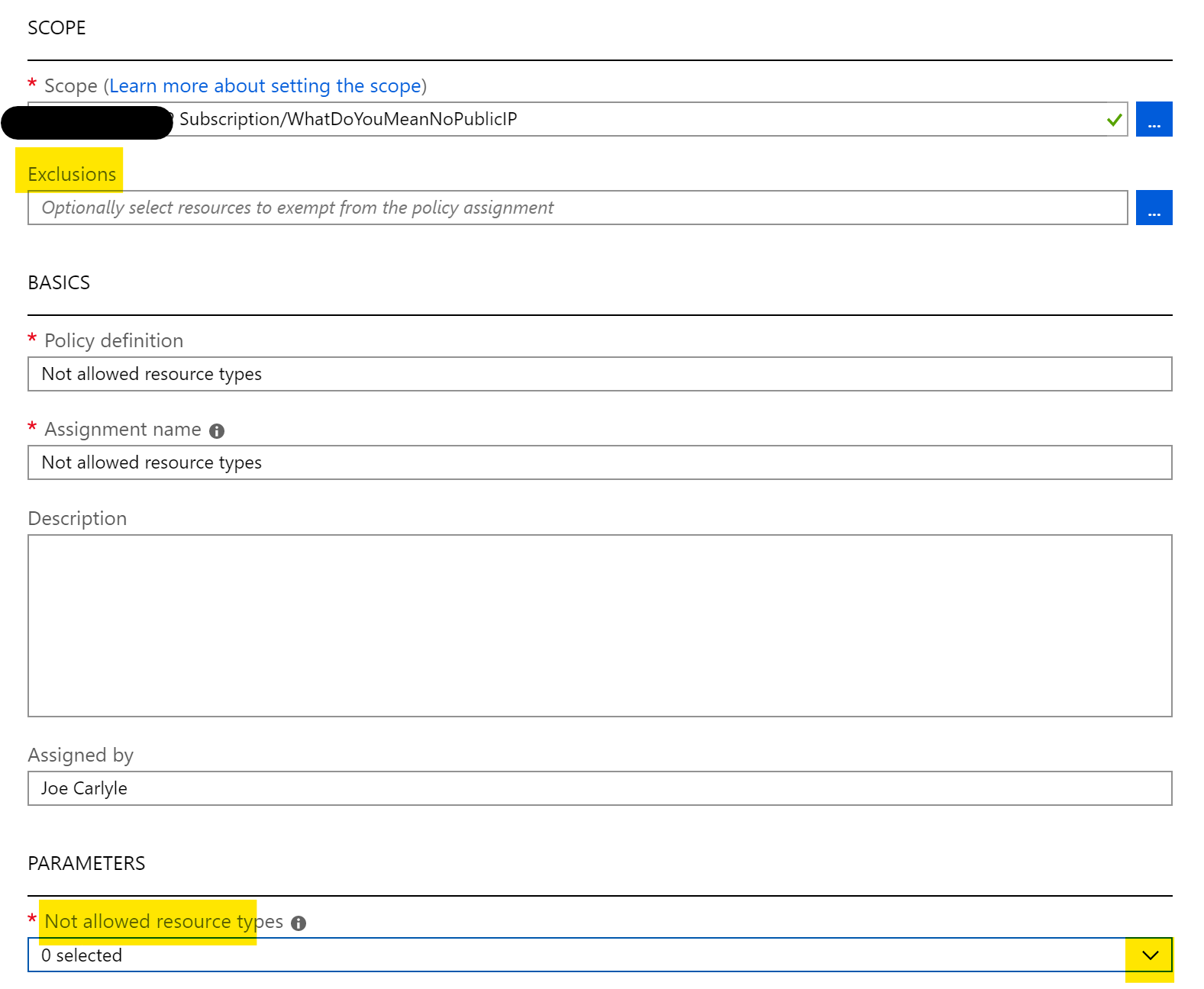
We’re going to leave most of the settings as they are, but you can where you can set Exclusions below. We’re going to click the drop down arrow as highlighted:

This opens a huge list of resource providers and types. Thankfully, there is a search bar, so type in “public” to narrow the list and tick the checkbox for Microsoft.Network/publicIPAddresses, then click away from the list as below:

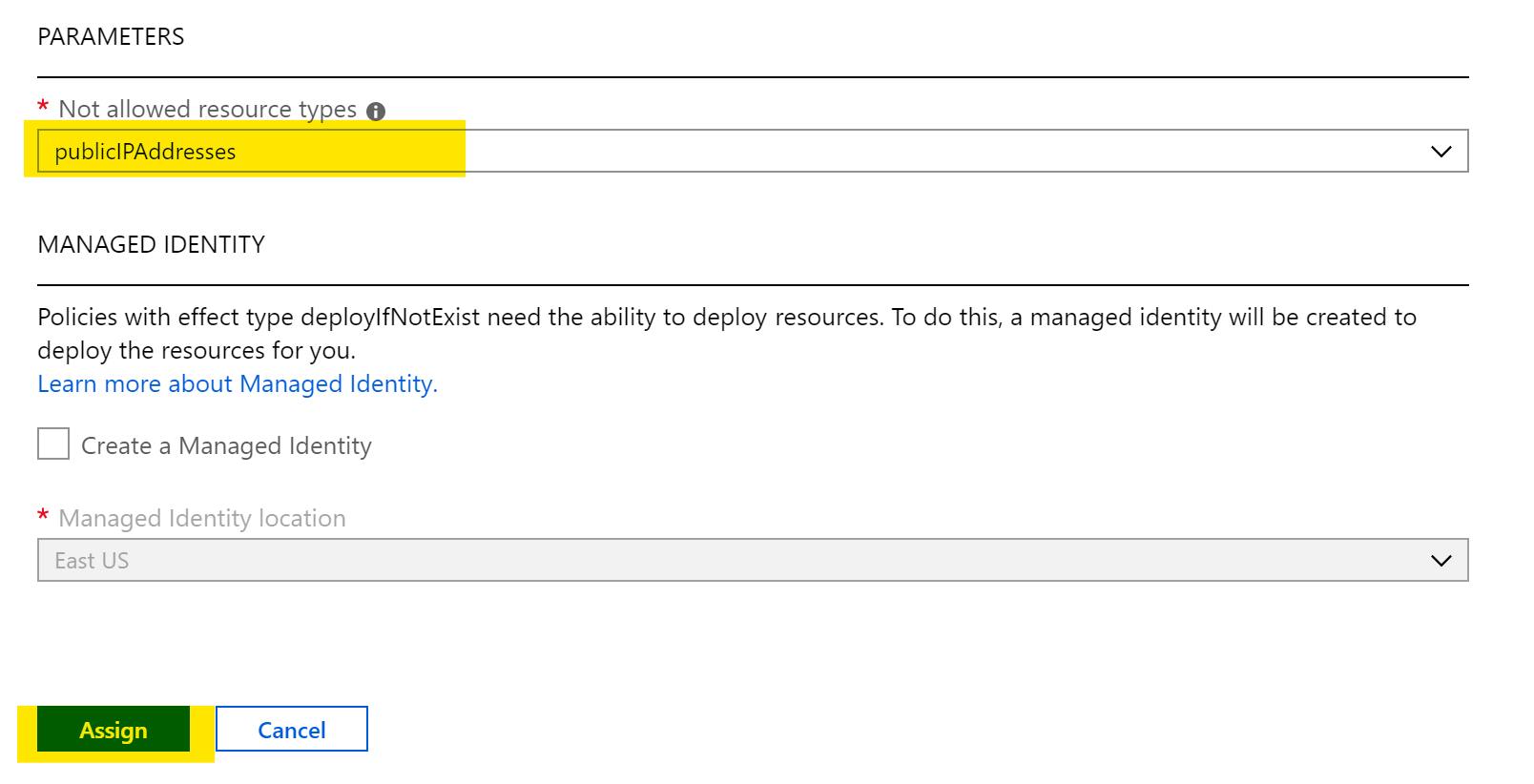
We’re almost there! You can see that publicIPAddresses are now defined as a parameter. So click the blue “Assign” button as below:

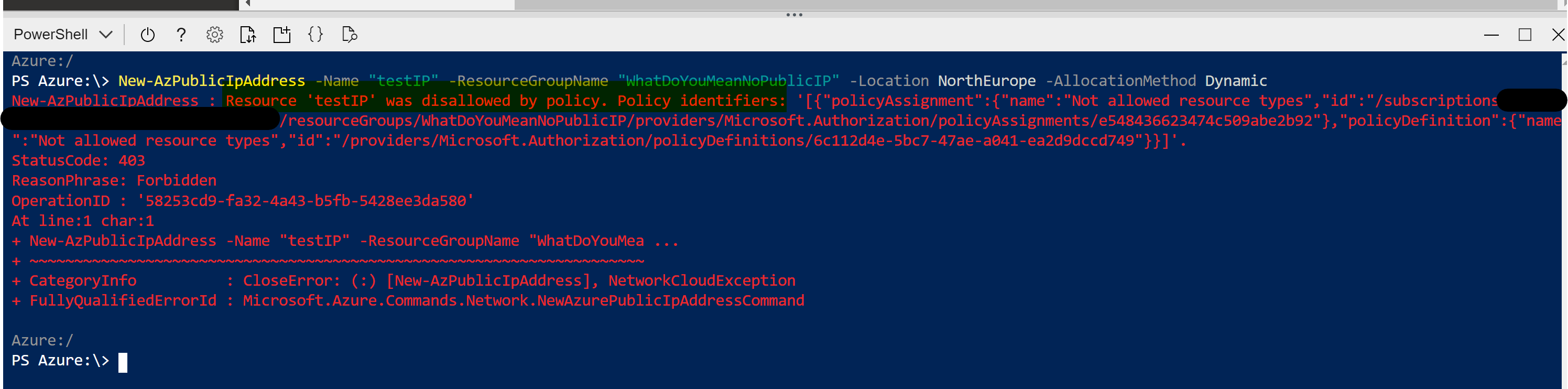
Now your policy is assigned, we need to give it a couple of minutes to propagate. Now, when I try to create a Public IP resource in my scoped Resource Group (I’ve used POSH in Cloudshell, but deployment method doesn’t matter) I’m told I cannot as it’s disallowed by policy:

You’ve now successfully applied your first Azure Policy! As you can see, even though this is a single Definition it is still very powerful. Your options to layer Definitions and apply custom ones allow for full control of your environment with very little effort. Azure Policy should be high on your list of priorities for your Azure deployments.

As always, if there are any questions, please get in touch!

What are Azure Blueprints?

I’m sure most of you have seen recent announcements relative to Blueprints as well as multiple Microsoft posts about the service and what it can do to improve your environments. However, what if you’re not sure about what they are and if they are usable for your environment? Hopefully, that’s where this post comes in. I’m going to explain exactly what they are and why you might use an Azure Blueprint. This should allow you to make a decision on whether you need them or not.

Following on from that, I think that’s the first basic point about Azure Blueprints. Similar to several other new services in Azure, the functionality is great and could help progress a lot of environments, but that doesn’t mean they help, or are even useful in a lot of other environments. Never feel guilt-ed into using a new service because there is a “buzz” about it at launch. Assess the service, understand it, assess it’s usability versus your requirements then TEST TEST TEST! Don’t forget, Blueprints are still in preview so no production workloads yet.

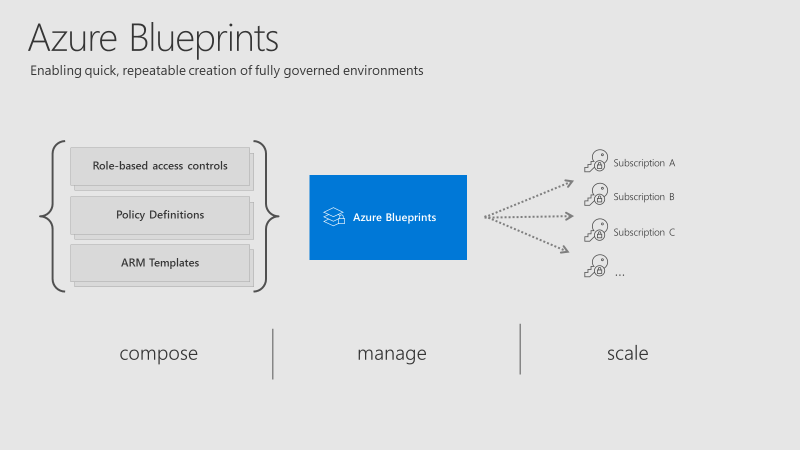
So, what is an Azure Blueprint? To try explain it plainly, it is a collection of governance and resource services, defined in such a way to allow you to repeat deployments to a set standard.

Azure Blueprints overview

The collection of governance and resource services within a Blueprint are referred to as Artifacts. Within each Blueprint, you can make use of any combination of the following:

ResourceHierarchy optionsDescription
Resource GroupsSubscriptionCreate a new resource group for use by other artifacts within the blueprint. This enables you to organize resources and provides a scope for other artifacts.
Azure Resource Manager templateSubscription, Resource Group
Templates are used to create resources. This could range from individual deployments to entire environments.
Policy AssignmentSubscription, Resource GroupAllows assignment of a policy or initiative to the subscription and/or resource group the blueprint is assigned to. Any
parameters are assigned at creation of the blueprint or during blueprint assignment.
Role AssignmentSubscription, Resource GroupRole assignments can be defined for the entire subscription or nested to a specific resource group included in the blueprint.

As you can see above, artifacts can be deployed/assigned at different levels. However, the Blueprint itself must be located in either a subscription you have at least Contributor access to or a Management Group. If located within a Management Group the Blueprint is available to any of the child subscriptions of that group.

When defining your Blueprint, several artifact options allow you to choose parameters that are passed from Blueprint to artifact. For example, when defining a Resource Group, you can choose to specify the name and location. You don’t have to specify these parameters within the Blueprint, you can also allow these to be passed when the Blueprint is assigned.

Once you have your Blueprint defined, your next step is to publish it. When publishing, you must indicate a version. I found it odd that this isn’t restricted in some way, you can literally name one version “1.0” and the next “B” so I’d recommend adding notes with each version and try to stick to a pattern. However, it makes sense if you’re going to use different versions for different assignments (I’ll explain that next), so choose relative to your requirements.

When your Blueprint is published, you can then assign it. A nice feature is the ability to assign different versions of a Blueprint to different subscriptions. For example you could have two versions of a Blueprint, that have different artifact definitions (think test version and production version) assigned to different subscriptions. They can be independently updated too.

At assignment, there are some options to chose as well as subscription. They are Resource Locking and Managed Identity.

For Managed Identity, it’s recommended you simply choose System Assigned as the Blueprints service will then manage the security lifecycle. More on Managed Identities to help you understand and choose what’s right for your environment.

The Resource Locking feature really allows you to maintain control of your governed deployment. If you’re not familiar with Resource Locks, check out this post. The familiar status applies to resources deployed by a Blueprint assignment:

  • Not locked
  • Read Only
  • Cannot delete

However, once a status is applied, not even a user/object with the Owner role can modify it. This is due to how these statuses are applied. An RBAC deny assignments deny action is applied to artifact resources during assignment of a blueprint if the assignment selected the Read Only or Do Not Delete option. The deny action is added by the managed identity of the blueprint assignment and can only be removed from the artifact resources by the same managed identity.

So, how do you edit or delete your resources? Update your Blueprint to “Not locked” and push the update to the relevant assignment. This method prevents unwanted and unexpected changes occurring outside of the scope of the Blueprint.

There is quite a learning curve for Blueprints I think as they combine several other services you must be familiar with, so for me, you have to start there. Understand each of the artifacts fully so you can see how they may work well if defined in your environment.

Recently, sample Blueprints have been released to allow you to deploy governed pre-designed environments with a couple of clicks, one sample is the ISO27001 Shared Services which I think is good to help understand the service, even if it might be slightly complex for your first test.

Again, Blueprints are still in Preview. So be as cautious as always with your production environments. I look forward to seeing what changes come with GA, which shouldn’t be much longer considering Blueprints were announced back at Ignite. I will update this post relevant to GA when it happens.

As always, if you have questions, leave a comment, mail me, or ping me on Twitter!