As a result of the current global health crisis, the Global Azure events have moved entirely online. Spread over three days (23rd-25th April) it promises to be an amazing mix of content from contributors from all corners of the world.
There is a mix of live, and pre-recorded sessions with a wide range of topics.
I’ve contributed a session myself, pre-recorded, on Azure Foundations. If anyone you know is looking to make a start on Azure, have them check it out! #GlobalAzureVirtual
If you’re familiar with Azure Firewall you would know that the introduction of an IP Group resource is most welcome. IP Groups are still in preview at the moment, so as usual be cautious on production environments as there is no SLA. However, it’s always nice to try out a service to see if it can work for you, or make your life easier.
IP Groups themselves are a relatively simple resource. They can contain a single IP address, multiple IP addresses, or one or more IP address ranges. They can then be used for DNAT, Network, or Application rules in Azure Firewall.
They currently have some interesting limitations that are a little bit confusing at first. From Docs:
For 50 IP Groups or less, you can have a maximum of 5000 individual IP addresses each per firewall instance. For 51 to 100 IP Groups, you can have 500 individual IP address each per firewall instance.
What this means is that while your rules should already be scoped accurately, you may need to use a couple of extra IP groups if you’re working with large address ranges. A simple example is a /16 will simply not work in an IP Group, /20 is basically your limit per IP Group.
I actually tried this on my own sub and it appears to actually work for now. Expect that to change as preview progresses.
If you’ve worked with Azure Firewall, I’m sure you’ve already thought of several places these rules can really help. For me, it was within Network Rule Collections.
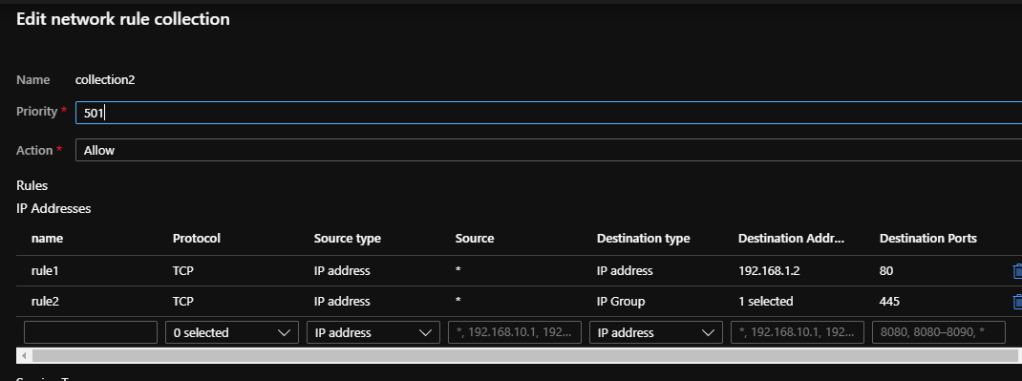
However, as the service is in preview, there are a few aspects to be ironed out. Unfortunately, one of those is the ability to add an IP Group as a destination within a network rule when using the Portal. See below
UPDATE: As expected, this is now resolved! However, read on to see how to do this at scale.
At this point, I am going to flag extreme caution if your Azure Firewall is in production and you are trying this. It is very easy to overwrite all of your collections, take your time and export them before making any changes!
I’m a Windows guy, so I’m going to explain how to do this with Powershell, but it also works for CLI. Similarly, I’m showing a Network Rule, same process works for Application Rules.
First up, you need to all of the details for your Azure Firewall as we will work with it’s config as a variable and finally update it.
#Get the AFW I want to edit
$afw = Get-AzFirewall -Name wda-afw-test -ResourceGroupName rg-wda-afw

#Save current Network Rule Collection to a variable for reference
$oldcol = $afw.NetworkRuleCollections

#Get the IP Group I want to use
$ipg = Get-AzIpGroup -Name wda-group1 -ResourceGroupName rg-wda-afw

#Create my new network rule
$newrule = New-AzFirewallNetworkRule -Name "rule2" -Protocol TCP -SourceAddress * -DestinationIpGroup $ipg.Id -DestinationPort 445
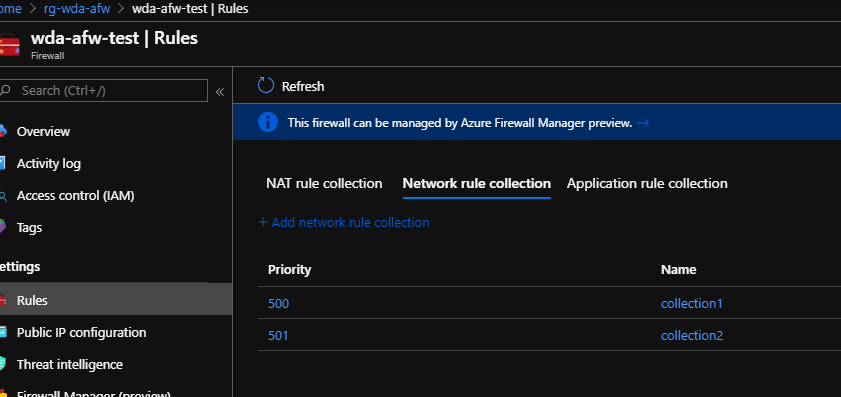
Now this is where it can get a bit tricky. Collections are stored as nested arrays. My AFW has two collections, I want to add my new rule to the second one which means I need to reference index 1. See the collections below, the one we’ll be editing is “collection2” which currently only has “rule2”
#view all collections
$afw.NetworkRuleCollections

#view the specific collection rules using place in array
$afw.NetworkRuleCollections[1].Rules | ft

#add my new rule to my collection
$afw.NetworkRuleCollections[1].AddRule($newrule)

#if you like, check it has updated as desired
$afw.NetworkRuleCollections[1].Rules | ft

#If as expected, update AFW
Set-AzFirewall -AzureFirewall $afw
The last command can take a minute or two to complete. Once it has, you can see the rule is now added to my collection2. The Portal will display it correctly, but you cannot edit correctly with the glitch.
And that’s it! You’ve successfully added an IP Group as a destination to your Azure Firewall. Again, please be careful, the above is only a guide and I cannot be responsible for your Azure Firewall 🙂
As Microsoft progresses it’s new strategy of role based certification, they are constantly updating the exams required for certification. As the Azure Administrator Role was the first to launch back in 2018, it’s no surprise to see it being updated again. If you’re interested in the exam, here is what Microsoft have to say about it:
The Azure Administrator implements, manages, and monitors identity, governance, storage, compute, and virtual networks in a cloud environment. The Azure Administrator will provision, size, monitor, and adjust resources as appropriate. Candidates should have a minimum of six months of hands-on experience administering Azure. Candidates should have a strong understanding of core Azure services, Azure workloads, security, and governance. Candidates for this exam should have experience in using PowerShell, the Command Line Interface, Azure Portal, and ARM templates.
As the exam is still in beta, if you take it, it will not be scored immediately. However, if you pass the exam, it will count towards certification and you will receive a Microsoft Certified: Azure Administrator Associate certification.
As always, a great place to start is Microsoft Learn. There are several interactive learning paths that are free that you can work through at your own pace. I find this a great way to study and gain greater understanding of the services by actually using them and you will need to have used Azure to pass this exam.
Below I’ve put together a collection of links relevant to the sections Microsoft have highlighted as being part of the skills measured for this exam. These are only guide links, sometimes you need to explore a topic much more deeply if you are not familiar with it. Hopefully these study materials will help guide you to successfully passing AZ-104!






 wedoAzure