
Last week, Microsoft announced that the majority of Private Link is now GA. This means it’s now supported for production workloads, however, is it useful for your production workloads? Hopefully this post will help you understand the service a bit more, and whether it’s worth investing your time in exploring.
First up, what exactly is Azure Private Link (APL)? Well, it allows you to access Azure resources using a private endpoint in a virtual network. There are two possible component within APL.
- Private Endpoint
- Private Link Service
A Private Endpoint is a private IP that exists within your vnet and presents a service via APL. Traffic targeting a service via APL travels via the Azure backbone, removing the need for public access if it’s not required. The service could be Azure PaaS, or a service presented by yourself, or a Partner via Private Link Service.
A Private Link Service leverages Azure Standard Load Balancer frontend IP configuration to present as a service, for use by a Private Endpoint. The workload behind ALB could be your own, or a vendors.
Below is a somewhat complex diagram explaining this visually, from Microsoft
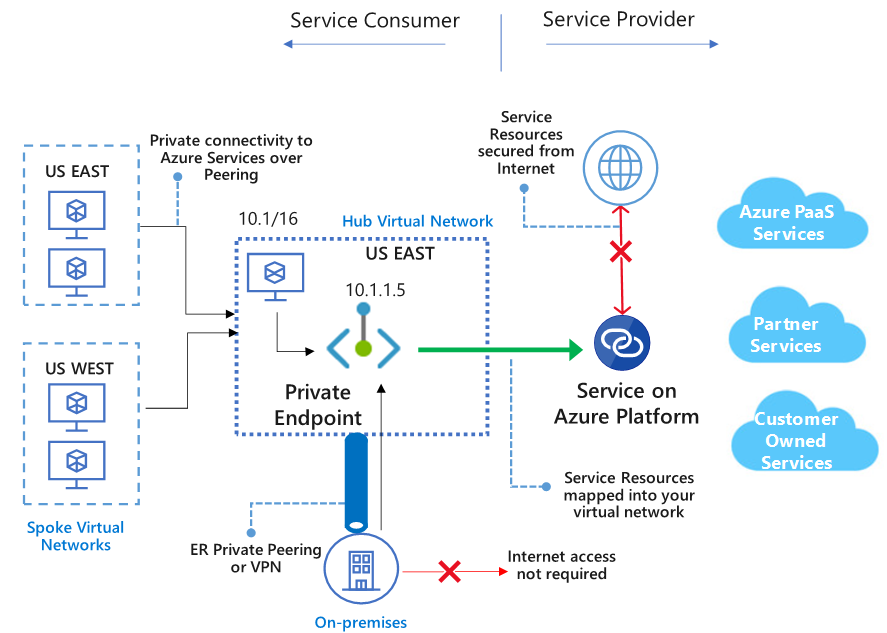
So, let’s try break that down into simpler concepts.
First, it allows you to access PaaS services without the need to implement a Microsoft Peering for ExpressRoute. Which gives you greater flexibility as well as a simpler footprint should you have VPN connectivity.
APL maps to single instances of resources, rather than whole services, so you have a more direct and therefore secure connectivity footprint. For example, allow connections to an Azure SQL instance, rather than all Azure SQL instances. This is also relative to vendors providing a service, you can connect to just their presented endpoint rather than a broader or more complex connection.
All of the above can be done across regions and across Azure AD tenants, so if you are providing a service, you can offer it via APL at a global scale.
A lot of Azure PaaS is GA, but there are still quite a few in Preview, so be wary of your production requirements, a full list is here – https://docs.microsoft.com/en-us/azure/private-link/private-link-overview#availability
So what might an APL deployment look like in your environment? Below, I’ve put together a quick example from my own tenant. I have a very simple website, running from a Storage Account and I have a test VM I will RDP to to load the site.
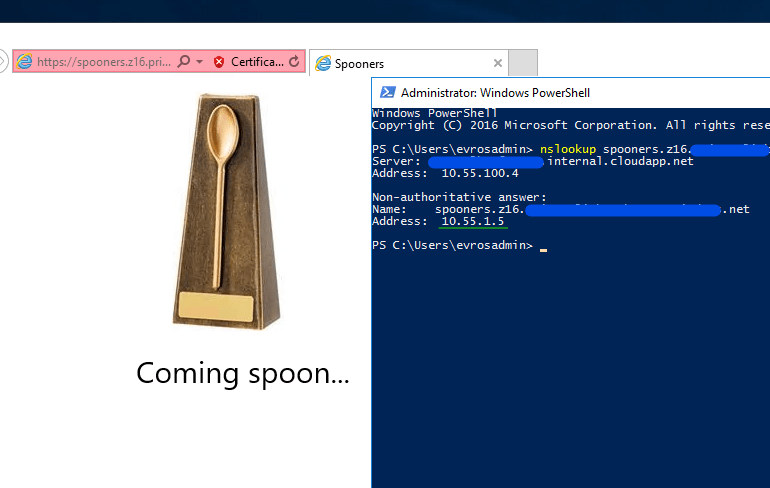
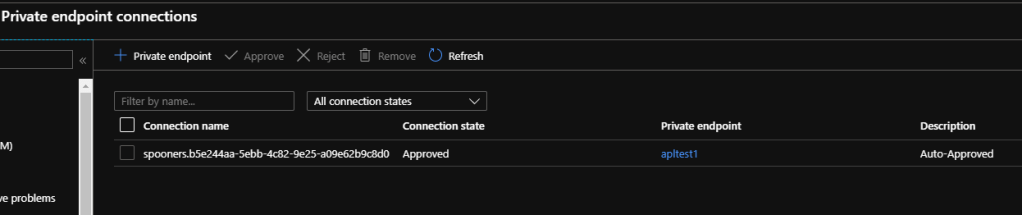
I created an APL, connected it to the SA, which automatically makes a couple of changes and auto-approves the connection within the SA. So now, when I lookup the corresponding endpoint, it shows as a private IP within my vnet (10.55.1.5), and I can browse to it successfully (cert error is expected due to lack of DNS here).
Within APL, I can check the status of my Private Endpoint, which confirms settings as expected.
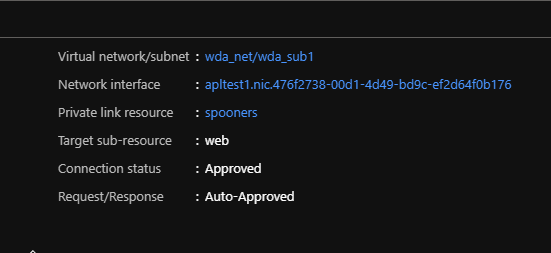
And on the SA itself, I can see that a Private Endpoint has been activated.
So all of the above seems quite simple and very usable. But there are some current limitations to be aware of.
For Private Endpoint, NSGs are not supported. While subnets containing the private endpoint can have NSG associated with it, the rules will not be effective on traffic processed by the private endpoint. When you create a Private Endpoint via the Portal, it automatically makes a switch to the subnet to disable network policies. Other deployment methods require a manual change, documented here – https://docs.microsoft.com/en-us/azure/private-link/disable-private-endpoint-network-policy
For Private Link Service, it must be a Standard ALB, only IPv4 and only TCP traffic. The above note about subnets and network policies is also valid, documented here – https://docs.microsoft.com/en-us/azure/private-link/disable-private-link-service-network-policy
Overall I think APL is a great addition to the network offerings and more closely aligns what Operations teams like to be able to control when working with PaaS. The options it introduces for vendors could also see some clever solutions brought to market, especially with the supported global capability.
As always, if there are any questions, get in touch!





 wedoAzure