What is Azure Network Security Group?

If you’re considering Azure for IaaS workloads, the first aspect of cloud you will have to understand, design and deploy is networking. As with any other cloud, software defined networking is the foundation of IaaS for Azure.

You cannot deploy a workload without first deploying a Virtual Network. However, once you have a network, you then need to consider its security and specifically how you control its perimeter and access. The perimeter is something that requires its own post but for platform-native, have a look at Azure Firewall and for other topics, start by checking out the Security Center docs for an overview.

When it comes to access control on your Virtual Network, Azure offers built-in solutions for both network layer control and route control. Network Security Groups (NSG) function as the network layer control service. So, what are they and how do you use them?

NSGs filter traffic to and from resources in an Azure Virtual Network. Combining rules that allow or deny traffic for both inbound and outbound traffic, allows granular control at the network layer.

They can be viewed as a basic, stateful, packet filtering firewall, but what does that mean? First, lets note what they don’t do; there is no traffic inspection or authentication access control.

So how do they help secure your network? By combining 5 variables into a scenario which you then allow or deny, you can quickly and easily manipulate the access that is possible to your resource. For example, consider the following two rules:

PriorityPortProtocolSourceDestinationAccess
1003389TCP10.10.10.10*Allow
200****Block

Our first rule, allows RDP traffic to the resources protected by the NSG, but only from the scoped source IP. The second rule, blocks all traffic. The rules are processed in order or priority.

Source and Destination can use IPs, IP ranges, ANY or Service Tags. Service Tags really help you define simple but powerful access rules quickly. For example, consider the following change to our above rules:

PriorityPortProtocolSourceDestinationAccess
1003389TCP10.10.10.10*Allow
101443TCPVirtualNetwork*Allow
200****Block

We still allow RDP and we still block all traffic, however, we now also allow HTTPS traffic from any source tagged as VirtualNetwork. This includes everything in your Virtual Network, any peered Virtual Networks and any traffic originating across a VPN or ExpressRoute. A single Service Tag replaces multiple source ranges and simplifies management.

If you’re still struggling with the filtering aspect, check out this handy tutorial from Docs.

A couple of other items to note about NSGs; they can be applied to a Network Interface or a Subnet and they have some default rules. Which layer you apply an NSG to is important. Remember traffic is processed inbound and outbound in reversed layers. So traffic from a VM out hits Network Interface then Subnet. So how you scope and combine NSGs is critical to ensuring your access control is as you want it. There is a great example of this on Docs.

The default rules that exist within an NSG allow Virtual Network traffic IN and Internet traffic OUT. You can check out the full list for exact details.

As always, if you have any questions or require a steer on a specific scenario, please get in touch!

Windows Virtual Desktop – First Thoughts – Part 2

A few weeks ago, I published the first part of this post, get to it here.

In the first part, I wrote about the initial setup and config experience for creating and accessing Windows Virtual Desktop (WVD). Overall, I found the experience to be good, but at times, slightly basic. This is to be expected with a brand new service that is in preview, but for the second part of this post, I wanted to explore the more advanced options of configuration that are currently available.

So in this post, I am going to discuss the following:

  • fslogix profiles
  • Load balancing
  • Depolying using a custom image
  • Availabiltiy/configuration of SSO

Starting with fslogix, I think it’s kinda cool that you are given a free license as part of WVD to use the service. The actual install was quick and easy, download the client, run it, set up two reg keys, done. However, I wasn’t overly familiar with fslogix and as such thought it wasn’t working and I have a solid background in desktop virtualisation, so I understand profile redirection explicitly. I found the Microsoft docs for this are light currently, but clicking through to the fslogix docs I spotted the issue, the local profile cannot exist first or fslogix will ignore it. A quick tidy up and my profiles were redirecting, loading quickly and generally behaving as expected. So far so good, I’d like to see how it scales with a tonne of users, but the expectation is similar performance to Citrix UPM. One thing that is perhaps a bit annoying out of the box is, when you choose signout from the web client, it simply disconnects the user from an app group, this can be fixed with some Group Policy, but I would expect sign out to mean sign out.

A little tip, check out the reg key “FlipFlopProfileDirectoryName” for a quick way to make finding your user profiles within your file share a bit easier. There are also more advanced options like “SIDDirNamePattern”, more here.

Next up is load balancing the session hosts. This obviously only applies to non-persistent session hosts, as the persitent relationship is 1:1. You also need to understand two concepts:

  • Breadth-first
    • This distributes sessions evenly across all session hosts, a max session limit is optional.
  • Depth-first
    • This fills up a session host first before distributing sessions, a max session limit is required.

Both options are simple to setup via powershell and behave exactly as outlined. Instructions here.

Third, I created a new host pool. To do this I first needed a custom image. So I deployed a VM to Azure to convert later. I skipped a bit here by using the new W10 image with 365 proplus preinstalled for you, very handy. However, I then realised this wasn’t the multi-user version and even though all is good with image creation, it fails when trying to register with WVD (30 mins later…) So to save you some time, just use the W10 multi-user image instead! I installed my apps, then I made the following changes:

  • fslogix installed and enabled
  • configured session timeout policies
  • Additional language pack and region settings

Once I had this done, to get your custom image, follow the usual docs here.

Then, you can simply specify it as part of the same steps you followed previously to deploy as a host pool

Once your new host pool is deployed, you need to assign users, don’t forget you currently can’t assign a user to more than one App Group at any one time. So I removed one of my test users from it’s previous group and added it to the new one.

Once logged in, everything is as expected. Profiles, custom settings and my newly added apps. For my own terrible fun I added a special app, yes, I’, sorry, that is Windows 95 running in the HTML5 client on WVD!

Windows95 running via HTML5 client on Windows Virtual Desktop

One tip that could save you some time is relevant to SSO. You may notice that when signing in and launching and app/desktop you are prompted for credentials twice. This is the current expected experience. In the comments on docs, I spotted the following response from the program group:

So we’ll just have to wait and see how good/bad SSO functionality will be once released!

If you have any questions or would like to see a third part to this series, let me know!

What is Azure Advisor?

Built into every Azure Subscription and offered as a free service is Azure Advisor. Helpful without being too intrusive, it can be beneficial to many who use Azure.

So, what is it? It’s a personalised recommendation service. It gives you quick and simple insights into your deployments and where they could be optimised. There are four main areas of analysis completed:

  1. High Availability
  2. Performance
  3. Security
  4. Cost

Azure Advisor gives you a central point to analyse all of your deployments for best-practise optimisation. It pulls in recommendations from other services like Security Center to offer a comprehensive view.

Azure Advisor dashboard

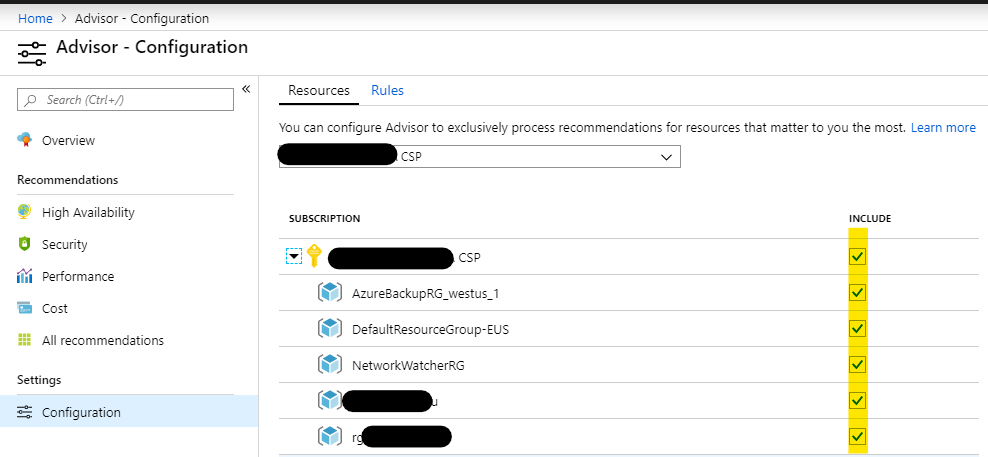
You can tweak some of the recommendations that are presented. You can also tighten the scope of recommendations too, for more granular data. Docs has a handy guide explaining how to do that in detail. I will walktrough an example below.

To scope Azure Advisor to only display recommendations for specific resources, it’s a simple change to the configuration settings.

  1. Open Azure Advisor
  2. Click Configuration under the Settings section
  3. You can now choose your scope relative to Azure Subscriptions and which Resource Groups you want to include.
  4. To remove resources from the scope, simply untick the relative box and click Apply

While the service itself is free, always be aware that some recommended optimisations could require a higher spend, such as a performance increase.

As always, if you have any questions, please get in touch!

AZ-302: Microsoft Azure Solutions Architect Certification Transition Study Guide

NOTE: This exam is now retired. I now have guides for AZ-300 and AZ-301.

The first thing to note about this exam is that it is intended only for those who have previously sat and passed the 70-535: Architecting Microsoft Azure Solutions exam. So if you’ve passed that exam, read on!

Next thing to note, this exam isn’t here to stay. It’s a transition exam to earn the more up to date certification. As such, Microsoft are retiring it on June 30, 2019.

What’s great is that if you pass, you will earn the Microsoft Certified: Azure Solutions Architect Expert with just the one exam.

Here is what Microsoft have to say about this exam:

The transition exam is intended for people who have already demonstrated skills in the content domain by passing the existing exam(s) that the new role-based certification exams will be replacing. They cover the delta between the current certification and what we expect people who earn the new certification to be able to do. We donโ€™t want to retest people on the same content where they have already demonstrated competence by passing the existing exam.

Transition exams cover net new content, content that wasnโ€™t covered in enough depth, and content on aspects of the technology that have likely changed since someone took the exam. As a result, the transition exam is not shorter than a typical exam but more focused on the key tasks and skills that were not assessed in the existing exam or certification that is being replaced.

Candidates for this exam are Azure Solution Architects who advise stakeholders and translates business requirements into secure, scalable, and reliable solutions.

Candidates should have advanced experience and knowledge across various aspects of IT operations, including networking, virtualization, identity, security, business continuity, disaster recovery, data management, budgeting, and governance. This role requires managing how decisions in each area affects an overall solution.

Candidates must be proficient in Azure administration, Azure development, and DevOps, and have expert-level skills in at least one of those domains.

Below Iโ€™ve put together a collection of links relevant to the sections highlighted as being part of the skills measured for this exam. As always, these are only guide links, sometimes you need to explore a topic much more deeply if you are not familiar with it.

One final important note, as this is a solution architecture exam, there is a presumption that you are aware of service SLAs, performance tiers, dependencies etc. This sort of knowledge will only come with experience and practise. Again, you would have needed to know these to pass 70-535 so nothing new there!

If you spot something, or have a better link for a topic, get in touch! I will update this post regularly as I work my way towards taking this exam and appreciate any feedback.

Determine workload requirements

Determine feasibility and refine requirements

  • There are no real links that help with this section as it is so broad. This requires that prior over-arching knowledge of the platform I mentioned earlier.

Optimize consumption strategy

Design for identity and security

Design authorization

Design a business continuity strategy

Design a site recovery strategy

Design for high availability

Implement workloads and security

Configure serverless computing

Implement authentication and secure data

Implement secure data solutions

Develop for the cloud

Develop long-running tasks

Configure a message-based integration architecture

Develop for asynchronous processing

Develop for autoscaling

Implement distributed transactions

Develop advanced cloud workloads

**This section is vast. A lot of practise and reading required**

https://docs.microsoft.com/en-us/azure/cognitive-services/computer-vision/home

https://docs.microsoft.com/en-us/azure/cognitive-services/speech-service/overview

https://docs.microsoft.com/en-us/azure/bot-service/bot-builder-tutorial-basic-deploy?view=azure-bot-service-4.0&tabs=csharp

https://docs.microsoft.com/en-us/azure/machine-learning/service/samples-notebooks

https://docs.microsoft.com/en-us/azure/iot-fundamentals/iot-services-and-technologies

Windows Virtual Desktop – First Thoughts – Part 1

Last week, Microsoft released Windows Virtual Desktop (WVD) to the public in preview. The service was first announced back at Ignite 2018. Microsoft describe the service as follows:

Windows Virtual Desktop is a desktop and app virtualization service that runs on the cloud.

Hereโ€™s what you can do when you run Windows Virtual Desktop on Azure:

  • Set up a multi-session Windows 10 deployment that delivers a full Windows 10 with scalability
  • Virtualize Office 365 ProPlus and optimize it to run in multi-user virtual scenarios
  • Provide Windows 7 virtual desktops with free Extended Security Updates
  • Bring your existing Remote Desktop Services (RDS) and Windows Server desktops and apps to any computer
  • Virtualize both desktops and apps
  • Manage Windows 10, Windows Server, and Windows 7 desktops and apps with a unified management experience

One point not mentioned that is important, Azure is the only public cloud you can run Windows 10 workloads.

There are a couple of pre-requisites to deploying WVD. First up is licensing, below are the requirements for running WVD

OSRequired license
Windows 10 Enterprise multi-session or Windows 10 single-sessionMicrosoft E3, E5, A3, A5, Business
Windows E3, E5, A3, A5
Windows 7Microsoft E3, E5, A3, A5, Business
Windows E3, E5, A3, A5
Windows Server 2012 R2, 2016, 2019RDS Client Access License (CAL) with Software Assurance

Next, you’ll need the following infrastructure components:

  • Azure AD tenant to register the service against
  • AD Domain Services reachable by VMs in WVD pool, so either a domain controller in the vnet or enable AAD DS.
  • An Azure subscription to host and pay for the above ๐Ÿ™‚

Once the above is all ready to go, you’ll want to start your deployment. First, you need to register your AAD tenant with the WVD service. This requires Global Admin rights and your tenant ID, full details here. I found the process quick, simple and well documented.

Second, you need to create a host pool. This links the IaaS resources to your domain and your WVD service. I opted for an isolated vnet with AADDS activated to domain join the VMs, using a server pool for applications. Full details for this step here.

After a little time, my host pool was deployed and I could access the service via the web client.

A Windows 10 desktop session running via the HTML5 client right in the browser

The experience was good but I wouldn’t call it seamless. Simple things jumped out straight away from the authentication side of things with the HTML5 client. After logging into the Azure AD app, I then have to login again to the desktop, I would have expected SSO here. The same lack of SSO is present in the RDS client on Windows 10.

However, once connected, performance and latency were good. Exactly as expected in fact. Even via the HTML5 client.

Next, I wanted to test some individual apps. Namely, the powerhouse of app virtualisation, Notepad. I created a new RemoteApp Group, following the instructions here, again they were easy to follow. Although, Notepad didn’t show up in the list of available apps, I just entered the location where I know it is installed and it worked.

Again performance was as expected however the issue I ran into here was the fact that I couldn’t assign the same user to multiple groups, it was one group or the other as I had a “desktop” group and an “app” group. Hopefully this is something that is fixed, or a workaround in place for GA.

Next on my list will be to test the FSlogix option for profiles, load balancing options and creating a pool with a customised image. But so far I am impressed with the simplicity of deployment. I will follow this post up with impressions relative to that next level of customisation required for a production environment.

One final note is that all of the customisation of the Windows Virtual Desktop service is done via Powershell. If you’re not familiar or comfortable with this, you may struggle to get a working POC in place. My advice is to follow the published guides exactly or ask on Twitter for help!