Where to Start – NLP with Azure OpenAI

I think without a doubt, one of the most talked about subjects at the moment is AI. Mass usage of OpenAI’s ChatGPT service exploded onto the scene this year, and we haven’t looked back. However, starting at such a broad scale of possibilities can be daunting. This post aims to simplify things down a bit, by looking at one single use case.

In this instance, I am going to take the Natural Language Processing capability offered by Azure OpenAI and have a GPT model summarise a piece of text for me. I completed sample lab files for this as part of a Microsoft Learn course, and I am reusing the Python here with some tweaks of mine!

All of the code for this solution is on Github here – https://github.com/wedoazure/sumo

The idea is that we take a text file, in my code I am using the first chapter from ‘Sherlock Holmes – The Hound of the Baskervilles’, but feel free to use whatever txt file you like, and send it to Azure OpenAI and ask for it to be summarised.

The app itself is command line based, very simple. It reads your text file, then sends a chat completion prompt to the Open AI model asking it to summarise your text.

The model then responds with a fixed length summary based on your input of word count and temperature.

The ability to adjust both is something I have added as my little variation. I had a couple of reasons for changing this up, but mostly built on the fact that your opinion of the output is important. For an example, read the actual text you want summarised, then have the app do it. Is the summary accurate? Is it a bit short, is it a bit too stiff? Change things up! Here is a 50 word summary at a temp of 0.5 versus 0.9 for the same txt file.

Sherlock Holmes and Dr. Watson examine a visitor’s stick, deducing that its owner is a country practitioner who walks a lot and has likely received a presentation from a hospital. The visitor, Dr. James Mortimer, arrives and confirms their deductions. He seeks Holmes’ assistance with a serious and extraordinary problem.

50 words at 0.5 temp

Dr. James Mortimer visits Sherlock Holmes and asks for his assistance with a mysterious problem. Through analyzing a stick left by a previous visitor, Holmes deduces that Dr. Mortimer is a country practitioner who used to work at Charing Cross Hospital. Dr. Mortimer confirms this and reveals that he has a strange case involving the curse of the Baskervilles.

50 words at 0.9 temp

As you can see, these are very different outputs, I personally prefer the response at 0.9, as I am summarising a work of fiction. However, if it was a financial report, you may need a lot less creativity and therefore force a lower temp. Similarly, you may want more words, or less, depending on your scope.

And that’s it! Short and sweet, using a single use case, minimal effort but impactful and useful outcome. I am sure I may make more tweaks, adding more advanced file input is definitely on the list. Let me know if you have any questions!
Azure Private Link – Where to Start?

Last week, Microsoft announced that the majority of Private Link is now GA. This means it’s now supported for production workloads, however, is it useful for your production workloads? Hopefully this post will help you understand the service a bit more, and whether it’s worth investing your time in exploring.

First up, what exactly is Azure Private Link (APL)? Well, it allows you to access Azure resources using a private endpoint in a virtual network. There are two possible component within APL.

  • Private Endpoint
  • Private Link Service

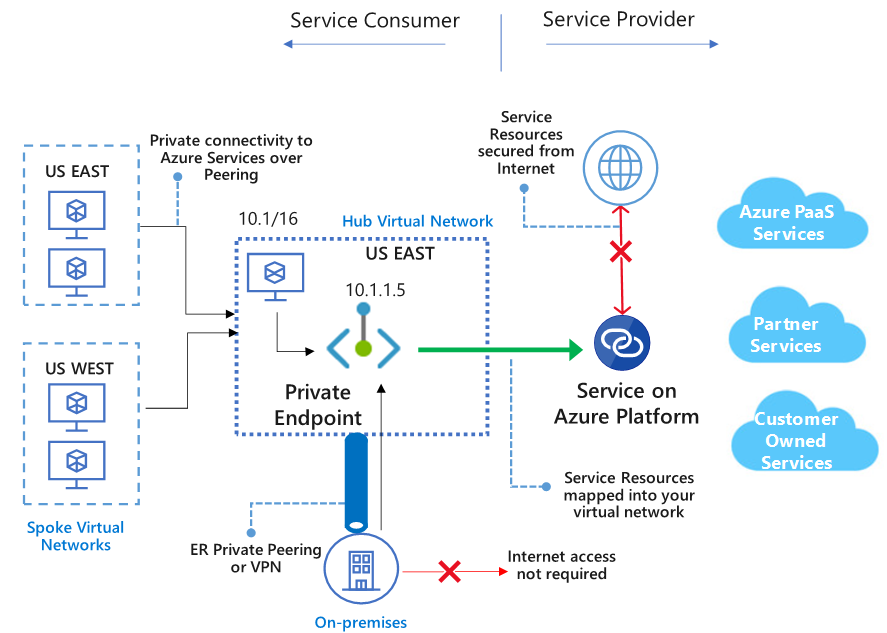
A Private Endpoint is a private IP that exists within your vnet and presents a service via APL. Traffic targeting a service via APL travels via the Azure backbone, removing the need for public access if it’s not required. The service could be Azure PaaS, or a service presented by yourself, or a Partner via Private Link Service.

A Private Link Service leverages Azure Standard Load Balancer frontend IP configuration to present as a service, for use by a Private Endpoint. The workload behind ALB could be your own, or a vendors.

Below is a somewhat complex diagram explaining this visually, from Microsoft

Private endpoint overview

So, let’s try break that down into simpler concepts.

First, it allows you to access PaaS services without the need to implement a Microsoft Peering for ExpressRoute. Which gives you greater flexibility as well as a simpler footprint should you have VPN connectivity.

APL maps to single instances of resources, rather than whole services, so you have a more direct and therefore secure connectivity footprint. For example, allow connections to an Azure SQL instance, rather than all Azure SQL instances. This is also relative to vendors providing a service, you can connect to just their presented endpoint rather than a broader or more complex connection.

All of the above can be done across regions and across Azure AD tenants, so if you are providing a service, you can offer it via APL at a global scale.

A lot of Azure PaaS is GA, but there are still quite a few in Preview, so be wary of your production requirements, a full list is here – https://docs.microsoft.com/en-us/azure/private-link/private-link-overview#availability

So what might an APL deployment look like in your environment? Below, I’ve put together a quick example from my own tenant. I have a very simple website, running from a Storage Account and I have a test VM I will RDP to to load the site.

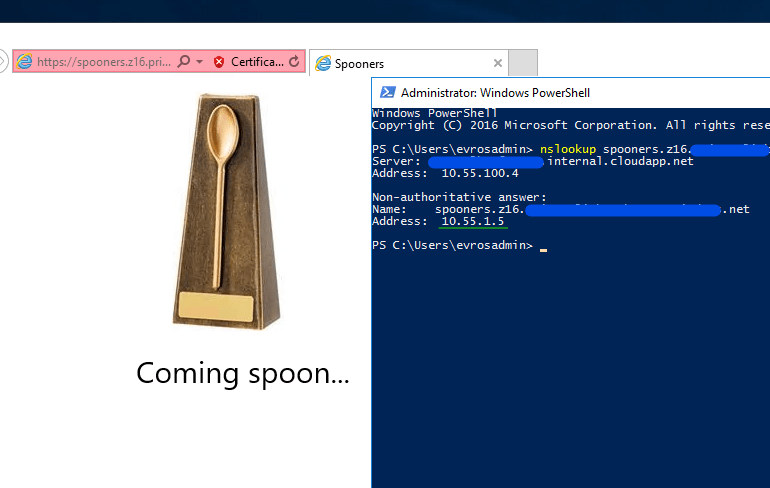
I created an APL, connected it to the SA, which automatically makes a couple of changes and auto-approves the connection within the SA. So now, when I lookup the corresponding endpoint, it shows as a private IP within my vnet (10.55.1.5), and I can browse to it successfully (cert error is expected due to lack of DNS here).

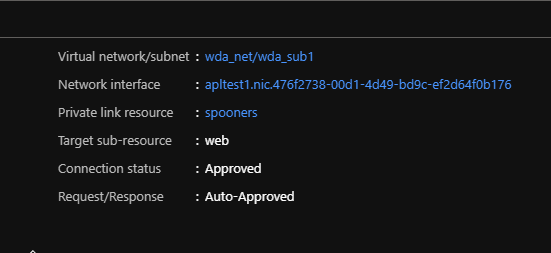
Within APL, I can check the status of my Private Endpoint, which confirms settings as expected.

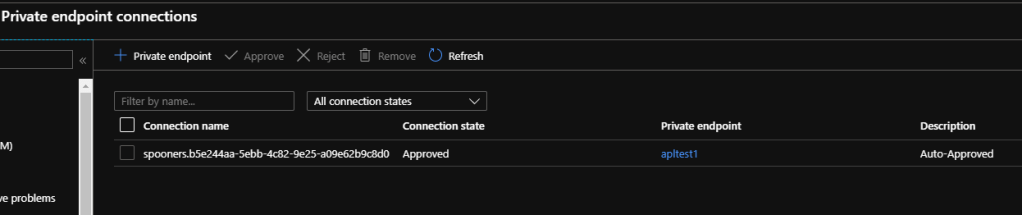
And on the SA itself, I can see that a Private Endpoint has been activated.

So all of the above seems quite simple and very usable. But there are some current limitations to be aware of.

For Private Endpoint, NSGs are not supported. While subnets containing the private endpoint can have NSG associated with it, the rules will not be effective on traffic processed by the private endpoint. When you create a Private Endpoint via the Portal, it automatically makes a switch to the subnet to disable network policies. Other deployment methods require a manual change, documented here – https://docs.microsoft.com/en-us/azure/private-link/disable-private-endpoint-network-policy

For Private Link Service, it must be a Standard ALB, only IPv4 and only TCP traffic. The above note about subnets and network policies is also valid, documented here – https://docs.microsoft.com/en-us/azure/private-link/disable-private-link-service-network-policy

Overall I think APL is a great addition to the network offerings and more closely aligns what Operations teams like to be able to control when working with PaaS. The options it introduces for vendors could also see some clever solutions brought to market, especially with the supported global capability.

As always, if there are any questions, get in touch!

Converting Classic Azure Resources (ASM) to Azure Resource Manager (ARM) – Where to Start?

During a couple of recent client engagements, I realised there are still quite a few people using Azure Classic Resources. The simple reason for this is that they work and we all know in IT, if it ain’t broke…etc.

Now, if you only recently began working with Azure, you may never have even seen a Classic Resource. The change to Azure Resource Manager (ARM) started back in 2016. Classic Resources do have some similar objects now that they are fully in the “new” portal (yes there was an old portal, it was…odd) but the concepts are different. This is because the focus was on services, hence it being referred to as Azure Service Management (ASM). Now, Azure is focused on resources, therefore Azure Resource Manager (ARM).

Azure Cloud Services diagram
ASM Example

So if you discover, or own some classic resources and would like to move them to ARM, hopefully this blog post will help you make a start.

First, do you need to migrate away from ASM? So far, Microsoft has said no, they’re “not deprecating ASM in the near future”. However, if you note the use of “near” that could mean that as the Azure Roadmap progresses, ASM is eventually deemed redundant.

Updated 2020-02-28, Microsoft have announced deprecation of ASM VMs and dependent resources on March 1st, 2023.

The other reason for a migration may be that you want to avail of some of the features only supported in ARM or want to gain greater granular control of your individual resources. Whatever your reason, the approach is the same:

  • Plan
  • Validate
  • Prepare
  • Migrate
Plan

In this stage, you need to understand and most likely document all of the resources in scope for the migration. Once you have this, you can compare and contrast to options supported and changes required for migration to be successful. The following resources are supported for migration:

  • Virtual Machines
  • Availability Sets
  • Cloud Services with Virtual Machines
  • Storage Accounts
  • Virtual Networks
  • VPN Gateways
  • Express Route Gateways (in the same subscription as Virtual Network only)
  • Network Security Groups
  • Route Tables
  • Reserved IPs

The list for currently unsupported features is here.

While the migration operation for the most part takes place in the management plane, and there is therefore no downtime, you could proceed with a migration without impact to your users. However, I’d recommend either completing the migration out of business hours or planning a maintenance window to account for any unforeseen issues. I’d always rather have the window and not need it than the opposite!

It’s also important at this point to understand the order resources should be moved too. Microsoft have this flowchart, the lines are bit confusing but it’s accurate.

Screenshot that shows the migration steps

The most important point to take from the above is that if your VMs are all in the same vnet, well then you migrate the vnet, it will bring all dependent resources with it. Then your next step is any storage accounts.

Validate

Microsoft have provided a helpful validation operation within the portal and via Poweshell. This will give you a very quick look into your resources and their config to see if it’s compatible with a migration or not. However, it can not take into account all unsupported features, such as an issue on the ARM side, so ensure you complete your own checks!

Prepare

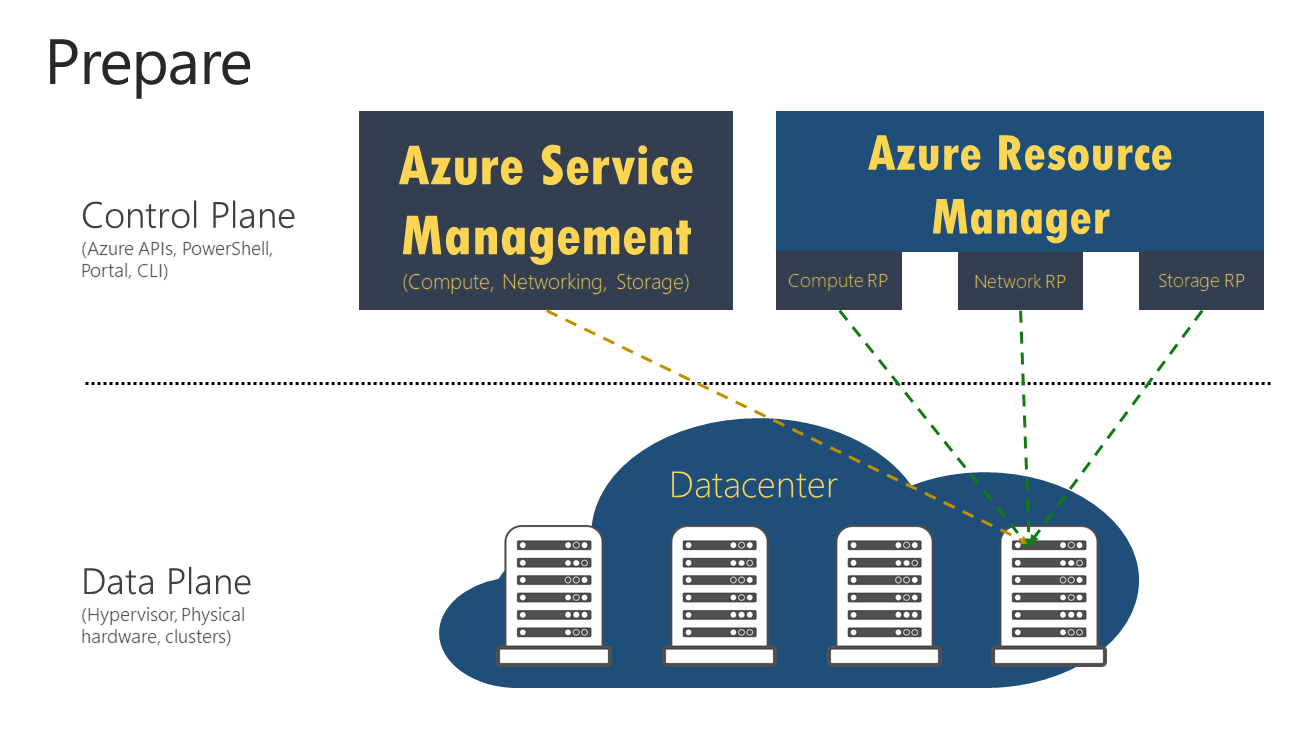
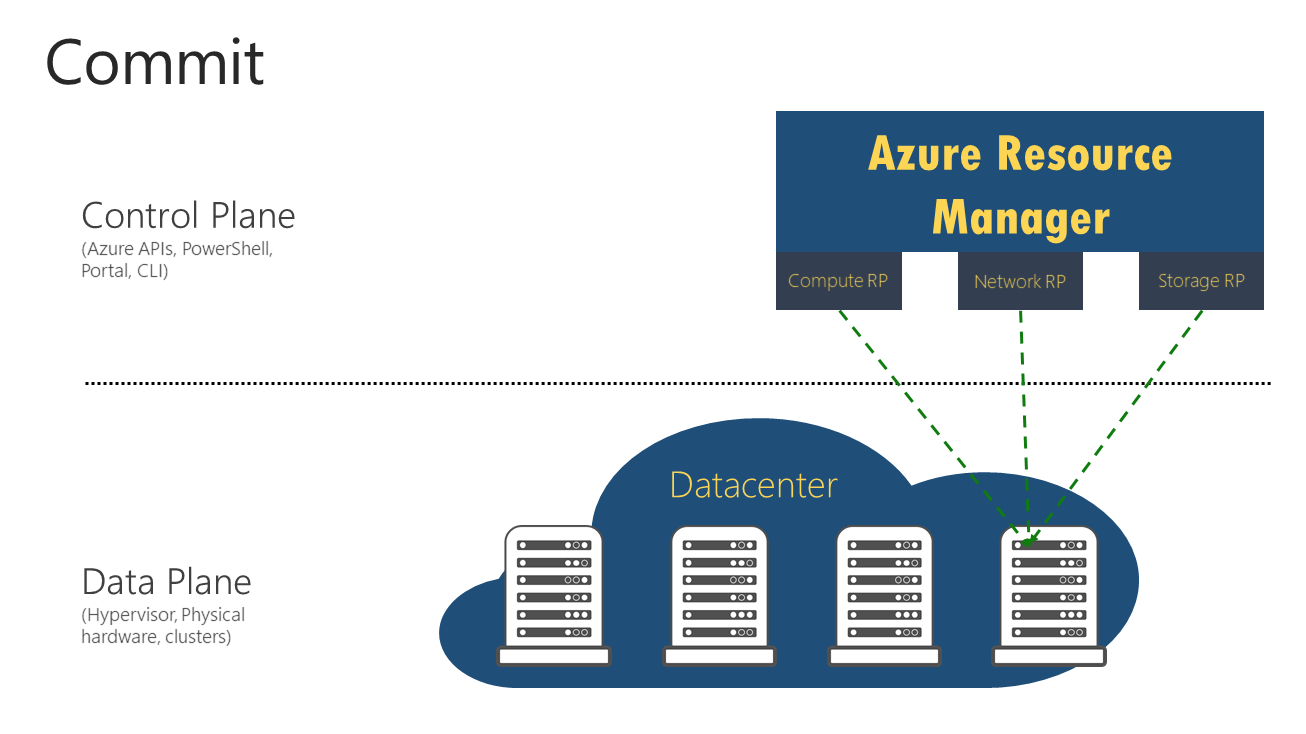
This is a key phase. The migration process occurs on the control plane, the data plane is unaffected at all times. The preparation operation allows you to create the ARM metadata while leaving your current ASM resources in place. This is represented in the graphic below:

Diagram of the prepare phase

Once the operation begins, the management plane is locked for the duration. This means you cannot make any changes to your resources. However, your users are unaffected. With one exception, if your VM is not in a vnet ( I know, crazy in ARM!) it will be stopped and started during Prepare.

If Prepare is successful, you can continue with the migration or, abort and fix any issues. The operation creates a non-editable Resource Group for each Cloud Service, copying the name and appending “-Migrated”. Nice and neat, relatively low impact and risk. Exactly what is useful during a migration! Remember, the management plane is locked, so if all is OK complete the migration to unlock. If not, abort to unlock.

Migrate

Once you’re good to go, the last step is to migrate. Again, this is only a control plane change. The operation is idempotent, so if it fails it can be retried. However, once complete you cannot rollback. Once complete, you will now be in the state represented below:

Diagram of commit step

The Classic Resources are removed and only the ARM versions remain. As the models are different certain services and aspects are renamed or incorporated in a different way, a full list of these mappings is here and is very useful during the Prepare phase and for future use once migrated.

All the steps required to migrate all VMs in the same vnet are documented and I’d recommend reviewing all steps before running any.

If you take your time and follow the recommended methods, you should be able to make your move from ASM to ARM pain free.

As always, if there are any questions comment or get in touch on Twitter!

Azure Portal – Where to Start?

For most people, the Azure Portal is their first experience of Azure. And for the majority, it may be their only experience. Or for a subset, at least their primary method. In my opinion, there are two reasons for this:

  1. People love a GUI
  2. You can do quite a lot of work without needing alternative methods of access/deployment

Neither of these reasons could be considered good or bad, this isn’t a comment on peoples working habits! I firmly believe that you should use the tool that works for you.

For example, if you’re very comfortable with using a command-line, that may be your choice for Azure. Also, there are some more complex operations that are only available via command-line options so you may need to dip in for that. However, don’t let a dip-in for a couple of operations fool you into thinking you need to work differently.

In my opinion, the Azure portal is great. I obviously use it every day for many different environments. Regardless of how complex my deployment requirements are I still always have access to the Portal for that job. I work best visually and this is what suits me. So, if you’re like me, hopefully this post will help with some tips, dos & don’ts, and general time saving advice for when you’re using the Portal.

Search Bar

First up, I’m going to start with the feature that has saved me the most time over the last year and that is the search bar.

This magic little bar should be your go to location for finding and accessing Azure resources. It is lightning quick and returns results from multiple locations, including Docs. Notice the keyboard shortcut in the screengrab above? Yep, press those two keys on your keyboard and start typing. That easy.

Search across all aspects available
Keyboard Shortcuts

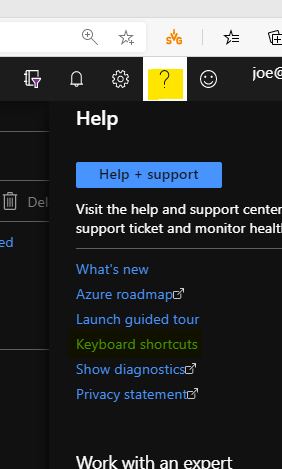
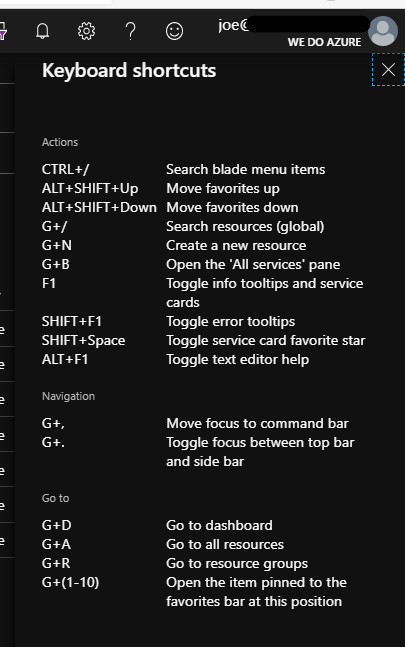
Speaking of keyboard shortcuts, you can access the full list via the top bar and the help section

Here you get a list of available shortcuts, my personal favourite being G+R

Organisation

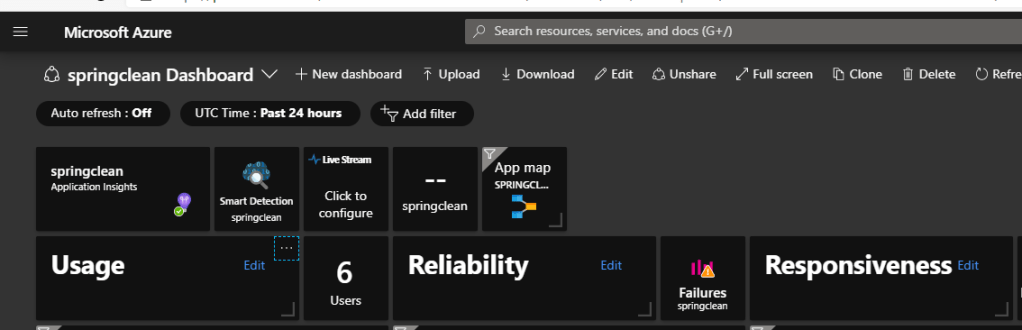
Next up, make sure the Portal is organised to help you work how you work. There are a couple of visual options like themes, but the functional ones are important. So the original landing view was the Dashboard option as below

Personally, I was never a big fan of this, I much prefer the new Home option:

But what’s important here is you have the choice. Work with both, choose which one suits you and stick with it. You set your default using the settings cog in the top bar.

Your next section that will really help day-to-day is the side bar. Again, the default here has changed recently, in the past it used to have a consistent docked list of favourites

This has now changed to a Flyout menu, which means this list is hidden unless you click to open it. This gives you more usable screen but obviously adds a step each time you want to use the side bar.

Speaking of the side bar, it comes with a default list of favourites. Spend some time removing those you don’t need and adding those you are constantly going back to. For me, my favourites list is different in every tenant as I work with multiple customers and each environment is unique. And remember, if you don’t like or use the sidebar, set it to Flyout in the settings cog and forget about it!

Portal App

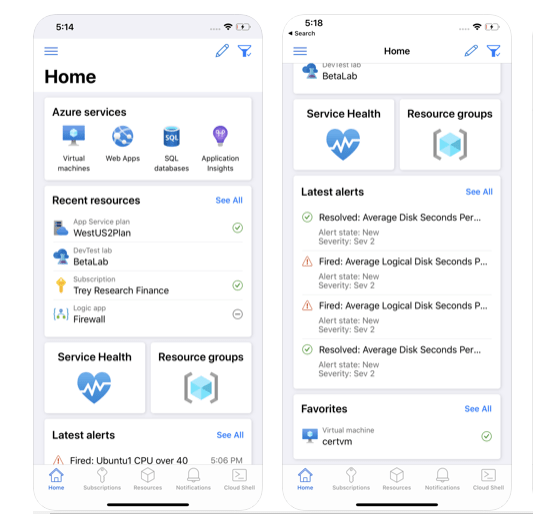
A slightly different way of looking at it, but if you like the Portal, you can get access to a lot of features on your mobile phone via the App on Android and iOS. I’ve found the app to be surprisingly useful when out and about and need to confirm/change something quickly.

iOS App Screenshots from the store

Hopefully you’ve found something useful in this post. If you have any questions, or even any tips you would like added, get in touch!

Azure Networking Security – Where to Start?

If you’ve read any of my blog posts regarding networking in Azure, you might have guessed it’s one of my favourite topics. For ITops, it’s one of the shifts in thinking required to make a change to cloud. As software-defined-networking is one of the core concepts required for a successful cloud implementation, it’s no surprise that the security of that networking is a close second.

Looking at it as simply as possible, good network security means allowing only required traffic and preventing everything else while logging what is useful for auditing. Azure offers several integrated services that can help achieve this.

With that in mind, there are three major scenarios to deal with when it comes to Azure networking:

  1. Azure Resource to Azure Resource
  2. Azure Resource to on-premises Resource
  3. Azure Resource to/from the Internet

I will reference each as we cover the different best practises available.

Access Control

Good network access control requires layering. In Azure, the most common networking concept is a vnet. A vnet does not, by default, get access to another vnet. However, within a vnet, every subnet, by default, has access to each other. So, the subnet layer is most likely where you will need to address access control. In Azure this can be done in two, free, simple ways. Custom Route Tables and/or Network Security Groups.

Custom Route Tables are exactly as they sound. They modify the system route table using routes you specify. If your route matches a system route, it will take preference, user defined routes always do. Similarly the lowest prefix match will always win. More on route tables here. CRTs are applied at subnet level and can quickly manipulate network traffic for your entire vnet. For example, preventing internet access by dropping traffic to 0.0.0.0/0.

Network Security Groups are a little bit more complex in application, but their concept is straight forward. They are an ACL for your network. They can be applied at subnet or network interface level. While NSGs allow you to create complex and granular rules quite simply, managing them at scale can be a challenge. More on them here.

Firewall

While the above allows for control of the network from a routing and access perspective, you may also need to control traffic by inspection and filtering. Within Azure, there are two main options for this; Azure Firewall or a 3rd party NVA.

Azure Firewall was released last year and is a stateful, firewall-as-a-service resource. It offers HA and scalability, however, it’s still a young product and therefore light on traditional network security options. More on it here.

Thankfully, Azure and network appliance vendors have been working better together recently. Most solutions you would expect are available in the Marketplace. The common gripe is that documentation can be light if not bad. However, if you need continuity with your local site, or a specific feature well then they are your best choice. My advice is to reach out to the Azure community if you are having issues, generally someone will have had the same issue and can help!

Perimeter

It’s best to start with some basic architecture decisions relative to your Azure perimeter.

  • Will Azure have a public perimeter?
  • Will it be inbound and outbound?
  • What requirements are there for a private perimeter?

Once the above are answered, you have a couple of well documented implementation options. They all operate on the same premise of layering. This allows for segregation of traffic most commonly with a firewall aspect. This combined with UDR can lead to a well designed and secure environment allowing only the network access required. Therefore layering everything that has been discussed already.

Monitoring

In Azure, there are two major tools to help you with this:

  • Azure Network Watcher
  • Azure Security Center

Network Watcher is one of my favourite tools in Azure. Within a couple of minutes, you can gain granular insights into your complex network issues with minimal effort. You can also integrate the output to other Azure services like Monitor and Functions to react to alerts and capture traffic automatically (*notes to self* must blog that).

Security Center, as it does for other infrastructure, offers insights into your network topology and can provide actionable recommendations at scale. Meaning you have a single pane to sanity check your network, regardless of how complex it may be.

If you take the time to understand and implement the above, you’re well on your way to having a secure networking environment. However, every single environment and workload should be treated as unique. The best network security is constantly auditing and reassessing itself. Be proactive to avoid having to be reactive!

As always, get in touch with any questions or to chat about your go-to network security steps.