How to – Troubleshoot your Azure Virtual Network Gateway

One of the most popular methods of connecting to Azure privately is via VPN. This can be a relatively simple process and is well documented by both Microsoft and 3rd party blogs. However, if you encounter problems, it can be difficult to get the data you need to troubleshoot efficiently. Especially if you don’t have access to both Azure and the local connection appliance.

In this post, I’m going to show you how to troubleshoot a Virtual Network Gateway and its VPN connection. As part of this, there are some required specifics:

If the above lines up with your environment, then let’s get started! (If not, get in touch and I might be able to help)

Troubleshoot a Virtual Network Gateway

Login to the Azure Portal, then click the search bar at the top, type “Network Watcher” and click on it to open your resource.

In the Network Watcher blade, under ‘Network Diagnostic Tools” select ‘VPN Diagnostics’.

You’ll have to choose a Storage Account and a Container within to run the tests. If you don’t have one, you can create one from Network Watcher. The Storage Account doesn’t have to be in the same location as your VNG.

Click the checkbox for the VNG you want to troubleshoot, then click ‘Start Troubleshooting’
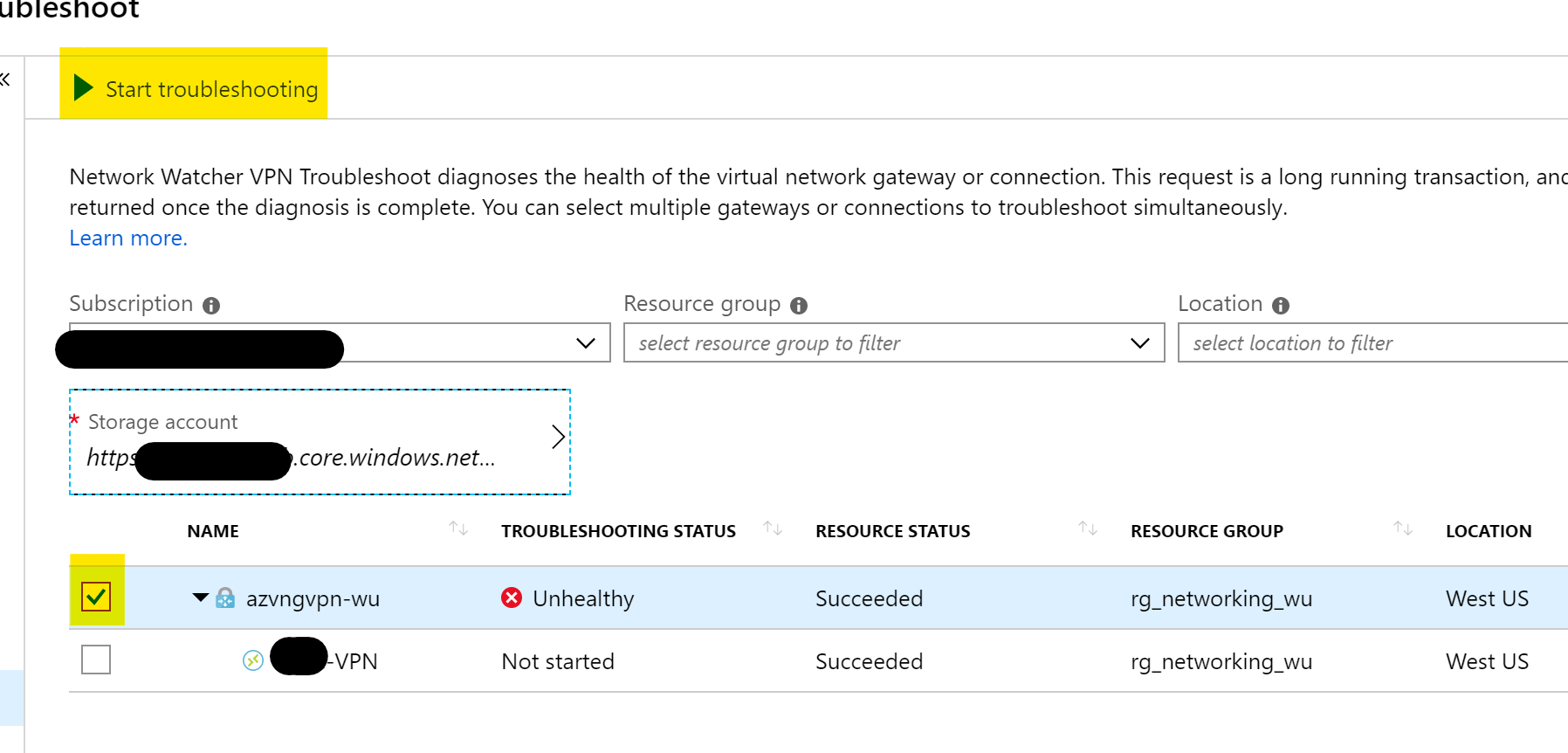
Once complete, you will see your ‘Troubleshooting Status’, you can see that for mine above it is shown as ‘Unhealthy’. To get more details, there is a Details pane just below with a ‘Status’ blade giving you more information about the problem and an ‘Action’ blade which gives suggestions on how to resolve the issue.

In this instance, the VNG as a resource is healthy, but the Connection it’s facilitating is not, so we need to dig further.

Troubleshooting a Virtual Network Gateway Connection (VPN)

In the same location we ran troubleshooting for the VNG, we will repeat the steps and select the Connection instead of the VNG this time. Select your Storage Account etc. as before and then click the Connection to troubleshoot. Then click ‘Start Troubleshooting’
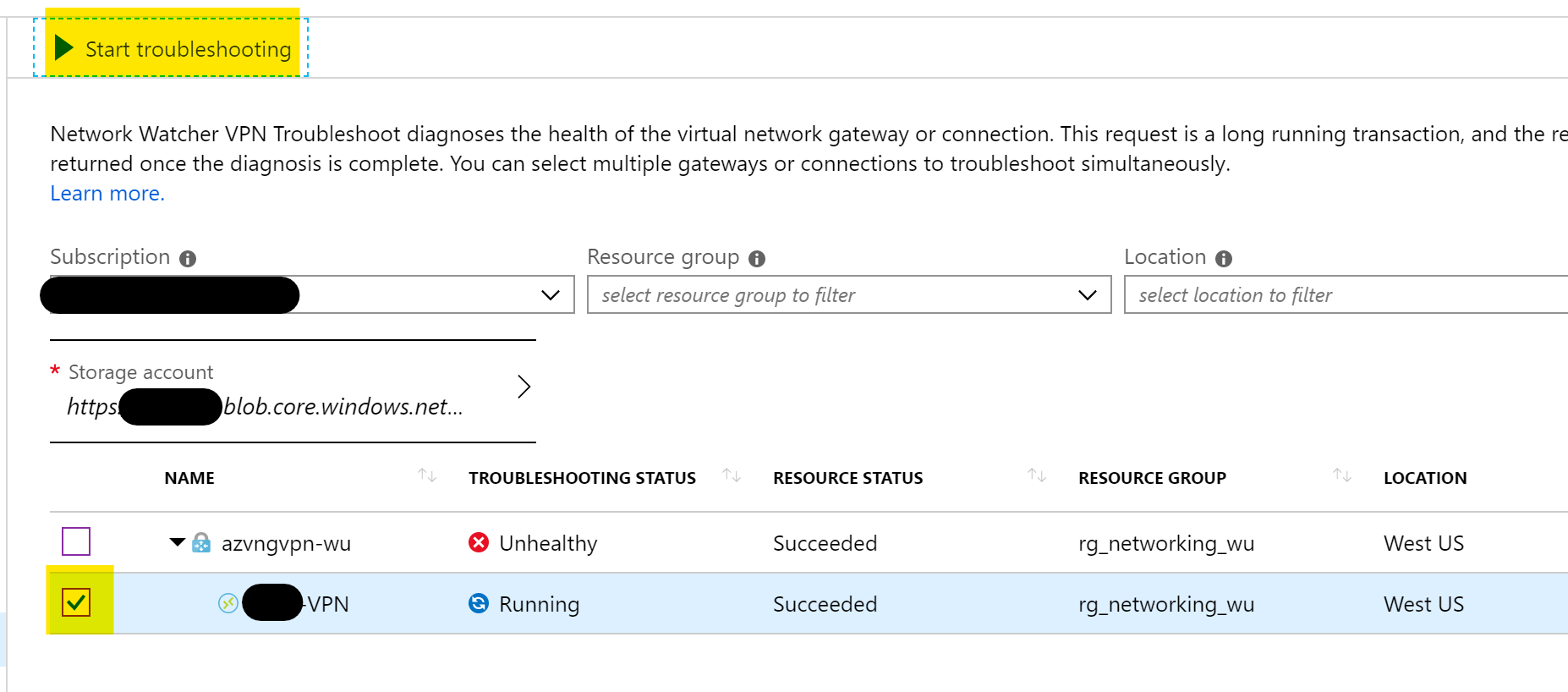
Once complete, you will again see a ‘Troubleshooting Status’ and can get more information from the ‘Details’ pane.
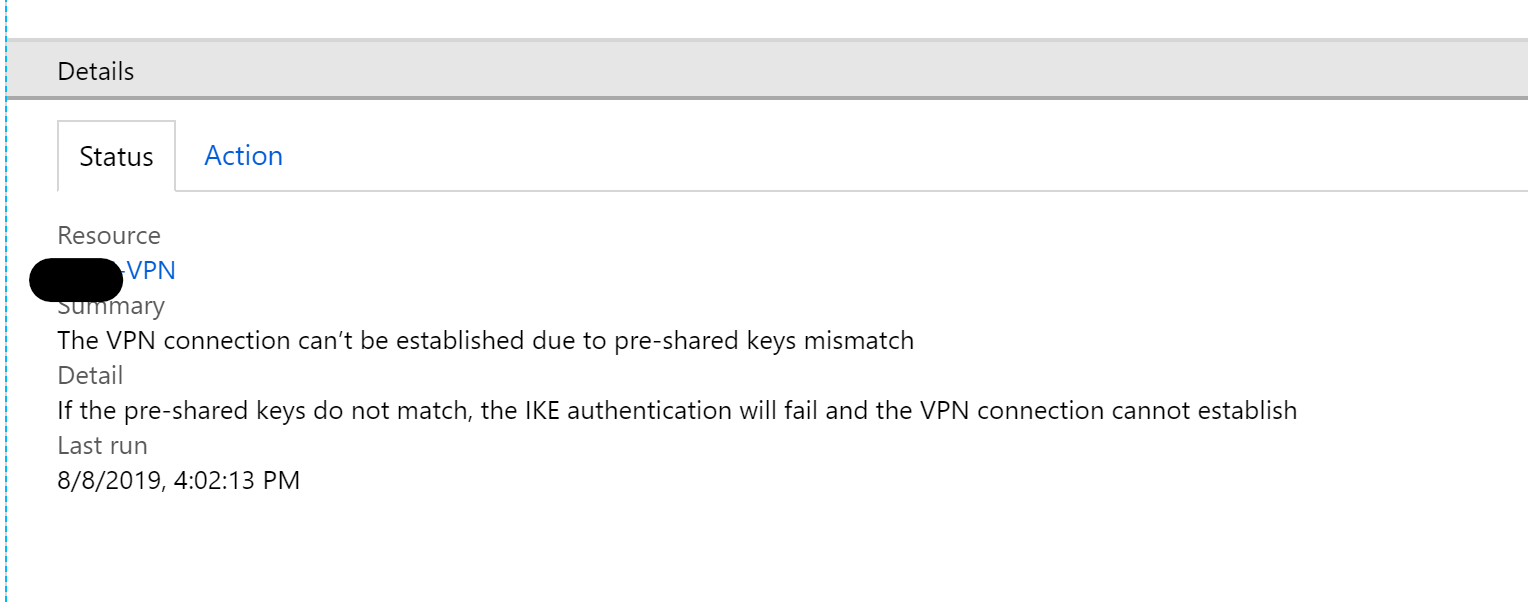

As you can see from the above, I have a very simple fix to make, as my pre-shared keys do not match.

Hopefully this helps you out when trying to figure out why those VPN tunnels aren’t working.

As always, if you have any questions, get in touch!
How to – Secure an Application Service with Application Gateway v2

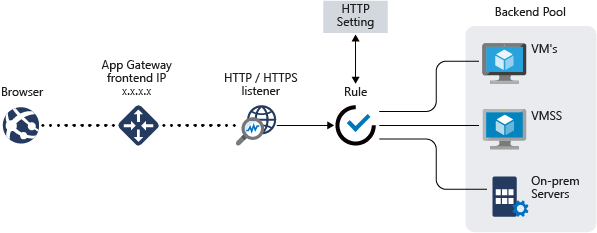
Application Gateway conceptual

Application Gatway v2 brings several welcome additions to the service since it’s initial v1 release. For those who have spent time configuring an Application Gateway, you’ll be glad to hear that udpate/modification times have been drastically reduced. Better performance and the addition of functionality are some of the other main reasons to use v2 over v1. The entire list can be found here.

Recently, I had to secure an Application Service with an Application Gateway v2 on the WAF (web application firewall) tier. This is something I have done several times with v1 without any significant issue. In this instance the Application Service runs on a custom domain as does the Application Gateway. Requirements were to run SSL end to end and have WAF run in prevention mode.

If you’ve ever done this before, you know there are some basics to be completed within your Application Service. For this post and my requirement, they were map a custom domain, runs HTTPS only and prep rules to allow connections only from your Application Gateway. How to do all of that can be found at the following links:

Once your Application Service is ready to go, you move on to configuring your Application Gateway. This is a relatively simple process and can even be completed within the Portal. There is a published guide here. However, once it was configured, I noticed that certain redirect functionality aspects of the application were returning the default host name of the Application Service. This can also happen if you use Azure AD authentication. With WAF in prevention mode, this returns a 403 as a default rule picks up the change in address.

The reason for this is how both Application Gateway and Application Service handle their host headers. To fix this issue, there are two changes you can make, one of which that is only possible on Application Gateway v2.

The v2 only fix is to rewrite the location in the host header using rewrite rules. Rewrite rules are new functionality only included in v2. A guide on what you need to do exactly is here. Make sure the text is exactly as in the guide or it will not work.

The second option, and the one that is more common is to change how your Custom Probe and HTTP settings are configured. The reason for this is that the default guide does not take into account the use of a custom domain on your Application Service. For both settings, modify and remove the ” PickHostNameFromBackendAddress” setting. Now, the Application Gateway will forward the same hostname and redirection will happen on the same too. Full guide here.

As always, if there are any questions on the above, get in touch!

What is Azure Bastion?

Microsoft released an introduction video to Azure Bastion a couple of days ago and today a new post has gone live giving us all the details of Azure Bastion in its preview state.

First up, what is a Bastion? Often referred to as a jumpbox, jumphost or bastion host, it’s a server which provides access to a private network from an external network, most commonly the Internet. As it’s exposed to potential attack, bastion hosts must be designed to minimize risk of penetration. As this connectivity function is so widely used, bastions are quite common in the majority of environments. The alternative is to increase your perimeter exposure by allowing public access to your private resources directly. Little tip from me, please don’t do this!

However, management and administration of these hosts can be a complex and time consuming task. Thankfully, Microsoft have introduced a new PaaS based service – Azure Bastion. Which allows managed, seamless access to VMs in your private network via RDP and SSH over SSL.

Azure Bastion

Azure Bastion is provisioned directly into a virtual network, which allows bastion host and integrated connectivity to all virtual machines within that vnet using RDP/SSH directly from and through your browser via the Azure Portal.

Microsoft list the following as key features available right now as part of the preview:

  • RDP and SSH from the Azure portal: Initiate RDP and SSH sessions directly in the Azure portal with a single-click seamless experience.
  • Remote session over SSL and firewall traversal for RDP/SSH: HTML5 based web clients are automatically streamed to your local device providing the RDP/SSH session over SSL on port 443. This allows easy and securely traversal of corporate firewalls.
  • No public IP required on Azure Virtual Machines: Azure Bastion opens the RDP/SSH connection to your Azure virtual machine using a private IP, limiting exposure of your infrastructure to the public Internet.
  • Simplified secure rules management: Simple one-time configuration of Network Security Groups (NSGs) to allow RDP/SSH from only Azure Bastion.
  • Increased protection against port scanning: The limited exposure of virtual machines to the public Internet will help protect against threats, such as external port scanning.
  • Hardening in one place to protect against zero-day exploits: Azure Bastion is a managed service maintained by Microsoft. It’s continuously hardened by automatically patching and keeping up to date against known vulnerabilities.

And they list the following as on the roadmap for future release:

The future brings Azure Active Directory integration, adding seamless single-sign-on capabilities using Azure Active Directory identities and Azure Multi-Factor Authentication, and effectively extending two-factor authentication to your RDP/SSH connections. We are also looking to add support for native RDP/SSH clients so that you can use your favorite client applications to securely connect to your Azure Virtual Machines using Azure Bastion, while at the same time enhance the auditing experience for RDP sessions with full session video recording.

There are a couple of things to note as the service is in preview. As always, be wary deploying for production, there is no SLA yet.

The preview is limited to the following Azure public regions:

  • West US
  • East US
  • West Europe
  • South Central US
  • Australia East
  • Japan East

You have to register the resource provider manually to make use of the preview, instructions on how to do that here.

To use the Azure Bastion service, you need the following roles:

  • Reader role on the virtual machine
  • Reader role on the NIC with private IP of the virtual machine
  • Reader role on the Azure Bastion resource

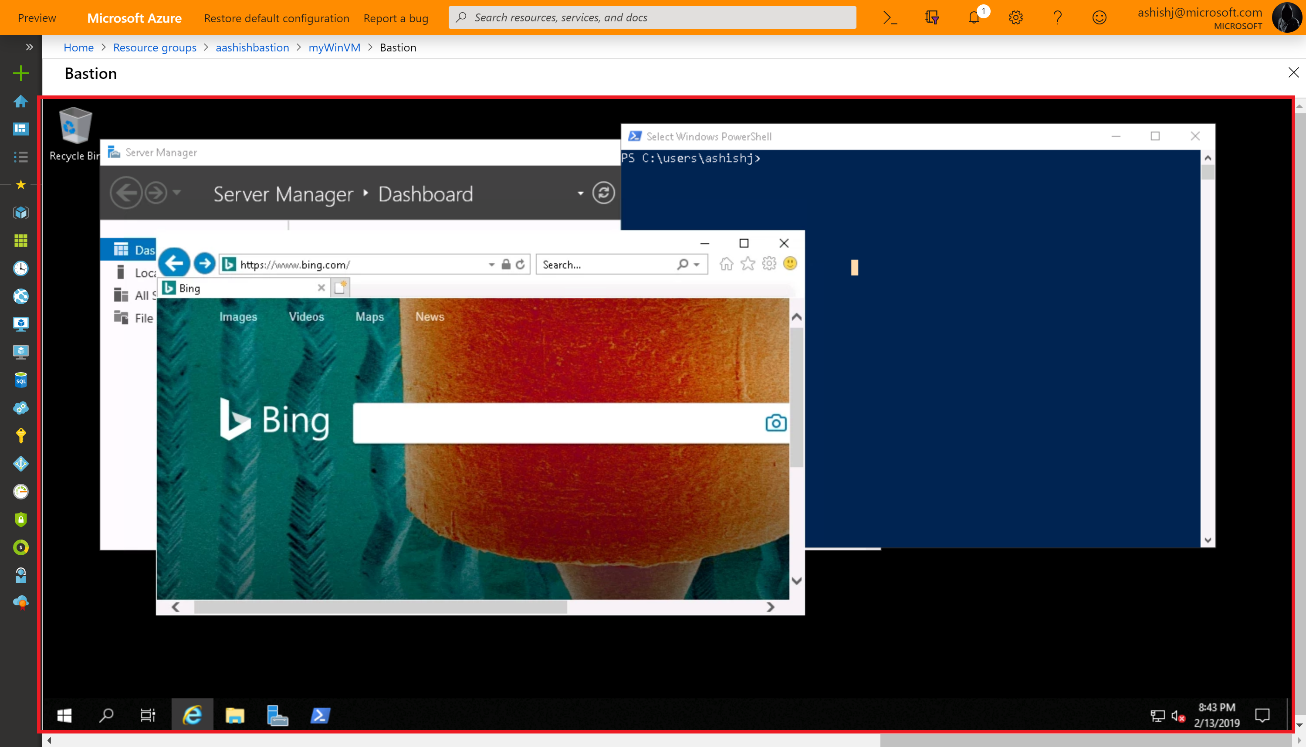
Once you’re OK with all of the above, you can simply click connect on any of your VM resources and a new Bastion tab is available. From here you can launch your session to the VM right in the browser, which is pretty slick as it provides copy and paste and full screen functionality already.

RDP via Azure Bastion within the browser

One item I noticed from the FAQ is that you may need to use the preview link to access the resource deployment blade from the portal – https://aka.ms/BastionHost

Also of note, pricing! On the FAQ it states you will be billed partially. Not 100% sure what that means, so watch those usage rates. The pricing page is live however so check it out in advance here.

What is Azure Network Security Group?

If you’re considering Azure for IaaS workloads, the first aspect of cloud you will have to understand, design and deploy is networking. As with any other cloud, software defined networking is the foundation of IaaS for Azure.

You cannot deploy a workload without first deploying a Virtual Network. However, once you have a network, you then need to consider its security and specifically how you control its perimeter and access. The perimeter is something that requires its own post but for platform-native, have a look at Azure Firewall and for other topics, start by checking out the Security Center docs for an overview.

When it comes to access control on your Virtual Network, Azure offers built-in solutions for both network layer control and route control. Network Security Groups (NSG) function as the network layer control service. So, what are they and how do you use them?

NSGs filter traffic to and from resources in an Azure Virtual Network. Combining rules that allow or deny traffic for both inbound and outbound traffic, allows granular control at the network layer.

They can be viewed as a basic, stateful, packet filtering firewall, but what does that mean? First, lets note what they don’t do; there is no traffic inspection or authentication access control.

So how do they help secure your network? By combining 5 variables into a scenario which you then allow or deny, you can quickly and easily manipulate the access that is possible to your resource. For example, consider the following two rules:

PriorityPortProtocolSourceDestinationAccess
1003389TCP10.10.10.10*Allow
200****Block

Our first rule, allows RDP traffic to the resources protected by the NSG, but only from the scoped source IP. The second rule, blocks all traffic. The rules are processed in order or priority.

Source and Destination can use IPs, IP ranges, ANY or Service Tags. Service Tags really help you define simple but powerful access rules quickly. For example, consider the following change to our above rules:

PriorityPortProtocolSourceDestinationAccess
1003389TCP10.10.10.10*Allow
101443TCPVirtualNetwork*Allow
200****Block

We still allow RDP and we still block all traffic, however, we now also allow HTTPS traffic from any source tagged as VirtualNetwork. This includes everything in your Virtual Network, any peered Virtual Networks and any traffic originating across a VPN or ExpressRoute. A single Service Tag replaces multiple source ranges and simplifies management.

If you’re still struggling with the filtering aspect, check out this handy tutorial from Docs.

A couple of other items to note about NSGs; they can be applied to a Network Interface or a Subnet and they have some default rules. Which layer you apply an NSG to is important. Remember traffic is processed inbound and outbound in reversed layers. So traffic from a VM out hits Network Interface then Subnet. So how you scope and combine NSGs is critical to ensuring your access control is as you want it. There is a great example of this on Docs.

The default rules that exist within an NSG allow Virtual Network traffic IN and Internet traffic OUT. You can check out the full list for exact details.

As always, if you have any questions or require a steer on a specific scenario, please get in touch!

First Impressions – Azure Firewall Preview

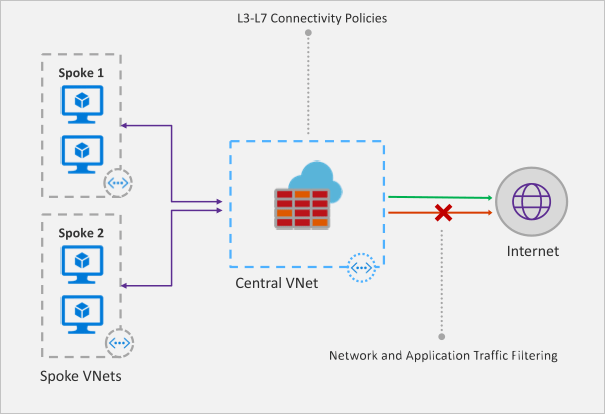
Recently Microsoft announced that a new Azure Firewall service was entering a managed public preview. Azure Firewall is a managed, network security service that protects your Azure Virtual Network resources. It is a fully stateful firewall as a service with built-in high availability and scalability.

firewall-overview.png

The services uses a static public IP meaning that your outbound traffic can be identified by third party services as/if required. Worth nothing, that only outbound rules are active within this preview. Inbound filtering will hopefully be available by GA.

The following capabilities are all available as part of the preview:

  • Stateful firewall as a Service
  • Built-in high availability with unrestricted cloud scalability
  • FQDN filtering
  • Network traffic filtering rules
  • Outbound SNAT support
  • Centrally create, enforce, and log application and network connectivity policies across Azure subscriptions and VNETs
  • Fully integrated with Azure Monitor for logging and analytics

As with all previews it should not be used for production environments, but for testing purposes this is how to register your tenant for deployment.

To enable the Azure Firewall public preview follow the guide here: Enabling the preview

Once enabled, follow this tutorial for a sample implementation: Deployment Tutorial

Now that you’re familiar with the deployment, you should apply to your specific test scenarios. Be wary of some operations that could be limited by applying a default route to your VM. There is an updated FAQ for the service here: Azure Firewall FAQ

Overall, this is a welcome addition to Azure networking. As the preview progresses and more service options are added, especially inbound options, I see this being as common as deploying an NSG in your environment. Combining it with peering and the right set of rule collections for your environment allows for an easily managed, scalable, and most importantly, secure environment within Azure with minimal cost and infrastructure footprint.