Optimising Azure Disk Performance

When deploying a VM, there are several aspects of configuration to consider to ensure you are achieving the best possible performance for your application.  The most common are vCPU and RAM, however, I recommend equal consideration also be given to your disks.

In Azure, the are multiple options available when provisioning a disk for a VM. The recommendation from Microsoft is to use Managed Disks and depending on performance required choose either Standard or Premium tier. As this post is about performance, I am going to discuss Premium tier Managed Disks (PMD).

For most applications/services, if you choose the closest sizing for the VM and provision the disk as PMD, this will more than meet your requirements. However, should you have heavy read/write requirements, you may need to maximise your disk performance to ensure you are also maximising your other resources.

When talking about disk performance there will be references to disk IOPS and throughput, it is important to have an understanding of both concepts.

IOPS is the number of requests that your application is sending to the storage disks in one second. An input/output operation could be read or write, sequential or random.

Throughput or Bandwidth is the amount of data that your application is sending to the storage disks in a specified interval. If your application is performing input/output operations with large IO unit sizes, it requires high Throughput.

How actual disk performance is calculated for your VM is slightly complex. There are several variables that effect what performance is available, achievable and when you should expect throttling to occur. The key aspects however are:

  1. Virtual Machine Size
  2. Managed Disk Size

As you move up VM sizes, you don’t just increase the amount of vCPU and RAM available, you also increase the allocated IOPS and Throughput. In the following examples I’ll be comparing a DS12v2 and a DS13v2, below are their listed specifications:


Size vCPU Memory: GiB Temp storage (SSD) GiB Max data disks Max cached and temp storage throughput: IOPS / MBps Max uncached disk throughput: IOPS / MBps
Standard_DS12_v2 4 28 56 16 16,000 / 128 (144) 12,800 / 192
Standard_DS13_v2 8 56 112 32 32,000 / 256 (288) 25,600 / 384

As you can see there are significant differences across the board in terms of specifications, however, we’ll focus on the final two columns which are disk related. There are two channels of performance for disks attached to VMs. This relates to whether you choose to enabling caching on your disks. For the OS disk, Microsoft recommends read/write cache and enables it by default however for data disks, the choice is up to you. IOPS are higher when caching but throughput is lower, so it will be application/service dependent.

Similarly, as you move up PMD sizes, you increase the IOPS and Throughput available. See below for table highlighting this:

Premium Disks Type P4 P6 P10 P20 P30 P40 P50
Disk size 32 GB 64 GB 128 GB 512 GB 1024 GB (1 TB) 2048 GB (2 TB) 4095 GB (4 TB)
IOPS per disk 120 240 500 2300 5000 7500 7500
Throughput per disk 25 MB per second 50 MB per second 100 MB per second 150 MB per second 200 MB per second 250 MB per second 250 MB per second

You can see that Throughput will max out at 250mb however, on a DS13v2 if uncached you can get a maximum of 384mb. A similar restriction applies with IOPS. To achieve performance above the listed for PMD and in line with your VM size, you need to combine the disks.

For example, two P20s will give you 1TB of storage and roughly 300mb Throughput in comparison to a P30 which gives same storage but only 200mb Throughput. Obviously there is a cost consideration, but performance may justify this. To achieve this disk combination, it is best to use Storage Spaces in Windows to perform disk striping. More on that here – (Server 2016 – https://docs.microsoft.com/en-us/windows-server/storage/storage-spaces/deploy-storage-spaces-direct).

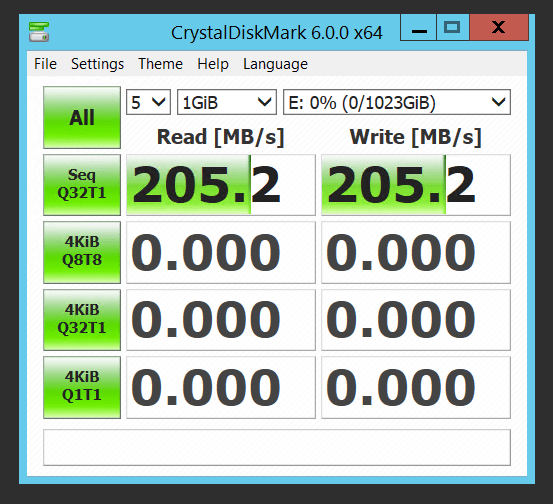
As a demo I completed the above and below are captures of testing throughput for the same scenario on a DS13v2. Firstly is our striped virtual disk. Same storage, maximum throughput.

DiskStripe

On the same VM, our single disk, same storage available, lower throughput.
DiskSimple

A simple change to how your storage is attached produces a 50% increase in performance.

While not always applicable, changes such as the above could prove vital when considering how to size a VM for a database and at the same time ensure you are maximisng that cost/performance ratio.

More links on sizing etc.

Premium Storage Performance
VM Sizes
 

Windows Update Management

Update management is a necessary evil in the IT world. Some admins enjoy “Patch Tuesday” and for some it’s the most dreaded day of the month. Microsoft have made strides in relieving the stress that can be associated with patching certain core VMs but good management still requires a lot of administration.

Within Azure, every time you deploy a Windows server VM from a Marketplace image, you are getting the latest available patches, but what options do you have should those VMs need to run for an extended period of time? How do you keep them patched so they adhere to company security policies?

Traditionally linking Azure to your existing on-premise solution, or building a WSUS or SCCM implementation were options. Both of these obviously work well but for smaller sites could be considered cumbersome. Now, within Azure itself, making use of some platform objects that you may already be using, you can get a central console view of all of your machine updates.

The two requirements, outside of a VM to manage, are:

  1. Automation Account
  2. Log Analytics Workspace

Both of these implementations are basically free,  (see latest pricing details for limits etc.) and relatively easy to set up separately. However, part of the process for enabling update management can also set these up for you should that be required.

To enable update management for a single VM, open the VM blade and choose the Update Management button from the left action menu, it is part of the Operations section. This will run a validation operation to see if the feature is enabled and assess whether there are automation accounts and log analytics workspaces available. The validation process also checks to see if the VM is provisioned with the Microsoft Monitoring Agent (MMA) and Automation hybrid runbook worker. This agent is used to communicate with the VM and obtain information about the update status. This information is stored in the log analytics workspace.

Once you choose your current available options, or request to have new ones created, the solution takes roughly 15 minutes to enable. Once enabled, you will now see a management page, it will take some time for the live data to be collected from the server, but once that completes, this page will display information regarding the status of updates available/missing. You can click on individual updates for more information. You can also analyse the log search queries that run for checking updates, these can be modified to suit your environment if/as required.

Now that your management pane is displaying what updates are missing, you need to install them. You can schedule the installation of the updates you require from the same management pane. To install updates, schedule a deployment that follows your release schedule and service window. You can choose which update types to include in the deployment. For example, you can include critical or security updates and exclude update rollups. One thing to note that is important, if an update requires a restart the VM will reboot automatically.

The scheduling process is very simple. You choose a name for the deployment, the classification of updates you would like to install, your scheduled time to begin the process of installation and finally a maintenance window to ensure compliance with your defined service windows.

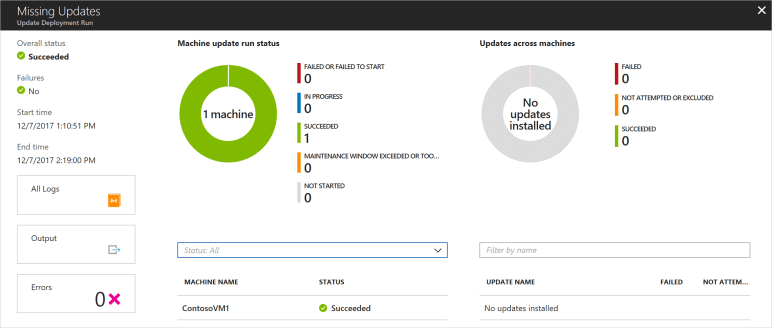
Once the scheduled deployment runs, you can then view its status. Again, this is via the Update Managment blade. This reports on all stages of the deployment from “In Progress” to “Partially Failed” etc. You can then troubleshoot any issues should they arise.

Overall, I really like this solution. It also scales, you can add several machines using the same automation etc. From the Automation Account, you can then access the Update Management blade and manage multiple enabled VMs at once, including scheduling mutli-VM deployments of updates.

While I haven’t covered it here, this solution also works with Linux distributions and can be integrated with SCCM.

More here:

Update Management Overview

Patching Linux

Manage multiple VMs

SCCM Integration

Azure Resource Manager (ARM) Templates

One of the most useful aspects of a platform like Azure is the multitude of deployment options that are available. Which one you use may be down to familiarity, efficiency or sometimes nature of deployment. In this post I will discuss ARM templates which can greatly speed up your deployment cycle.

Infrastructure as Code (IaC) is the management of infrastructure (networks, virtual machines, load balancers, etc.) in a descriptive model. It functions best when using the same versioning that your DevOps team uses for source code. Similar to the principle that the same source code generates the same binary, an IaC model generates the same environment every time it is applied. Therefore, it is very beneficial to reducing deployment times as well as simplifying how resources are deployed.

An ARM template is a JSON file, in its simplest form it must contain the following definitions:

  • schema
  • content version
  • resources

For more deployment options it can also include the following:

  • parameters
  • variables
  • outputs

In general, your templates will include all of the above, this ensures the greatest level of customisation to the deployment as and when needed. Without getting too much into the technicalities of each aspect, the file will contain everything needed to build all the objects you have defined. For example, if the file builds a VM you will define the name, size, NIC used, OS profile and disk options. You have multiple choices within each definition to greater customise your deployment and these definitions can be passed as direct referrals, variables or parameters.

One thing to note, is that while these templates deploy resources via code, they cannot configure the resources. To automate that, you must consider a technology like DSC or Powershell once the template completes deployment.

JSON files are not simple to read, I deliberately haven’t included a sample as they are easier to understand as you build one. The fact that they aren’t simple makes error checking somewhat problematic. Most code editing applications that support ARM plugins will catch basic formatting errors. You can also verify the file via Azure Powershell. If you really want to confirm your template works it is best to test the deployment properly. Ideally, you could make use of a test/dev subscription to minimise costs but once the template completes, you can delete the entire resource group quite quickly.

To best understand how these templates can be of use, start with one of the simple quick start templates from Github, for example, a simple Windows server deployment – https://github.com/Azure/azure-quickstart-templates/tree/master/101-vm-simple-windows

You can then build layer upon layer of code on top of this to increase the complexity of the deployment or use one of the other samples that closer matches your intention.

For more reading, I would recommend starting with understanding the structure and syntax before moving onto the actual templates themselves here.

Securing Remote RDP Access

Accessing a VM in your local environment is generally a straight forward operation. You initiate an RDP connection to a private IP and enter your credentials. Simple and relatively secure as all traffic is local relative to your LAN. With Azure, this can become  more complex as the option to attach a public IP is available.

Even with added complexity, attaching a public IP to your VM should not be viewed as a negative. The functionality it offers is incredibly useful in many scenarios.  However, as this allows the VM to be accessed from the internet, the correct precautions must be taken to ensure your VM is kept safe and secure.

Let’s start with the most basic but often overlooked piece of security; username and password. Choose a username that is unique to your organisation and choose a password that is complex. RDP ports are one of the most tried perimeter ports on Microsoft’s public network, having your credentials as secure as possible adds a minimal but useful level of security to your VM.

Next up, a Network Security Group. This can prevent or allow IP addresses accessing your VMs network interface and/or subnet. An example configuration would be to allow access to RDP for your outbound IP range and deny all other access. This would mean that only your outbound IP range can access the RDP port. This works well but what if the VM requires access from multiple locations? What if you don’t have access to their IP range?

This is where we add our final layer of security, a public facing Azure Load Balancer. This object will carry it’s own public IP address and allows for the creation of NAT rules. To secure the RDP port (3389 by default) simply create an inbound NAT rule to translate a random public facing port, for example 50001 or 100003, to our standard internal port 3389. Once this rule is in place, you should remove the public IP associated to your VM. The LB association will route traffic inbound and outbound via the LB public IP and therefore use the NAT translation for secure access. For those of you who used ASM VMs, this is similar to how endpoints were setup within Cloud Services, but this offers a more granular control.

Below are some links on some of the features and points mentioned in this post as well as a technet blog on provisioning and attaching an LB for RDP. As always, any questions, get in touch, enjoy!