How to – Resize an Azure VM

When using VMs in Azure, one of the important things to get right is the sizing. Azure offers several VM series and multiple sizes within each that have fixed allocations of resource such as vCPU and RAM. There are also speciality series that offer additional capabilites like vGPU. Below is a table that covers the majority of series available and their recommended purpose.

There are many reasons you may need to resize a VM, but this post is about how to do it, rather than why. A quick tip, make sure you check out Azure Advisor for some help with this! Regardless of if you run a Windows VM or a Linux VM the below steps are accurate.

The first thing to note, you can resize a VM using any of the ARM tools you like. Such as CLI, Templates etc. However, for this post, I’m going to explain how to do it via the Portal. I would recommend that if you are new to Azure, this is also where you start, until you are familiar with the series and sizes as well as their respective costs.

Azure VMs are deployed on physical servers within an Azure datacenter. These servers are grouped together into hardware clusters. By design, each cluster does not support all VM series that are available. So if you are currently running a DSv3 series you may not be able to resize to a different series, such as an NCv2 immediately. You will however, always be able to resize within your current series.

Basic steps to resize

  • Login to the Azure Portal
  • Select the VM you need to resize
  • Click the Size option under Settings
  • Click the size you would like
  • Click Resize

NOTE: Your VM will need to restart, be wary of Dynamic Public IPs – the Portal should flag this.

Some things to note with the above process, when the VM is active and you click on Size, you will be displayed with a table of series and size currently available in the active cluster, as mentioned earlier. So for my VM, when active I see the below screengrab, note the highlighted number of sizes available.

If I Stop my VM before choosing the Size blade, I am now given the option to choose from the entire range available in the current region. Again note the highlighted number available in the below screengrab.

So, as I am sure you’ve guessed, to resize to any series VM, you must first Stop your VM. This ensure that the VM instance can be moved to a different hardware cluster when it’s started. Changing to a different series obviously takes slightly longer as you have to Stop your VM first etc. However, there is nothing else you have to do for this change.

Hopefully this post has helped understand how to resize and some of the series options you may need to address.

As always, if there are any questions please get in touch!

Azure Migrate – Where to Start?

If you’re thinking about making a move to Azure, it’s important to first understand how to approach it. With the correct approach and sufficient planning, a migration can be straight forward, efficient and void of surprises.

Therefore, the place to start is the Microsoft Cloud Operating Model. This is a detailed white paper that allows you to create a strategy for migration. Covering cloud readiness, people strategy and technical analysis, it’s a comprehensive document. Once you have an understanding of your business strategy, read “Why am I moving to Azure?” and your people strategy, read “Who is moving us to Azure?” you can progress to the technical phase.

The vast majority of initial moves to Azure are often re-host migrations, or “lift and shift”, as these are most common, I will reference this scenario as an example. There are four stages:

The first step of the technical phase is to Assess. This means understanding what it is that you are moving and what the best process will be. This includes everything from involving the business stake holders, to cost calculation to application evaluation. This analysis should give you an output that not only details where the application could go but more importantly, where it can go.

Microsoft offer several tools to help with some of this. First up is Azure TCO. This allows you to estimate the cost savings you could make by migrating to Azure. Next is Azure Migrate, this is an assessment tool that is FREE and allows you to discover, document and assess your workloads and their dependencies. You can then create cost estimates for running them in Azure.

Azure Migrate Dependencies Example

Now that you have your environment discovered, grouped and sized correctly, you can begin to migrate your workloads. Microsoft provide a service for this also, Azure Site Recovery (ASR). This service allows you to replicate your servers from your on-premises environment. For most services it is application aware, meaning it can replicate services like SQL server without any data loss. Before you implement ASR it is important to use your data from Azure Migrate to capacity plan for your replication requirements. Taking this step allows for greater speed and efficiency during replication and migration of workloads.

Microsoft also provide a script repository for migrating large numbers of VMs at once. These can be from VMware, AWS, GCP or physical servers. There are some limitations, most restrictive is lack of support for Managed Disks, but you can always flip these manually later. The scripts and guide can be found here.

How long it takes to migrate your workloads is determined by your business requirements. However, once complete, it is vital that you revisit these workloads for optimisation. Azure Advisor can provide recommendations but the key areas to focus on are:

  • VM sizing – Ensure the VM is running on an appropriate size to gain maximum cost efficiency
  • Storage tier – Ensure the disks associated with the VM are using the correct tier to balance performance requirements against cost.
  • Reserved Instances – Once the VM is sized correctly, purchase Reserved Instances to achieve the maximum discount to run your workload for one to three years.

Now that your workloads are migrated and optimised, your final step is to ensure they’re secure and managed correctly. The best place to start with this process is Azure Security Center. This provides unified security management and allows you to take action to mitigate risk and implement actionable recommendations. This will include common requirements like disk encryption and anti virus. More advanced and platform specific features like Just In Time Access are also available.

So to recap, there is 1 prerequisite then 4 main steps:

  1. Understand and create your Cloud Operating Model
  2. Assess your current environment
  3. Migrate it!
  4. Optimise your utilisation
  5. Secure and Manage it

If all of the above is completed and optimisation and security are reviewed regularly you can be confident in the quality of your environment state. If you have any questions, feel free to tweet me @wedoAzure or leave a comment!

Understanding Azure Reserved Virtual Machine Instances

One of the main benefits of Azure’s billing model is that it offers per minute billing. This means that if you have an application/service/environment that isn’t required 24/7 you can reduce your costs by using Automation so that you will only pay for what you consume.

However, if your environment requires you run a VM constantly, the cost can start to mount up. To help alleviate this, Microsoft offer a solution in the form of long-term fixed price Virtual Machine instances.

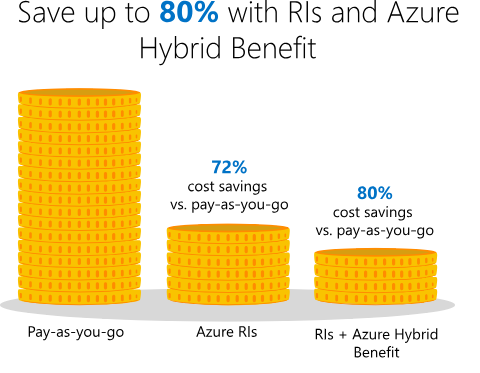
These Reserved Instances (RI) help save money by allowing you to pre-pay for a one-year or three-year VM size. The fact that you pay up front, allows you to make significant savings on the Pay-As-You-Go pricing.

RIexample

The most common subscription offers have the ability to purchase RIs, but there are some restrictions in terms of how it is approached. The options are the below:

  • Enterprise agreement subscriptions. To purchase reservations in an enterprise enrollment, the enterprise administrator must enable reservation purchases in the EA portal.
  • Pay-As-You-Go but you must have the “Owner” role on the subscription to buy a reservation.
  • Cloud Solution Provider subscriptions. However, the providing partner must make the purchase on behalf of the customer.

Once purchased, the discount is then applied to the resource usage that matches up with the RI capacity purchased. For example, if you purchase a one-year RI for a DS4v3 size VM, and you are using a DS4v3 the discount will apply against that usage.

A good strategy is to determine the sizing before purchasing the RI. So my advice would be to run your VMs without an RI for a few months to ensure your sizing is suitable and therefore correct. However, if this is something that is proving difficult, there is a range of flexibility offered within your RI scope.

With instance size flexibility, you don’t have to deploy the exact same VM size to get the benefit of your purchased Azure Reserved Instances (RI) as other VM sizes within the same VM group also get the RI discount. As a rough example, see the below table from the Microsoft announcement.

VM name VM group Ratios

Standard_D2s_v3

DSv3 Series

1

Standard_D4s_v3

DSv3 Series

2

Standard_D8s_v3

DSv3 Series

4

Standard_D16s_v3

DSv3 Series

8

Standard_D32s_v3

DSv3 Series

16

Standard_D64s_v3

DSv3 Series

32

This means that if you buy an RI for a D2sV3, it would cover half of an D4sV3 instance etc. More on how this can be applied and options available to you are here.

In general, I think an RI purchase is something that most deployments should be taking advantage of. Once sized correctly and with the ability to leverage flexibility, there are huge savings to be made with relatively low amounts of administrative effort.

More on how to buy an RI here

More on how the discount is applied here


Azure App Service and Windows Containers

Containerisation of applications is something that is becoming more and more common. Allowing developers to “wrap” all requirements into an individual element which the infrastructure team can then deploy where resources are available opens a door to the most modern options in application deployment and management.

Enter Azure App Service, which for years now has been removing the need for an infrastructure management layer and allowing teams to focus on deployment and performance. Traditionally, you had to deploy your apps within the allowed parameters of your App Service Plan (ASP). However, you can now run containers as part of this platform.

Combine this with a Container Registry, such as Azure Container Registry and you can deploy images within minutes. These images can then be scaled within your ASP to meet demand and can be updated as required using your current CI/CD processes.

This had been limited to Linux based containers, but Microsoft have recently announced a public preview of the ability to run Windows containers within your ASP. This is targeted towards customers interested in migrating .NET applications to Azure, and hoping to avail of a PaaS service to get the many productivity benefits such as high availability within and across Azure regions. This can also increase application redundancy options by using integrated backup/restore and app cloning options.

WebAppForContainers
Example deployment scenario

The preview capabilities are appropriate for testing and POC environments, but there are of course some limitations and preview deployments are not recommended for production workloads in any scenario.

Within the preview the following is supported:

  • Deploy containerized applications using Docker Hub, Azure Container Registry, or private registries.
  • Incrementally deploy apps into production with deployment slots and slot swaps.
  • Scale out automatically with auto-scale.
  • Enable application logs and use the App Service Log Streaming feature to see logs from your application.
  • Use PowerShell and Win-RM to remotely connect directly into your containers.

For a quick start/how-to see the following link.

Azure IAAS Disaster Recovery

The ability to recover your IAAS VMs in Azure to a different region has been a logical requirement within Azure for quite some time. Microsoft made the feature available in preview last year and this week have made it GA.

Azure DR allows you to recover your IAAS VMs in a different Azure region should their initial region become unavailable. For example, you run your workloads in North Europe, the region experiences significant downtime, you are now able to recover your workloads in West Europe.

In this post I will go through setting up an individual VM to replicate from North Europe to West. However, it’s worth pointing out that DR should be a business discussion, not just technical. All scenarios that could occur, within reason, should be discussed to decide whether DR is warranted. For example, if your business entirely relies on your premises for production, if you lose the premises, you don’t need DR as there is no production capability regardless of system recovery etc. The idea is to scope what DR actually means for your business and remember, DR is only valid if it is tested!

Enabling DR for a VM is straight forward. Open your VM blade and scroll down to Operations, you will see an option for Disaster Recovery

DRvmBlade

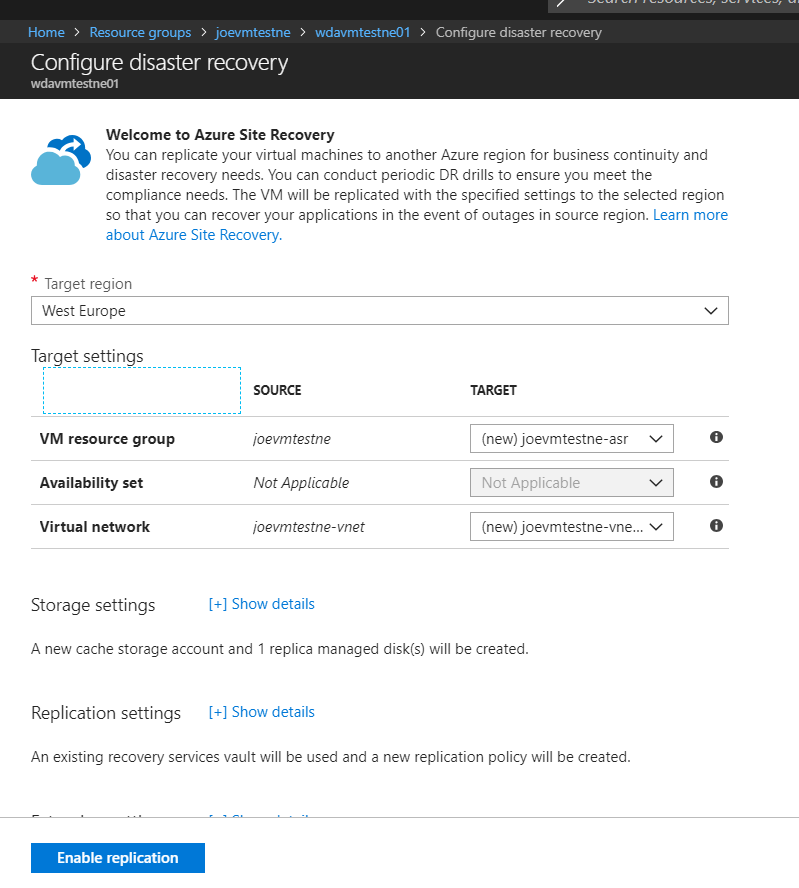
You select a Target Region that must be different from your current region, you can then choose the default settings for a POC. In my screen shot, I have created a Resource Group and Recovery Services Vault in WE already so will use those. Once submitted, replication for your VM will be enabled. You can then view the configured options:

DRvmSettings.PNG

And that’s it! Once synchronisation completes, you now have your VM protected in a different region. However, for it to be valid, you need to design and confirm your Recovery Plan then complete both a Test Failover and Complete Failover and Failback.

More reading on the overall concept and Azure-Azure DR specifics here.