Securing Azure PaaS

When considering Azure as a platform, part of the conversation should revolve around transformation. That is, how do we transform our approach from what is viewed as traditional to something more modern. Often this could lead to redesigning how your application/service is deployed, but with some workflows, a simple change from IaaS to PaaS is viewed as a quick win.

This change isn’t suitable in all scenarios, but depending on your specific requirement it could allow for greater resiliency, a reduction in costs, and a simpler administration requirement. One service that is often considered is SQL. Azure has its own PaaS SQL offering which removes the need for you to manage the underlying infrastructure. That alone makes the transformation a worthy consideration.

However, what isn’t often immediately apparent to some administrators is that PaaS offerings are, by their nature, public facing. For Azure SQL to be as resilient as possible and scale responsively, it sits behind a public FQDN. Therefore, how this FQDN is secured must be taken into consideration as a priority to ensure your data is protected appropriately.

Thankfully, Azure SQL comes with a built in firewall service. Initially, all Transact-SQL access to your Azure SQL server is blocked by the firewall. To allow traffic, you must specify one or more server-level firewall rules that enable access. The firewall rules specify which IP address ranges from the Internet are allowed. There is also the ability to choose whether Azure applications can connect to your Azure SQL server.

The ability to grant access to just one of the databases within your Azure SQL server is also possible. You simply create a database-level rule for the required database. However, while this limits the traffic to specific IP ranges, the traffic still flows via the internet.

To communicate with Azure SQL privately, you will first need an Azure V-Net. Once in place, you must enable the service endpoint for Azure SQL, see here. This will allow communication directly between listed subnets within your v-net and Azure SQL via the Azure backbone. This traffic is more secure and possibly faster than via the internet.

Once your endpoint is enabled, you can then create a v-net firewall rule on Azure SQL for the subnet which had a service endpoint enabled. All endpoints within the subnet will have access to all databases. You can repeat these steps to add additional subnets. If adding your v-net replaces the previous IP rules, remember to remove them from your Azure SQL firewall rules.

Also worth noting is the option for “Allow all Azure Services”, the presumption here is that this somehow would only access from Azure Services within your subscription, but this is not the case. It means every single Azure service in all subscriptions, even mine! My recommendation is to avoid this whenever possible, however, there are some cases where this required and this access should be noted as a risk.

More on Azure SQL Firewall – https://docs.microsoft.com/en-us/azure/sql-database/sql-database-firewall-configure

More on Azure SQL with V-Nets – https://docs.microsoft.com/en-us/azure/sql-database/sql-database-vnet-service-endpoint-rule-overview
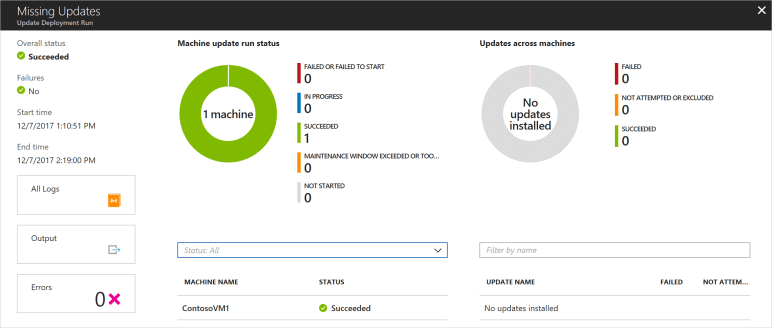
 

Windows Update Management

Update management is a necessary evil in the IT world. Some admins enjoy “Patch Tuesday” and for some it’s the most dreaded day of the month. Microsoft have made strides in relieving the stress that can be associated with patching certain core VMs but good management still requires a lot of administration.

Within Azure, every time you deploy a Windows server VM from a Marketplace image, you are getting the latest available patches, but what options do you have should those VMs need to run for an extended period of time? How do you keep them patched so they adhere to company security policies?

Traditionally linking Azure to your existing on-premise solution, or building a WSUS or SCCM implementation were options. Both of these obviously work well but for smaller sites could be considered cumbersome. Now, within Azure itself, making use of some platform objects that you may already be using, you can get a central console view of all of your machine updates.

The two requirements, outside of a VM to manage, are:

  1. Automation Account
  2. Log Analytics Workspace

Both of these implementations are basically free,  (see latest pricing details for limits etc.) and relatively easy to set up separately. However, part of the process for enabling update management can also set these up for you should that be required.

To enable update management for a single VM, open the VM blade and choose the Update Management button from the left action menu, it is part of the Operations section. This will run a validation operation to see if the feature is enabled and assess whether there are automation accounts and log analytics workspaces available. The validation process also checks to see if the VM is provisioned with the Microsoft Monitoring Agent (MMA) and Automation hybrid runbook worker. This agent is used to communicate with the VM and obtain information about the update status. This information is stored in the log analytics workspace.

Once you choose your current available options, or request to have new ones created, the solution takes roughly 15 minutes to enable. Once enabled, you will now see a management page, it will take some time for the live data to be collected from the server, but once that completes, this page will display information regarding the status of updates available/missing. You can click on individual updates for more information. You can also analyse the log search queries that run for checking updates, these can be modified to suit your environment if/as required.

Now that your management pane is displaying what updates are missing, you need to install them. You can schedule the installation of the updates you require from the same management pane. To install updates, schedule a deployment that follows your release schedule and service window. You can choose which update types to include in the deployment. For example, you can include critical or security updates and exclude update rollups. One thing to note that is important, if an update requires a restart the VM will reboot automatically.

The scheduling process is very simple. You choose a name for the deployment, the classification of updates you would like to install, your scheduled time to begin the process of installation and finally a maintenance window to ensure compliance with your defined service windows.

Once the scheduled deployment runs, you can then view its status. Again, this is via the Update Managment blade. This reports on all stages of the deployment from “In Progress” to “Partially Failed” etc. You can then troubleshoot any issues should they arise.

Overall, I really like this solution. It also scales, you can add several machines using the same automation etc. From the Automation Account, you can then access the Update Management blade and manage multiple enabled VMs at once, including scheduling mutli-VM deployments of updates.

While I haven’t covered it here, this solution also works with Linux distributions and can be integrated with SCCM.

More here:

Update Management Overview

Patching Linux

Manage multiple VMs

SCCM Integration

Virtual Network Service Endpoints

When designing an application deployment to be hosted in Azure, a design consideration that is commonly enticing is to transform a layer of the application from traditional infrastructure to something more modern. Microsoft offer several Platform-as-a-service (PAAS) options that allow this to be achieved, for example, transforming SQL server installed on a VM to Azure SQL.

While this transformation might be straight forward from an SQL Database point of view and most likely when considering the cost of running your deployment, a concern that often arises is security. As Azure SQL is PAAS, it offers a public endpoint for SQL authentication and connectivity. This is by design and there are limited options to prefix this with a security layer. If your application runs somewhere outside Azure, this makes sense and might be an acceptable and noted weak spot. However, if the rest of your application layers are hosted within Azure, having to route out to a public endpoint is less secure than it could be and simply bad design.

Thankfully, Microsoft have been making updates to virtual network functionality that allow you to route directly from your virtual network resources to several PAAS offerings. To do this, you must make use of virtual network Service Endpoints.

Endpoints extend your virtual network private address space and the identity of your VNet to specific Azure services, over a direct connection. Endpoints allow you to secure your critical Azure service resources, such as Azure SQL, to only your virtual networks. Traffic from your VNet to the Azure service always remains on the Microsoft Azure backbone network and never takes a public route. They are currently available for three PAAS offerings:

  1. Azure SQL
  2. Azure Storage
  3. Azure Data Warehouse (Preview)

Introducing an Endpoint for Azure SQL (to stick with the initial example) allows improved security as it fully removes public Internet access and allows traffic only from the virtual network.

It also optimises routing as Endpoints always take service traffic directly from your virtual network to the service itself on the Microsoft Azure backbone network. Doing this means that if your environment uses forced-tunnelling this traffic will no longer be viewed as outbound, but intra-Azure and will flow direct.

There are some considerations to be aware of:

  • Location – the virtual network and the PAAS offering must be located in the same region.
  • Outbound Network Flow – if you control outbound network flow via NSG, you can make use of the “Azure Service” tags to allow this traffic via Endpoint.
  • Connections – If you enable a service endpoint, all current TCP connections from your virtual network will drop. This is to allow a change from Public IP access to Private.

Personally, I think Endpoints should be used as widely as possible. From a security and design perspective they allow greater ease of adoption when PAAS offerings are being considered and perhaps best of all, they are free!