How to – Control Azure Regions with Azure Policy and Bicep

Updated: March 2024 – repo link now updated to new Github structure!

A common requirement for many tenants is to control or restrict the regions in which Azure can be used, this is most commonly done via Azure Policy. Wanting/needing to restrict regions can be for several reasons, below are some of the most common:

  • Alignment – Align to local presence for performance etc.
  • Governance – Align to compliance, residency and data restriction requirements.
  • Features – Not all data regions are created equally – restrict to those with features required.

For anyone who has created a Policy like this in the past, the experience is quite straight forward. Azure provides an out-of-the-box template, you simply have to pick which regions are allowed from a drop down. However, there are actually three policies you should consider for this in my opinion, all are included here.

  • Allowed Locations – when a resource deploys, it must align
  • Allowed Locations for Resource Groups – when an RG deploys, it must align
  • Audit resource location matches resource group location – just nice to have for governance!

So, with multiple policies to deploy, a controlled and accurate solution is to define these Policies via code, in my case, Bicep. How you manage this (i.e. deployment and repo management etc) is not for this blog post, but is achievable with this as your base Policy. Two elements are required for this to work correctly:

  1. Bicep file to deploy our Policy resources
  2. Parameters file for policy definitions IDs and regions required.

Item 1 is simple, I’ve included the code below, and will link off to a repo with all of this at the end too.

To explain the above:

  • We will pass an array of chosen regions/locations, and the strings of the built-in Policy definitions.
  • We use a variable to define the Policy names.
  • We deploy a resource object per policy, combining each of these into one Policy deployment.

The only real decision required here is which regions you want to allow. Some pointers from me, always include Global, otherwise some features like Traffic Manager, cannot be deployed. Only include the regions you need now, you can always update later.

How to decide on your regions? That’s probably a whole blog post by itself (adds idea to drafts) but my advice would be choose local, and choose as mature a region as possible. This should offer you the best mix of features, performance, and reliability. Once that is decided, also allow the paired region, so BCDR is possible when needed.

Once you have your list completed, that is now the detail we will use in the parameter file to pass our array of regions for deployment, note these must be in exact format required by ARM.

Now to deploy, simply pick your method! For this post, I am using PowerShell (as I am already logged in) and will complete a Subscription level deployment, as this is a Policy. I will pass both files as command parameters, Azure will do the rest! The below should work for you, and I will include a PS1 file in the repo too for reference, but adjust as per your files, tenant etc.

New-AzSubscriptionDeployment -Name 'az-region-policy-deploy' -Location northeurope -TemplateFile 'C:\folderthatexists\region-restrict-policy.bicep'
-TemplateParameterFile 'C:\folderthatexists\policy.parameters.json'

Once that runs successfully, you can verify all is correct via the Portal. Again, as this is Bicep, you can run this over and over and it will simply update the Policy if there are changes. Meaning all it requires is an update of your location parameters to add or remove regions from being allowed.

And that’s it! As promised, here is a repo with the files for reference. Please note – as always, all code is provided for reference only and should not be used on your environment without full understanding and testing. I cannot take responsibility for your environment and use of code. Please do reach out if you have questions.
How to – Control VM SKUs with Azure Policy and Bicep

Updated: March 2024 – repo link now fully working!

A common Azure Policy requirement for many tenants that deal with Virtual Machine infrastructure, is to restrict the sizes that are allowed to be used for deployment. This can be for several reasons, below are some of the most common:

  • Cost prevention – remove high cost VM SKUs
  • Alignment – align to existing SKUs for reservation flexibility
  • Governance – align to a governance policy of VM family (e.g. AMD only)

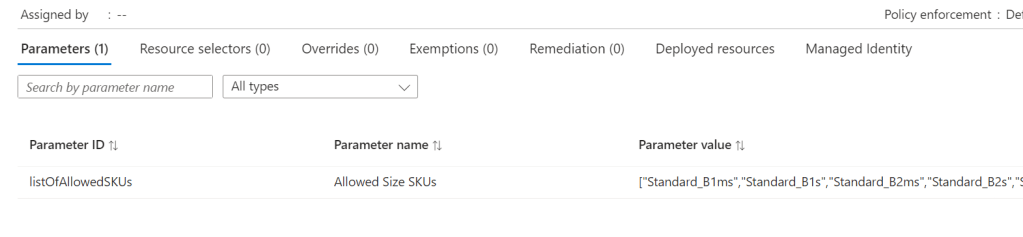
For anyone who has created a Policy like this in the past, the experience is quite straight forward. Azure provides an out-of-the-box template, you simply have to pick which VM SKUs are allowed from a drop down. However, several years ago this was straight forward. Pick X SKUs from about 100 SKUs. This list has grown exponentially, and only continues to get larger. This makes implementing the Policy, and modifying it, exceedingly cumbersome via the Portal.

So, one technical and accurate solution is to define this Policy via code. How you manage this (i.e. deployment and repo management etc) is not for this blog post, but is achievable with this as your base Policy. Two elements are required for this to work correctly

  1. Bicep file to deploy Policy resource
  2. Parameters file for VM SKUs

Item 1 is simple, I’ve included the exact code, and will link off to a repo with all of this at the end too.

To explain the above:

  • We will pass an array of chosen VM SKUs, and the string of the built-in Policy definition.
  • We use a variable to define the Policy name.
  • We deploy a single resource object, combining these into one Policy deployment.

Now, to get to the point where this can be deployed, we need to define our list of chosen VM SKUs. But to get that, we need a list of possible VM SKUs, to then filter down from. There are a couple of ways to achieve this, but to avoid the misery of formatting a hundred or so lines, here is how I did it.

First, not all VM SKUs are possible in all regions, so this is our start point. Figure out the region(s) in scope for this Policy, and work from there. For this example I will use North Europe.

Get-AzVMSize -Location 'northeurope'

The above gets us a big long list of VM SKUs possible in North Europe via PowerShell. However, it’s a nightmare to use and format, so a small change and an export will help…

Get-AzVMSize -Location 'northeurope' | select Name | export-csv C:\folderthatexists\vmksu.csv

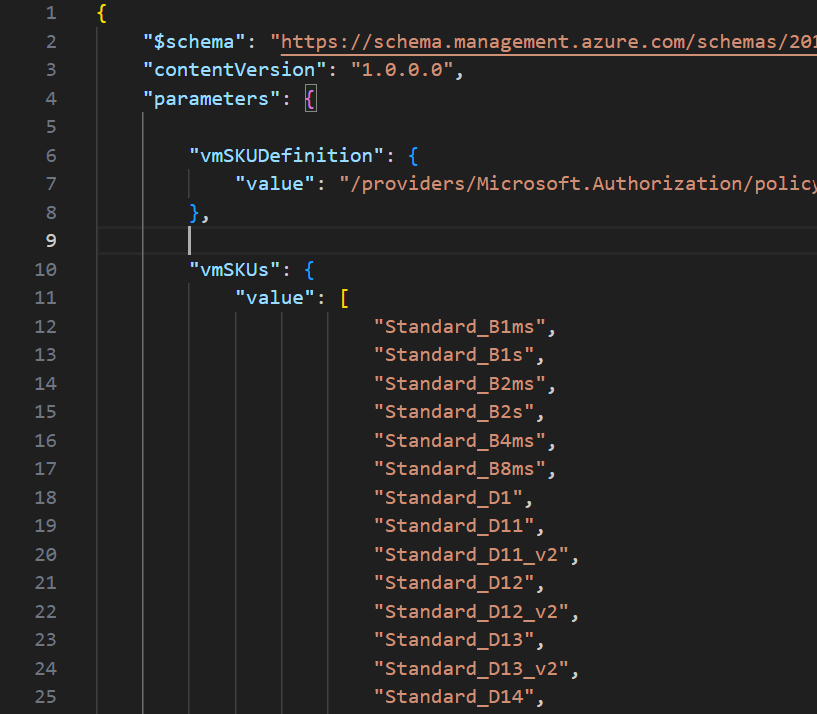
Now, that gives me a list of 500+ VMs, again not very manageable directly, but what is important, is that if you open that CSV file in VS Code, they are formatted exactly as you need for JSON parameters file! You can simply copy and paste lines needed. I found it quicker here to actually remove lines I don’t want than select those I do.

Once you have your list completed, that is now the detail we will use in the parameter file to pass our array of SKUs for deployment.

Now to deploy, simply pick your method! For this post, I am using PowerShell (as I am already logged in) and will complete a Subscription level deployment, as this is a Policy. I will pass both files as command parameters, Azure will do the rest! The below should work for you, and I will include a PS1 file in the repo too for reference, but adjust as per your files, tenant etc.

New-AzSubscriptionDeployment -Name 'az-sku-policy-deploy' -Location northeurope -TemplateFile 'C:\folderthatexists\vm-sku-policy.bicep' -TemplateParameterFile 'C:\folderthatexists\policy.parameters.json'

Once that runs successfully, you can verify all is correct via Portal too. Again, as this is Bicep, you can run this over and over and it will simply update the Policy if there are changes. Meaning all it requires is an update of your VM SKU parameters to add or remove VMs from being allowed.

And that’s it! As promised, here is a repo with the files for reference. Please note – as always, all code is provided for reference only and should not be used on your environment without full understanding and testing. I cannot take responsibility for your environment and use of code. Please do reach out if you have questions.
How To – Manage an NSG Using Bicep and Azure DevOps

In many Azure environments that rely on Virtual Networks, Network Security Groups (NSGs) are still king when it comes to access control. However, this post isn’t going to get into the pros and cons of that approach, that’s possibly an entire series, never mind another post!

This post is simply showing a method for managing your NSGs and rules as IaC. Using Bicep, Github and an Azure DevOps Pipeline.

Now, for anyone new to IaC, there is a learning curve. There is also a tradeoff when it comes to effort. It can often be quicker to deploy resources via portal driven methods. However, there are two fundamental reasons to deploy and manage a resource such as an NSG via IaC.

  • BCP – think version history, backup, DR deployments
  • Security – Managed releases/commits control who can approve and change your NSGs

This post keeps it simple, but the principles can expand to managing a full set of NSGs as required. It also includes deploying an empty NSG, which you wouldn’t in theory need either.

As this uses Bicep, let’s take a look at how it handles NSGs and their rules. The NSG itself is quite a simple resource, in my example I am creating it without any config, similar to when you create one in the portal, no rules included.

resource nsg 'Microsoft.Network/networkSecurityGroups@2021-05-01' = {
  name: nsgName
  location: location
  tags: {
    CreatedOn: date
    Owner: email
  }
  properties: {}   
}

However, you can include security rules here as part of the properties section, details on that here. I have chosen not to, as I would like to manage the rules as separate Bicep files. As a result, I need to understand how Parent and Child resources work in Bicep. With this in mind, I have split my rules into two files, inbound and outbound, as this is the core logic split for ACLs on NSGs. You could do this other ways, an allow file, a deny file etc. but this is the one that works best for my brain 🙂

In terms of the file itself, it becomes a collection of bicep resources, each being a rule itself. This gives you full and immediate granularity. I reference the rule priority in my symbolic name to allow for an order of declaration that makes sense to me, but again, lots of options here and no wrong decision. The below are example from my inbound file. I have declared the direction as a variable, as that will always be the same in this file.

resource nsgRule4000 'Microsoft.Network/networkSecurityGroups/securityRules@2021-05-01' = {
  name: '${nsgName}/IN_VNET_Deny'
  properties: {
    access: 'Deny'
    description: 'Deny default VNET traffic'
    destinationAddressPrefix: 'VirtualNetwork'
    destinationPortRange: '*'
    direction: dir
    priority: 4000
    protocol: '*'
    sourceAddressPrefix: '*'
    sourcePortRange: '*'
  }
}

resource nsgRule3000 'Microsoft.Network/networkSecurityGroups/securityRules@2021-05-01' = {
  name: '${nsgName}/IN_Ping_ALLOW'
  properties: {
    access: 'Allow'
    description: 'Allow PING from VNET'
    destinationAddressPrefix: 'VirtualNetwork'
    destinationPortRange: '*'
    direction: dir
    priority: 3000
    protocol: 'Icmp'
    sourceAddressPrefix: 'VirtualNetwork'
    sourcePortRange: '*'
  }
}

Once your files, structure, and rules are created; congratulations! You now have one of the more cumbersome resources for management addressed as code. Giving you quick RTO should it be needed, human readable documentation of your NSG rules, and version history.

How you then control who can edit rules/files by using releases or pull requests etc is up to you and your workflow. But think about including logic to require approvals or at least reviews.

The files I have used as examples are here, again they keep things very simple so if there are questions, get in touch!

How to – Build a Test Azure Network with Bicep

So first, what is Bicep? If you haven’t heard of it, I have to ask – how!? Microsoft’s new deployment language for Azure has made waves since its launch. Continuously improving and taking in a tonne of community feedback it is an interesting offering from Microsoft. To be honest, at first I wasn’t convinced by Bicep. I was slightly confused as to why it was needed. I had put in the time to understand and use ARM templates. I don’t find them super confusing, but I do understand they can be frustrating and quite complex.

That exact point is what Bicep aims to simplify. It uses declarative syntax to deploy Azure resources. This provides concise syntax, reliable type safety, and support for code reuse. Bicep is a transparent abstraction over ARM template JSON and doesn’t lose any of the JSON template capabilities. In plain English, that means that Bicep hides the complexity of ARM templates. Perhaps think of it like shorthand templates 🙂

During deployment, the Bicep CLI converts a Bicep file into ARM template JSON. This means that Bicep has full feature alignment out of the box with all resource types, API versions, and properties that are valid in an ARM template.

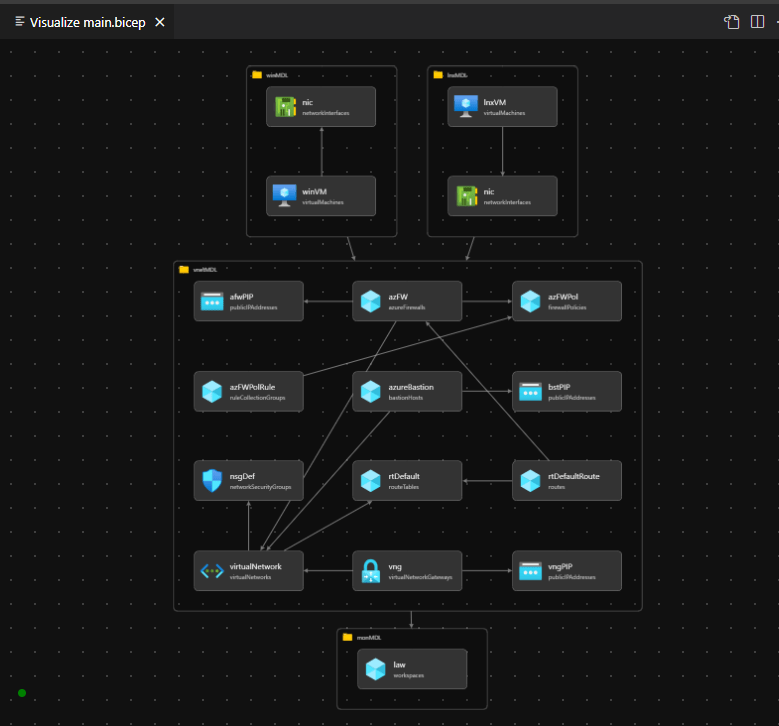
This simplicity, combined with a common need to create a small IaaS test area is what lead me to create this post. Below I am going to outline a version of the deployment I use to create a quick and simple test environment. All documented and deployed via Bicep.

First up, what will this environment contain? I’m including resources I find helpful with configurations I find I most commonly need. I am leaving out certain resources that are less cost effective or frequently required (DDoS Standard for example), and I will allow for a conditional deployment of some that I just don’t want to wait on every time. I am looking at you Virtual Network Gateway 🙂

  • Virtual Network
    • Bastion, Gateway, Firewall, Windows, Linux – subnets
  • Windows VM – Server 2019
  • Ubuntu VM – 20.04-LTS
  • Azure Bastion
  • Azure Firewall – Standard | Premium – Conditional based on Parameter
  • VNG – Conditional based on Parameter

So why does Bicep help me with the above? Genuinely I just never got time to create the same in ARM. When working on learning some Bicep I decided to use it as an opportunity to create something useful for myself.

All of the above is written in Bicep and stored in a public repo here. This includes a YAML Pipeline that can allow you test and if successful, deploy the environment to Azure using Azure DevOps. For more on that test stage, see my other post here.

You can see a high-level of the resources that can be deployed below, which I have pulled from the Visualiser function on VS Code:

Without the VNG included, you should see the entire environment built in under seven minutes.

Adding the VNG however will increase this most commonly to at least 20 minutes.

As always, if there are any questions or feedback, get in touch! Happy Bicep-ing! 💪