How to – Choose an Azure Naming Convention

When working with Azure, as with many cloud based services, one of the difficulties you may have to deal with is naming standards. Common sense would lead you to applying a single naming convention to all resources. However, in Azure, as the name of the resource can actually be used for many different things, one single convention is quite difficult to achieve. Especially if your convention requires any real degree of complexity.

The most simple reason for having a good naming convention? You cannot rename resources in Azure.

In one of my earlier posts, I discussed the benefits of using the Azure Architecture Center, we visit this again for naming conventions. The general recommendations are as follows:

So let’s look at those in some more detail.

Short and Simple

This somewhat explains itself. However there are technical justifications too. For example, a Windows VM name has a maximum character limit of 15. Keeping it simple allows you to re-use the same logic regardless of resource type, location or service.

Affix some affixes

Where possible, make use of a prefix or a suffix to add clarity to your resource names. the most common are based on environment (prod, dev, test) or instance (A, B, C or 01, 02, 03).

While trying to do the above, make sure to reference back to the matrices of support.

Policy

Depending on whether your environment is brand new, or you’re trying to implement some control on an existing environment; applying your naming convention via Policy can speed things up. You can choose all of the usual options when it comes to policy, my preferred method is to create several policies scoped to resource types that deny deployment if naming convention doesn’t match. This avoids conflicts with any auto-deployed resources. Then a catch all policy to audit everything for compliance. An example policy for VMs is below:

{
     "properties": {
         "displayName": "VM naming pattern",
         "description": "Require naming patterns for VMs.",
         "mode": "All",
         "policyRule": {
             "if": {
                 "allOf": [
                     {
                         "field": "type",
                         "match": "Microsoft.Compute/virtualMachines"
                     },
                     {
                         "not": {
                             "field": "name",
                             "match": "az-????-##"
                         }
                     }
                 ]
             },
             "then": {
                 "effect": "deny"
             }
         }
     }
 }

This checks all of the fields listed, so for Virtual Machines, where Name is Not a Match for “az-????-##” then Deny. The match pattern is defined using standard Azure Policy conditions.

Tagging

Tags can form a one to many relationship for resources. Tagging all resources that are part of a project, or have a commonality adds additional metadata to resources without adding increased complexity to your naming convention. Tagging should be viewed as a complimentary option to a good naming convention rather than an alternative. They can also be applied via Policy, saving you time and effort!

As always if there are any questions, or suggestions on how you do naming in Azure, get in touch and I’ll add them to this post!

How to – Use a Public IP Address Prefix with a Virtual Network Gateway

On a recent project, a client had a requirement for all Public IP addresses to be part of a Pubic IP Address Prefix. This ensured they could both re-use and predict their IPs. Greatly simplifying Governance requirements and white-listing with partners.

However, once the Prefix was active, I went to create a Virtual Network Gateway to test some connectivity options. Being a simple test, I was using the Portal for deployment. I realised that the parameter defaults prevent you from using a Prefix IP as they are on the Standard SKU by default. If you’re creating a single VNG that is not linked to an Availability Zone, the Portal looks for a Basic SKU and you receive this error:

Now a quick fix was to simply select one the AZ SKUs, but I didn’t want that. Thankfully, Cloud Shell was my answer. Out of curiosity, I then tried the same process, but via Powershell. Using the exact same resources and parameters.

And…success! My guess is the flag that prevents you from using a Standard SKU Public IP address for a VpnGw1 SKU VNG is a parameter limitation rather than a technical one. The VNG works exactly as expected.

Hopefully this can save you some time if you find yourself in the same situation!

Bonus tip! When working in Cloud Shell, if there is a parameter you are unfamiliar with and not sure what it expects as input, type out the parameter and hit tab, it will list all allowed inputs:

Azure Policy – Where to Start?

One of the positives of Azure is that it can offer you so many possibilities when it comes to deployment options. However, if you don’t implement the correct governance, this can very quickly become a negative. Historically, Cloud has had difficulties when it comes to sprawl; Azure Policy is a service that will help prevent that.

Azure Policy isn’t only a tool for prevention either. With the right policies, you can audit and enhance your environment in terms of efficiency, security and compliance. This gives you greater insight into your Azure deployment and confidence in your requirements.

Governance in Azure is addressed in many ways; a good place to start for overall strategy is the Azure Architecture Center. It has specific sections on Governance as well as overall design guidelines.

So how does Azure Policy work? At its core, it is an assessment service. You create policies with specific rules and scopes. Once the policies are active, they audit all resources in the included scope for compliance. Policies can range in complexity; you can use the default templates or create a custom one to meet your needs.

There are two core areas when dealing with Azure Policy:

Policy Definition

Every policy must have a definition. The definition contains all the details of the conditions under which it’s enforced. It also has the defined effect that occurs if the conditions are met. Definitions are created using JSON and the full structure is defined here. You will need familiarity with this if you are going to write your own custom policies.

Allowed Locations Policy Example:

{
    "properties": {
        "mode": "all",
        "parameters": {
            "allowedLocations": {
                "type": "array",
                "metadata": {
                    "description": "The list of locations that can be specified when deploying resources",
                    "strongType": "location",
                    "displayName": "Allowed locations"
                },
                "defaultValue": [ "westus2" ]
            }
        },
        "displayName": "Allowed locations",
        "description": "This policy enables you to restrict the locations your organization can specify when deploying resources.",
        "policyRule": {
            "if": {
                "not": {
                    "field": "location",
                    "in": "[parameters('allowedLocations')]"
                }
            },
            "then": {
                "effect": "deny"
            }
        }
    }
}
Policy Assignment

A policy assignment is a policy definition that has been assigned to take place within a specific scope. Assignments range from Management Groups to a single Resource Group. The scope of the assignment refers to all the Resource Groups, Subscriptions, or Management Groups that the Definition is assigned to. Inheritance is enabled for all assignments. Therefore, a policy applied to a resource group is also applied to all resources in that resource group. However, you can include exclusions as a sub-scope of the assignment. For example, a Definition is assigned to a Subscription; all Resource Groups inherit the Definition but you need a single Resource Group excluded. Rather than redo the Assignment for each Resource Group, you can simply exclude it from the Subscription assignment.

Your First Policy

Now that you understand what Azure Policy is, let’s get started with our first policy. For this example, I’m going to prevent Public IP addresses being deployed within a Subscription. This is something I commonly add to IaaS projects that are connected to a local LAN.

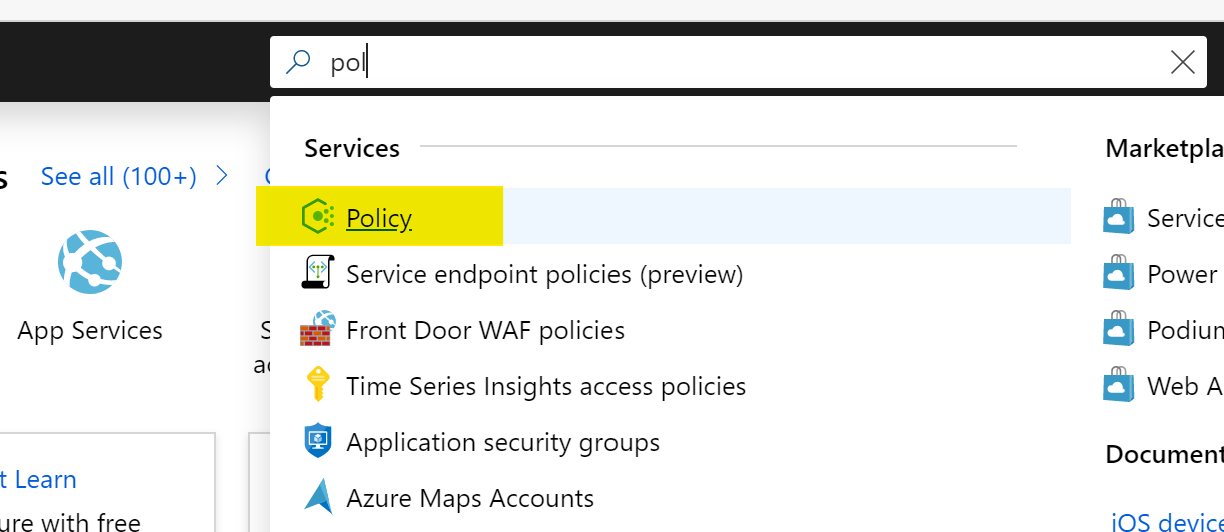
Once you’ve logged in to the Azure Portal, make your way to the Azure Policy service, I normally use the search bar as below as it’s quick!

Once you’re on the Overview blade, a handy option for your first time is to click the Getting Started option. This details the steps to take and we’re going to start by browsing default Definitions so click that View Definitions option as below:

This will bring you to the Definitions blade. You will see a lot of built-in policies. To simplify things, click the search bar and enter “not allowed”, this will bring up the Definition we will use, then go ahead and click on the Policy name “Not allowed resource types” as below:

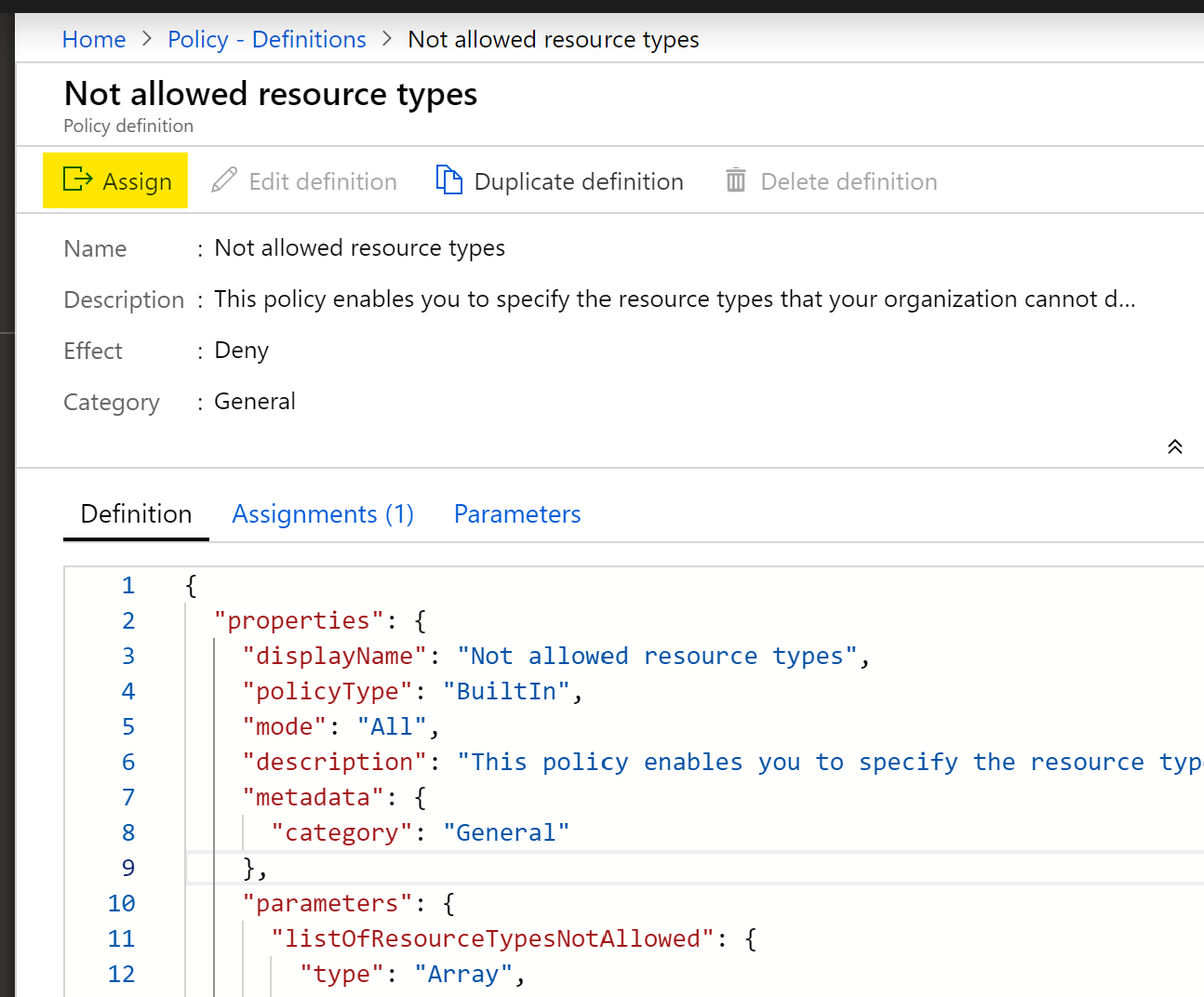
You’re now in the Definition page, where you can see the exact structure in JSON format. We’re going to jump straight to Assignment from here by clicking “Assign” as below:

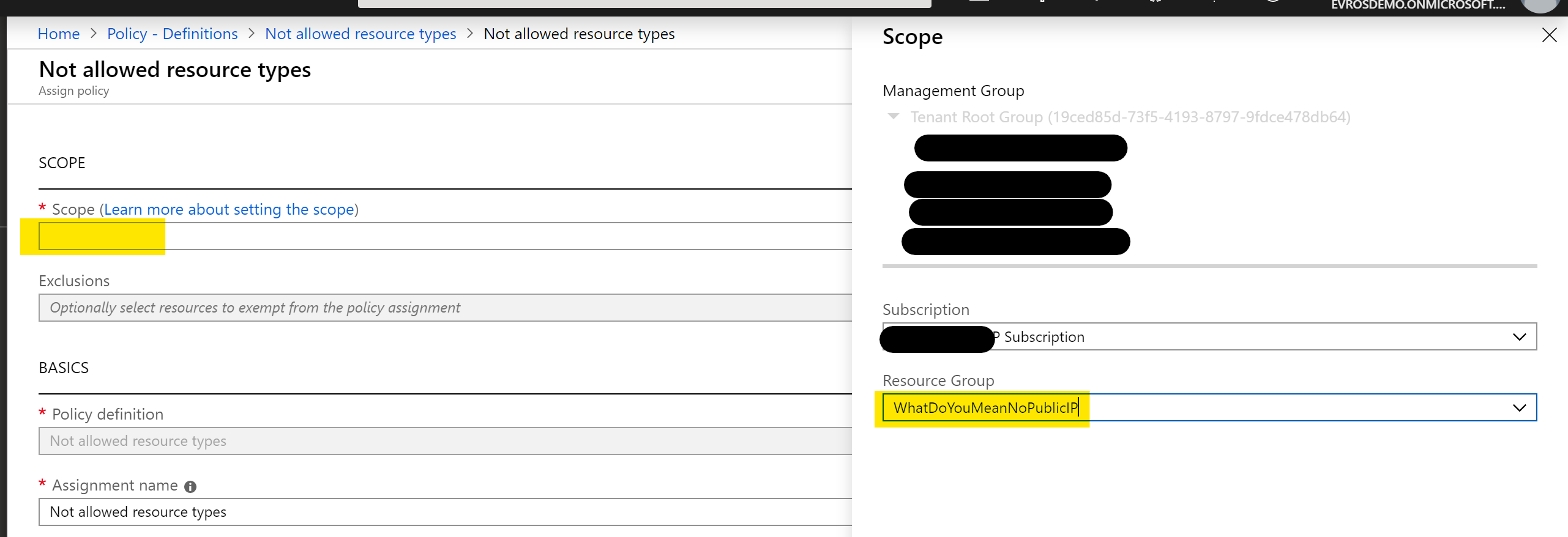
This will bring you the assignment blade. Our first step is to set a scope. I’m going to go ahead and choose my Subscription and a Resource Group, then click “Select” as below:

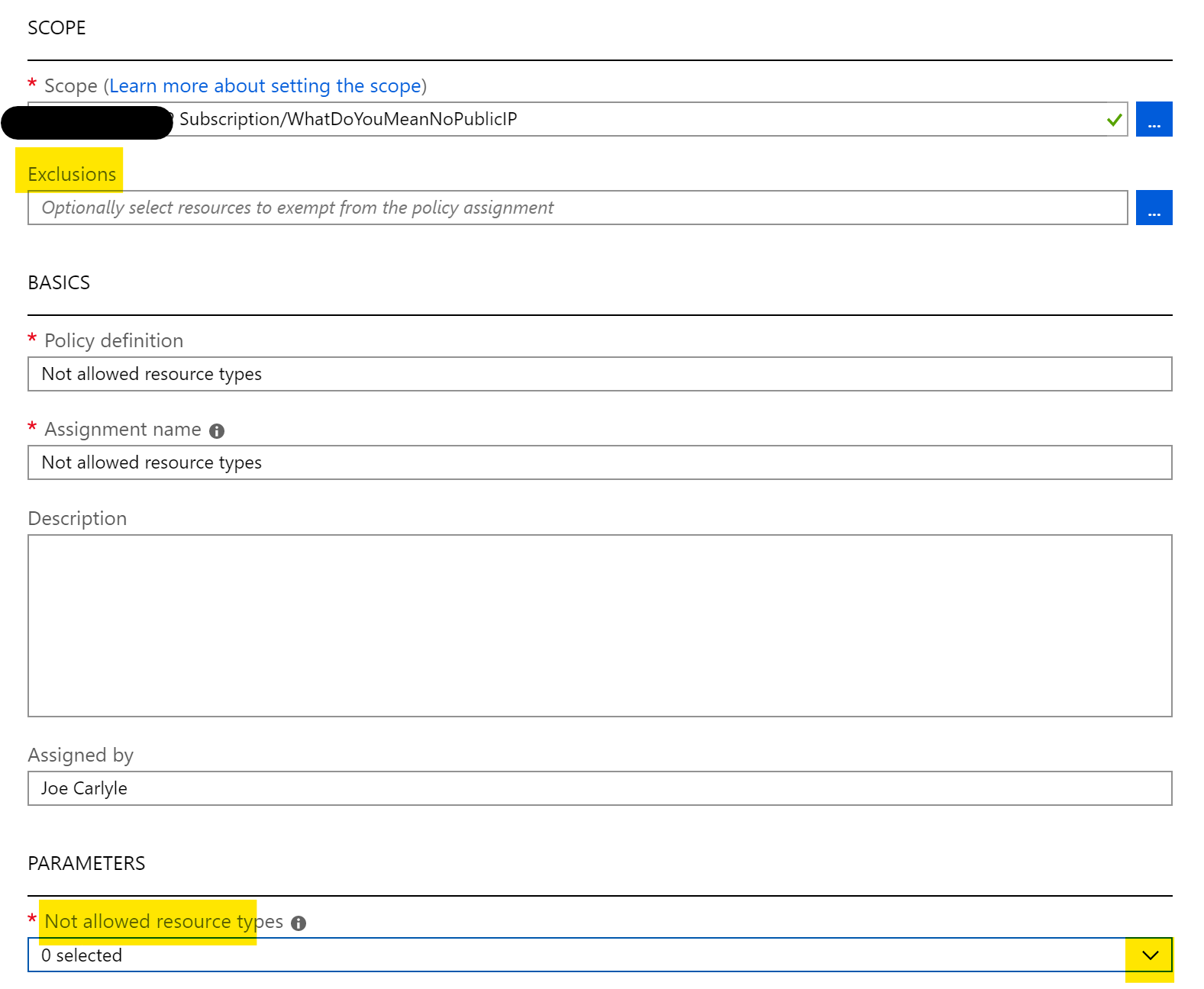
We’re going to leave most of the settings as they are, but you can where you can set Exclusions below. We’re going to click the drop down arrow as highlighted:

This opens a huge list of resource providers and types. Thankfully, there is a search bar, so type in “public” to narrow the list and tick the checkbox for Microsoft.Network/publicIPAddresses, then click away from the list as below:

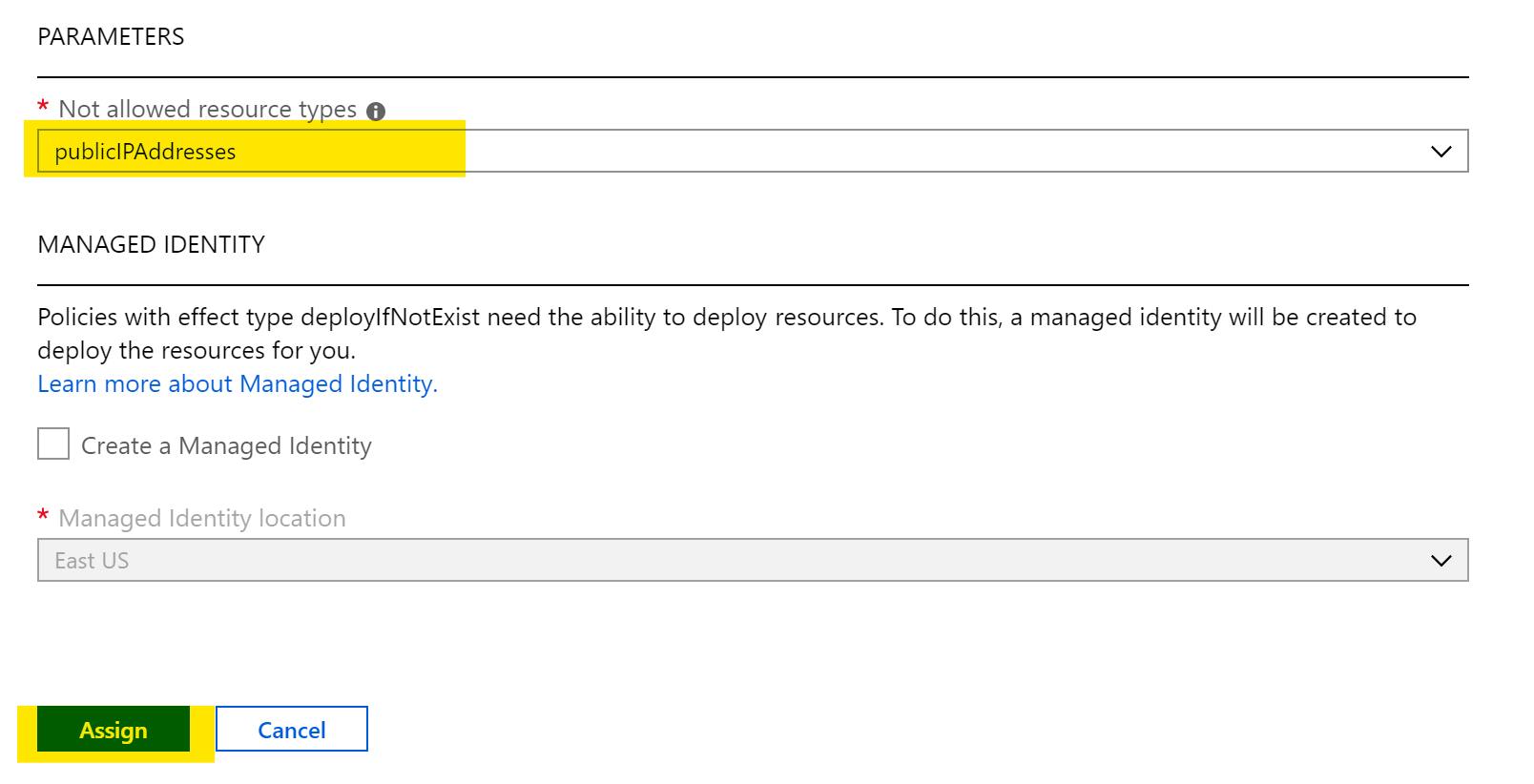
We’re almost there! You can see that publicIPAddresses are now defined as a parameter. So click the blue “Assign” button as below:

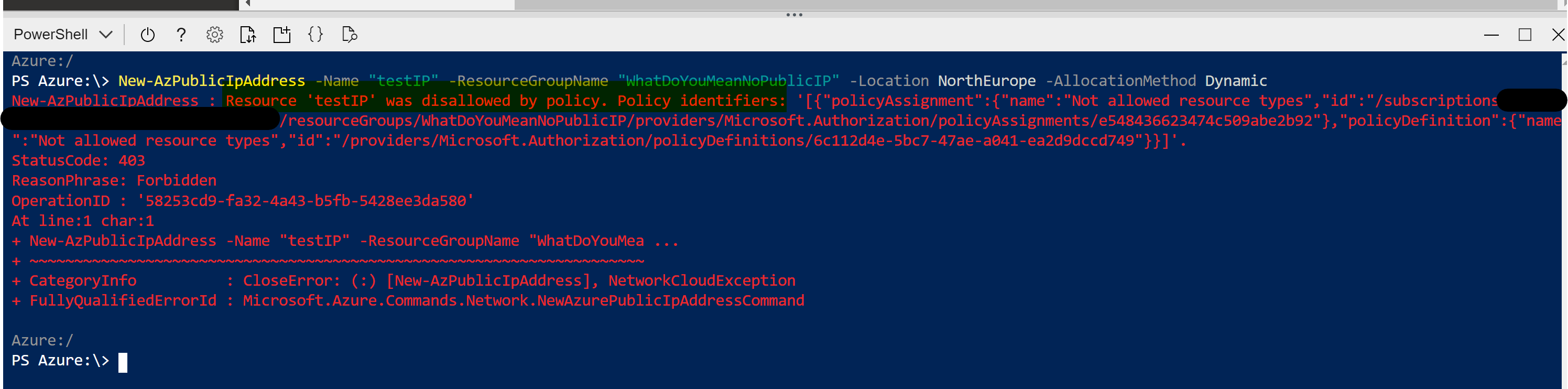
Now your policy is assigned, we need to give it a couple of minutes to propagate. Now, when I try to create a Public IP resource in my scoped Resource Group (I’ve used POSH in Cloudshell, but deployment method doesn’t matter) I’m told I cannot as it’s disallowed by policy:

You’ve now successfully applied your first Azure Policy! As you can see, even though this is a single Definition it is still very powerful. Your options to layer Definitions and apply custom ones allow for full control of your environment with very little effort. Azure Policy should be high on your list of priorities for your Azure deployments.

As always, if there are any questions, please get in touch!

Azure Firewall – Where to Start?

About a year ago, Microsoft introduced the first release of Azure Firewall. Since then, and since its general release the service has grown and the features have matured.

To begin, let’s understand what Azure Firewall is? At its core it’s a managed, network security service that protects your Azure Virtual Network resources. It functions as a stateful firewall-as-a-service and offers built-in high availability and scalability. This means you can centrally control, enforce and log all of your network traffic. It fully integrates with Azure Monitor too which means all of the usual logging and analytical goodness.

If the above sounds like something you’d like to use, or at least try, in your Azure environment, read on! To start, let’s break out what can be configured within Azure Firewall and which features could be useful for you.

When deploying an Azure Firewall, you need a couple of things in advance. It needs a dedicated subnet, specifically named “AzureFirewallSubnet” and the minimum size it can be is a /26. It also needs at least one Static Public IP. The Public IP must be on the Standard tier. My recommendation here is to look at creating a Public IP Prefix in advance of creating your Azure Firewall. That way, if you need to delete it and redeploy, you can continue to use the same Public IP again and again. If you want to use multiple Public IPs, it supports up to 100.

So, let’s look at what Azure Firewall (AFW) can do for you on your Virtual Network and then consider some deployment options.

Access

Using your single, or multiple Public IP addresses, AFW allows both source and destination NATing. Meaning it can support multiple inbound ports, such as HTTPS over 443 to different resources. Outbound SNAT helps greatly with services that require white-listing. If you are using multiple Public IPs, AFW randomly picks one for SNAT, so ensure you include all of them in your white-listing requirements.

Protection

AFW uses a Microsoft service called Threat Intelligence filtering. This allows Azure Firewall to alert and deny traffic to and from known malicious IPs and domains. You can turn this setting off, set it to just alert or to both alert and deny. All of the actions are logged.

Filtering

Finally, for filtering, AFW can use both Network Traffic and Application FQDN rules. This means that you can limit traffic to only those explicitly listed within the rule collections. For example, an application rule that only allows traffic to the FQDN – www.wedoazure.ie

A visual representation of the above features is below:

Firewall overview

Now that you understand AFW, let’s look at how to configure to your needs. Normally I would go into the deployment aspect, but it is excellently documented already and relatively easy to follow. However, there are some aspects of the configuration that warrant further detail.

Once deployed, you must create a Custom Route Table to force traffic to your AFW. In the tutorial, it shows you how to create a route for Internet traffic (0.0.0.0/0), however you may want the AFW to be your central control point for your vnet traffic too. Don’t forget, traffic between subnets is not filtered by default. Routing all traffic for each subnet to AFW could allow you to manage which subnet can route where centrally. For example, if we have three subnets, Web, App and DB. A single route table applied to each subnet can tunnel all traffic to AFW. On the AFW you can then allow Web to the Internet and the App subnet. The App subnet can access Web and DB but not Internet and finally the DB subnet can only access the App subnet. This would all be achieved with a single Network Rule collection.

Similarly you can allow/block specific FQDNs with an Application Rule collection. In the tutorial, a single FQDN is allowed. This means that all others are blocked as that is the default behaviour. This might not be practical for your environment and the good news is, you can implement the reverse. With the right priority order, you can allow all traffic except for blocked FQDNs.

A feature you may also want to consider trying is destination NATing. This thankfully has another well documented tutorial on Docs.

Finally, and in some cases most importantly, let’s look at price. You are charged in two ways for AFW. There is a price per-hour-per-instance. That means if you deploy and don’t use it for anything, you will pay approx. €770 per-month (PAYG Calculator). On top of that, you will pay for both data inbound and outbound that is filtered by AFW. You’re charged the same price either direction and that’s approx. €14 per-Tb-per-month. Depending on your environment and/or requirements this price could be OK or too steep. My main advice is to ensure you understand it before deploying!

As always, if there are any questions please get in touch!

What is Azure Dedicated Host?

This month, Microsoft announced the introduction of a new method of running your Windows and Linux VMs within Azure. Dedicated Host is a new service that provides you with a single-tenant-host to run your workloads on. Or to phrase that more simply, your very own physical server in an Azure datacentre.

Azure Dedicated Host Groups (DHG) can be created within a region, availability zone, and fault domain. Your Dedicated Host is then created as part of a DHG and you can have multiple Dedicated Hosts per DHG. A Dedicated Host is a representation of a physical server in an Azure Datacenter. As your VMs are directly provisioned into your hosts, you can choose whatever configuration is required and available from the parent resources.

View of the new resources for dedicated hosts.

Two benefits from making use of Dedicated Host are:

Increased Control

As your Dedicated Host is allocated directly to your tenant, you have more granular control of placement configuration for all of your provisioned VMs. Also, you now control the timing of all platform-initiated maintenance operations, such as OS patching, or hardware or software reboots. This means you get the option to skip the regular platform update schedule, and then apply it when it suits within a 35-day rolling window.

Compliance Requirements

Azure Dedicated Host offers hardware isolation at the physical level which means your Azure VMs run on an isolated and dedicated physical server. No other VMs can run on your Dedicated Host. This can drastically help meet corporate compliance guidelines and standards. While also gaining visibility into the underlying cores to meet server-based software licensing requirements.

Configuration Options

Dedicated Hosts come in several configuration options. Each options allow for different VM series deployment combinations you are already familiar with. A table outlines an example for the Dsv3 Series:

Physical CoresAvailable vCPUsAvailable RAMVM Size# of VMs
4064256GBD2s v3
D4s v3
D8s v3
D16s v3
D32s v3
D48s v3
D64s v3
32
16
8
4
2
1
1

So at a quick glance, you can see there are several combinations of VMs that can be run on any single Dedicated Host. For example, 2 D16s v3 VMs + 1 D32s v3 VMs. However, bear in mind you will pay for the full Dedicated Host, regardless of VMs being run on it. You can read the full details for more information on pricing.

One nice note on pricing; the usual Azure Hybrid Benefit options are available for VMs running on Dedicated Host.

DHGs use Availability Zones and Fault Domains to give the greatest High Availability possible. So both need to be taken into consideration when designing your Dedicated Host deployment. The Dedicated Host docs, give good guidance on this already.

If Dedicated Host sounds like something you could make use of, why not give it a try. But remember, it’s still in preview so be careful and be aware of the limitations below:

  • Virtual machine scale sets are not currently supported on dedicated hosts.
  • The preview initial release supports the following VM series: DSv3 and ESv3.
  • During the preview, you won’t be able to resize a virtual machine deployed to a dedicated host.
  • Control over maintenance capabilities is in a limited preview. Start by taking this nomination survey to try them out.
  • During the preview we won’t be offering the option for reserved capacity.