Festive Tech Calendar: Adopt AI like a PRO with Azure Essentials

Another year, and another fantastic Festive Tech Calendar. While it wasn’t the first event I participated in, I do think it is my longest running, annual event. I have been a fan since it’s inception and am delighted to see it continue. This year, the team are raising funds for Beatson Cancer Charity. Donations are appreciated via the Just Giving page.

Now, this post is all about Azure AI adoption via the new offering of Azure Essentials. So, we will start off by explaining what that is and why it matters. Over the years, Microsoft has introduced new ways of doing things, new approaches or methods; sometimes these have been simple renames, and sometimes they have been a completely different vision of Azure. Often, they can be confusing regardless. This post aims to help understand Azure Essentials better, using the “tech of the moment” Azure AI.

So – let’s get started. What exactly is Azure Essentials? As we’re working related to AI, let’s set the scene using Copilot…

Copilot for M365 in Teams (please don’t @ me about the structure of that name, I cannot keep up with how to reference Copilot!) was helpful:

Copilot in Azure…not so much:

What you need to take away at this stage is, rather than this being an entirely new thing, it has consolidated existing good work to allow for the consumption of it to be simpler or more refined. At a theory level this seems to make sense, however, we all know the implementation of these things can be very tricky.
With this in mind, how to use or approach Azure Essentials shifts a bit. The first point that struck me was this is most useful for people new to Azure. However, that is not to say it is not useful for those experienced. But if you are new, we have a lot of assumptions that people will know and make use of offerings like CAF and WAF, will reference the Architecture Centre for design guidance, etc. When that is likely not the case.

Centralise core guidance as Azure Essentials is a great idea in my opinion. However, it hasn’t just centralised guidance. Disclosing at this point that I work for a Microsoft Partner. Essentials also includes recommendations for finding a partner, leveraging funding programs, which products are useful, and customer testimonials. This is nice for companies like mine as a marketing/contact channel, but I am not sure if I would define it as “essential”.

What is essential though is how it frames guidance and aligns customers into the right frame of approach in my opinion. The site is a touch confusing on this point though. So the new resource kit is right at the top, it’s the first link on the page. But scenario or use case guidance is further down and brings you elsewhere. Sticking with our original idea regarding AI adoption, there is a use case listed, and this brings you to an Azure Architecture blog from July – this is not what we want…

Whereas if we open the Resource Kit, then check it’s contents, we get a ‘common scenario’ with click through links
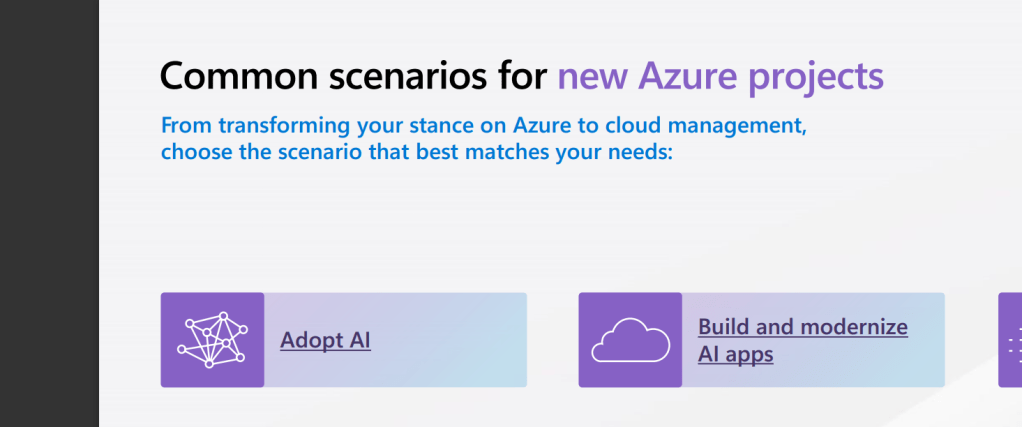
Now before we dig in there, one item I noted when researching this was that some messaging implies, or potentially confuses some elements of this with changes to, or improvements upon the Cloud Adoption Framework (CAF). In my opinion, Azure Essentials doesn’t change CAF, it’s not even listed on the What’s New page. However, it is an improvement to how people may be guided to CAF. And anything that brings more people to CAF and allows for efficient and more well governed deployments is a positive to me!

So, what exactly does Essentials recommend then as it’s ideal detail required for AI adoption? Six steps and some learning material. I am delighted to see the inclusion of learning material, its becoming more and more important as the rate of change increases. Let’s have a look at the six steps:

  1. Assess your Azure AI readiness
  2. Explore Azure AI pricing
  3. Prepare your AI environment
  4. Design your AI workloads
  5. Develop Well-Architected AI workloads
  6. Deploy, Manage, and operate your AI workloads

At first glance this looks like a good set to me. I don’t think I would have ranked pricing as high in the sequence, but perhaps it’s important to get that out of the way early! 🙂

The first ask is here is to take an Assessment. The Azure AI readiness assessment focusses on core areas of adoption strategy within your business. It can be a lengthy process, it notes 45 minutes, but if you choose all of the areas available, it will give you 100+ pages of questions to complete to attain your score. Anyone familiar with Azure Well Architected Reviews, or the old Governance Assessment will see the immediate similarities here and understand the usefulness of having something that asks people to think about things in the correct way and offers a score to guide expectations.

Next, it’s pricing. Again, this is tricky for me. To be remotely accurate with pricing, I think you need to have some form of design to then dictate resources, which lead to price. You are then happy, or shocked, and rework your design. Rinse repeat to get to where you need to be. Unfortunately, the link in the resource kit lands you on the default pricing page for Azure, nothing AI specific. So you really are starting at the bottom. Some more AI specific guidance here would be a great inclusion for the next version. For example, this placement link, bring you to the menu item for AI pricing on this page, a small but helpful direction.

Next, we’re onto preparation. A good note on a Landing Zone, but I would have expected as this is Azure Essentials that would link through to some guidance on Landing Zones. We then get two links to Design Architectures for Azure AI in the Architecture Centre. This could be more confusing than helpful, and it’s not the preparation guidance I would expect. This is Azure Essentials, and here is the first AI architecture Visio you see…
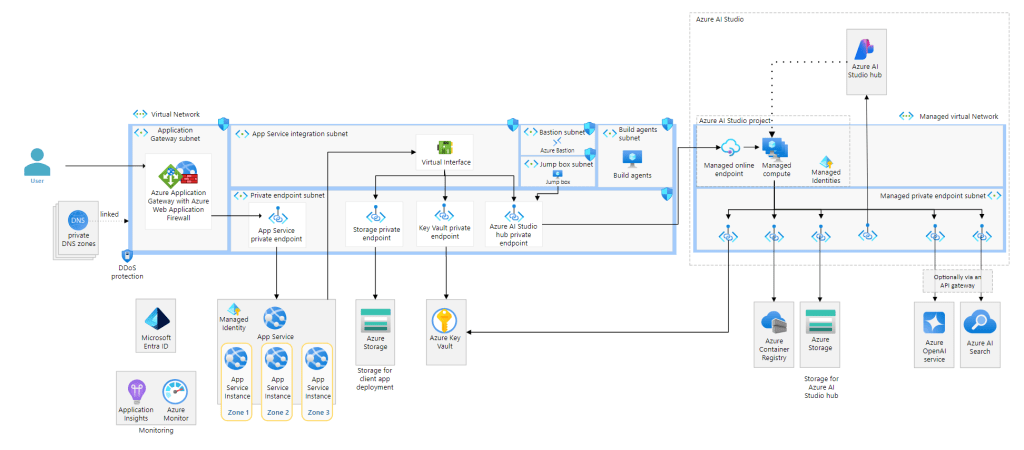
My concern here is complexity. I know people may have more interest in using OpenAI models and the whole chat functionality. But I would have gone a different route here. Most likely document based, something that uses one of the more mature services, like Document Intelligence, and a simpler architecture for guidance. Make it easier to see the objective rather than the mountain that is presented above. I don’t think there is actually a perfect set of links here, too many variables and too much information dependent on where the user perception of AI is. Will be very interesting to see how this progresses and it may always require further expertise and information to be properly impactful.

Next, design, one of my favourite areas. No other aspect of Azure excites me like creating the solution design. With a vast platform you start with everything and toil away until you have what works for what is needed. Here we get a note to choose from reference architectures – good point, but which ones? No links are provided, but having said that, there is no single link that works here. The reference architectures are spread out amongst the different products. Next, we get a great link to the AI architecture design overview page. I think I might have switched step 3 and 4 here actually. Doing this first, I believe it gives people a much better starting point to learn from and then understand point 3 more comprehensively. Bookmark this page for your AI adoption journey, it’s like a TOC of what to read for which service/product.

The penultimate step guides us to well architected workloads. The note is simply a note, however the point is valid but I think it should have included this link, as the start point for this step. It’s really useful and helps you quickly jump where you need to with reference to the Well Architected Framework (can anyone else just not call it WAF? Too confusing for me with Web Application Firewall). However the included link, which focusses on Azure OpenAI is good. It has the expected pillar guidance for Well Architected, and it has a comprehensive set of accurate click-through links. I think this step is important and placed in the right place too, so it flows well at this point of the resource kit.

Finally, we have a deploy and manage step. This feels a little bit like the weakest of the six steps. First of all the title is repeated as the first bullet point – not great.
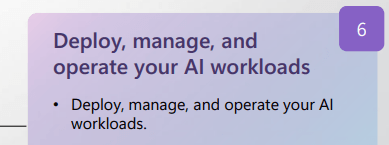
Then it notes we should use best practice – again, no guidance as to what that means. Or how that is practically when it comes to deployment and management. Finally, it links to a guide page regarding responsible use of AI. Responsible use is incredibly important, it is valid when operating AI workloads, but it is useless as a single link for this step. There is a literal AI management page on CAF already that could be used. I have waited until this step to link to this area of CAF, as it hasn’t been updated since the start of 2024, but it has a lot of detail this kit should include, and with an update, would make much more sense than some of the links included.

In conclusion, I think the kit needs some work, a revision so to speak. First, I would tweak the steps to be as follows:

  1. Assess your Azure AI readiness
  2. Develop Well-Architected AI workloads
  3. Design your AI workloads
  4. Prepare your AI environment
  5. Deploy, Manage, and operate your AI workloads
  6. Explore Azure AI pricing

Next, I would rely more heavily on CAF and Architecture Center with context for links, or linking to overview pages with a note to use the links within. Like a ‘further reading’ note or similar. I know it is meant to be Essentials, but let’s give essential guidance rather than minimum perhaps?

Finally, if you want to adopt AI like a Pro – I think Essentials is useful as a sanity check, but you are better investing your time on the already existing items on Learn, CAF and WAF.

How to – Control Azure Regions with Azure Policy and Bicep

Updated: March 2024 – repo link now updated to new Github structure!

A common requirement for many tenants is to control or restrict the regions in which Azure can be used, this is most commonly done via Azure Policy. Wanting/needing to restrict regions can be for several reasons, below are some of the most common:

  • Alignment – Align to local presence for performance etc.
  • Governance – Align to compliance, residency and data restriction requirements.
  • Features – Not all data regions are created equally – restrict to those with features required.

For anyone who has created a Policy like this in the past, the experience is quite straight forward. Azure provides an out-of-the-box template, you simply have to pick which regions are allowed from a drop down. However, there are actually three policies you should consider for this in my opinion, all are included here.

  • Allowed Locations – when a resource deploys, it must align
  • Allowed Locations for Resource Groups – when an RG deploys, it must align
  • Audit resource location matches resource group location – just nice to have for governance!

So, with multiple policies to deploy, a controlled and accurate solution is to define these Policies via code, in my case, Bicep. How you manage this (i.e. deployment and repo management etc) is not for this blog post, but is achievable with this as your base Policy. Two elements are required for this to work correctly:

  1. Bicep file to deploy our Policy resources
  2. Parameters file for policy definitions IDs and regions required.

Item 1 is simple, I’ve included the code below, and will link off to a repo with all of this at the end too.

To explain the above:

  • We will pass an array of chosen regions/locations, and the strings of the built-in Policy definitions.
  • We use a variable to define the Policy names.
  • We deploy a resource object per policy, combining each of these into one Policy deployment.

The only real decision required here is which regions you want to allow. Some pointers from me, always include Global, otherwise some features like Traffic Manager, cannot be deployed. Only include the regions you need now, you can always update later.

How to decide on your regions? That’s probably a whole blog post by itself (adds idea to drafts) but my advice would be choose local, and choose as mature a region as possible. This should offer you the best mix of features, performance, and reliability. Once that is decided, also allow the paired region, so BCDR is possible when needed.

Once you have your list completed, that is now the detail we will use in the parameter file to pass our array of regions for deployment, note these must be in exact format required by ARM.

Now to deploy, simply pick your method! For this post, I am using PowerShell (as I am already logged in) and will complete a Subscription level deployment, as this is a Policy. I will pass both files as command parameters, Azure will do the rest! The below should work for you, and I will include a PS1 file in the repo too for reference, but adjust as per your files, tenant etc.

New-AzSubscriptionDeployment -Name 'az-region-policy-deploy' -Location northeurope -TemplateFile 'C:\folderthatexists\region-restrict-policy.bicep'
-TemplateParameterFile 'C:\folderthatexists\policy.parameters.json'

Once that runs successfully, you can verify all is correct via the Portal. Again, as this is Bicep, you can run this over and over and it will simply update the Policy if there are changes. Meaning all it requires is an update of your location parameters to add or remove regions from being allowed.

And that’s it! As promised, here is a repo with the files for reference. Please note – as always, all code is provided for reference only and should not be used on your environment without full understanding and testing. I cannot take responsibility for your environment and use of code. Please do reach out if you have questions.

How to – Choose an Azure Naming Convention

When working with Azure, as with many cloud based services, one of the difficulties you may have to deal with is naming standards. Common sense would lead you to applying a single naming convention to all resources. However, in Azure, as the name of the resource can actually be used for many different things, one single convention is quite difficult to achieve. Especially if your convention requires any real degree of complexity.

The most simple reason for having a good naming convention? You cannot rename resources in Azure.

In one of my earlier posts, I discussed the benefits of using the Azure Architecture Center, we visit this again for naming conventions. The general recommendations are as follows:

So let’s look at those in some more detail.

Short and Simple

This somewhat explains itself. However there are technical justifications too. For example, a Windows VM name has a maximum character limit of 15. Keeping it simple allows you to re-use the same logic regardless of resource type, location or service.

Affix some affixes

Where possible, make use of a prefix or a suffix to add clarity to your resource names. the most common are based on environment (prod, dev, test) or instance (A, B, C or 01, 02, 03).

While trying to do the above, make sure to reference back to the matrices of support.

Policy

Depending on whether your environment is brand new, or you’re trying to implement some control on an existing environment; applying your naming convention via Policy can speed things up. You can choose all of the usual options when it comes to policy, my preferred method is to create several policies scoped to resource types that deny deployment if naming convention doesn’t match. This avoids conflicts with any auto-deployed resources. Then a catch all policy to audit everything for compliance. An example policy for VMs is below:

{
     "properties": {
         "displayName": "VM naming pattern",
         "description": "Require naming patterns for VMs.",
         "mode": "All",
         "policyRule": {
             "if": {
                 "allOf": [
                     {
                         "field": "type",
                         "match": "Microsoft.Compute/virtualMachines"
                     },
                     {
                         "not": {
                             "field": "name",
                             "match": "az-????-##"
                         }
                     }
                 ]
             },
             "then": {
                 "effect": "deny"
             }
         }
     }
 }

This checks all of the fields listed, so for Virtual Machines, where Name is Not a Match for “az-????-##” then Deny. The match pattern is defined using standard Azure Policy conditions.

Tagging

Tags can form a one to many relationship for resources. Tagging all resources that are part of a project, or have a commonality adds additional metadata to resources without adding increased complexity to your naming convention. Tagging should be viewed as a complimentary option to a good naming convention rather than an alternative. They can also be applied via Policy, saving you time and effort!

As always if there are any questions, or suggestions on how you do naming in Azure, get in touch and I’ll add them to this post!

Azure Policy – Where to Start?

One of the positives of Azure is that it can offer you so many possibilities when it comes to deployment options. However, if you don’t implement the correct governance, this can very quickly become a negative. Historically, Cloud has had difficulties when it comes to sprawl; Azure Policy is a service that will help prevent that.

Azure Policy isn’t only a tool for prevention either. With the right policies, you can audit and enhance your environment in terms of efficiency, security and compliance. This gives you greater insight into your Azure deployment and confidence in your requirements.

Governance in Azure is addressed in many ways; a good place to start for overall strategy is the Azure Architecture Center. It has specific sections on Governance as well as overall design guidelines.

So how does Azure Policy work? At its core, it is an assessment service. You create policies with specific rules and scopes. Once the policies are active, they audit all resources in the included scope for compliance. Policies can range in complexity; you can use the default templates or create a custom one to meet your needs.

There are two core areas when dealing with Azure Policy:

Policy Definition

Every policy must have a definition. The definition contains all the details of the conditions under which it’s enforced. It also has the defined effect that occurs if the conditions are met. Definitions are created using JSON and the full structure is defined here. You will need familiarity with this if you are going to write your own custom policies.

Allowed Locations Policy Example:

{
    "properties": {
        "mode": "all",
        "parameters": {
            "allowedLocations": {
                "type": "array",
                "metadata": {
                    "description": "The list of locations that can be specified when deploying resources",
                    "strongType": "location",
                    "displayName": "Allowed locations"
                },
                "defaultValue": [ "westus2" ]
            }
        },
        "displayName": "Allowed locations",
        "description": "This policy enables you to restrict the locations your organization can specify when deploying resources.",
        "policyRule": {
            "if": {
                "not": {
                    "field": "location",
                    "in": "[parameters('allowedLocations')]"
                }
            },
            "then": {
                "effect": "deny"
            }
        }
    }
}
Policy Assignment

A policy assignment is a policy definition that has been assigned to take place within a specific scope. Assignments range from Management Groups to a single Resource Group. The scope of the assignment refers to all the Resource Groups, Subscriptions, or Management Groups that the Definition is assigned to. Inheritance is enabled for all assignments. Therefore, a policy applied to a resource group is also applied to all resources in that resource group. However, you can include exclusions as a sub-scope of the assignment. For example, a Definition is assigned to a Subscription; all Resource Groups inherit the Definition but you need a single Resource Group excluded. Rather than redo the Assignment for each Resource Group, you can simply exclude it from the Subscription assignment.

Your First Policy

Now that you understand what Azure Policy is, let’s get started with our first policy. For this example, I’m going to prevent Public IP addresses being deployed within a Subscription. This is something I commonly add to IaaS projects that are connected to a local LAN.

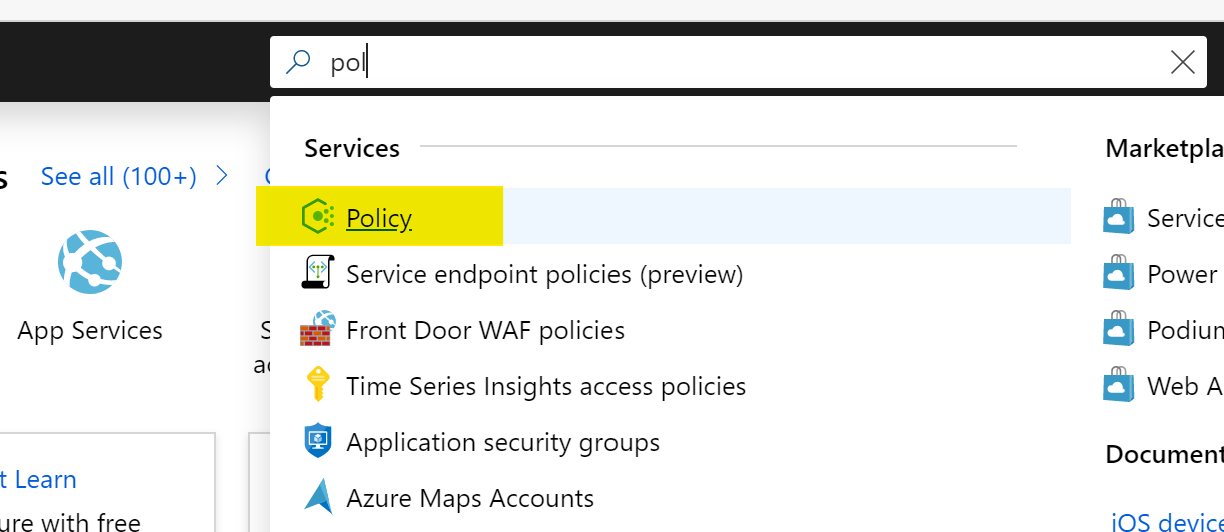
Once you’ve logged in to the Azure Portal, make your way to the Azure Policy service, I normally use the search bar as below as it’s quick!

Once you’re on the Overview blade, a handy option for your first time is to click the Getting Started option. This details the steps to take and we’re going to start by browsing default Definitions so click that View Definitions option as below:

This will bring you to the Definitions blade. You will see a lot of built-in policies. To simplify things, click the search bar and enter “not allowed”, this will bring up the Definition we will use, then go ahead and click on the Policy name “Not allowed resource types” as below:

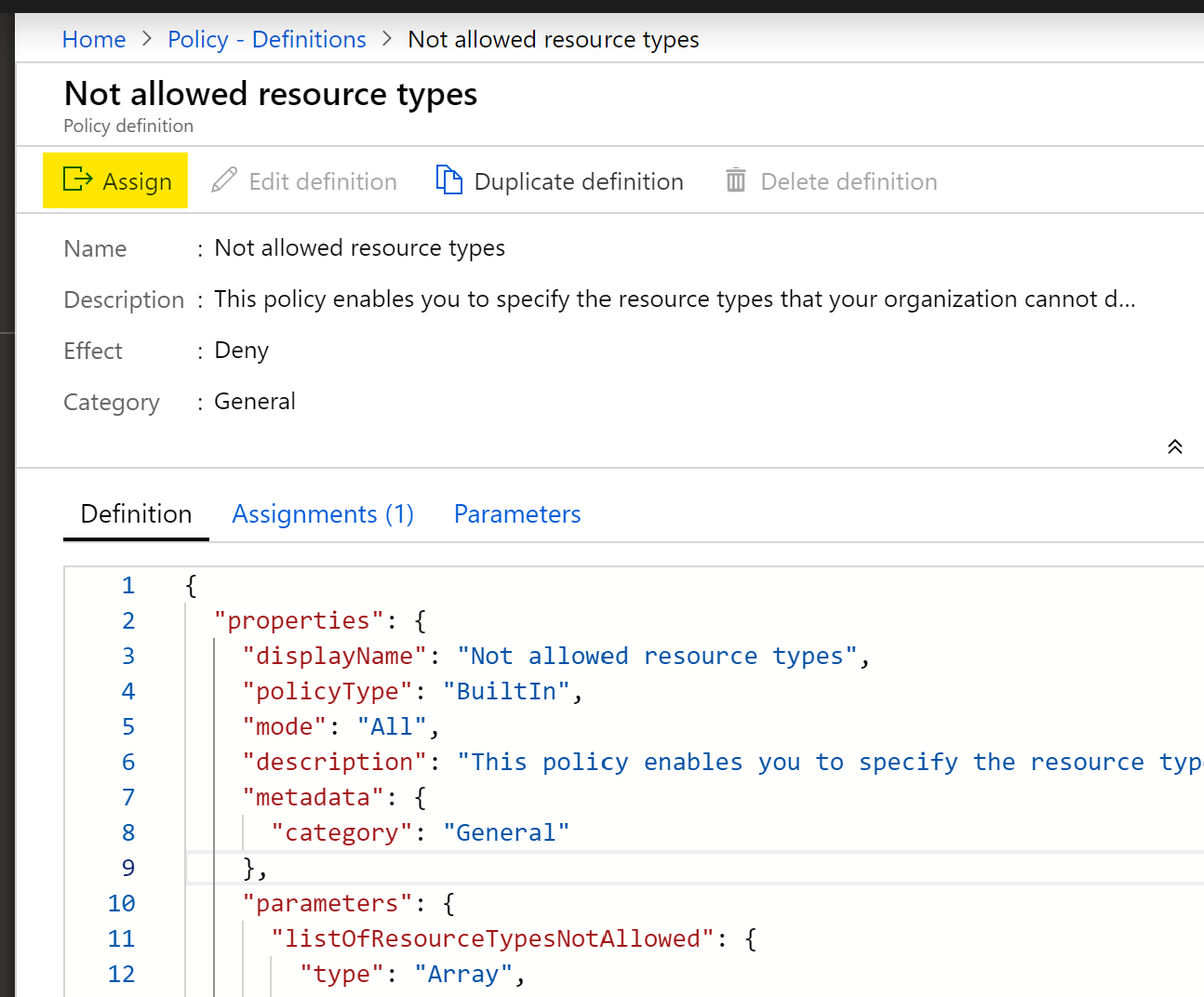
You’re now in the Definition page, where you can see the exact structure in JSON format. We’re going to jump straight to Assignment from here by clicking “Assign” as below:

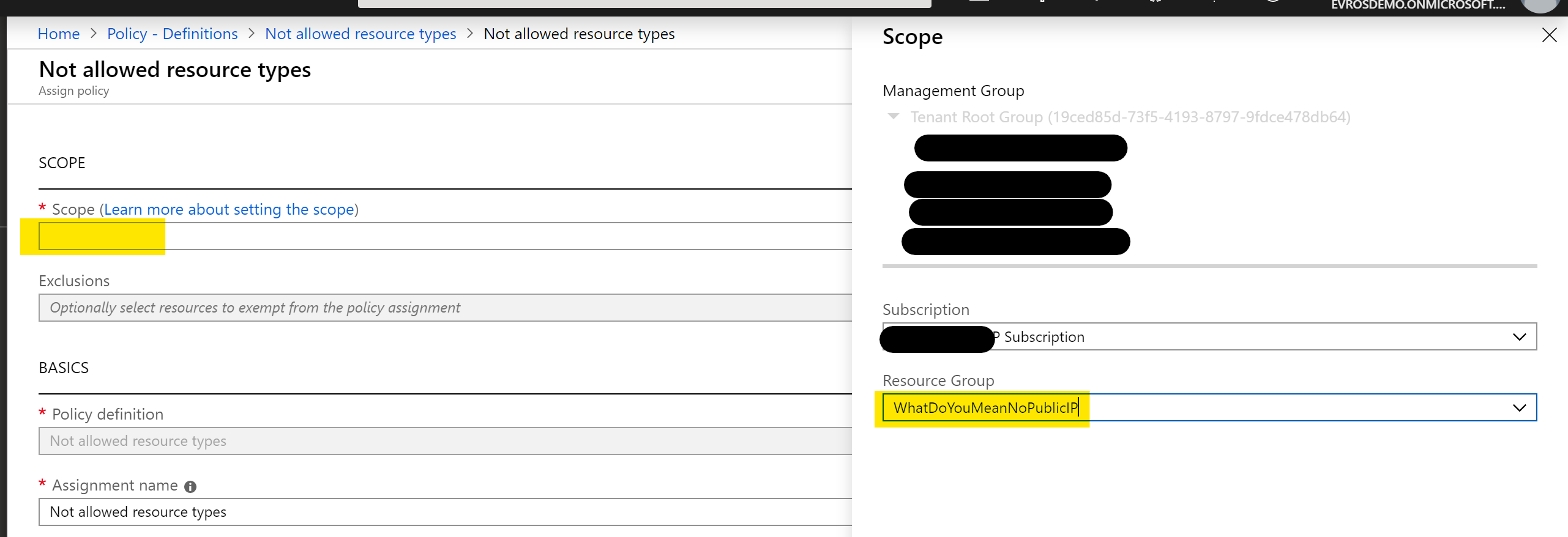
This will bring you the assignment blade. Our first step is to set a scope. I’m going to go ahead and choose my Subscription and a Resource Group, then click “Select” as below:

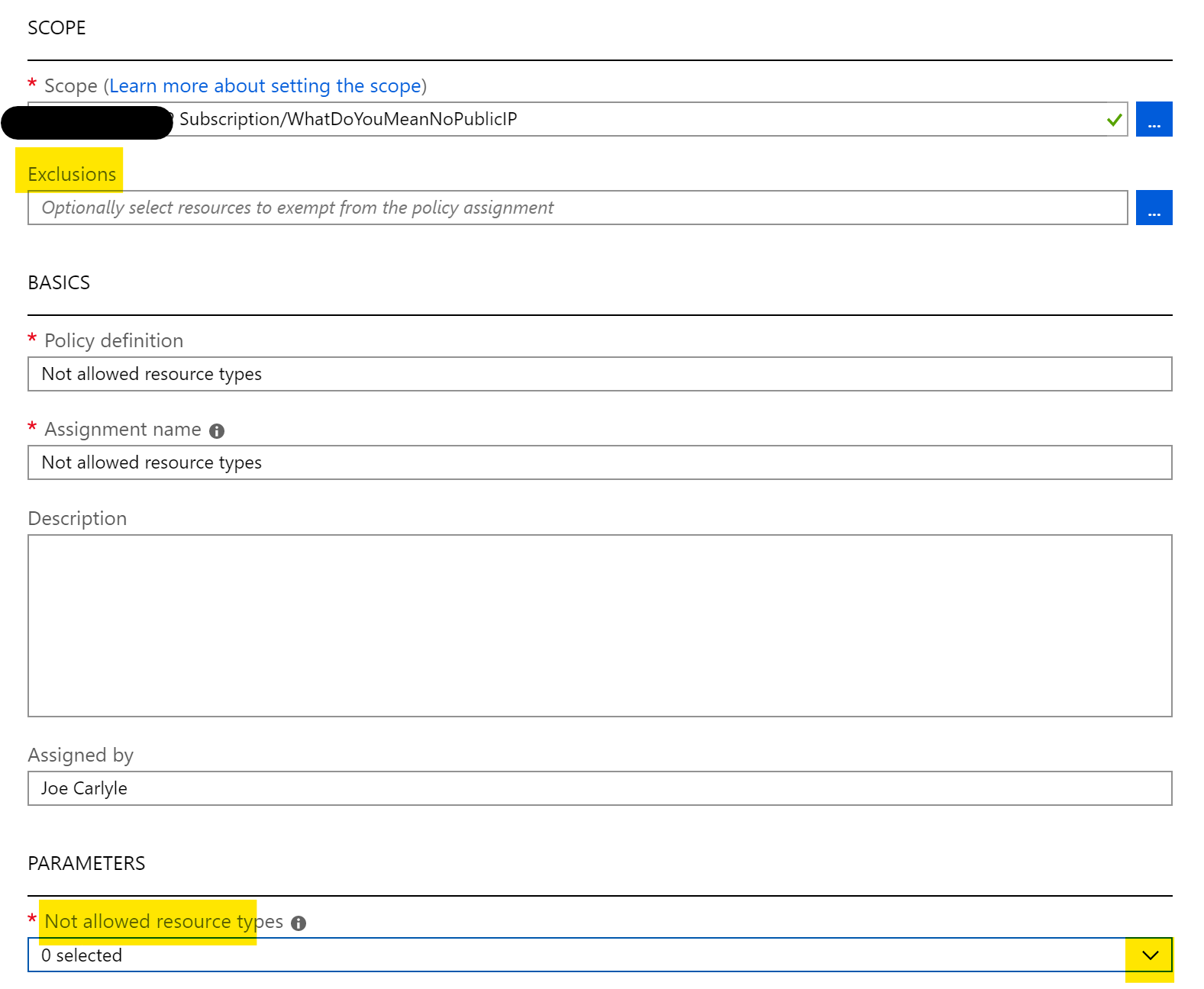
We’re going to leave most of the settings as they are, but you can where you can set Exclusions below. We’re going to click the drop down arrow as highlighted:

This opens a huge list of resource providers and types. Thankfully, there is a search bar, so type in “public” to narrow the list and tick the checkbox for Microsoft.Network/publicIPAddresses, then click away from the list as below:

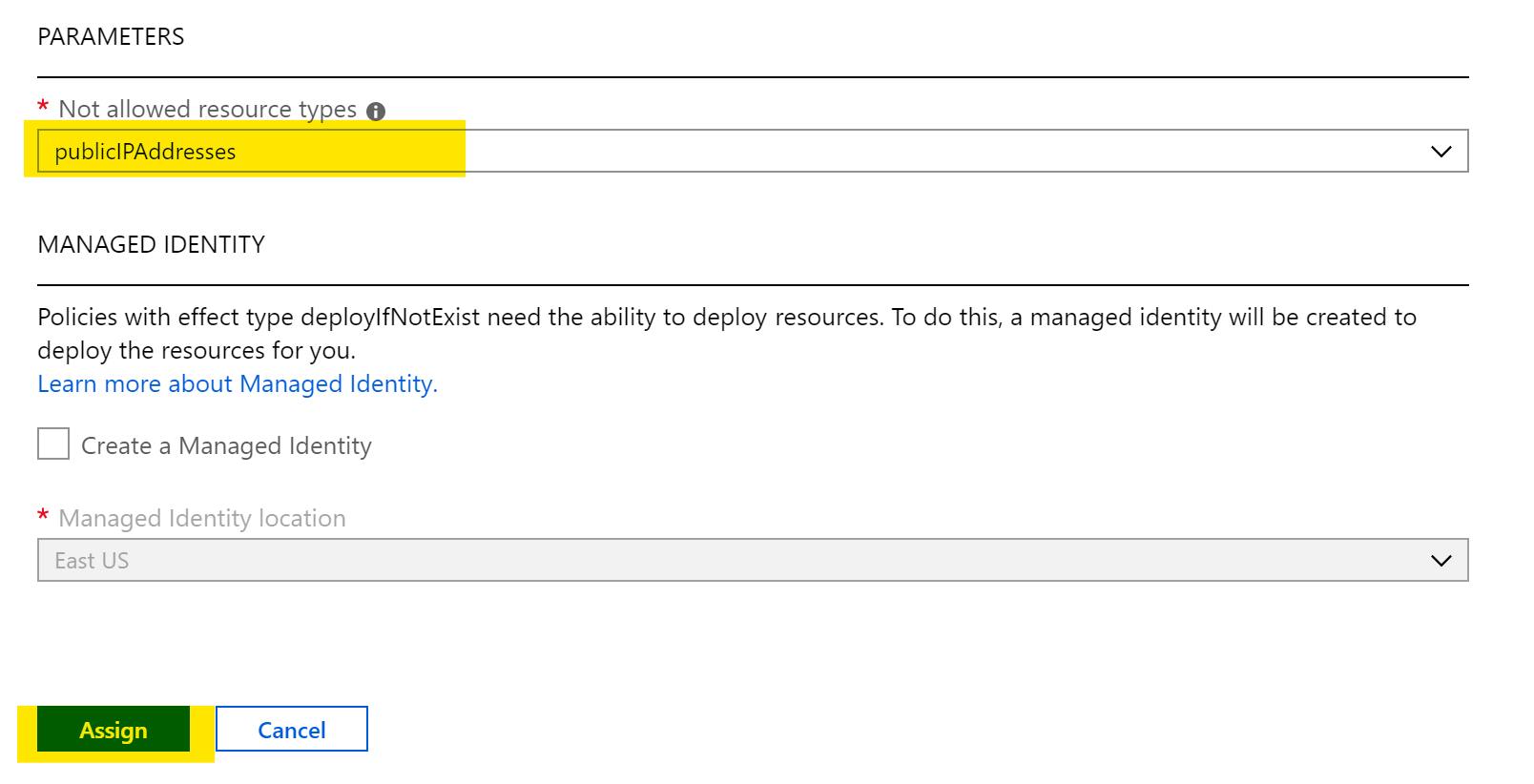
We’re almost there! You can see that publicIPAddresses are now defined as a parameter. So click the blue “Assign” button as below:

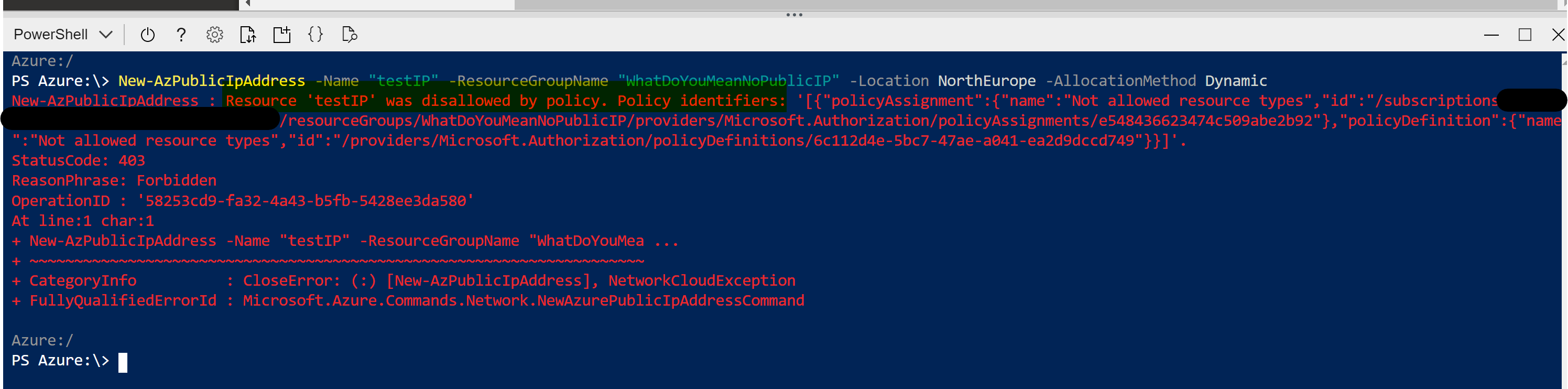
Now your policy is assigned, we need to give it a couple of minutes to propagate. Now, when I try to create a Public IP resource in my scoped Resource Group (I’ve used POSH in Cloudshell, but deployment method doesn’t matter) I’m told I cannot as it’s disallowed by policy:

You’ve now successfully applied your first Azure Policy! As you can see, even though this is a single Definition it is still very powerful. Your options to layer Definitions and apply custom ones allow for full control of your environment with very little effort. Azure Policy should be high on your list of priorities for your Azure deployments.

As always, if there are any questions, please get in touch!

What are Azure Blueprints?

I’m sure most of you have seen recent announcements relative to Blueprints as well as multiple Microsoft posts about the service and what it can do to improve your environments. However, what if you’re not sure about what they are and if they are usable for your environment? Hopefully, that’s where this post comes in. I’m going to explain exactly what they are and why you might use an Azure Blueprint. This should allow you to make a decision on whether you need them or not.

Following on from that, I think that’s the first basic point about Azure Blueprints. Similar to several other new services in Azure, the functionality is great and could help progress a lot of environments, but that doesn’t mean they help, or are even useful in a lot of other environments. Never feel guilt-ed into using a new service because there is a “buzz” about it at launch. Assess the service, understand it, assess it’s usability versus your requirements then TEST TEST TEST! Don’t forget, Blueprints are still in preview so no production workloads yet.

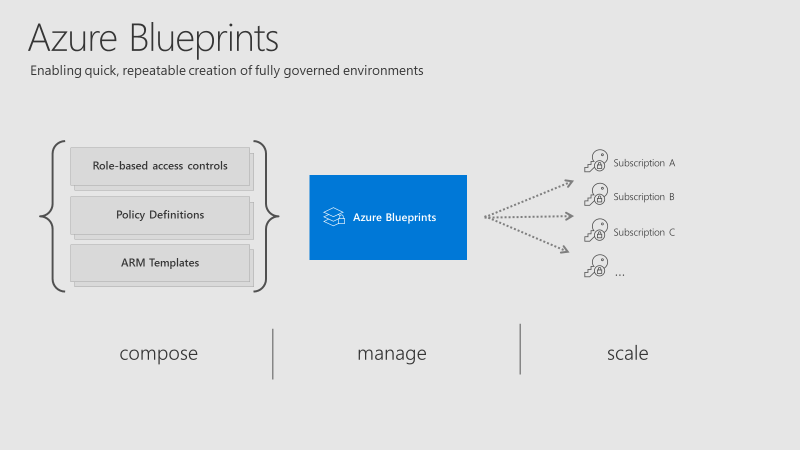
So, what is an Azure Blueprint? To try explain it plainly, it is a collection of governance and resource services, defined in such a way to allow you to repeat deployments to a set standard.

Azure Blueprints overview

The collection of governance and resource services within a Blueprint are referred to as Artifacts. Within each Blueprint, you can make use of any combination of the following:

ResourceHierarchy optionsDescription
Resource GroupsSubscriptionCreate a new resource group for use by other artifacts within the blueprint. This enables you to organize resources and provides a scope for other artifacts.
Azure Resource Manager templateSubscription, Resource Group
Templates are used to create resources. This could range from individual deployments to entire environments.
Policy AssignmentSubscription, Resource GroupAllows assignment of a policy or initiative to the subscription and/or resource group the blueprint is assigned to. Any
parameters are assigned at creation of the blueprint or during blueprint assignment.
Role AssignmentSubscription, Resource GroupRole assignments can be defined for the entire subscription or nested to a specific resource group included in the blueprint.

As you can see above, artifacts can be deployed/assigned at different levels. However, the Blueprint itself must be located in either a subscription you have at least Contributor access to or a Management Group. If located within a Management Group the Blueprint is available to any of the child subscriptions of that group.

When defining your Blueprint, several artifact options allow you to choose parameters that are passed from Blueprint to artifact. For example, when defining a Resource Group, you can choose to specify the name and location. You don’t have to specify these parameters within the Blueprint, you can also allow these to be passed when the Blueprint is assigned.

Once you have your Blueprint defined, your next step is to publish it. When publishing, you must indicate a version. I found it odd that this isn’t restricted in some way, you can literally name one version “1.0” and the next “B” so I’d recommend adding notes with each version and try to stick to a pattern. However, it makes sense if you’re going to use different versions for different assignments (I’ll explain that next), so choose relative to your requirements.

When your Blueprint is published, you can then assign it. A nice feature is the ability to assign different versions of a Blueprint to different subscriptions. For example you could have two versions of a Blueprint, that have different artifact definitions (think test version and production version) assigned to different subscriptions. They can be independently updated too.

At assignment, there are some options to chose as well as subscription. They are Resource Locking and Managed Identity.

For Managed Identity, it’s recommended you simply choose System Assigned as the Blueprints service will then manage the security lifecycle. More on Managed Identities to help you understand and choose what’s right for your environment.

The Resource Locking feature really allows you to maintain control of your governed deployment. If you’re not familiar with Resource Locks, check out this post. The familiar status applies to resources deployed by a Blueprint assignment:

  • Not locked
  • Read Only
  • Cannot delete

However, once a status is applied, not even a user/object with the Owner role can modify it. This is due to how these statuses are applied. An RBAC deny assignments deny action is applied to artifact resources during assignment of a blueprint if the assignment selected the Read Only or Do Not Delete option. The deny action is added by the managed identity of the blueprint assignment and can only be removed from the artifact resources by the same managed identity.

So, how do you edit or delete your resources? Update your Blueprint to “Not locked” and push the update to the relevant assignment. This method prevents unwanted and unexpected changes occurring outside of the scope of the Blueprint.

There is quite a learning curve for Blueprints I think as they combine several other services you must be familiar with, so for me, you have to start there. Understand each of the artifacts fully so you can see how they may work well if defined in your environment.

Recently, sample Blueprints have been released to allow you to deploy governed pre-designed environments with a couple of clicks, one sample is the ISO27001 Shared Services which I think is good to help understand the service, even if it might be slightly complex for your first test.

Again, Blueprints are still in Preview. So be as cautious as always with your production environments. I look forward to seeing what changes come with GA, which shouldn’t be much longer considering Blueprints were announced back at Ignite. I will update this post relevant to GA when it happens.

As always, if you have questions, leave a comment, mail me, or ping me on Twitter!