

Ever since the change to Azure Firewall Policy from classic rules, there has been a requirement and a want to have greater inspection capabilities with regard to your Azure Firewall Policies (AFPs). Depending on your environment, you might have several, or several hundred AFPs in place, securing your Azure footprint. Regardless, analytics of these policies is crucial.
With the increasing adoption of cloud workloads, and as workloads move to the cloud, network security policies like AFPs must evolve and adapt to the changing demands of the infrastructure, which can be updated multiple times a week, which can make it challenging for IT security teams to optimise rules.
Optimisation while at least retaining, if not increasing security, is key objective with AFP Analytics. As the number of network and application rules grow over time, they can become suboptimal, resulting in degraded firewall performance and security. Any update to policies can be risky and potentially impact production workloads, causing outages, unknown impact and ultimately – downtime. We’d like to avoid all of that if possible!
AFP Analytics offers the ability to analyse and inspect your traffic, right down to a single rule. Several elements are enabled without action, however, I would recommend enabling the full feature set, which is a simple task. Open the AFP you’d like to enable it for, and follow the steps linked here.
Once enabled, AFP Analytics starts to fully inspect your Policy and the traffic passing through it. My demo Azure Firewall, currently looks fantastic, as nothing is happening 🙂
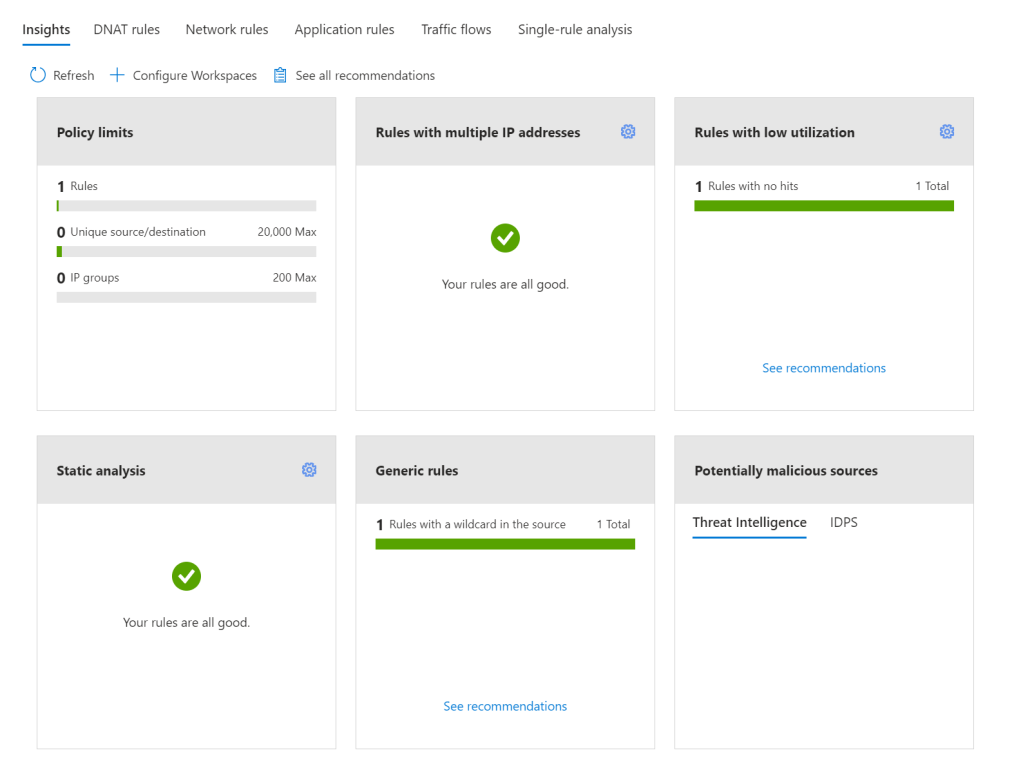
There are several key features to make use of with AFP Analytics, Microsoft list them as follows:
- Policy insight panel: Aggregates insights and highlights relevant policy information. (this is the graphic above)
- Rule analytics: Analyses existing DNAT, Network, and Application rules to identify rules with low utilization or rules with low usage in a specific time window.
- Traffic flow analysis: Maps traffic flow to rules by identifying top traffic flows and enabling an integrated experience.
- Single Rule analysis: Analyzes a single rule to learn what traffic hits that rule to refine the access it provides and improve the overall security posture.
Now I view all of these as useful. I can see the purpose and I can see myself using them regularly. However, I was most excited about – Single Rule Analysis – that was, until I went to test and demo it.
I created a straight forward Application rule, a couple of web categories allowed on HTTPS. I enabled Analytics, sat back for a bit, got a coffee (it recommends 60 minutes due to how logs are aggregated in the back end) and then tried it out. To my disappointment, I was met with the below:
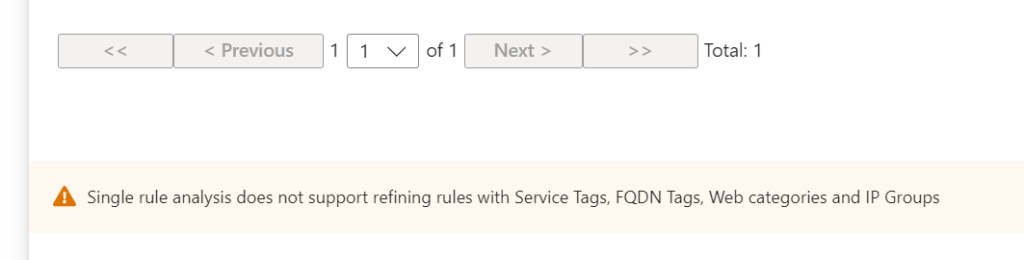
Tags and categories I could initially understand, but IP Groups confused me. I thought, this is a core feature, why not allow analysis when this is in scope – then I realised; the analysis is aiming to optimise the rule. AFP views rules using these as fairly spot on already. So, I decide to create a stupid rule (in my opinion). Allowing TCP:443 from around 20 IPs to around 10 IPs. First up, my Insight Panel flagged it

Next, Single Rule Analysis and…success, it dislikes the rule! It summarises it, and flags the aspects it does not feel are optimal. I did expect the recommendation to be to delete the rule, as you can see it is flagging there is no traffic matching the rule, but perhaps the caution here is in combination with the rule and data in place for the last 30 days, or lack thereof.

I can see this feature being really powerful in a busy production environment. There are some more scenarios listed on Microsoft’s blog announcement of GA earlier in the year too, if you’d like to check them out.
A final note. While you might think that it’s only the Log Analytics element you have to pay for to make use of AFP Analytics, you would be wrong. There is a charge for the enablement, analysis, and insight components. These price in at around €225/month, billed hourly. So double check your budget before enabling on every AFP.
As always, if you have any questions, please just ping me!

 wedoAzure