How to – Implement Good Design Using Azure Architecture Center

Cloud platforms like Azure make designing solutions as efficient as possible. Whether it’s a serverless application or a chunky virtual datacenter, you can get up and running in no time. This however, has both positives and negatives. The negatives often being that this level of pace can mean bad design decisions are made.

Bad design doesn’t always happen due to pace either. Sometimes it is as simple as a solution evolving from proof-of-concept directly to production. We have all seen it happen! This means the correct resiliency, governance and performance criteria are often missed.

To avoid both of the above scenarios, my advice is to shift your thinking when it comes to Azure projects/solutions. Be prepared to spend 80% of your time on design. Delivery, as we already said can be lightning quick, there are few barriers to an efficiently delivered solution if designed correctly.

Thankfully, Microsoft offer an entire site worth of content to help with all of this. The Architecture Center is your first stop for all things design within Azure. Here you will find application architecture guides, cloud adoption frameworks and reference architectures for all of the common scenarios seen in Azure.

I am going to briefly look at three sections that can help with all of your deployments:

Best Practices – Naming Convention

This section covers exactly what you would expect. However, naming conventions are not as easily implemented in Azure as you might expect. One key point being, you cannot rename resources. Therefore, get your naming convention agreed upon and stick to it! https://docs.microsoft.com/en-us/azure/architecture/best-practices/naming-conventions

Application Architecture – Choosing Compute

Did you know there are three tiers of compute in Azure?

  1. IaaS – traditional VMs
  2. PaaS – managed hosting
  3. FaaS – ignore hosting, just code

Offering an excellent design-tree, you can understand quickly what decision could be the right fit for your solution then explore in more depth.

https://docs.microsoft.com/en-us/azure/architecture/guide/technology-choices/compute-overview

Reference Architecture – Serverless Web App

One of my favourite sections, covering multiple scenarios. Each offering best practise design and decision points regarding availability, security and scalability. Some cases also offer reference implementations on Github, meaning you can deploy right away.

https://docs.microsoft.com/en-us/azure/architecture/reference-architectures/serverless/web-app

So what are you waiting for? Head to the Architecture Center and start designing your next deployment with more confidence right now!

How to – Connect to an Azure VM

If you’ve just created your first Azure VM and are struggling to connect to it, this post should offer some help. I’ll cover connecting to both a Windows VM and a Linux VM, so RDP and SSH.

Connect to a Linux VM in Azure

To connect over SSH, you’ll need a client. A commonly used client is Putty, but you can use whichever you like. The first step is to know the details of your VM that are required to make a connection. When you built your VM, you would have created an administrator username and either a password or SSH key, ensure you have those to hand.

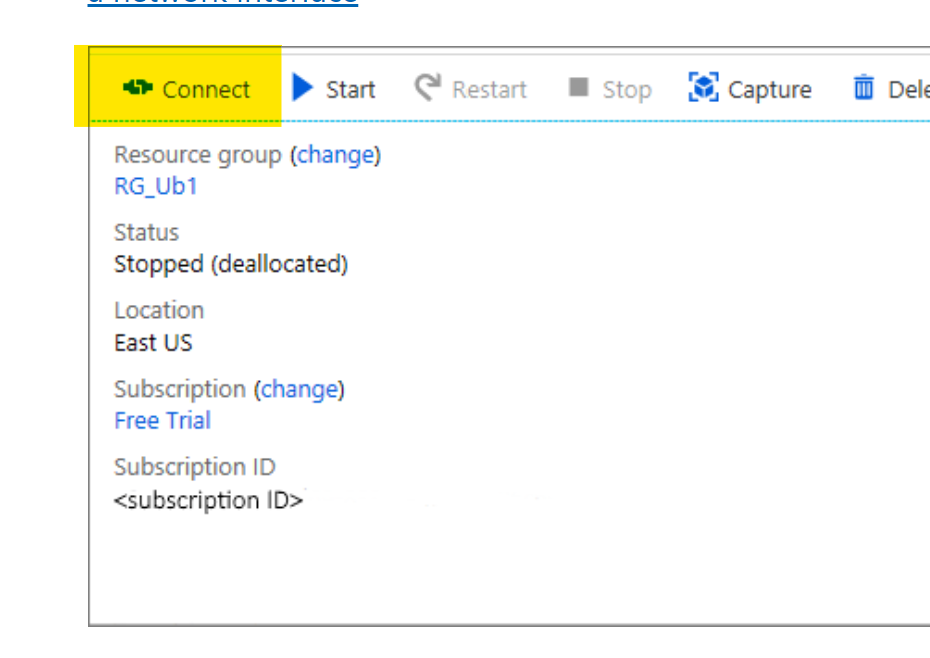
Next, you will need the IP or DNS name of the VM to connect to it. You can get this via the Azure Portal. If you click on the VM you want to connect to, it will by default open the Overview blade. From here, you will be able to copy the IP or DNS as required.

VM Overview settings

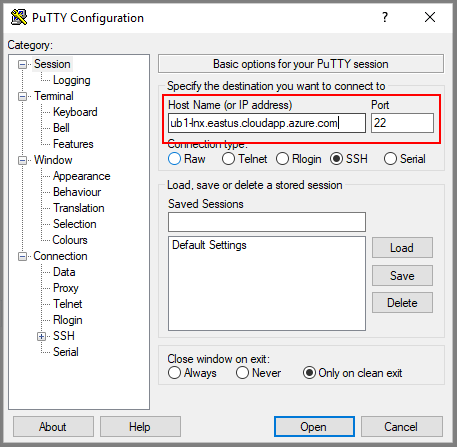
Then, using Putty, or a similar client, you can use that IP or DNS name, and port 22, to access SSH

PuTTY terminal settings

Once your session opens, you’ll be prompted for the credentials mentioned earlier.

Connect to a Windows VM in Azure

To connect via RDP, you’ll need to be using a machine that has an RDP client. This comes built into Windows. Next, you need to know the details of your VM that are required to make a connection. When you built your VM, you would have created an administrator username and a password, ensure you have those to hand.

Next, login to the Azure Portal, click the VM you want to connect to. This will open the Overview blade. From here you can click the Connect button. This will generate an RDP file for you to download and use.

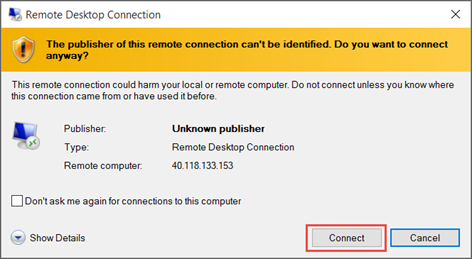
Open the RDP file once downloaded. You may see some warnings relative to certificates, these can be ignored. Click connect.

Screenshot of a warning about an unknown publisher.

You will be prompted for credentials, these are the credentials as mentioned earlier. Once entered, you may see some warnings relative to certificates, these can be ignored.

Troubleshooting

If you’re having problems establishing a connection to your VM, first check if there is an NSG assigned to the VM or subnet the VM resides in. If there is, this NSG will require a rule to allow RDP/SSH access. By default, all connections via Public IP are blocked.

How to – Find your Azure Tenant ID

Before you can start with Azure, you need an Azure Subscription. Each and every Azure Subscription must be associated with an Azure AD Tenant. This is sometimes referred to as a directory.

For those who have Office 365, one would have been created for you automatically as part of your deployment. If you don’t have/use Office 365, then a tenant can be created as part of the process required to sign up for an Azure Subscription.

All Azure AD tenants have a naming format as follows: %uniquestring%.onmicrosoft.com e.g. contoso.onmicrosoft.com

However, for several services you may need to use the unique ID rather than the name. Here is how to find it.

1. Log into Azure AD via the Azure Portal, here is a direct link to the Azure AD blade

2. Once on the Azure AD blade, scroll down and click on the Properties option

3. This opens a new blade, which gives you all the specific details relevant to your tenant. Right in the middle is your tenant ID, there is a copy button to the right.

How to – Resize an Azure VM

When using VMs in Azure, one of the important things to get right is the sizing. Azure offers several VM series and multiple sizes within each that have fixed allocations of resource such as vCPU and RAM. There are also speciality series that offer additional capabilites like vGPU. Below is a table that covers the majority of series available and their recommended purpose.

There are many reasons you may need to resize a VM, but this post is about how to do it, rather than why. A quick tip, make sure you check out Azure Advisor for some help with this! Regardless of if you run a Windows VM or a Linux VM the below steps are accurate.

The first thing to note, you can resize a VM using any of the ARM tools you like. Such as CLI, Templates etc. However, for this post, I’m going to explain how to do it via the Portal. I would recommend that if you are new to Azure, this is also where you start, until you are familiar with the series and sizes as well as their respective costs.

Azure VMs are deployed on physical servers within an Azure datacenter. These servers are grouped together into hardware clusters. By design, each cluster does not support all VM series that are available. So if you are currently running a DSv3 series you may not be able to resize to a different series, such as an NCv2 immediately. You will however, always be able to resize within your current series.

Basic steps to resize

  • Login to the Azure Portal
  • Select the VM you need to resize
  • Click the Size option under Settings
  • Click the size you would like
  • Click Resize

NOTE: Your VM will need to restart, be wary of Dynamic Public IPs – the Portal should flag this.

Some things to note with the above process, when the VM is active and you click on Size, you will be displayed with a table of series and size currently available in the active cluster, as mentioned earlier. So for my VM, when active I see the below screengrab, note the highlighted number of sizes available.

If I Stop my VM before choosing the Size blade, I am now given the option to choose from the entire range available in the current region. Again note the highlighted number available in the below screengrab.

So, as I am sure you’ve guessed, to resize to any series VM, you must first Stop your VM. This ensure that the VM instance can be moved to a different hardware cluster when it’s started. Changing to a different series obviously takes slightly longer as you have to Stop your VM first etc. However, there is nothing else you have to do for this change.

Hopefully this post has helped understand how to resize and some of the series options you may need to address.

As always, if there are any questions please get in touch!