How to – Control VM SKUs with Azure Policy and Bicep

Updated: March 2024 – repo link now fully working!

A common Azure Policy requirement for many tenants that deal with Virtual Machine infrastructure, is to restrict the sizes that are allowed to be used for deployment. This can be for several reasons, below are some of the most common:

  • Cost prevention – remove high cost VM SKUs
  • Alignment – align to existing SKUs for reservation flexibility
  • Governance – align to a governance policy of VM family (e.g. AMD only)

For anyone who has created a Policy like this in the past, the experience is quite straight forward. Azure provides an out-of-the-box template, you simply have to pick which VM SKUs are allowed from a drop down. However, several years ago this was straight forward. Pick X SKUs from about 100 SKUs. This list has grown exponentially, and only continues to get larger. This makes implementing the Policy, and modifying it, exceedingly cumbersome via the Portal.

So, one technical and accurate solution is to define this Policy via code. How you manage this (i.e. deployment and repo management etc) is not for this blog post, but is achievable with this as your base Policy. Two elements are required for this to work correctly

  1. Bicep file to deploy Policy resource
  2. Parameters file for VM SKUs

Item 1 is simple, I’ve included the exact code, and will link off to a repo with all of this at the end too.

To explain the above:

  • We will pass an array of chosen VM SKUs, and the string of the built-in Policy definition.
  • We use a variable to define the Policy name.
  • We deploy a single resource object, combining these into one Policy deployment.

Now, to get to the point where this can be deployed, we need to define our list of chosen VM SKUs. But to get that, we need a list of possible VM SKUs, to then filter down from. There are a couple of ways to achieve this, but to avoid the misery of formatting a hundred or so lines, here is how I did it.

First, not all VM SKUs are possible in all regions, so this is our start point. Figure out the region(s) in scope for this Policy, and work from there. For this example I will use North Europe.

Get-AzVMSize -Location 'northeurope'

The above gets us a big long list of VM SKUs possible in North Europe via PowerShell. However, it’s a nightmare to use and format, so a small change and an export will help…

Get-AzVMSize -Location 'northeurope' | select Name | export-csv C:\folderthatexists\vmksu.csv

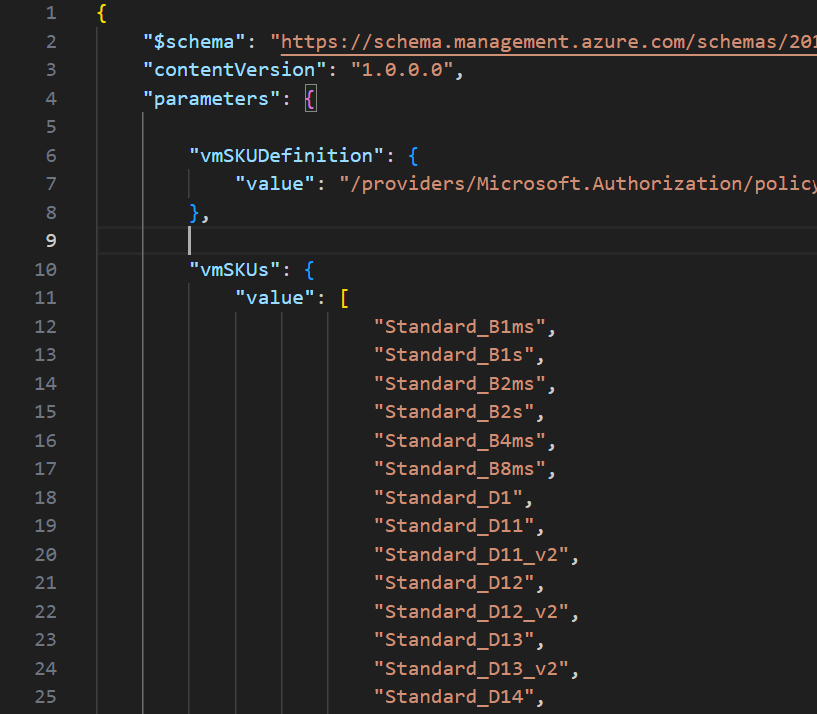
Now, that gives me a list of 500+ VMs, again not very manageable directly, but what is important, is that if you open that CSV file in VS Code, they are formatted exactly as you need for JSON parameters file! You can simply copy and paste lines needed. I found it quicker here to actually remove lines I don’t want than select those I do.

Once you have your list completed, that is now the detail we will use in the parameter file to pass our array of SKUs for deployment.
Now to deploy, simply pick your method! For this post, I am using PowerShell (as I am already logged in) and will complete a Subscription level deployment, as this is a Policy. I will pass both files as command parameters, Azure will do the rest! The below should work for you, and I will include a PS1 file in the repo too for reference, but adjust as per your files, tenant etc.

New-AzSubscriptionDeployment -Name 'az-sku-policy-deploy' -Location northeurope -TemplateFile 'C:\folderthatexists\vm-sku-policy.bicep' -TemplateParameterFile 'C:\folderthatexists\policy.parameters.json'

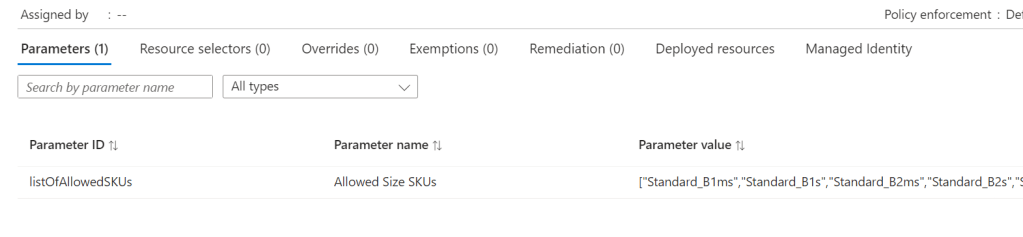
Once that runs successfully, you can verify all is correct via Portal too. Again, as this is Bicep, you can run this over and over and it will simply update the Policy if there are changes. Meaning all it requires is an update of your VM SKU parameters to add or remove VMs from being allowed.
And that’s it! As promised, here is a repo with the files for reference. Please note – as always, all code is provided for reference only and should not be used on your environment without full understanding and testing. I cannot take responsibility for your environment and use of code. Please do reach out if you have questions.

Exploring: Microsoft Copilot for Azure

Recently, I was lucky enough to gain access to Microsoft Copilot for Azure as part of a limited preview. For anyone who missed the announcement at Ignite, here is what Microsoft describe it as:

Microsoft Copilot for Azure (preview) is an AI-powered tool to help you do more with Azure. With Microsoft Copilot for Azure (preview), you can gain new insights, discover more benefits of the cloud, and orchestrate across both cloud and edge. Copilot leverages Large Language Models (LLMs), the Azure control plane, and insights about your Azure environment to help you work more efficiently.

So – what does that mean in practice? For me, this means reading the docs, then getting stuck into actually trying elements of this out. To be transparent, I had low expectations for this service. I am not 100% sure whether it is aimed at me, or someone with less Azure experience. I was also conscious that this is the limited preview I am working with, so there will be some oddities.

First up, the integration into the Portal UX – I like it. It’s simple, and consistent. As it is a tenant level service, it stays in place as you jump around the Portal from a Subscription to a Resource to Entra ID for example.

Next, what can I use this for that is quicker than me doing this myself? I will be honest, I struggled a bit here. This is for two reasons. One, this is enabled in my MVP tenant, so I have very little Production or day-to-day work to be done. Two, I was looking for something interesting rather than ‘tell me how to build a VM’.

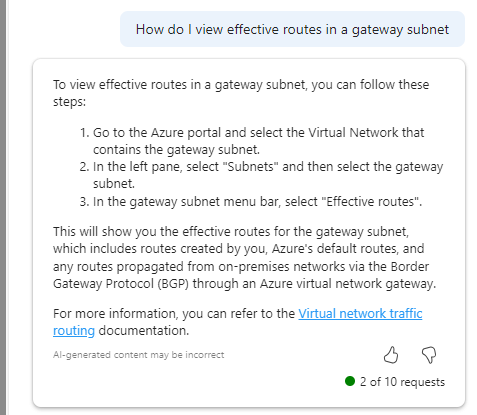
So, I started with a question I know the answer to, but anyone who follows #AzNet knows we are all dying for progress on…

Imagine my surprise with how confident that response is! OH MY GOD I FOUND A THING. Well no, it doesn’t work. And I have no idea what it means in Step 3. If you find out – please let me, Aidan and Karl know, thanks 🙂 But I do like that it attempts to back up its answer with links to documentation.

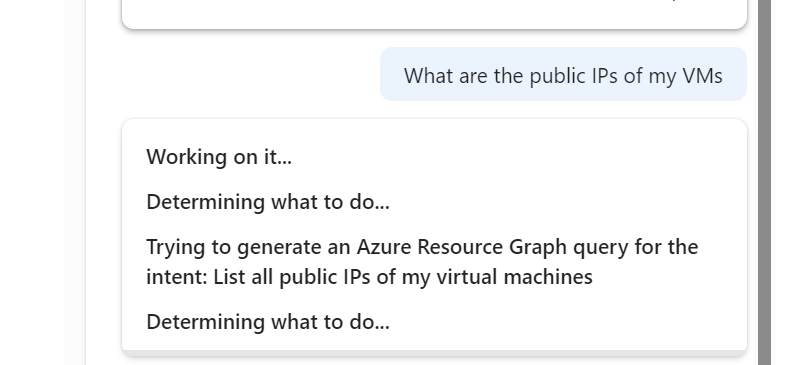
As you make requests, it dynamically updates the text to tell you what it is ‘thinking’ which I really like.

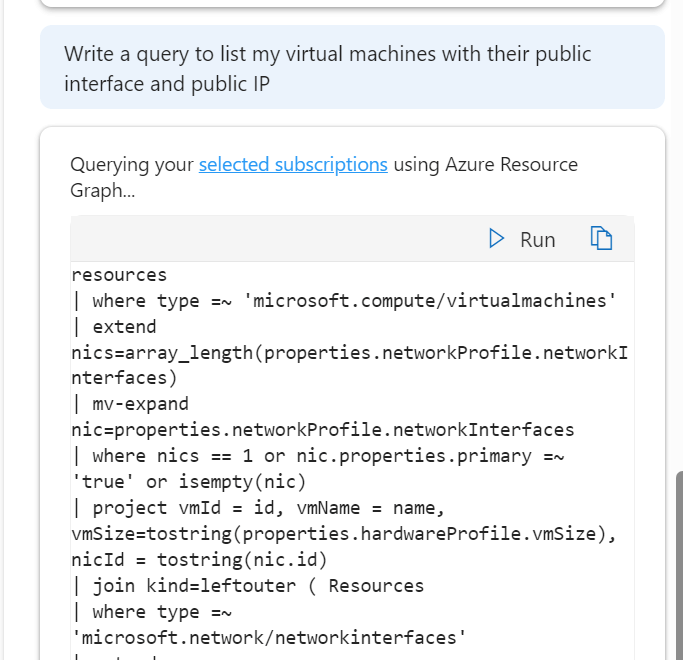
And that ability to write queries, is a real winner for me. saves a lot of time, but you need to be quite specific with the ask and detail, but that’s no real surprise at this stage.

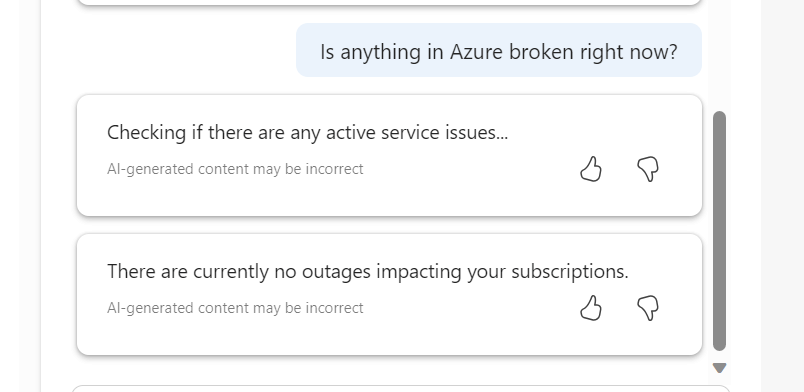
I do like its ability to take quite a non specific question and offer a decent and useful output in response

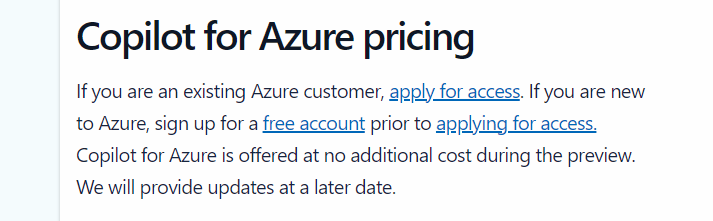
However, I am finding myself trying to find things for it to do. This is OK during preview, where there is no additional cost, however, it’s not clear on what pricing will actually be just yet, vague language on the landing site makes me think this will be charged for

Overall, I think it’s a welcome addition to the AI assistant space from Microsoft. I think those of us working with Azure would feel quite left behind otherwise. But I do think that as the platform is so vast and as each environment is unique, the core use case for different people will vary and that could significantly impact whether this is used widely or not. Having said that, I am looking forward to how this progresses, and more people having access can only mean improvements.

What are – Microsoft Applied Skills

Last month, Microsoft introduced a new method of verifying your capabilities when it comes to Microsoft technology, Applied Skills. Critically, Applied Skills is focused on verifying hands-on experience. See the blog post announcement here.

Not long after the change from MCSA/MCSE to Role Based Certifications a few years ago, a section of questions based on a lab environment was introduced. This didn’t last very long, and had several teething issues. However, I was a fan of the attempt. As a result, I am delighted to see something similar being reintroduced. Funnily enough, I also like the fact that you can gain an Applied Skill credential from home, open book. We all work in an open book where Google/Bing etc are our sidekicks in sanity checking an error, ensuring that setting/parameter is as you remember it or looking up something new. It doesn’t take away from the experience needed to work with the technology.

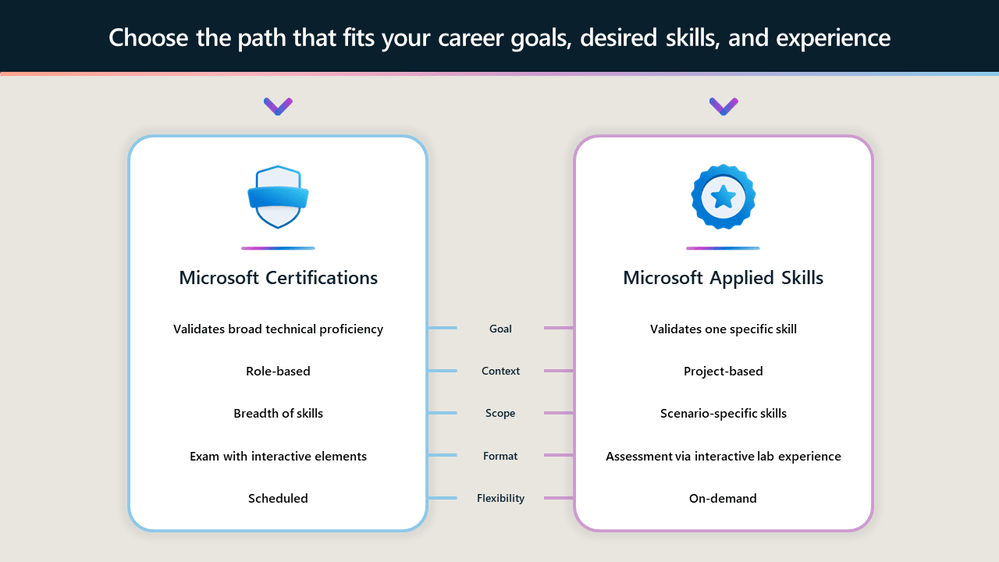
I also like that Microsoft Learn are presenting this as a parallel, somewhat complimentary channel to Certifications. And of course, I love that they are online verifiable so that they can form part of your CV/resume. And to be honest, as someone who works with many technical peers on my team, while I know that credentials like this do not guarantee someone is good at the job or has the exact correct experience, I am at the point where if someone is good at their job and does have the skills, it is more odd to me that they haven’t simply passed all the relevant exams – it’s easy, no?

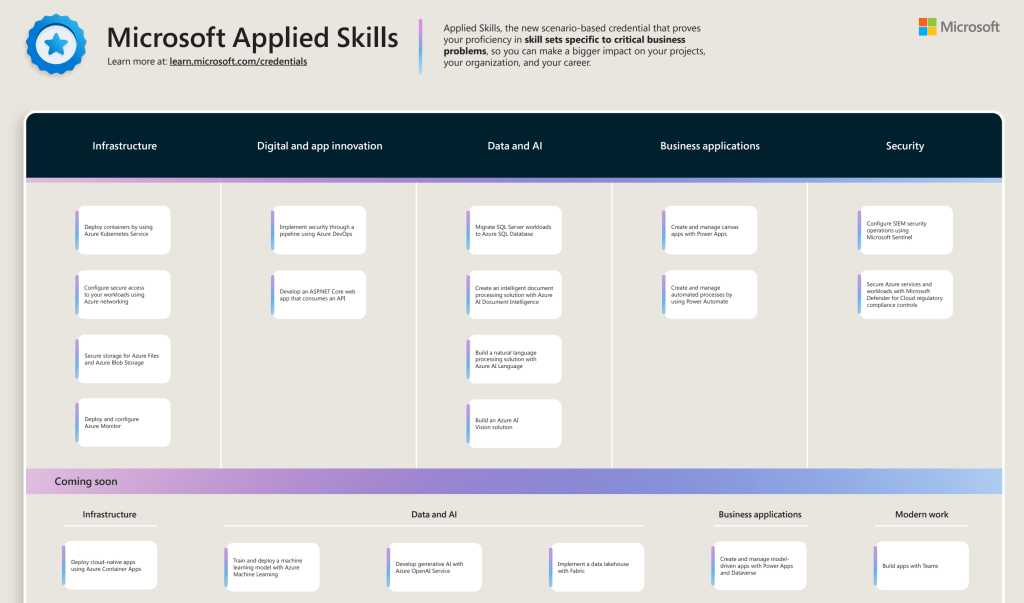
At launch there were several Applied Skills to achieve, at Ignite last week, several more were added, and there are more to come. The below is the current poster advertising what’s possible across pillars

Let’s start with some simple advice – When I first saw this launch, I was excited and clicked through to the secure networking skill (#AzNet all the way people) using my phone, while sitting on my couch. This loaded the assessment window and launched the lab – of which I could see nothing. The screen is far too small to function, and I really wasn’t paying proper attention. However, even without doing anything and simply exiting, it counted as an attempt, and I couldn’t retry for 72 hours. Don’t repeat my mistake, use a computer!

Ok, the assessment/lab itself – I liked it. In fact, I don’t think I could fault it. It loaded quickly, instructions are clear, results are immediate. My only gripe to date is that the results aren’t detailed enough. I was a few points shy of perfect for the secure networking skill (when I sat it properly 🙂 ) and the results are all green ticks, so I have no idea which element was incorrect, or if I missed something. Once loaded, you have a full two hours to complete the assessment, which may seem like a lot, but not if you’re not prepared. I’ve sat several of these now, and what you are being asked to do ranges from simple configuration tick boxes, to complex, layered implementation. The complex tasks ask for a simple result, you need to know how to get there. Without experience, you will struggle to figure this out via Google within your time window, so do the prep work! I found this out personally when I had to figure out some Python for the Document Intelligence assessment, but thankfully I still passed.

As someone who sees great value in having these available, free, to everyone, I think this is an excellent addition to Microsoft Learn. I’ve sat and passed four so far, and intend to continue with the areas I already know and expand into those that I don’t. I also intend to continue to sit new exams and renew all of my Certifications as well. One thing with Microsoft, and specifically Azure – never stop learning!

What is – Azure Firewall Policy Analytics

Ever since the change to Azure Firewall Policy from classic rules, there has been a requirement and a want to have greater inspection capabilities with regard to your Azure Firewall Policies (AFPs). Depending on your environment, you might have several, or several hundred AFPs in place, securing your Azure footprint. Regardless, analytics of these policies is crucial.

With the increasing adoption of cloud workloads, and as workloads move to the cloud, network security policies like AFPs must evolve and adapt to the changing demands of the infrastructure, which can be updated multiple times a week, which can make it challenging for IT security teams to optimise rules.

Optimisation while at least retaining, if not increasing security, is key objective with AFP Analytics. As the number of network and application rules grow over time, they can become suboptimal, resulting in degraded firewall performance and security. Any update to policies can be risky and potentially impact production workloads, causing outages, unknown impact and ultimately – downtime. We’d like to avoid all of that if possible!

AFP Analytics offers the ability to analyse and inspect your traffic, right down to a single rule. Several elements are enabled without action, however, I would recommend enabling the full feature set, which is a simple task. Open the AFP you’d like to enable it for, and follow the steps linked here.

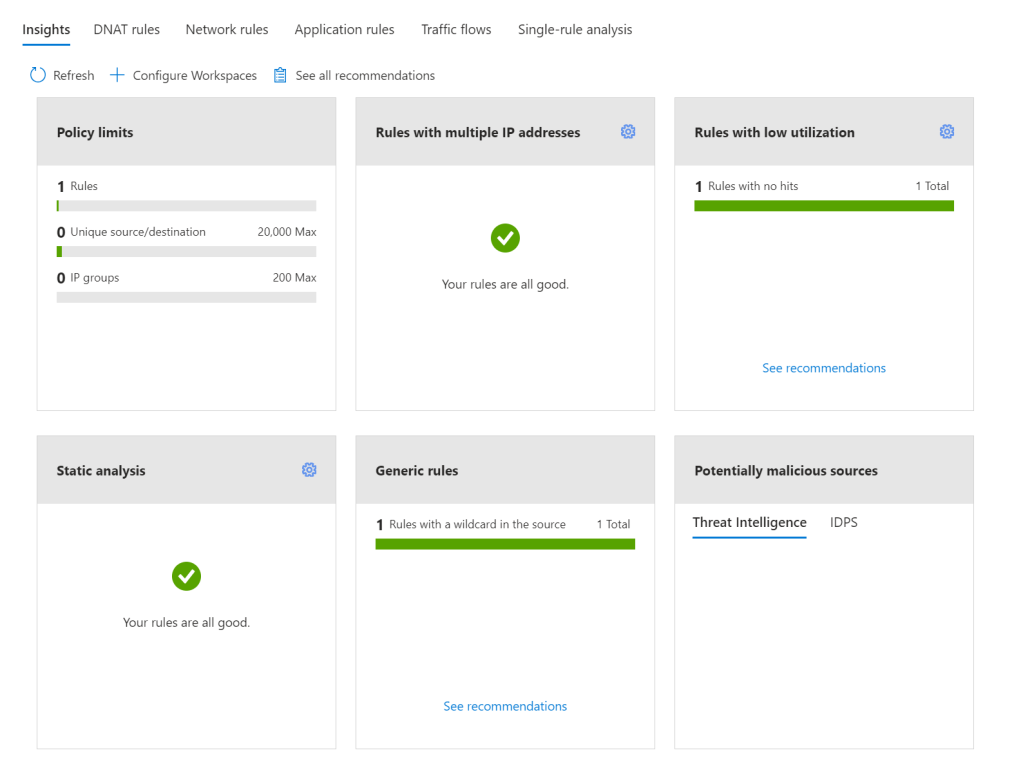
Once enabled, AFP Analytics starts to fully inspect your Policy and the traffic passing through it. My demo Azure Firewall, currently looks fantastic, as nothing is happening 🙂

AFP Analytics blade in Azure Portal

There are several key features to make use of with AFP Analytics, Microsoft list them as follows:

  • Policy insight panel: Aggregates insights and highlights relevant policy information. (this is the graphic above)
  • Rule analytics: Analyses existing DNAT, Network, and Application rules to identify rules with low utilization or rules with low usage in a specific time window.
  • Traffic flow analysis: Maps traffic flow to rules by identifying top traffic flows and enabling an integrated experience.
  • Single Rule analysis: Analyzes a single rule to learn what traffic hits that rule to refine the access it provides and improve the overall security posture.

Now I view all of these as useful. I can see the purpose and I can see myself using them regularly. However, I was most excited about – Single Rule Analysis – that was, until I went to test and demo it.

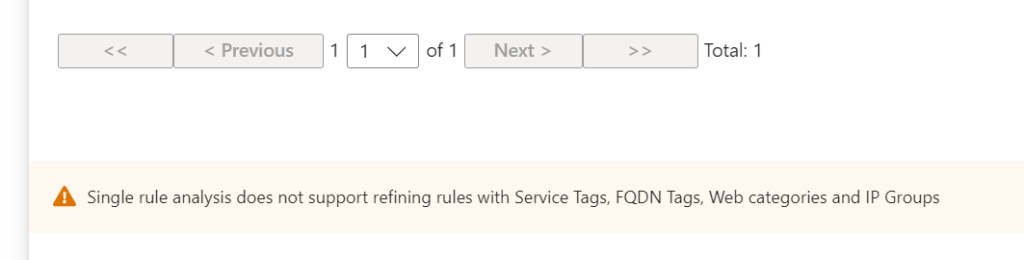
I created a straight forward Application rule, a couple of web categories allowed on HTTPS. I enabled Analytics, sat back for a bit, got a coffee (it recommends 60 minutes due to how logs are aggregated in the back end) and then tried it out. To my disappointment, I was met with the below:

Tags and categories I could initially understand, but IP Groups confused me. I thought, this is a core feature, why not allow analysis when this is in scope – then I realised; the analysis is aiming to optimise the rule. AFP views rules using these as fairly spot on already. So, I decide to create a stupid rule (in my opinion). Allowing TCP:443 from around 20 IPs to around 10 IPs. First up, my Insight Panel flagged it

Next, Single Rule Analysis and…success, it dislikes the rule! It summarises it, and flags the aspects it does not feel are optimal. I did expect the recommendation to be to delete the rule, as you can see it is flagging there is no traffic matching the rule, but perhaps the caution here is in combination with the rule and data in place for the last 30 days, or lack thereof.

I can see this feature being really powerful in a busy production environment. There are some more scenarios listed on Microsoft’s blog announcement of GA earlier in the year too, if you’d like to check them out.

A final note. While you might think that it’s only the Log Analytics element you have to pay for to make use of AFP Analytics, you would be wrong. There is a charge for the enablement, analysis, and insight components. These price in at around €225/month, billed hourly. So double check your budget before enabling on every AFP.

As always, if you have any questions, please just ping me!