How to – Implement Good Design Using Azure Architecture Center

Cloud platforms like Azure make designing solutions as efficient as possible. Whether it’s a serverless application or a chunky virtual datacenter, you can get up and running in no time. This however, has both positives and negatives. The negatives often being that this level of pace can mean bad design decisions are made.

Bad design doesn’t always happen due to pace either. Sometimes it is as simple as a solution evolving from proof-of-concept directly to production. We have all seen it happen! This means the correct resiliency, governance and performance criteria are often missed.

To avoid both of the above scenarios, my advice is to shift your thinking when it comes to Azure projects/solutions. Be prepared to spend 80% of your time on design. Delivery, as we already said can be lightning quick, there are few barriers to an efficiently delivered solution if designed correctly.

Thankfully, Microsoft offer an entire site worth of content to help with all of this. The Architecture Center is your first stop for all things design within Azure. Here you will find application architecture guides, cloud adoption frameworks and reference architectures for all of the common scenarios seen in Azure.

I am going to briefly look at three sections that can help with all of your deployments:

Best Practices – Naming Convention

This section covers exactly what you would expect. However, naming conventions are not as easily implemented in Azure as you might expect. One key point being, you cannot rename resources. Therefore, get your naming convention agreed upon and stick to it! https://docs.microsoft.com/en-us/azure/architecture/best-practices/naming-conventions

Application Architecture – Choosing Compute

Did you know there are three tiers of compute in Azure?

  1. IaaS – traditional VMs
  2. PaaS – managed hosting
  3. FaaS – ignore hosting, just code

Offering an excellent design-tree, you can understand quickly what decision could be the right fit for your solution then explore in more depth.

https://docs.microsoft.com/en-us/azure/architecture/guide/technology-choices/compute-overview

Reference Architecture – Serverless Web App

One of my favourite sections, covering multiple scenarios. Each offering best practise design and decision points regarding availability, security and scalability. Some cases also offer reference implementations on Github, meaning you can deploy right away.

https://docs.microsoft.com/en-us/azure/architecture/reference-architectures/serverless/web-app

So what are you waiting for? Head to the Architecture Center and start designing your next deployment with more confidence right now!

What is Azure B-Series Compute?

images

Back in 2017, Microsoft announced the introduction of B-Series compute. Since then, the service offering hasn’t changed a huge amount but it is one of the most consistently misunderstood VM SKUs available.

Part of this is how they are displayed on the portal. Classed alongside the D series as “General purpose” but with a much more attractive price point, the B-Series appears to be a winner for all your workloads.

B and D series in VM size selector

Comparing a B2ms and a D2s_V3, there is a clear saving oper month regardless of your consumption offer. You can see they have the same amount of vCPU and RAM. Which is the most common deciding factor when sizing a VM. However, the B-Series has some unique features.

The B-series VMs are designed to offer “burstable” performance. They leverage flexible CPU usage, suitable for workloads that will run for a long time using as small a fraction of the CPU performance as possible and then spike to needing the full performance of the CPU due to incoming traffic or required work.

There are currently 10 different SKUs available, although not in all regions. yet. I’ve listed the current specs as available below:

SizevCPUMemory: GiBTemp storage (SSD) GiBBase CPU Perf of VMMax CPU Perf of VMInitial CreditsCredits banked / hourMax Banked Credits
Standard_B1ls110.545%100%30372
Standard_B1s11410%100%306144
Standard_B1ms12420%100%3012288
Standard_B2s24840%200%6024576
Standard_B2ms281660%200%6036864
Standard_B4ms4163290%400%120541296
Standard_B8ms83264135%800%240811944
Standard_B12ms 124896202%1200%3601212909
Standard_B16ms 1664128270%1600%4801623888
Standard_B20ms 2080160337%2000%6002034860

So the the ability to burst sounds great for certain workloads, however, it obviously isn’t unlimited. While B-Series VMs are running in the low-points and not fully utilizing the baseline performance of the CPU, your VM instance builds up credits. When the VM has accumulated enough credit, you can burst your usage, up to 100% of the vCPU for the period of time when your application requires the higher CPU performance.

Here is a great example from Microsoft Docs of how credits are accumulated and spent.

I deploy a VM using the B1ms size for my application. This size allows my application to use up to 20% of a vCPU as my baseline, which is .2 credits per minute I can use or bank.

My application is busy at the beginning and end of my employees work day, between 7:00-9:00 AM and 4:00 – 6:00PM. During the other 20 hours of the day, my application is typically at idle, only using 10% of the vCPU. For the non-peak hours I earn 0.2 credits per minute but only consume 0.l credits per minute, so my VM will bank .1 x 60 = 6 credits per hour. For the 20 hours that I am off-peak, I will bank 120 credits.

During peak hours my application averages 60% vCPU utilization, I still earn 0.2 credits per minute but I consume 0.6 credits per minute, for a net cost of .4 credits a minute or .4 x 60 = 24 credits per hour. I have 4 hours per day of peak usage, so it costs 4 x 24 = 96 credits for my peak usage.

If I take the 120 credits I earned off-peak and subtract the 96 credits I used for my peak times, I bank an additional 24 credits per day that I can use for other bursts of activity.”

So, there was quite a bit of maths there, what are the important points?

  • Baseline vCPU performance – This dictates your earn/spend threshold so if current vCPU is under the baseline you’re increasing your credits. If it’s over, your decreasing them. If it’s the same, you will earn and spend credits at an equal rate with no change to credit balance.
  • Peak utilisation consumption – If this is not allowing you to bank credits, you will eventually end up in a situation where you cannot burst so you might need to size up your VM.
  • Automation – Doesn’t work here, you only earn credits when the VM is allocated. Re-allocating your VM will cause you to lose your credits banked and start again from the starting allocation.
  • Starter Credit – You are allocated a starting credit which is (30 x “number of cores”)

You can monitor your credit spend and usage via Azure Monitor using specific Credit metrics. This will allow you to fire metric alerts relative to your VM. Very handy if you want to make sure you’re not pushing the performance consistently by mistake and therefore burning credits accidentally.

B-series compute, once understood correctly, is a great option to maximise cost efficiency in your environment. Once you’ve mastered the different approach required, you can make significant savings with relatively little effort.

There is a Q&A on some common topics here.

What is Azure Bastion?

Microsoft released an introduction video to Azure Bastion a couple of days ago and today a new post has gone live giving us all the details of Azure Bastion in its preview state.

First up, what is a Bastion? Often referred to as a jumpbox, jumphost or bastion host, it’s a server which provides access to a private network from an external network, most commonly the Internet. As it’s exposed to potential attack, bastion hosts must be designed to minimize risk of penetration. As this connectivity function is so widely used, bastions are quite common in the majority of environments. The alternative is to increase your perimeter exposure by allowing public access to your private resources directly. Little tip from me, please don’t do this!

However, management and administration of these hosts can be a complex and time consuming task. Thankfully, Microsoft have introduced a new PaaS based service – Azure Bastion. Which allows managed, seamless access to VMs in your private network via RDP and SSH over SSL.

Azure Bastion

Azure Bastion is provisioned directly into a virtual network, which allows bastion host and integrated connectivity to all virtual machines within that vnet using RDP/SSH directly from and through your browser via the Azure Portal.

Microsoft list the following as key features available right now as part of the preview:

  • RDP and SSH from the Azure portal: Initiate RDP and SSH sessions directly in the Azure portal with a single-click seamless experience.
  • Remote session over SSL and firewall traversal for RDP/SSH: HTML5 based web clients are automatically streamed to your local device providing the RDP/SSH session over SSL on port 443. This allows easy and securely traversal of corporate firewalls.
  • No public IP required on Azure Virtual Machines: Azure Bastion opens the RDP/SSH connection to your Azure virtual machine using a private IP, limiting exposure of your infrastructure to the public Internet.
  • Simplified secure rules management: Simple one-time configuration of Network Security Groups (NSGs) to allow RDP/SSH from only Azure Bastion.
  • Increased protection against port scanning: The limited exposure of virtual machines to the public Internet will help protect against threats, such as external port scanning.
  • Hardening in one place to protect against zero-day exploits: Azure Bastion is a managed service maintained by Microsoft. It’s continuously hardened by automatically patching and keeping up to date against known vulnerabilities.

And they list the following as on the roadmap for future release:

The future brings Azure Active Directory integration, adding seamless single-sign-on capabilities using Azure Active Directory identities and Azure Multi-Factor Authentication, and effectively extending two-factor authentication to your RDP/SSH connections. We are also looking to add support for native RDP/SSH clients so that you can use your favorite client applications to securely connect to your Azure Virtual Machines using Azure Bastion, while at the same time enhance the auditing experience for RDP sessions with full session video recording.

There are a couple of things to note as the service is in preview. As always, be wary deploying for production, there is no SLA yet.

The preview is limited to the following Azure public regions:

  • West US
  • East US
  • West Europe
  • South Central US
  • Australia East
  • Japan East

You have to register the resource provider manually to make use of the preview, instructions on how to do that here.

To use the Azure Bastion service, you need the following roles:

  • Reader role on the virtual machine
  • Reader role on the NIC with private IP of the virtual machine
  • Reader role on the Azure Bastion resource

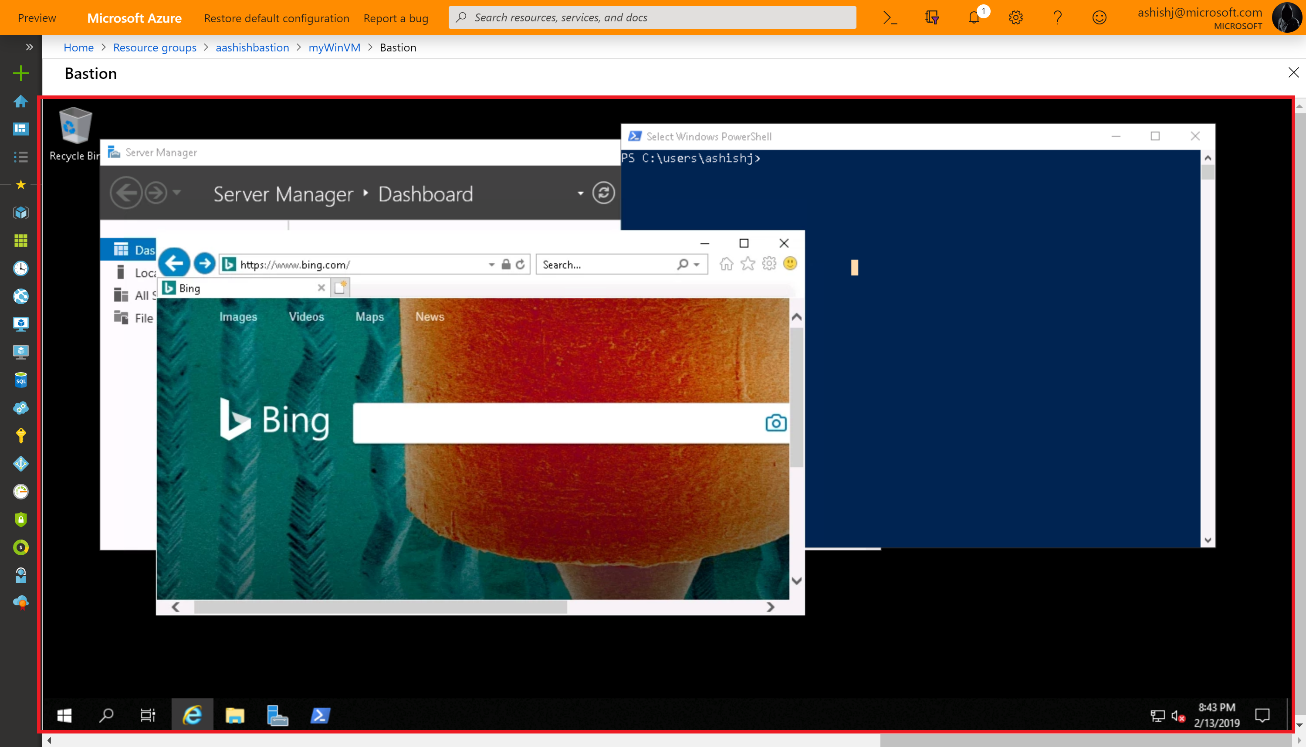
Once you’re OK with all of the above, you can simply click connect on any of your VM resources and a new Bastion tab is available. From here you can launch your session to the VM right in the browser, which is pretty slick as it provides copy and paste and full screen functionality already.

RDP via Azure Bastion within the browser

One item I noticed from the FAQ is that you may need to use the preview link to access the resource deployment blade from the portal – https://aka.ms/BastionHost

Also of note, pricing! On the FAQ it states you will be billed partially. Not 100% sure what that means, so watch those usage rates. The pricing page is live however so check it out in advance here.

What can be used for free in Azure?

When trying to decide which public cloud to use, often a key decision point is cost. Understanding these costs and how to better leverage the services available to you is a post for another day. Today we’re simply going to run through those services that are always free and highlight some great offers out there at the moment if you’re thinking of trying Azure.

First up, there are approximately 25 services that are always free in Azure. Before you get too excited, some of these are services that compliment others or the platform use itself rather than a standalone feature. However, anything free is better than nothing!

I added the listed free services below with some thoughts:

Service NameDetails
5 GB of bandwidth for outbound data transfer with free unlimited inbound transfer Fairly self-explanatory. But if your usage lines up, you could have free inbound and outbound data to Azure forever.
10 web, mobile, or API apps with Azure App Service with 1 GB storage This is a good one, the free tier can be quite slow, but free web apps!
1 million requests and 400,000 GBs of resource consumption with Azure Functions Most likely need additional resources etc to make full use of this, but a great free quota
100,000 operations for event publishing and delivery with Event Grid Same as above!
Free Azure Container service to cluster virtual machines Container service is basically deprecated now so…
50,000 stored objects with Azure Active Directory with single sign-on (SSO) for 10 apps per user Identity is important, so very handy to have that many objects but free, but check feature set in AAD Free works for you.
50,000 monthly stored users and 50,000 authentications per month with Azure Active Directory B2C Depending on your B2C requirements, 50k could be more than enough or just part of your daily active. Either way, free quota is good.
Free Azure Service Fabric to build microservice apps Helpful, but you have to pay for everything you build…
Unlimited nodes (server or platform-as-a-service instance) with Application Insights and 1 GB of telemetry data included per month As it says, can be difficult to estimate your telemetry data though, so one to keep an eye on.
First 5 users free with Azure DevOps Straight forward and good.
Unlimited use of Azure DevTest Labs Very ambiguous. You can configure it and create templates, but you pay for everything you deploy as normal.
Machine Learning with 100 modules and 1 hour per experiment with 10 GB included storage A great starter quota
Free policy assessment and recommendations with Azure Security Center Another great free addition to an overall service
Unlimited recommendations and best practices with Azure Advisor Helpful, not sure if anyone would pay for it if it wasn’t free though…
Free Azure IoT Hub edition includes 8,000 messages per day with 0.5 KB message meter size Excellent starter quota
5 free low frequency activities with Azure Data Factory Still have to pay for that DF.
50 MB storage for 10,000 hosted documents with Azure Search including 3 indexes per service Excellent starter quota
Free namespace and 1 million push notifications with Azure Notification Hubs Good service, most likely need additional paid services to get full benefit
Unlimited Azure Batch usage for job scheduling and cluster management Similar to devtest labs offer, pay for what is deployed
Free 500 minutes of job run time with Azure Automation Excellent starter quota
Unlimited users and 5,000 catalog objects with Azure Data Catalog Excellent starter quota
30,000 transactions per month processing at 20 transactions per minute with Face API Excellent starter quota
Free 2 million characters included for Translator Text API Excellent starter quota
Free 5 GB per month analysis plus 31-day retention period with Log Analytics Excellent starter quota, again watch the ingestion of data
50 virtual networks free with Azure Virtual Network Not sure what use they are without other paid services, but still free
Unlimited inbound Inter-VNet data transfer Great that it’s free, but you pay for outbound so be careful

At the moment, there is also plenty of great offers for first time sign-up that gives you free resource usage for 12 months and some monthly credit. More on those here. Some nice resources are part of that offer, including B-series VM (explainer on those) and CosmosDB.

Of course, with anything free, please be careful and double check your usage so you’re not surprised with a crazy bill. Better to know after an hour or two than a whole month!

AZ-103: Microsoft Azure Administrator – Study Guide

Microsoft recently made a change to the certification path to earn your Microsoft Certified: Azure Administrator Associate. Gone is the requirement to pass two exams, instead the content has been collated and a single new exam is now required. Here is what Microsoft have to say:

This new exam combines the skills covered in AZ-100 and AZ-101 (which retired on May 1, 2019), with the majority of the new exam coming from AZ-100. Candidates for this exam are Azure Administrators who manage cloud services that span storage, security, networking, and compute cloud capabilities. Candidates have a deep understanding of each service across the full IT lifecycle, and take requests for infrastructure services, applications, and environments. They make recommendations on services to use for optimal performance and scale, as well as provision, size, monitor, and adjust resources as appropriate. Candidates for this exam should have proficiency in using PowerShell, the Command Line Interface, Azure Portal, ARM templates, operating systems, virtualization, cloud infrastructure, storage structures, and networking.

Below I’ve put together a collection of links relevant to the sections highlighted as being part of the skills measured for this exam. As always, these are only guide links, sometimes you need to explore a topic much more deeply if you are not familiar with it. Hopefully these study materials will help guide you to successfully passing AZ-103!

If you spot something, or have a better link for a topic, get in touch! I will update this post regularly as I work my way towards taking this exam and appreciate any feedback.

A good place to start is Microsoft Learn. there are several interactive learning paths that are free that you can work through at your own pace. I find this a great way to study and gain greater understanding of the services by actually using them.

Manage Azure Subscriptions and Resources

Manage Azure subscriptions

Analyze resource utilization and consumption

Manage resource groups

Managed role based access control (RBAC)

Implement and Manage Storage

Create and configure storage accounts

Import and export data to Azure

Configure Azure files

Implement Azure backup

Deploy and Manage Virtual Machines (VMs)

Create and configure a VM for Windows and Linux

Manage Azure VM

Automate deployment of VMs

Manage VM backups

Configure and Manage Virtual Networks

Create connectivity between virtual networks

Implement and manage virtual networking

Configure name resolution

Create and configure a Network Security Group (NSG)

Implement Azure load balancer

Monitor and troubleshoot virtual networking

Integrate on premises network with Azure virtual network

Manage Identities

Manage Azure Active Directory (AD)

Implement and manage hybrid identities

Manage Azure AD objects (users, groups, and devices)

Implement multi-factor authentication (MFA)