Azure Compute Updates at Ignite

If you thought there were a lot of networking updates at Microsoft Ignite, you won’t believe how many there were when it comes to Azure Compute. Here I will try to round-up those I am most excited about. Some of the features announced have been on a wish list of mine for quite a while…I’m looking at you Managed Disks!

First up, several new VM sizes have been announced. The ND and NV series has been updated in preview. This series offers powerful GPU capabilities and is now running cutting edge tech from NVIDIA.

HPC can often have several blockers on-premise but is easily workable in Azure, building on this, Microsoft have added two new ranges to the H series offering. HB an HC series will be in preview before the end of the year. These allow for staggering amounts of compute power and bandwidth.

Storage is sometimes overlooked when considering VM performance, that is something Microsoft are attempting to correct with the announcement of Ultra-SSD Managed Disks in preview. These disks will offer sub-millisecond latency, and can hit up to 160,000 iOPS on a single disk. There were no typos there, fastest disks available in any cloud.

Standard SSDs and larger sizes across the board were also announced. This allows greater flexibility in performance and cost management when designing and deploying solutions.

As mentioned earlier, my wish list item, Managed Disks can now be moved between resource groups and subscriptions. This finally allows better management and flexibility with deployments. This update allows you to also move managed images and snapshots. We had access to the private preview of this functionality and it works exactly as expected.

Not directly Compute, but important in relation to it is the announcement of Windows Virtual Desktop. Azure is already the only cloud where you can run Windows 10 workloads and this service is going to improve on the deployment and management of them. Essentially, Azure will run the RDS Gateway and Broker service for you. You will have full control and responsibility of the infrastructure this will connect too and which applications and desktops are presented. We’ve chatted to the Product Team here at Ignite and they are excited for people to get their hands on the preview and really test it out. My favourite piece of functionality is that the service will be agent-less when using Windows 10 to connect which should make deployment and adoption as painless as possible for admins!

Finally, to encourage older workload migration, Microsoft announced that if you migrate Windows Server or SQL Server 2008/R2 to Azure, you will get three years of free extended security updates on those systems. This could save you some money when Windows Server and SQL Server 2008/ R2 end of support (EOS).

So many announcements, so little time. Expect more detailed posts on most if not all of the above piece over the coming weeks and months.

Understanding Azure Reserved Virtual Machine Instances

One of the main benefits of Azure’s billing model is that it offers per minute billing. This means that if you have an application/service/environment that isn’t required 24/7 you can reduce your costs by using Automation so that you will only pay for what you consume.

However, if your environment requires you run a VM constantly, the cost can start to mount up. To help alleviate this, Microsoft offer a solution in the form of long-term fixed price Virtual Machine instances.

These Reserved Instances (RI) help save money by allowing you to pre-pay for a one-year or three-year VM size. The fact that you pay up front, allows you to make significant savings on the Pay-As-You-Go pricing.

RIexample

The most common subscription offers have the ability to purchase RIs, but there are some restrictions in terms of how it is approached. The options are the below:

  • Enterprise agreement subscriptions. To purchase reservations in an enterprise enrollment, the enterprise administrator must enable reservation purchases in the EA portal.
  • Pay-As-You-Go but you must have the “Owner” role on the subscription to buy a reservation.
  • Cloud Solution Provider subscriptions. However, the providing partner must make the purchase on behalf of the customer.

Once purchased, the discount is then applied to the resource usage that matches up with the RI capacity purchased. For example, if you purchase a one-year RI for a DS4v3 size VM, and you are using a DS4v3 the discount will apply against that usage.

A good strategy is to determine the sizing before purchasing the RI. So my advice would be to run your VMs without an RI for a few months to ensure your sizing is suitable and therefore correct. However, if this is something that is proving difficult, there is a range of flexibility offered within your RI scope.

With instance size flexibility, you don’t have to deploy the exact same VM size to get the benefit of your purchased Azure Reserved Instances (RI) as other VM sizes within the same VM group also get the RI discount. As a rough example, see the below table from the Microsoft announcement.

VM name VM group Ratios

Standard_D2s_v3

DSv3 Series

1

Standard_D4s_v3

DSv3 Series

2

Standard_D8s_v3

DSv3 Series

4

Standard_D16s_v3

DSv3 Series

8

Standard_D32s_v3

DSv3 Series

16

Standard_D64s_v3

DSv3 Series

32

This means that if you buy an RI for a D2sV3, it would cover half of an D4sV3 instance etc. More on how this can be applied and options available to you are here.

In general, I think an RI purchase is something that most deployments should be taking advantage of. Once sized correctly and with the ability to leverage flexibility, there are huge savings to be made with relatively low amounts of administrative effort.

More on how to buy an RI here

More on how the discount is applied here


Azure IAAS Disaster Recovery

The ability to recover your IAAS VMs in Azure to a different region has been a logical requirement within Azure for quite some time. Microsoft made the feature available in preview last year and this week have made it GA.

Azure DR allows you to recover your IAAS VMs in a different Azure region should their initial region become unavailable. For example, you run your workloads in North Europe, the region experiences significant downtime, you are now able to recover your workloads in West Europe.

In this post I will go through setting up an individual VM to replicate from North Europe to West. However, it’s worth pointing out that DR should be a business discussion, not just technical. All scenarios that could occur, within reason, should be discussed to decide whether DR is warranted. For example, if your business entirely relies on your premises for production, if you lose the premises, you don’t need DR as there is no production capability regardless of system recovery etc. The idea is to scope what DR actually means for your business and remember, DR is only valid if it is tested!

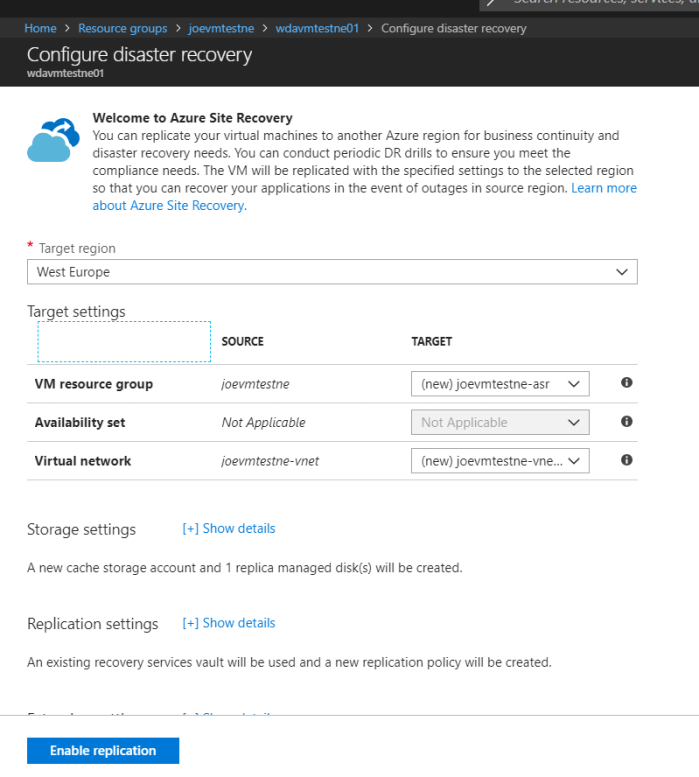
Enabling DR for a VM is straight forward. Open your VM blade and scroll down to Operations, you will see an option for Disaster Recovery

DRvmBlade

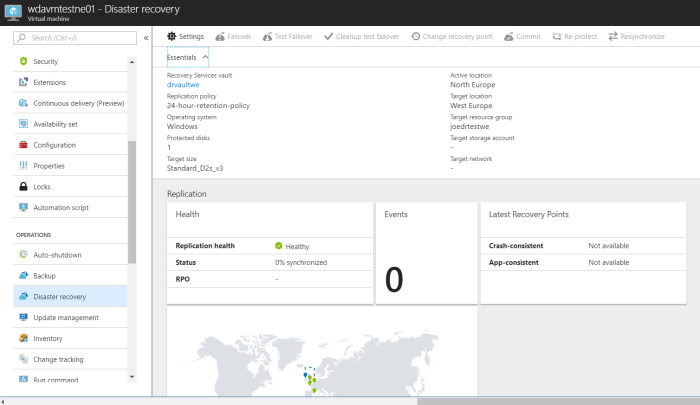
You select a Target Region that must be different from your current region, you can then choose the default settings for a POC. In my screen shot, I have created a Resource Group and Recovery Services Vault in WE already so will use those. Once submitted, replication for your VM will be enabled. You can then view the configured options:

DRvmSettings.PNG

And that’s it! Once synchronisation completes, you now have your VM protected in a different region. However, for it to be valid, you need to design and confirm your Recovery Plan then complete both a Test Failover and Complete Failover and Failback.

More reading on the overall concept and Azure-Azure DR specifics here.