Azure App Service and Windows Containers

Containerisation of applications is something that is becoming more and more common. Allowing developers to “wrap” all requirements into an individual element which the infrastructure team can then deploy where resources are available opens a door to the most modern options in application deployment and management.

Enter Azure App Service, which for years now has been removing the need for an infrastructure management layer and allowing teams to focus on deployment and performance. Traditionally, you had to deploy your apps within the allowed parameters of your App Service Plan (ASP). However, you can now run containers as part of this platform.

Combine this with a Container Registry, such as Azure Container Registry and you can deploy images within minutes. These images can then be scaled within your ASP to meet demand and can be updated as required using your current CI/CD processes.

This had been limited to Linux based containers, but Microsoft have recently announced a public preview of the ability to run Windows containers within your ASP. This is targeted towards customers interested in migrating .NET applications to Azure, and hoping to avail of a PaaS service to get the many productivity benefits such as high availability within and across Azure regions. This can also increase application redundancy options by using integrated backup/restore and app cloning options.

WebAppForContainers
Example deployment scenario

The preview capabilities are appropriate for testing and POC environments, but there are of course some limitations and preview deployments are not recommended for production workloads in any scenario.

Within the preview the following is supported:

  • Deploy containerized applications using Docker Hub, Azure Container Registry, or private registries.
  • Incrementally deploy apps into production with deployment slots and slot swaps.
  • Scale out automatically with auto-scale.
  • Enable application logs and use the App Service Log Streaming feature to see logs from your application.
  • Use PowerShell and Win-RM to remotely connect directly into your containers.

For a quick start/how-to see the following link.
First Impressions – Azure Firewall Preview

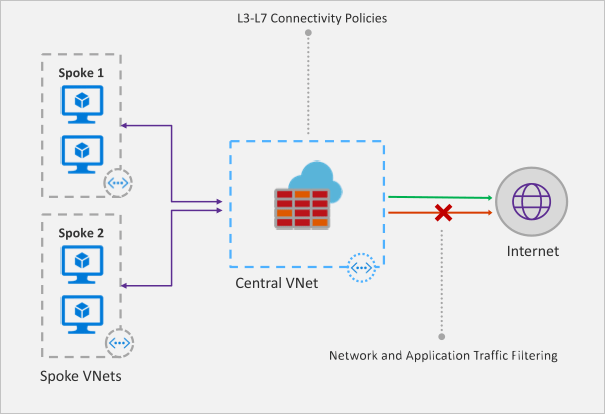
Recently Microsoft announced that a new Azure Firewall service was entering a managed public preview. Azure Firewall is a managed, network security service that protects your Azure Virtual Network resources. It is a fully stateful firewall as a service with built-in high availability and scalability.

firewall-overview.png

The services uses a static public IP meaning that your outbound traffic can be identified by third party services as/if required. Worth nothing, that only outbound rules are active within this preview. Inbound filtering will hopefully be available by GA.

The following capabilities are all available as part of the preview:

  • Stateful firewall as a Service
  • Built-in high availability with unrestricted cloud scalability
  • FQDN filtering
  • Network traffic filtering rules
  • Outbound SNAT support
  • Centrally create, enforce, and log application and network connectivity policies across Azure subscriptions and VNETs
  • Fully integrated with Azure Monitor for logging and analytics

As with all previews it should not be used for production environments, but for testing purposes this is how to register your tenant for deployment.

To enable the Azure Firewall public preview follow the guide here: Enabling the preview

Once enabled, follow this tutorial for a sample implementation: Deployment Tutorial

Now that you’re familiar with the deployment, you should apply to your specific test scenarios. Be wary of some operations that could be limited by applying a default route to your VM. There is an updated FAQ for the service here: Azure Firewall FAQ

Overall, this is a welcome addition to Azure networking. As the preview progresses and more service options are added, especially inbound options, I see this being as common as deploying an NSG in your environment. Combining it with peering and the right set of rule collections for your environment allows for an easily managed, scalable, and most importantly, secure environment within Azure with minimal cost and infrastructure footprint.

New Azure Certifications

As many of you are probably aware, there is already a Microsoft certification path for those looking for Azure skill set recognition. Recently at the Microsoft Inspire partner conference, Microsoft announced that this would be replaced.

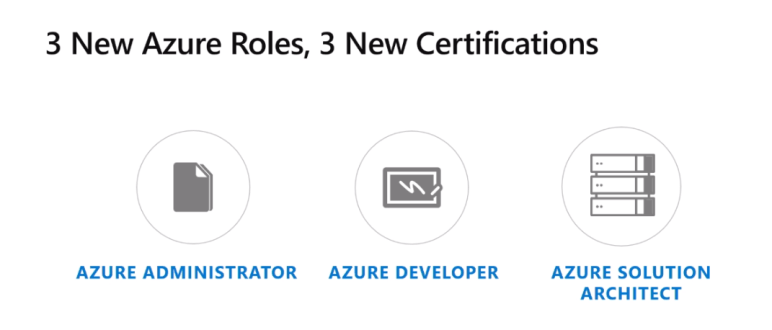
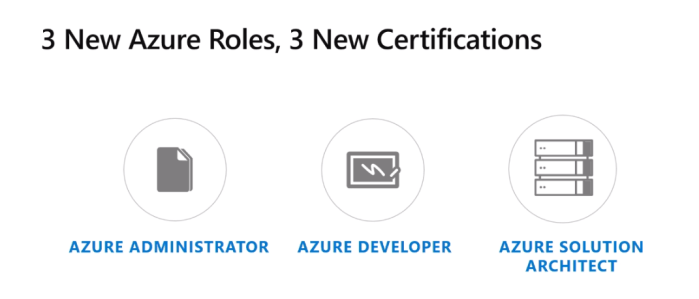
There will now be three roles defined with new qualification to earn.

  1. Azure Adminitstrator
  2. Azure Developer
  3. Azure Solutions Architect

new certs

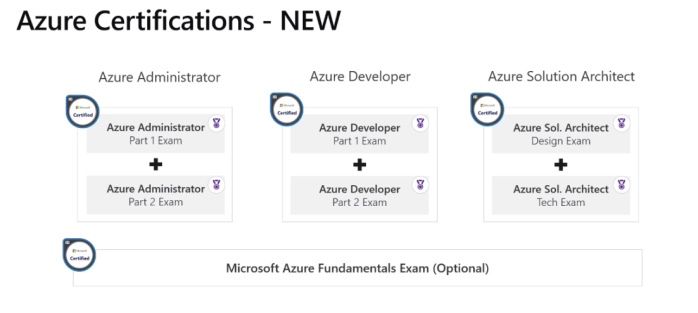
These new roles and certifications are an attempt to better line-up with industry demands and standards.

overall certs

As with most current MCSA qualifications, it will take two exams to earn a certification. The Beta exams for Azure Administrator are live right now. AZ100 and AZ101 test a broad range of skills across the Azure sphere including, Compute, Networking, Identity, Storage among others.

If you already have the previous exam, 70-533, you can take a transition exam to earn an Azure Administrator certification – AZ102. Again, this is in Beta so places are limited.

timeline

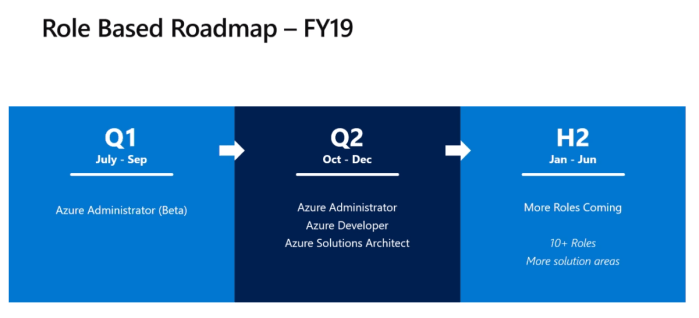
The time frame for the remaining roles and certifications was also shown, so expect a follow-up post on this later this year.

Also, thanks to Microsoft MVP Thomas Maurer, here is a link to discount codes should you wish to book any of the Beta exams. The link is the Microsoft Learning blog, so I will paste it here in full in case anyone is worried about dodgy code pages! 🙂

https://www.microsoft.com/en-us/learning/community-blog-post.aspx?BlogId=8&Id=375147

If you would like to watch the announcement in full, you can do so here – https://myinspire.microsoft.com/videos/fb7c3db2-1c65-4a69-aceb-fd06c19bf971

Securing Azure PaaS

When considering Azure as a platform, part of the conversation should revolve around transformation. That is, how do we transform our approach from what is viewed as traditional to something more modern. Often this could lead to redesigning how your application/service is deployed, but with some workflows, a simple change from IaaS to PaaS is viewed as a quick win.

This change isn’t suitable in all scenarios, but depending on your specific requirement it could allow for greater resiliency, a reduction in costs, and a simpler administration requirement. One service that is often considered is SQL. Azure has its own PaaS SQL offering which removes the need for you to manage the underlying infrastructure. That alone makes the transformation a worthy consideration.

However, what isn’t often immediately apparent to some administrators is that PaaS offerings are, by their nature, public facing. For Azure SQL to be as resilient as possible and scale responsively, it sits behind a public FQDN. Therefore, how this FQDN is secured must be taken into consideration as a priority to ensure your data is protected appropriately.

Thankfully, Azure SQL comes with a built in firewall service. Initially, all Transact-SQL access to your Azure SQL server is blocked by the firewall. To allow traffic, you must specify one or more server-level firewall rules that enable access. The firewall rules specify which IP address ranges from the Internet are allowed. There is also the ability to choose whether Azure applications can connect to your Azure SQL server.

The ability to grant access to just one of the databases within your Azure SQL server is also possible. You simply create a database-level rule for the required database. However, while this limits the traffic to specific IP ranges, the traffic still flows via the internet.

To communicate with Azure SQL privately, you will first need an Azure V-Net. Once in place, you must enable the service endpoint for Azure SQL, see here. This will allow communication directly between listed subnets within your v-net and Azure SQL via the Azure backbone. This traffic is more secure and possibly faster than via the internet.

Once your endpoint is enabled, you can then create a v-net firewall rule on Azure SQL for the subnet which had a service endpoint enabled. All endpoints within the subnet will have access to all databases. You can repeat these steps to add additional subnets. If adding your v-net replaces the previous IP rules, remember to remove them from your Azure SQL firewall rules.

Also worth noting is the option for “Allow all Azure Services”, the presumption here is that this somehow would only access from Azure Services within your subscription, but this is not the case. It means every single Azure service in all subscriptions, even mine! My recommendation is to avoid this whenever possible, however, there are some cases where this required and this access should be noted as a risk.

More on Azure SQL Firewall – https://docs.microsoft.com/en-us/azure/sql-database/sql-database-firewall-configure

More on Azure SQL with V-Nets – https://docs.microsoft.com/en-us/azure/sql-database/sql-database-vnet-service-endpoint-rule-overview


Azure IAAS Disaster Recovery

The ability to recover your IAAS VMs in Azure to a different region has been a logical requirement within Azure for quite some time. Microsoft made the feature available in preview last year and this week have made it GA.

Azure DR allows you to recover your IAAS VMs in a different Azure region should their initial region become unavailable. For example, you run your workloads in North Europe, the region experiences significant downtime, you are now able to recover your workloads in West Europe.

In this post I will go through setting up an individual VM to replicate from North Europe to West. However, it’s worth pointing out that DR should be a business discussion, not just technical. All scenarios that could occur, within reason, should be discussed to decide whether DR is warranted. For example, if your business entirely relies on your premises for production, if you lose the premises, you don’t need DR as there is no production capability regardless of system recovery etc. The idea is to scope what DR actually means for your business and remember, DR is only valid if it is tested!

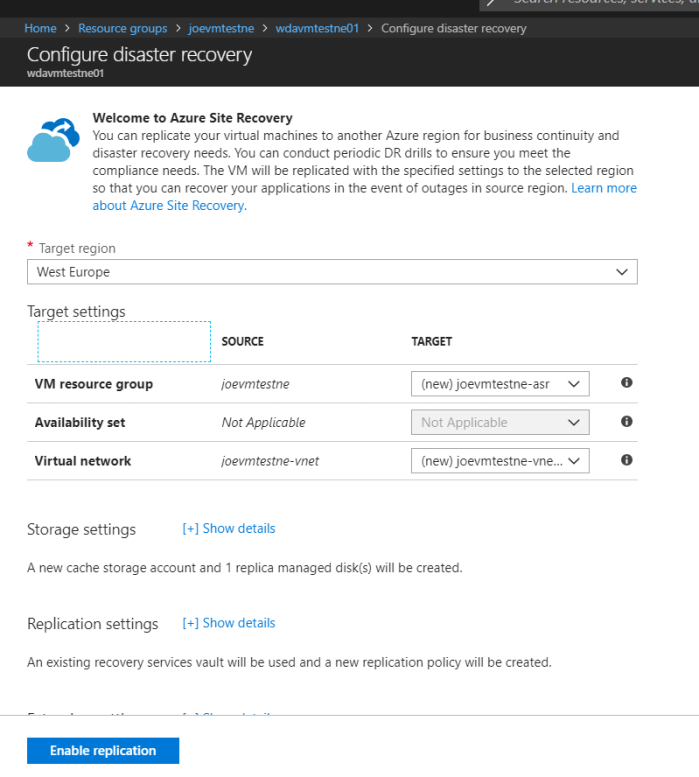
Enabling DR for a VM is straight forward. Open your VM blade and scroll down to Operations, you will see an option for Disaster Recovery

DRvmBlade

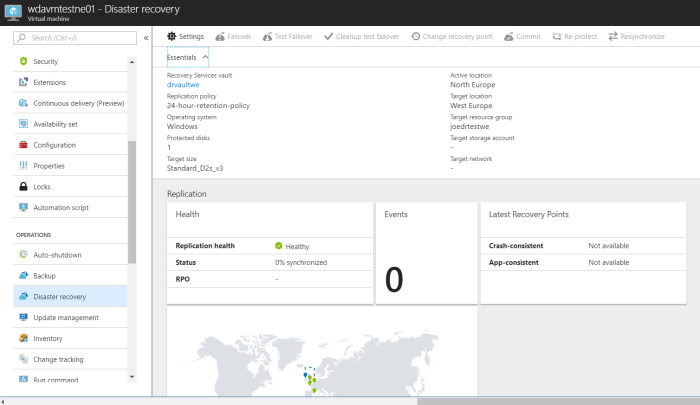
You select a Target Region that must be different from your current region, you can then choose the default settings for a POC. In my screen shot, I have created a Resource Group and Recovery Services Vault in WE already so will use those. Once submitted, replication for your VM will be enabled. You can then view the configured options:

DRvmSettings.PNG

And that’s it! Once synchronisation completes, you now have your VM protected in a different region. However, for it to be valid, you need to design and confirm your Recovery Plan then complete both a Test Failover and Complete Failover and Failback.

More reading on the overall concept and Azure-Azure DR specifics here.